> ## Documentation Index
> Fetch the complete documentation index at: https://help.kajabi.com/llms.txt
> Use this file to discover all available pages before exploring further.
# Blog overview
> Set up your Blog by configuring settings and creating your first Blog Post.
## Overview
Your Blog in Kajabi allows you to share content with your audience. Before creating posts, configure your Blog Settings and create your first Blog Post.
Your Blog Settings contain the SEO and Sharing information for your Blog homepage and all Blog Posts without individual SEO settings. [Learn to configure SEO and Sharing settings for your Blog](/articles/website/blog/how-to-configure-seo-and-sharing-settings-for-your-blog).
**Note:**
When creating Blog Posts, configure individual SEO settings for each Blog Post or it will default to the main SEO and Sharing Information configured in the Blog Settings.
## Create a Blog post
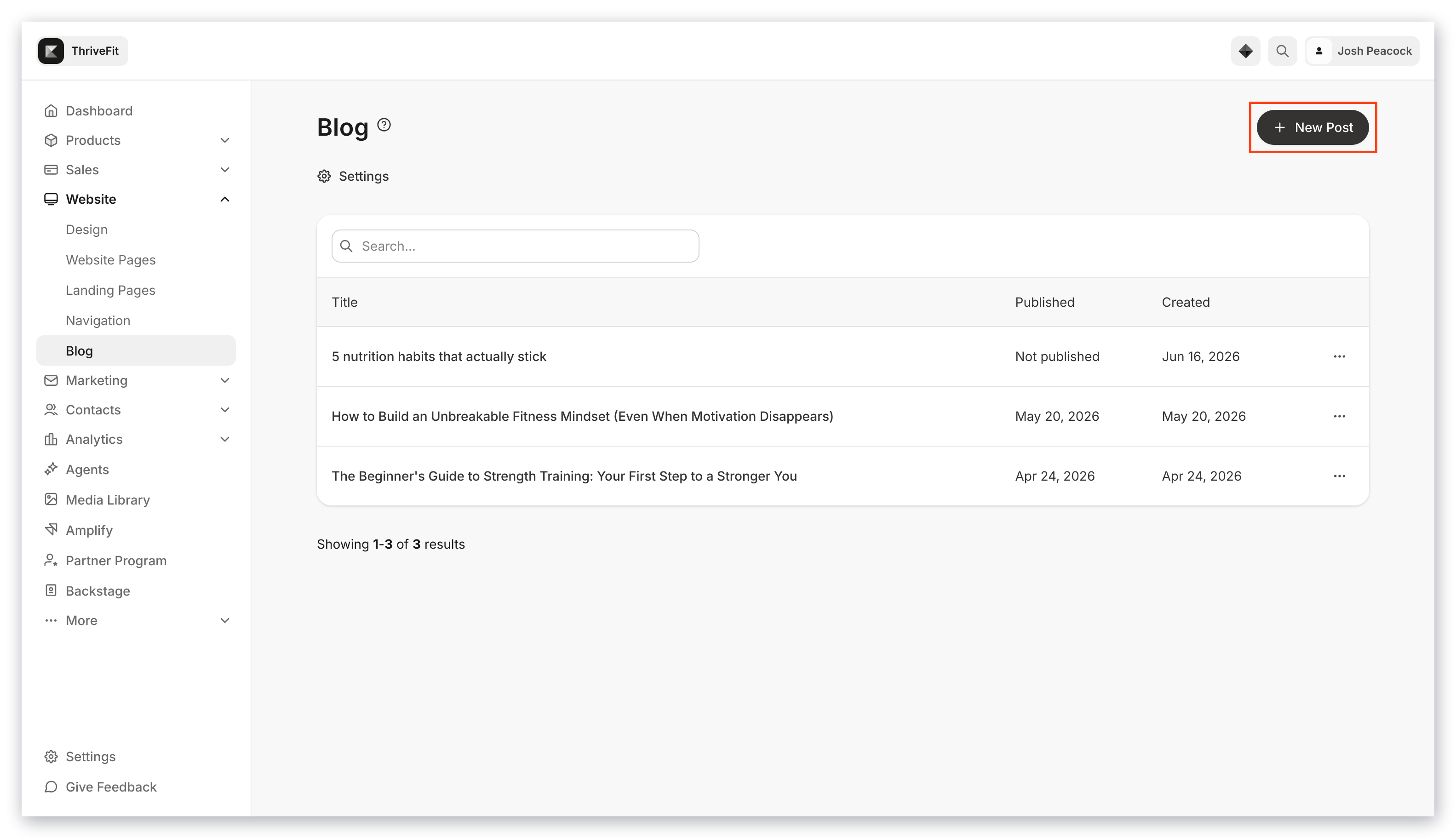
1. Open the **Website** tab from the Dashboard
2. Click **Blog**
3. Navigate to the top right corner and click **+ New Blog Post**
 ## Customize a Blog post
Remember, customizing your Blog Settings sets up your SEO and Sharing information for the Blog homepage and all Blog Posts that do not contain individual SEO settings. To set up individual SEO settings for each Blog Post, read [How to Configure SEO and Sharing Settings for your Blog](/articles/website/blog/how-to-configure-seo-and-sharing-settings-for-your-blog).
Read [How to Create a Blog Post](/articles/website/blog/how-to-create-a-blog-post) for more details:
* [Add Media](/articles/website/blog/how-to-add-media-to-your-blog-posts) to your Blog Post
* [Set a specific publishing date](/articles/website/blog/how-to-create-a-blog-post#set-a-specific-publish-date) for your Blog Post
* [Create Tags](/articles/website/blog/how-to-create-a-blog-post#adding-tags-to-your-blog-posts) to organize and categorize your Blog Posts
## Customize a Blog post
Remember, customizing your Blog Settings sets up your SEO and Sharing information for the Blog homepage and all Blog Posts that do not contain individual SEO settings. To set up individual SEO settings for each Blog Post, read [How to Configure SEO and Sharing Settings for your Blog](/articles/website/blog/how-to-configure-seo-and-sharing-settings-for-your-blog).
Read [How to Create a Blog Post](/articles/website/blog/how-to-create-a-blog-post) for more details:
* [Add Media](/articles/website/blog/how-to-add-media-to-your-blog-posts) to your Blog Post
* [Set a specific publishing date](/articles/website/blog/how-to-create-a-blog-post#set-a-specific-publish-date) for your Blog Post
* [Create Tags](/articles/website/blog/how-to-create-a-blog-post#adding-tags-to-your-blog-posts) to organize and categorize your Blog Posts
[Learn to add media to your blog posts](/articles/website/blog/how-to-add-media-to-your-blog-posts).
## Design the Blog
### Customize your Blog post page
1. Open the **Website** tab from the Dashboard
2. Click **Pages**
3. Click **Customize** next to **Blog Post**
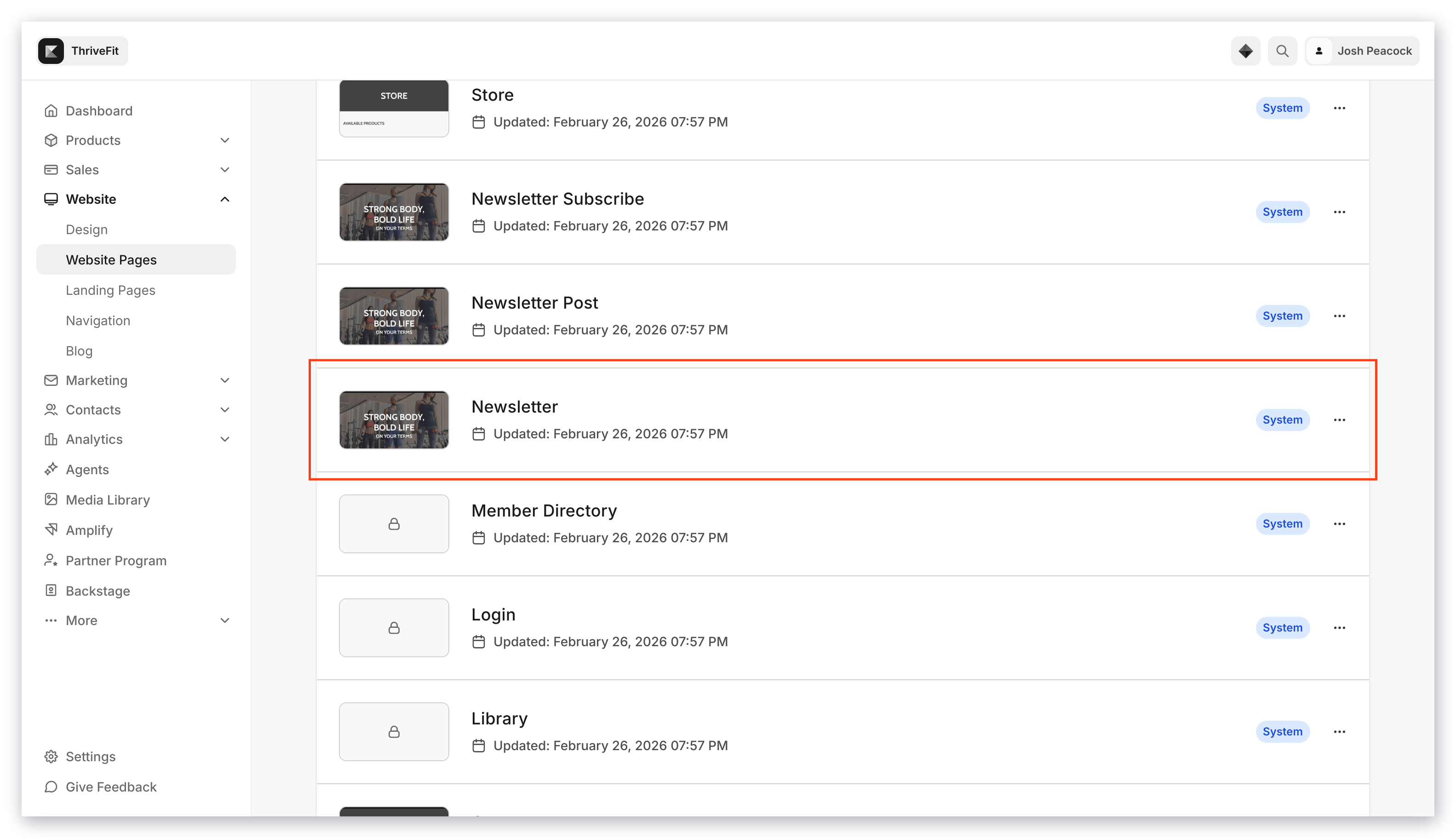 The Blog Post page is similar to the main Blog homepage with the addition of the Blog Post Body.
**Blog Post Body** allows you to include additional blocks at the bottom of your Blog Posts:
* Call to Action (CTA)
* Image
* Opt-in
The Blog Post page is similar to the main Blog homepage with the addition of the Blog Post Body.
**Blog Post Body** allows you to include additional blocks at the bottom of your Blog Posts:
* Call to Action (CTA)
* Image
* Opt-in
Read [How to Design Your Blog Posts](/articles/website/pages/how-to-design-your-blog-posts) for more details.
**Note:**
Designing your Blog Posts will automatically render across all your Blog Posts, both existing and future.
### Blog page
Your blog in Kajabi is integrated onto your site as a standard website page.
Customize the overall look and feel of your blog by customizing the [Blog](/articles/website/pages/how-to-design-your-blog-homepage), [Blog Post](/articles/website/pages/how-to-design-your-blog-posts), and [Blog Search](/articles/website/pages/how-to-design-your-blog-search-page) website pages.
**Customize your Blog page:**
1. From inside the editor click the **Page Dropdown** at the bottom of the **Sidebar Editor** and select **Blog**