> ## Documentation Index
> Fetch the complete documentation index at: https://help.kajabi.com/llms.txt
> Use this file to discover all available pages before exploring further.
# Add a Disqus comments section to blog posts
> Integrate Disqus with your Kajabi blog to enable discussions and moderate comments.
## Overview
Disqus is a comment hosting service that makes it easy to moderate comments and gauge engagement on your blog posts. By integrating Disqus with your Kajabi blog, you can enable discussions and build community around your content.
## Add Disqus comments
### Step 1. Create a Disqus account
1. First, [Create a Disqus](https://disqus.com/profile/signup/) account.
2. In the prompt, click **I want to install Disqus on my site**.
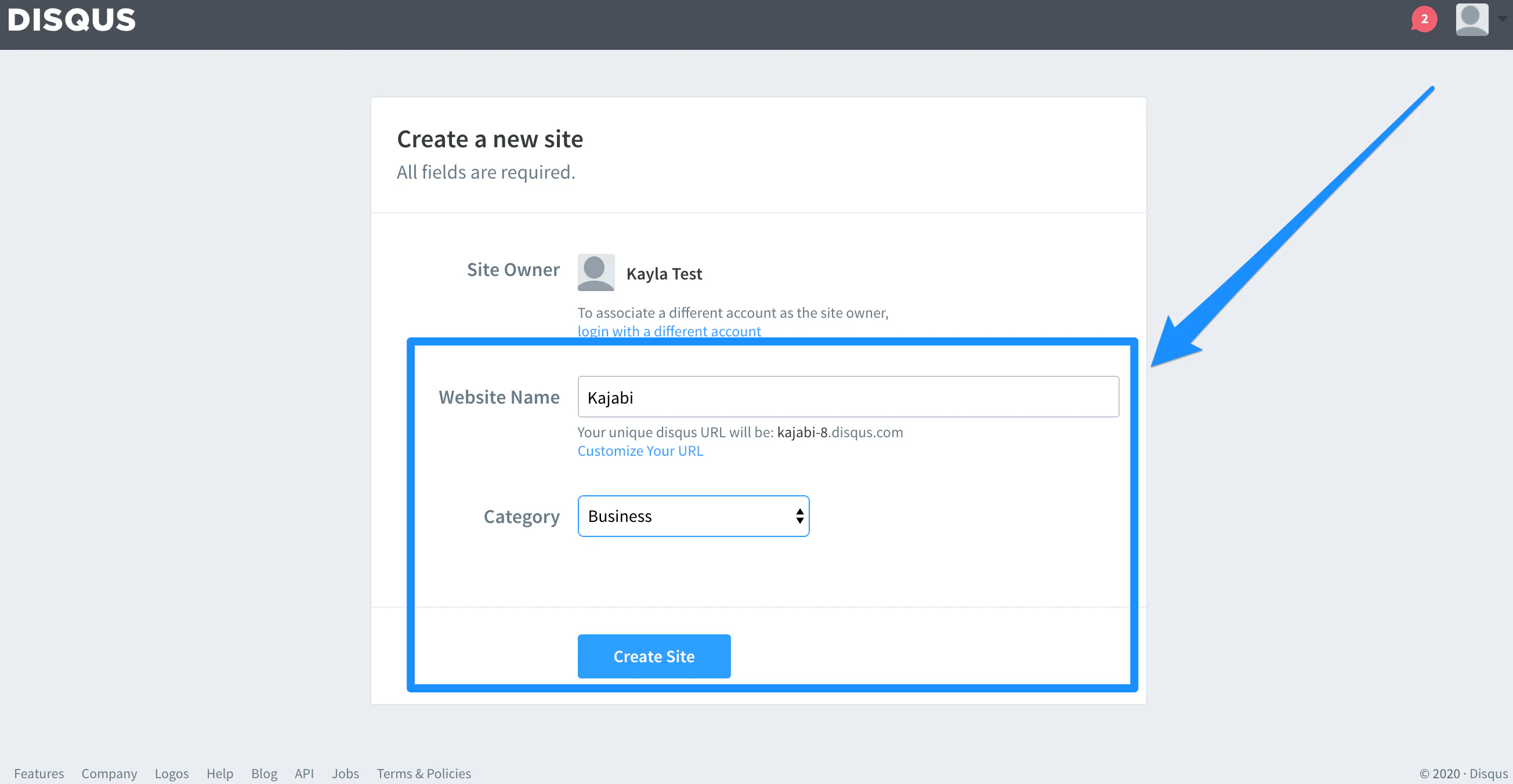
3. Complete the **Create a new site** prompt and click **Create Site**:
 ### Step 2. Copy Disqus shortname
1. Click **Settings** in the top menu.
2. Locate the **Shortname** header.
3. Copy the website shortname:
### Step 2. Copy Disqus shortname
1. Click **Settings** in the top menu.
2. Locate the **Shortname** header.
3. Copy the website shortname:
### Step 3. Paste Disqus shortname into Kajabi
1. Log into your Kajabi Account.
2. Open the **Website** tab from the Dashboard.
3. Click **Pages**.
4. Select **Blog Post** from the list of website pages.
5. Click **Settings** in the top menu of the sidebar.
6. Select **Disqus Comments**.
7. Paste the Disqus shortname into the text box field.
8. Check the **Show Disqus Comments** box.
9. Click **Save** to apply and keep the changes: