> ## Documentation Index
> Fetch the complete documentation index at: https://help.kajabi.com/llms.txt
> Use this file to discover all available pages before exploring further.
# Add a Facebook Like button to blog posts
> Connect blog visitors to your social media by adding a Facebook Like button.
## Overview
Adding a Facebook Like button to your blog is a great way of connecting your members to your social media. With just one click your members can like your blog page.
**Note:** Adding a Facebook Like button requires access to the Code Editor only available with the Kajabi Pro Plan. See [kajabi.com/pricing](https://kajabi.com/pricing) for details.
## Step 1. Copy the Facebook Like button code
1. Generate the "Like" button code from Facebook's developer page: [https://developers.facebook.com/docs/plugins/like-button](https://developers.facebook.com/docs/plugins/like-button)
2. Copy the URL for one of the **Blog Posts**.
3. Paste it in the **URL to Like** field under the Like Button Configurator.
4. Click the **Get Code** button:
After generating the code, copy the first code snippet provided in the popup:
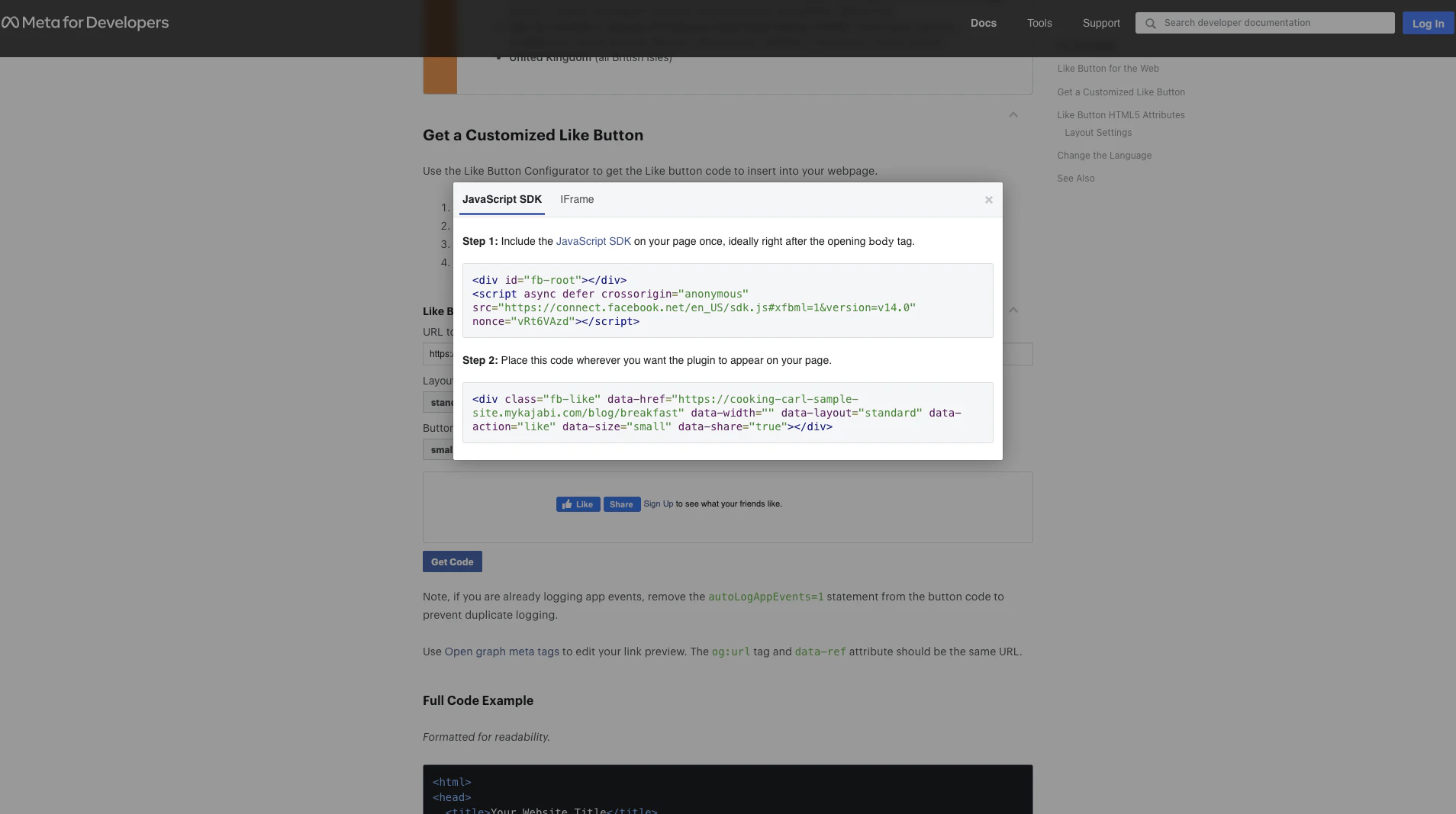 ## Step 2. Paste the first code snippet into the website template
Paste this code into the Website template code:
1. Open the **Website** tab from the Dashboard.
2. Click the **Pages** tab.
3. Locate the **Blog Post** page from the list of website pages.
4. Open the `…` icon.
5. Click **Modify Code**.
6. Open the `Layouts` folder.
7. Select the `theme.liquid` file.
8. Paste the code just after the opening `body` tag:
## Step 2. Paste the first code snippet into the website template
Paste this code into the Website template code:
1. Open the **Website** tab from the Dashboard.
2. Click the **Pages** tab.
3. Locate the **Blog Post** page from the list of website pages.
4. Open the `…` icon.
5. Click **Modify Code**.
6. Open the `Layouts` folder.
7. Select the `theme.liquid` file.
8. Paste the code just after the opening `body` tag:
## Step 3. Paste the second snippet into the website template
Lastly, paste the second code snippet:
1. Copy the second code snippet provided in the popup.
2. Open the `Sections` folder.
3. Open the `blog_post_body.liquid` file.
4. Scroll to the bottom of the page and paste the code.
5. Click **Save**:
Click **Preview** and navigate to a Blog Post to preview your Facebook Like button.