> ## Documentation Index
> Fetch the complete documentation index at: https://help.kajabi.com/llms.txt
> Use this file to discover all available pages before exploring further.

# Embed a video in a blog post

> Add video content from external sources like YouTube into blog posts using embed code.

## Overview

You can embed video content from external sources like YouTube directly into your blog posts using embed code. This allows you to include additional video content beyond the single video upload option in the media card.

<div className="w-full aspect-video">
  <iframe src="https://fast.wistia.net/embed/iframe/rbtjurhu3r" allow="autoplay; fullscreen" allowFullScreen className="w-full h-full" />
</div>

## Embed a video in a blog post

Looking to upload your video to your blog post? [Learn to upload media to blog posts](../../website/blog/how-to-add-media-to-your-blog-posts) to learn how to upload media to your blog posts.

First, copy the embed code for the video you would like to use.

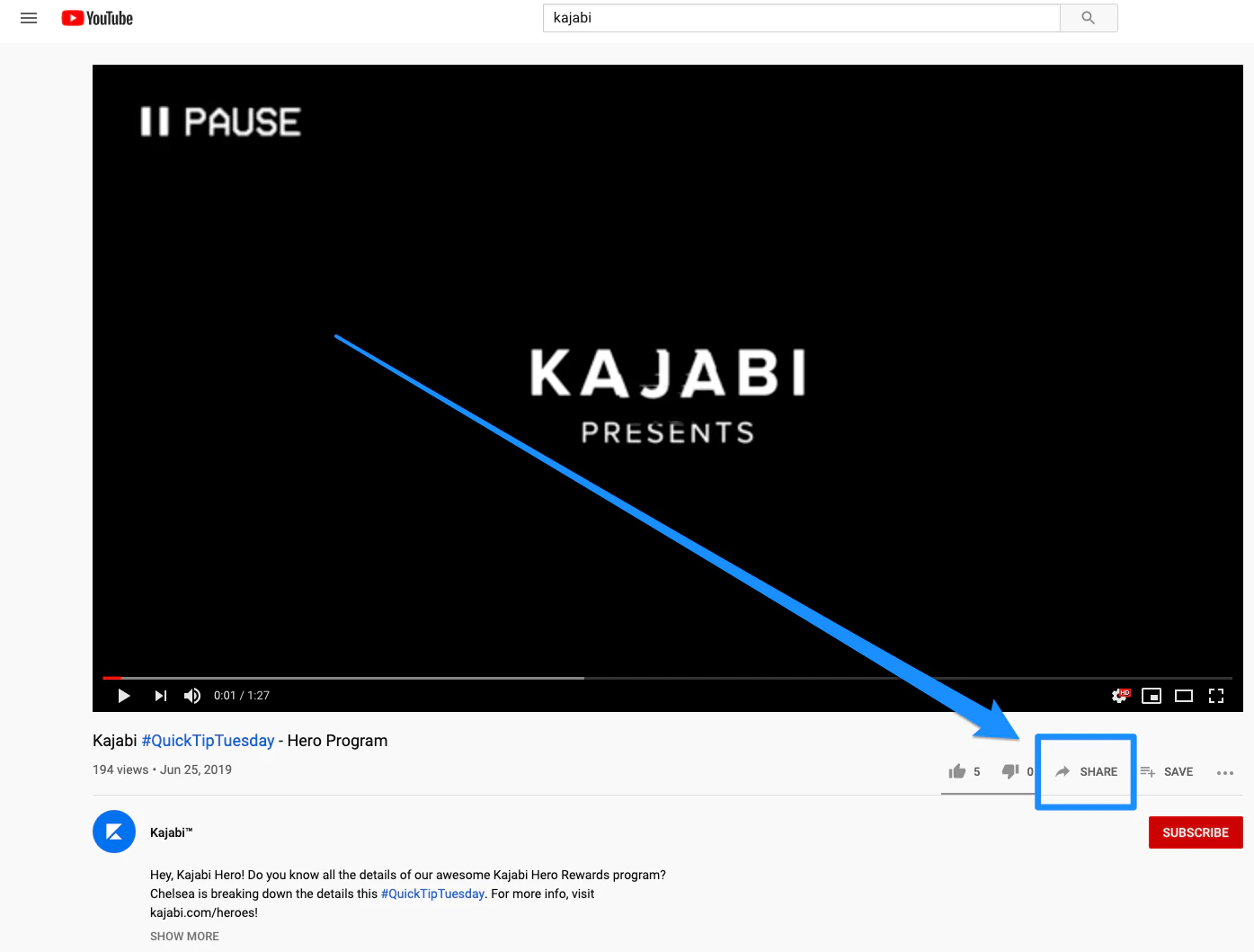
1. If you are embedding a video from YouTube, click **Share** under the video player:

<img src="https://mintcdn.com/kajabi-support/0dktLU6n0E_nSYxP/articles/images/88953749_AFB12B9D-C312-4BD0-8F17-5137B42D1E43.png?fit=max&auto=format&n=0dktLU6n0E_nSYxP&q=85&s=f60311e9d21febe4cd9bfe63562036cb" alt="YouTube Share button" width="1395" height="1059" data-path="articles/images/88953749_AFB12B9D-C312-4BD0-8F17-5137B42D1E43.png" />

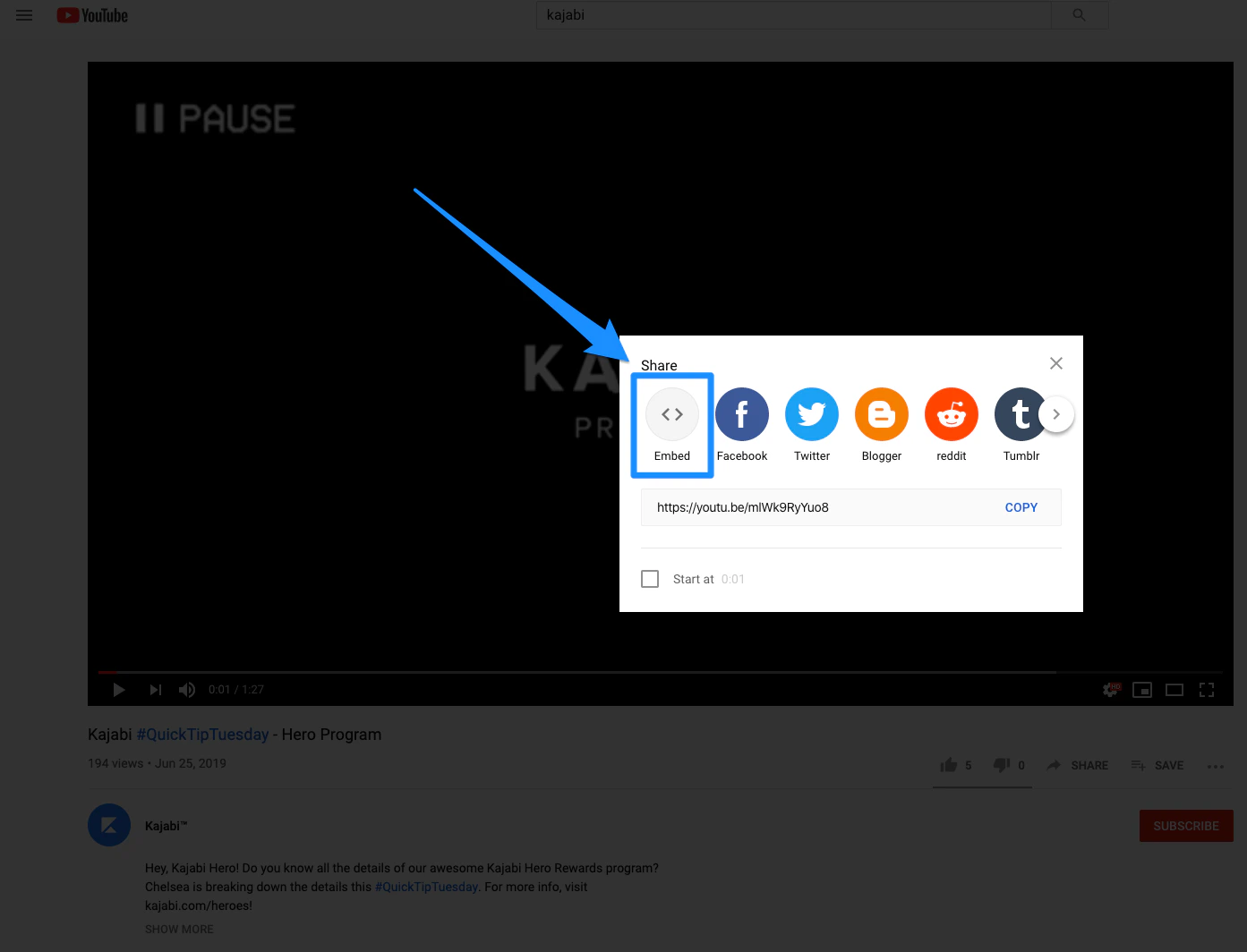
2. Then, click **Embed**.

<img src="https://mintcdn.com/kajabi-support/4xb7Z9X_ecGbjk3p/articles/images/5b667012_E4E8D041-B792-4938-8AE1-ABFBED96F643.png?fit=max&auto=format&n=4xb7Z9X_ecGbjk3p&q=85&s=ba24d2d7d07e90c9741521c0029a2841" alt="YouTube Embed option" width="1393" height="1064" data-path="articles/images/5b667012_E4E8D041-B792-4938-8AE1-ABFBED96F643.png" />

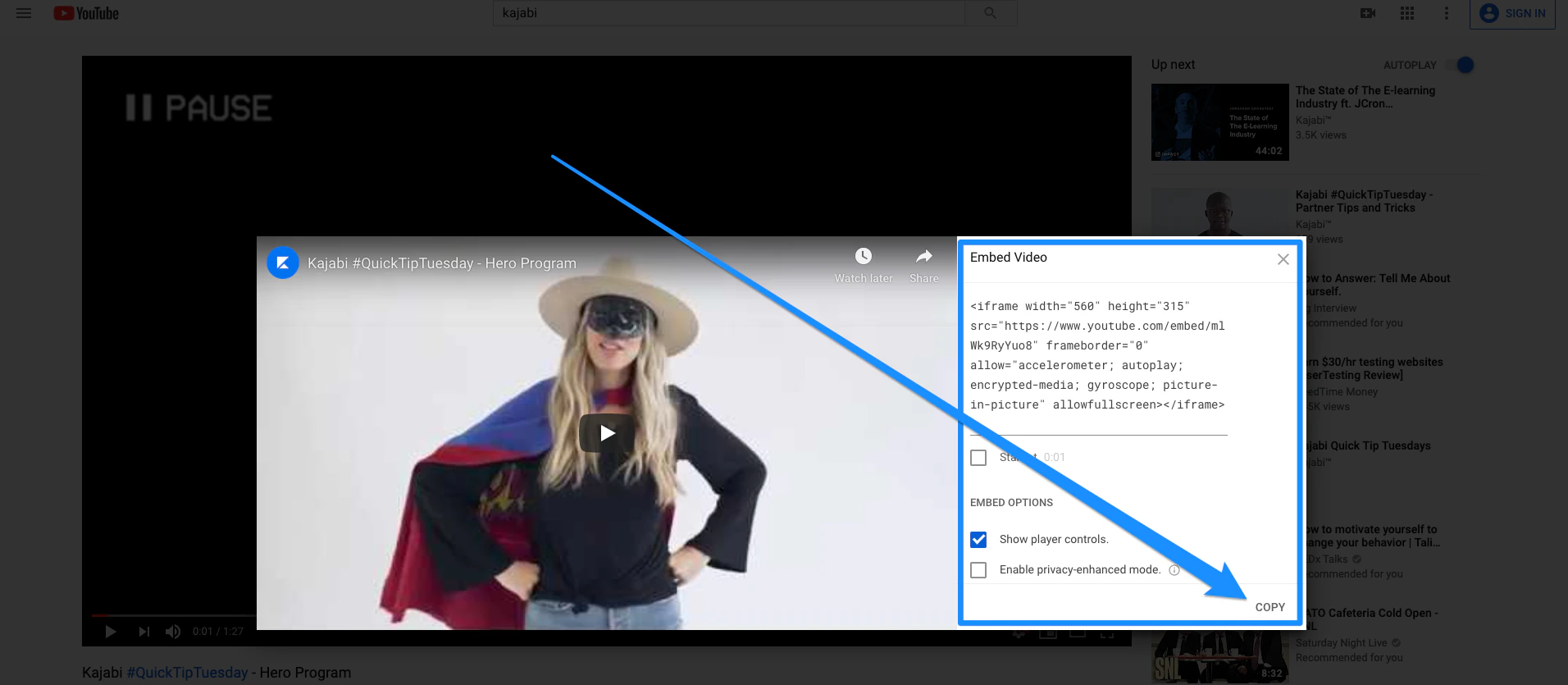
3. From there, copy the Embed Code:

<img src="https://mintcdn.com/kajabi-support/km6s0kSe4aDFzY4R/articles/images/a4cb2dd8_C1AAF44E-1A40-4197-8F72-FED22D3BB6E1.png?fit=max&auto=format&n=km6s0kSe4aDFzY4R&q=85&s=4e71fd6407f797f71bb830b2e60f06ea" alt="YouTube Embed Code" width="1912" height="835" data-path="articles/images/a4cb2dd8_C1AAF44E-1A40-4197-8F72-FED22D3BB6E1.png" />

Next, you will need to paste the Embed Code into the Source Code of your blog post:

1. Open the **Website** tab from the Dashboard.
2. Then, click **Blog**.
3. Edit an existing **Blog Post** or [create a new one](../../website/blog/how-to-create-a-blog-post).
4. Open the source code of the Content section on the **Blog Post** (click the `<>` symbol in the top of the toolbar).
5. Paste the embed code and click **Ok**.
6. Click **Save** to update your post.