> ## Documentation Index
> Fetch the complete documentation index at: https://help.kajabi.com/llms.txt
> Use this file to discover all available pages before exploring further.
# Manage DNS records on Kajabi
> View and add custom DNS records for a connected custom domain on Kajabi.
If you have successfully connected your custom domain to Kajabi, you will have access to DNS settings for the connected custom domain on Kajabi. [Learn how to connect a custom domain](/articles/website/domains/connect-a-custom-domain).
## What are DNS records?
What is **DNS**?
DNS stands for the Domain Name System. Which is a fancy way of saying that the DNS is the handbook for the Internet.
So, if the DNS is the handbook for the Internet, the DNS records are the listings for the businesses in that handbook. For example, a business listing within a handbook will provide information about the address, office hours, and services provided to help a person access that business.
Similarly, DNS records communicate the essential information for a user to access your website.
DNS records are crucial to ensuring that your website can be connected and accessible to the outside world.
With Kajabi, connecting your custom domain allows you to manage and view your DNS records directly from your Kajabi account.
**Note:** Removing, editing, or adding custom records requires working with domain settings. If you are unfamiliar with domain settings, we recommend consulting with a web professional before making changes to DNS records. If you require additional assistance, reach out to our [support team](/articles/resources/support/how-to-contact-kajabi-support).
## View DNS records
### Access DNS settings in Kajabi
**Note:** DNS Settings are only available if you have successfully connected a custom domain to Kajabi using the nameserver method. If you connected your domain using the CNAME/subdomain method, your DNS is still managed by your domain registrar and will not appear in Kajabi.\
[Learn how to connect a custom domain](https://help.kajabi.com/articles/website/domains/connect-a-custom-domain).
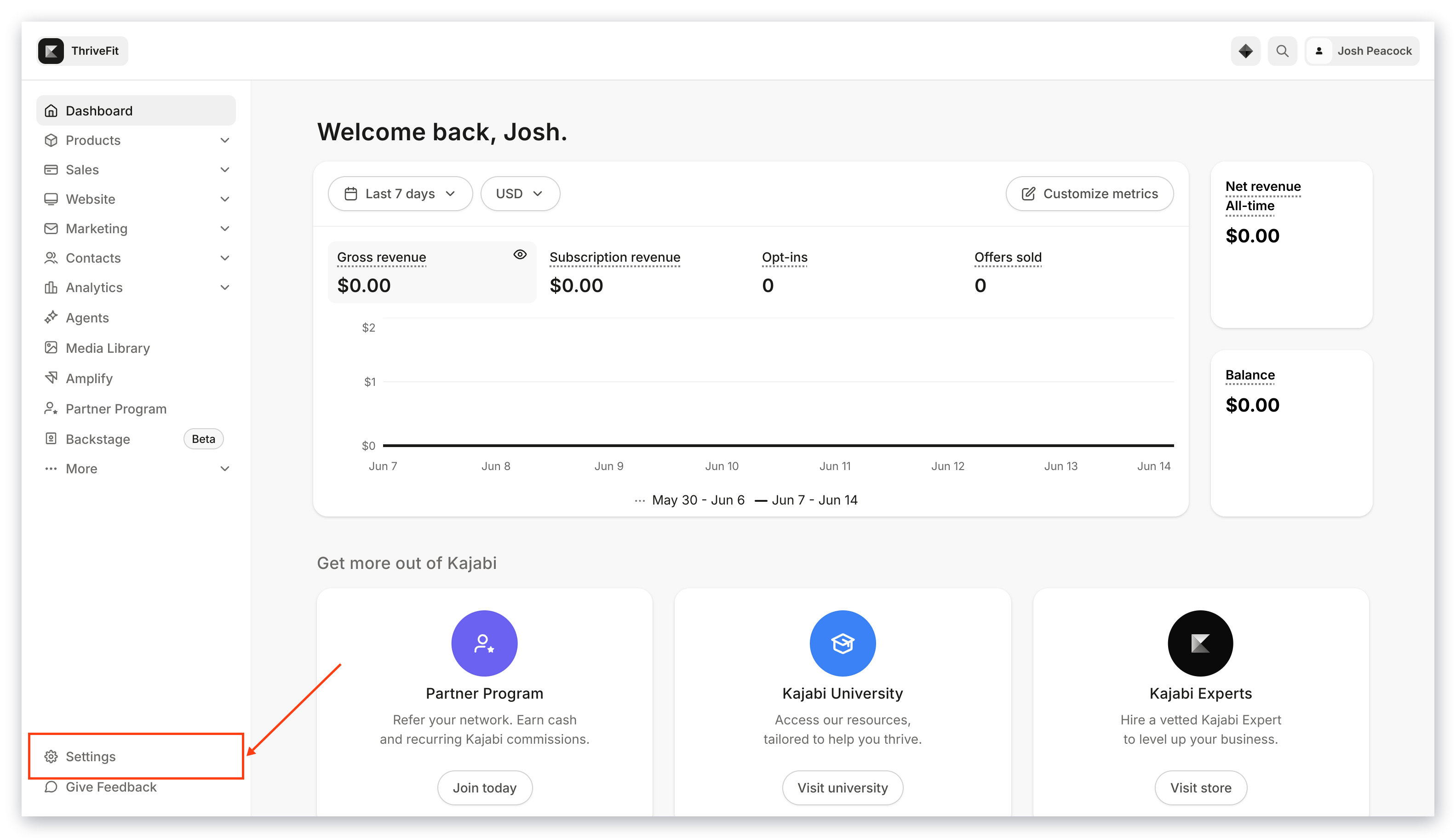
1. Open the **Settings** tab from the Dashboard:
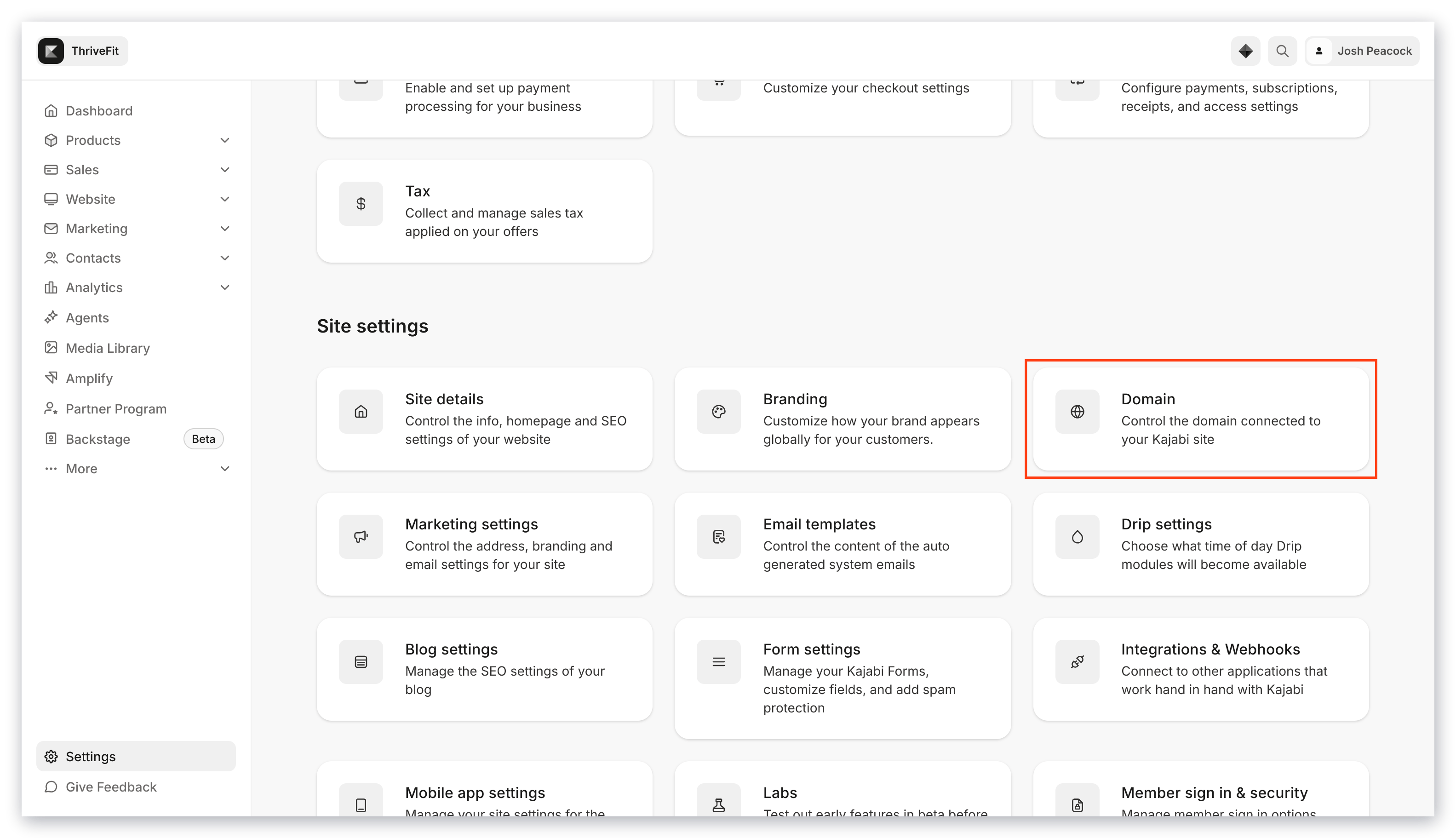
 2. Click **Domain**:
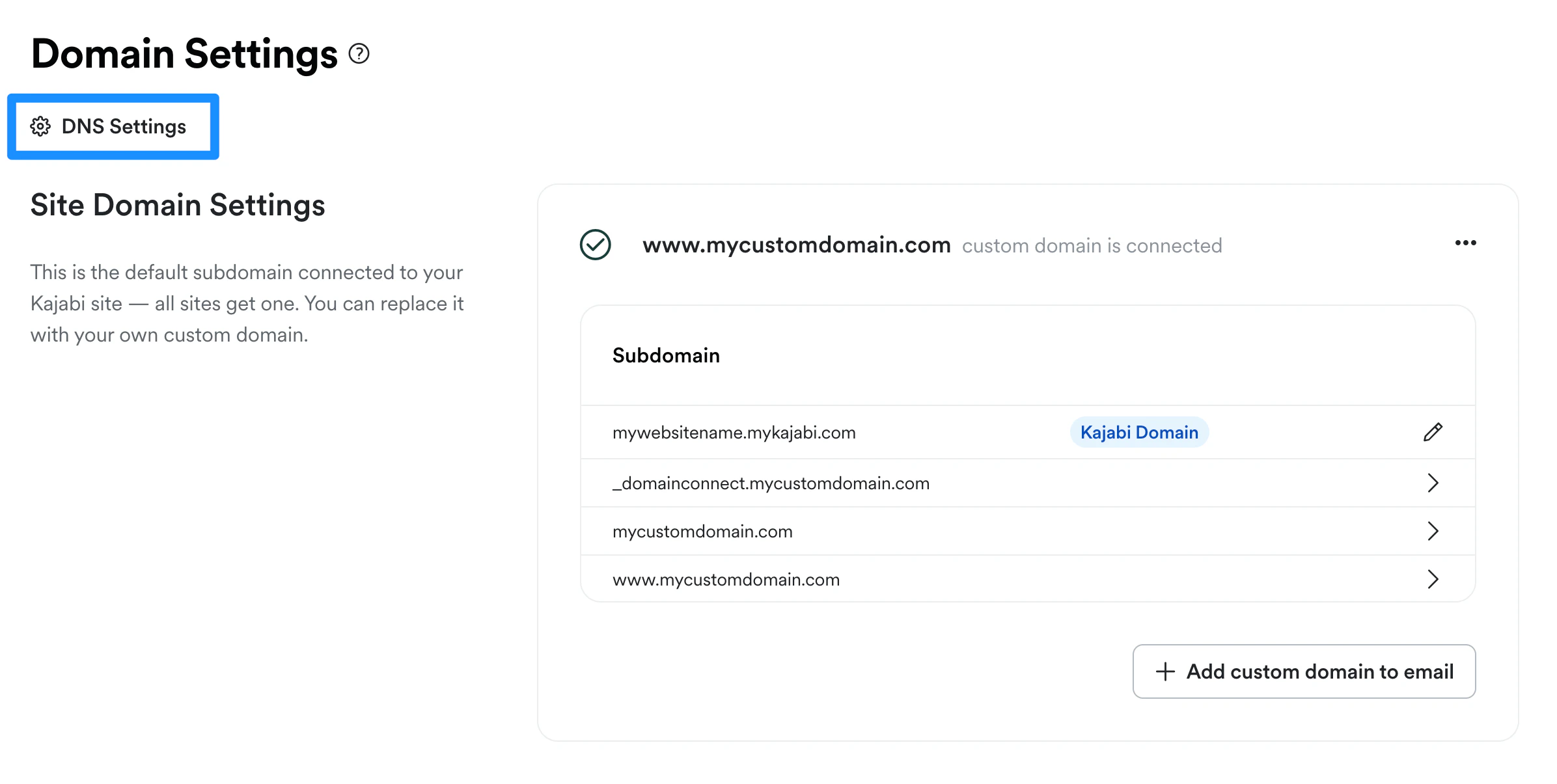
 3. Click **DNS Settings**:
 ## Add custom records to DNS settings
1. From the Dashboard, open the **Settings** tab.
2. Under **Site settings**, click **Domain,** then **DNS Settings**.
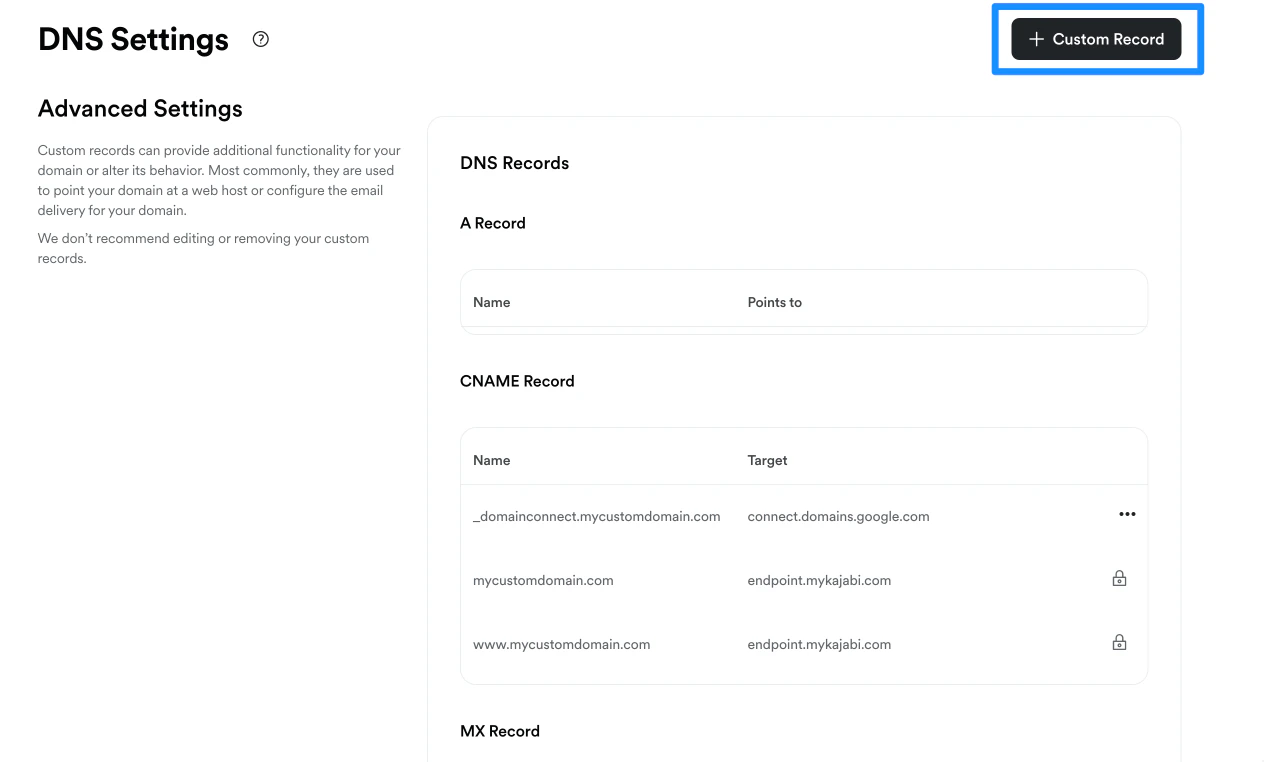
3. Click **+ Custom Record** in the top right corner of the DNS Settings page and select a record type:
## Add custom records to DNS settings
1. From the Dashboard, open the **Settings** tab.
2. Under **Site settings**, click **Domain,** then **DNS Settings**.
3. Click **+ Custom Record** in the top right corner of the DNS Settings page and select a record type:
 ### Available custom record types
* **A record** - Assigns an address for your domain to a specific IP
* **CNAME record** - Used to connect platforms through subdomains
* **MX record** - Holds your email sending and receiving information
* **SRV record** - Specifies a port for specific services. Commonly used for services like Skype or Discord.
* **TXT record** - These records are used to hold your email security information (e.g., DKIM) as well as for third-party plug-ins.
Changes to your DNS records can take up to 24-48 hours to go into full effect. If you encounter issues after 24-48 hours, please reach out to our [support team](/articles/resources/support/how-to-contact-kajabi-support) for additional assistance.
### Available custom record types
* **A record** - Assigns an address for your domain to a specific IP
* **CNAME record** - Used to connect platforms through subdomains
* **MX record** - Holds your email sending and receiving information
* **SRV record** - Specifies a port for specific services. Commonly used for services like Skype or Discord.
* **TXT record** - These records are used to hold your email security information (e.g., DKIM) as well as for third-party plug-ins.
Changes to your DNS records can take up to 24-48 hours to go into full effect. If you encounter issues after 24-48 hours, please reach out to our [support team](/articles/resources/support/how-to-contact-kajabi-support) for additional assistance.