> ## Documentation Index
> Fetch the complete documentation index at: https://help.kajabi.com/llms.txt
> Use this file to discover all available pages before exploring further.
# Troubleshoot a site not secure message
> Identify and resolve the 'Site Not Secure' error message on your Kajabi site.
## Overview
If you receive a "Site Not Secure" error message when accessing a Product or Page, refer to this guide to ensure that your site is secure.
## Understand secure vs. not secure
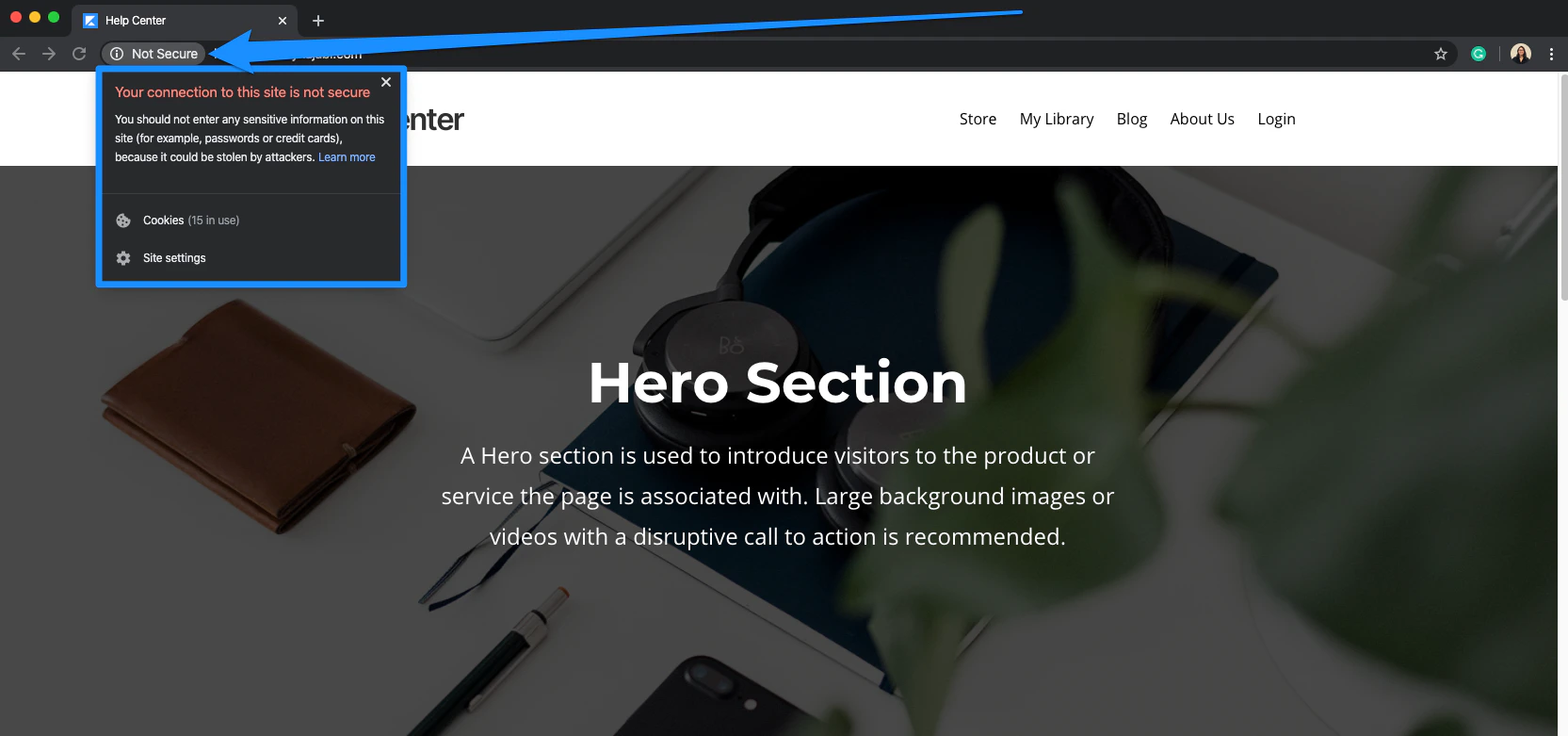
**Site Not Secure Message:**
 ### What can cause this message?
This message can be caused by conflicting temporary internet files (from web browser caching) or your domain may be directing your visitors to your site using HTTP instead of HTTPS.
### What is the difference between HTTP and HTTPS?
In short, HTTPS is HTTP encrypted. The S in HTTPS stands for "secure." HTTPS uses an encryption protocol known as a Secure Sockets Layer (SSL) to encrypt HTTP requests and responses. As a result, HTTPS is more secure than HTTP.
To determine if your site is using HTTP or HTTPS:
* `http://` is using HTTP
* `https://` is using HTTPS
When your website displays `http://` in the URL instead of `https://` you may encounter a "Site Not Secure" message:
### What can cause this message?
This message can be caused by conflicting temporary internet files (from web browser caching) or your domain may be directing your visitors to your site using HTTP instead of HTTPS.
### What is the difference between HTTP and HTTPS?
In short, HTTPS is HTTP encrypted. The S in HTTPS stands for "secure." HTTPS uses an encryption protocol known as a Secure Sockets Layer (SSL) to encrypt HTTP requests and responses. As a result, HTTPS is more secure than HTTP.
To determine if your site is using HTTP or HTTPS:
* `http://` is using HTTP
* `https://` is using HTTPS
When your website displays `http://` in the URL instead of `https://` you may encounter a "Site Not Secure" message:
Read [CloudFlare's Guide to HTTPS](https://www.cloudflare.com/learning/ssl/what-is-https/) to learn more.
## Troubleshoot your site
### Step 1. Clear your web browser's cache and cookies
Clearing your web browser's cache and cookies provides a "clean slate" for you. Your browser will be reset and you can try again with a fresh browsing setup.
Read popular web browser guides on clearing your browser's cache:
* Learn to [clear cache and cookies in Chrome](https://support.google.com/accounts/answer/32050?co=GENIE.Platform%3DDesktop\&hl=enIn).
* Learn to [clear history, cache, and cookies in Safari](https://support.apple.com/guide/safari/clear-your-browsing-history-sfri47acf5d6/mac).
If you are using another web browser, check its support site for instructions on clearing cache and cookies.
**Note:** When managing your browser settings to clear cache and cookies from your web browser, be sure to continue allowing third-party cookies to avoid experiencing the [Login Page error](/articles/website/pages/why-does-the-login-page-or-404-error-keep-appearing-when-editing-my-site).
### Step 2. Check if your domain redirects to http or https
If your cache and cookies have been cleared but the "Not Secure" message persists, check to see if your website is using `http://`or `https://`:
1. Enter your **domain** into the address bar of your web browser.
2. Click into the **URL** to expand and view the entire URL:
### Step 3. Set up a forwarding rule with your domain host
In order to secure your custom domain, ensure that you've set up a forwarding rule for your domain to always go to `https://`.
Each domain provider has their own flow for setting up a forwarding rule, so depending on your domain host (e.g., GoDaddy, Bluehost, etc.) your setup may differ slightly.
If your custom domain still requires a forwarding rule to always go to `https://`, refer to the guide corresponding with your domain provider. If you're using another domain provider, please refer to their support site for instructions on creating a forwarding rule.
Learn how to add/edit a Forwarder for a few popular hosting services:
* [GoDaddy](/articles/website/domains/how-to-set-up-a-forwarding-rule-for-your-custom-domain-on-godaddy)
* [Bluehost](/articles/website/domains/how-to-set-up-a-forwarding-rule-for-your-custom-domain-on-bluehost)
### Step 4. Ensure that all 5 records have been added to your custom domain properly
[Learn more about configuring DNS settings in Kajabi](/articles/website/domains/connect-a-custom-domain).
### Still experiencing issues? Contact support
Lastly, if you've cleared your browser's cache and cookies and your custom domain is set to always go to `https://` instead of `http://`, please reach out to our support team.