> ## Documentation Index
> Fetch the complete documentation index at: https://help.kajabi.com/llms.txt
> Use this file to discover all available pages before exploring further.
# Verify a custom domain for Google Workspace
> Complete domain verification on Kajabi to set up Google Workspace for custom business emails, calendars, and collaboration.
## Overview
Looking to connect, create, and collaborate with your entire team on Google Workspace? This guide walks you through verifying your custom domain on Kajabi to complete your Google Workspace setup.
## Google Workspace
With Google Workspace you can build custom business emails for your Kajabi email campaigns, organize your events with Google Calendar, collaborate with your team on upcoming projects, and more!
[Learn more about Google Workspace](https://workspace.google.com/).
With the combined power of Google Workspace and Kajabi, you can streamline and connect your workflows.
If you wish to use Google Workspace with your site on Kajabi you will first need to connect a custom domain to Kajabi and verify your domain to complete your Google Workspace setup.
[Learn to connect your custom domain to Kajabi](/articles/website/domains/connect-a-custom-domain).
**Note:** If your custom domain is purchased through Google, Google will automatically verify your domain for you and you will not be required to complete the steps provided in this article.
If you have purchased your custom domain from a registrar that does not partner with Google, you will be required to verify your domain to ensure the protection and privacy of your Google Workspace and Domain.
## Domain verification
Before verifying your domain to set up your Google Workspace, you will first need to connect your custom domain to Kajabi.
The verification process cannot be completed with a Kajabi Subdomain, as you will need access to your domain DNS settings.
[Learn to connect your custom domain to Kajabi](/articles/website/domains/connect-a-custom-domain)
After successfully connecting your custom domain to Kajabi, verify your domain in Google Workspace.
### Step 1. Get your verification code
1. Open the [Google Workspace setup tool](https://admin.google.com/u/0/ac/signup/setup/v2/verify/txt).
2. Then, sign in to your Google Admin console.
**Note:** You will need to sign in with your Google Administrator account.
1. Click **Continue** next to the "Verify your domain" card.
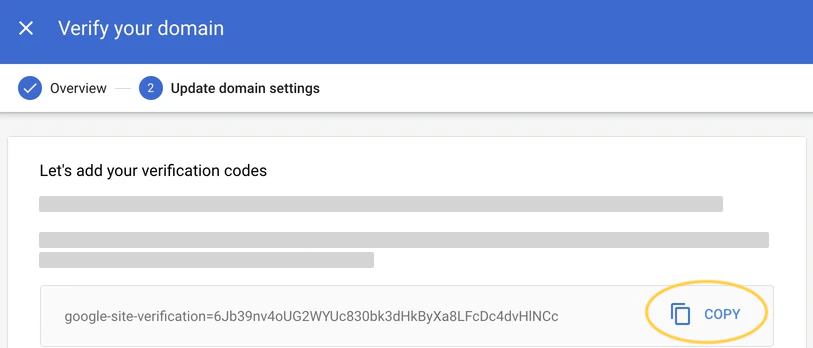
2. Locate your verification code and click **Copy**:
 ### Step 2. Add your verification code to your DNS settings on Kajabi
1. In a separate browser window or tab, log into your Kajabi account.
2. Click **Settings** in the bottom left corner of your Dashboard.
3. Open **Domain** to access your Domain Settings.
4. Click the **right-arrow next to your domain URL** to open your DNS Settings for your connected custom domain.
5. Click **+ Custom Record** in the top-right corner.
6. Select **TXT Record**.
7. In the name field, enter the **@** symbol.
8. Then, in the **TXT Record** field, enter your Google Workspace verification code from Step 1.
9. Click **Add** to apply:
### Step 2. Add your verification code to your DNS settings on Kajabi
1. In a separate browser window or tab, log into your Kajabi account.
2. Click **Settings** in the bottom left corner of your Dashboard.
3. Open **Domain** to access your Domain Settings.
4. Click the **right-arrow next to your domain URL** to open your DNS Settings for your connected custom domain.
5. Click **+ Custom Record** in the top-right corner.
6. Select **TXT Record**.
7. In the name field, enter the **@** symbol.
8. Then, in the **TXT Record** field, enter your Google Workspace verification code from Step 1.
9. Click **Add** to apply:
### Step 3. Verify your domain
1. Navigate back to your Google Admin Console.
2. Then, click **Verify my domain**:
**Note:** Additional time may be required to publish the verification code. If you receive an error message from the Google Workspace setup tool, wait an hour before attempting to verify again. It is important to note that in some cases, it can take up to 48 hours to publish your verification code.