> ## Documentation Index
> Fetch the complete documentation index at: https://help.kajabi.com/llms.txt
> Use this file to discover all available pages before exploring further.
# Add an Exit Popup to a page
> Encourage visitors to take action before leaving a page.
## Overview
When someone visits your site for the first time, how can you encourage them to return? One proven, effective method is to build your email list.
An **Exit Popup** can help you do just that by appearing on your page visitor's screen when they attempt to leave your site. On this popup, you can include a message, an email opt-in, a coupon code, and more.
Enabling an Exit Popup will display your customized popup when a visitor shows intent to leave the page.
**Note:** This guide refers to the latest page editor available with the Website Builder and Kajabi Pages. If you are using the Premier Legacy Templates, [see this article](../../website/pages/how-to-use-the-exit-popup-in-your-page-with-premier).
On desktop devices, intent to leave the page is shown when your user's mouse passes the line between the page and the URL address bar in their browser:
On mobile devices, the Exit Pop Up will only appear if you have Exit Popup Timed Reveal set up.
***
## How to enable an Exit Popup
1. Open the **Website** tab from the Dashboard.
2. Select **Website Pages** or **Landing Pages**.
3. Click the Page **Title** or the **Customize icon** to open the Page Editor, or click the **ellipsis ... icon** and select **Edit Details**.
4. Click **Exit Popup** in the sidebar panel.
5. Check **Edit Exit Popup** to preview it while editing.
6. Check **Enable Exit Popup** to enable it on your page:
**Note:** Remember to uncheck **Edit Exit Popup** when you are finished editing the Exit Popup. Then, click **Save** to keep your changes.
***
## How to customize an Exit Popup
### Add content blocks
1. In the **Exit Popup** section, click **Add Content**:
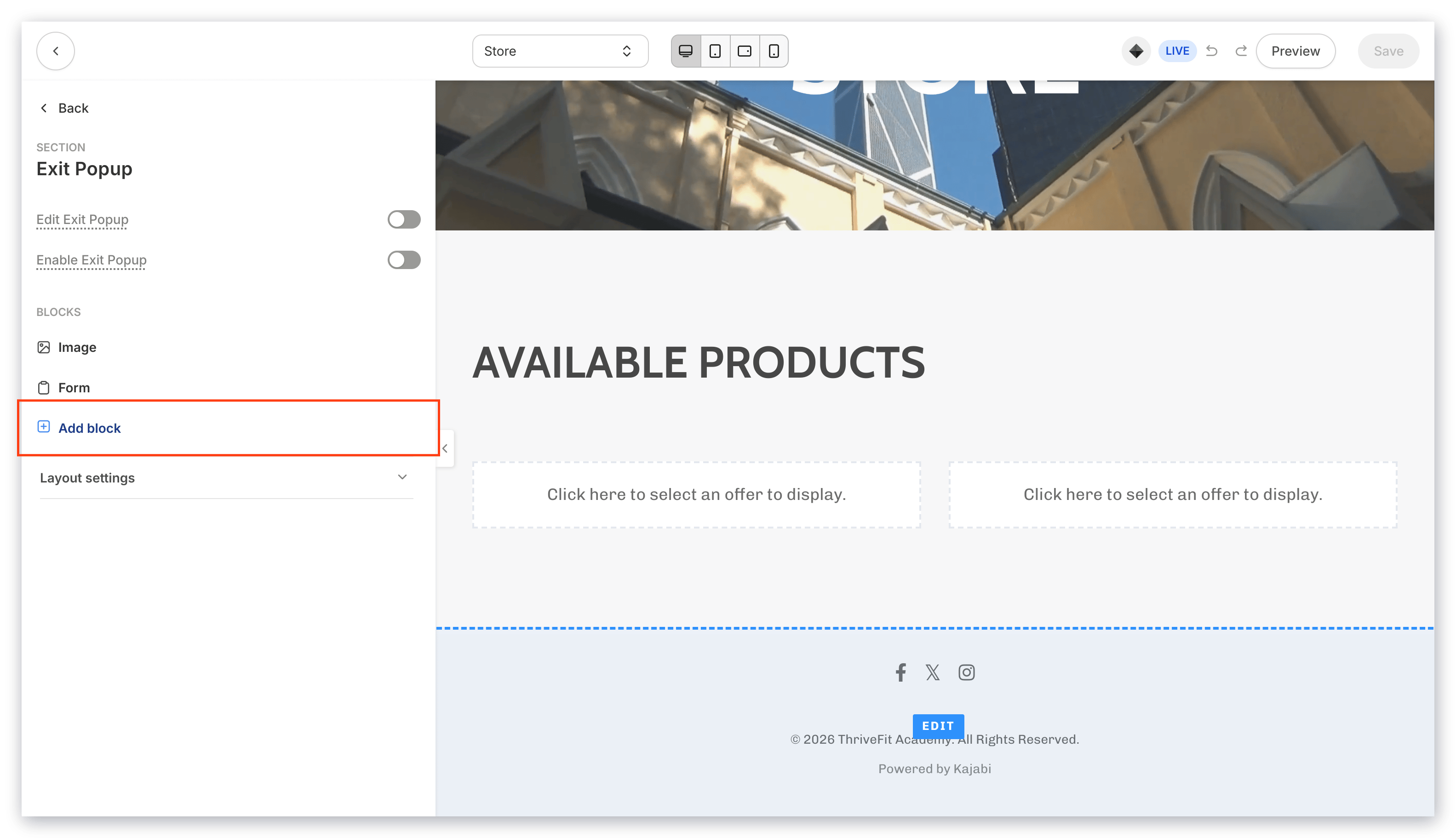 2. Select a **Content Block**.
3. Rearrange blocks by holding the **`=` icon** and dragging to your desired location.
4. Click **Save** to keep your changes.
Click each Block Type to learn more about its settings:
* [Call to Action](../../website/pages/how-to-use-a-call-to-action)
* [Form](../../website/pages/how-to-add-a-form-to-your-page#customize-your-form-block)
* [Image](../../website/pages/how-to-add-an-image-to-your-page#h_0c60bbb0-c28c-4e69-ad57-ac98c8122238)
* [Text](../../website/pages/how-to-add-a-text-block-to-your-page#customize-your-text-block)
* [Video](../../website/pages/how-to-add-a-video-block-to-your-pages#customize-your-video-block)
***
## Exit Popup settings
### Frequency
Customize the **Frequency** of the popup to only show it to returning visitors after a selected amount of days.
Because the Exit Popup is cookie-based, the most it will appear is once per day when viewed from the same device, unless the cookies are cleared every time. If you want the Exit Popup to appear regardless of how often your visitor attempts to leave the page, we recommend setting its Frequency to 1 to be triggered every 24 hours.
### Timed reveal
Customize the **Timed Reveal** to have the popup show after the visitor has viewed your page for a select number of seconds.
The popup will show on intent to exit the page or when the timer finishes, whichever occurs first. [On mobile devices](../../website/pages/does-the-exit-popup-display-on-mobile-devices), the Exit Popup appears **only** if the Timed Reveal for the Exit Popup has been configured.
***
## Popup layout settings
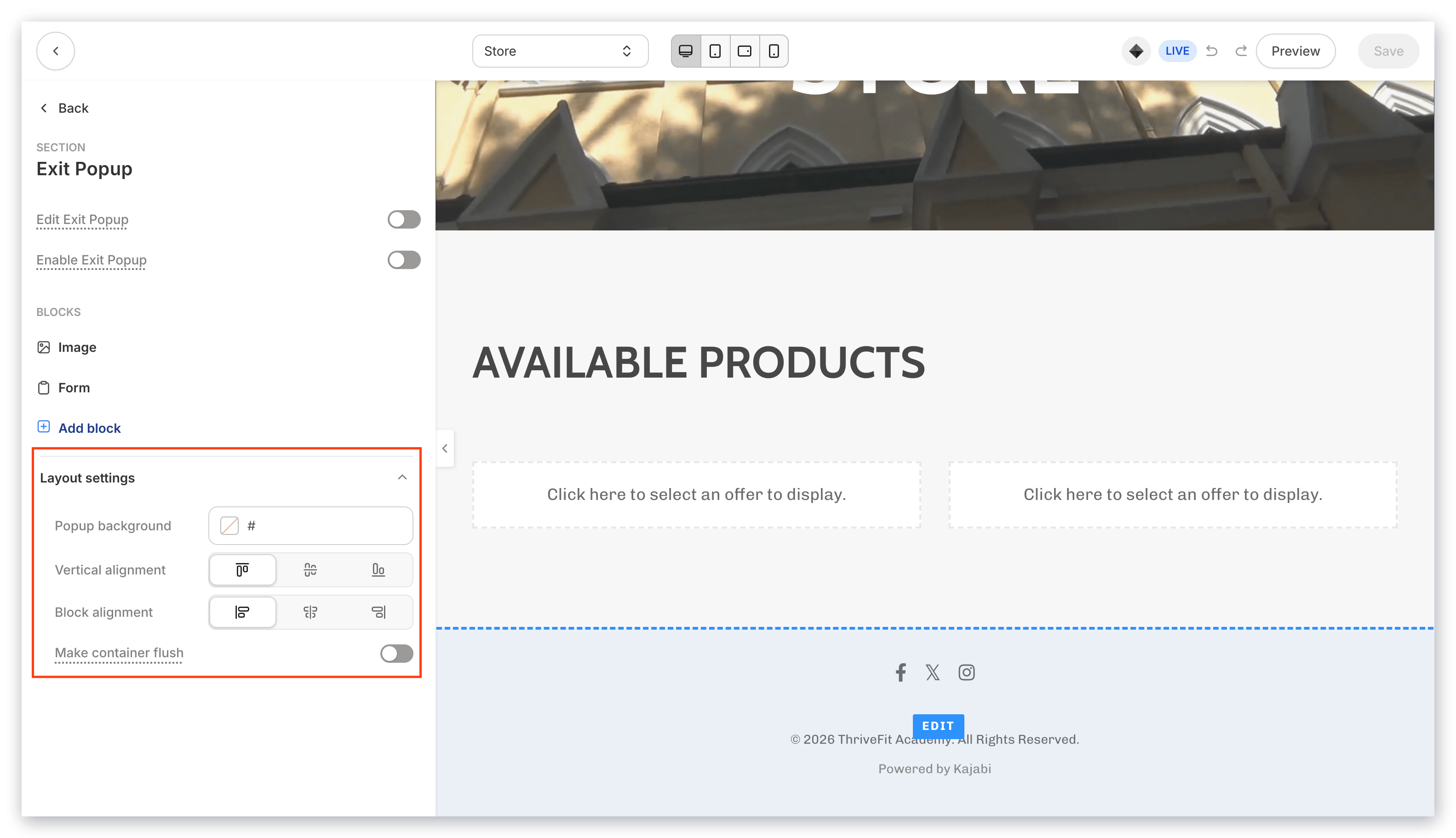
1. Customize the **Popup Background Color.**
2. Configure the **Vertical** and **Horizontal** alignment of blocks in the section.
3. Check **Make Container Flush** to remove the padding surrounding the blocks in the Exit Popup.
2. Select a **Content Block**.
3. Rearrange blocks by holding the **`=` icon** and dragging to your desired location.
4. Click **Save** to keep your changes.
Click each Block Type to learn more about its settings:
* [Call to Action](../../website/pages/how-to-use-a-call-to-action)
* [Form](../../website/pages/how-to-add-a-form-to-your-page#customize-your-form-block)
* [Image](../../website/pages/how-to-add-an-image-to-your-page#h_0c60bbb0-c28c-4e69-ad57-ac98c8122238)
* [Text](../../website/pages/how-to-add-a-text-block-to-your-page#customize-your-text-block)
* [Video](../../website/pages/how-to-add-a-video-block-to-your-pages#customize-your-video-block)
***
## Exit Popup settings
### Frequency
Customize the **Frequency** of the popup to only show it to returning visitors after a selected amount of days.
Because the Exit Popup is cookie-based, the most it will appear is once per day when viewed from the same device, unless the cookies are cleared every time. If you want the Exit Popup to appear regardless of how often your visitor attempts to leave the page, we recommend setting its Frequency to 1 to be triggered every 24 hours.
### Timed reveal
Customize the **Timed Reveal** to have the popup show after the visitor has viewed your page for a select number of seconds.
The popup will show on intent to exit the page or when the timer finishes, whichever occurs first. [On mobile devices](../../website/pages/does-the-exit-popup-display-on-mobile-devices), the Exit Popup appears **only** if the Timed Reveal for the Exit Popup has been configured.
***
## Popup layout settings
1. Customize the **Popup Background Color.**
2. Configure the **Vertical** and **Horizontal** alignment of blocks in the section.
3. Check **Make Container Flush** to remove the padding surrounding the blocks in the Exit Popup.
 **Tip:** Create an [Automation](../../marketing/automations/automations-overview) to trigger a desired event after someone submits an Opt-in Form on your Exit Popup, such as adding a Tag to the new contact, send them a Coupon, or subscribe them to an Email Sequence.