> ## Documentation Index
> Fetch the complete documentation index at: https://help.kajabi.com/llms.txt
> Use this file to discover all available pages before exploring further.
# Add Blocks to a page
> Learn how Blocks are used to build content onto your pages.
## Overview
A **Block** is used to build your content (e.g., Text, Images, Forms, and more) onto your pages.
Each Block is contained within a specific area of your page (known as a [Section](../../website/pages/add-sections-to-your-pages)):
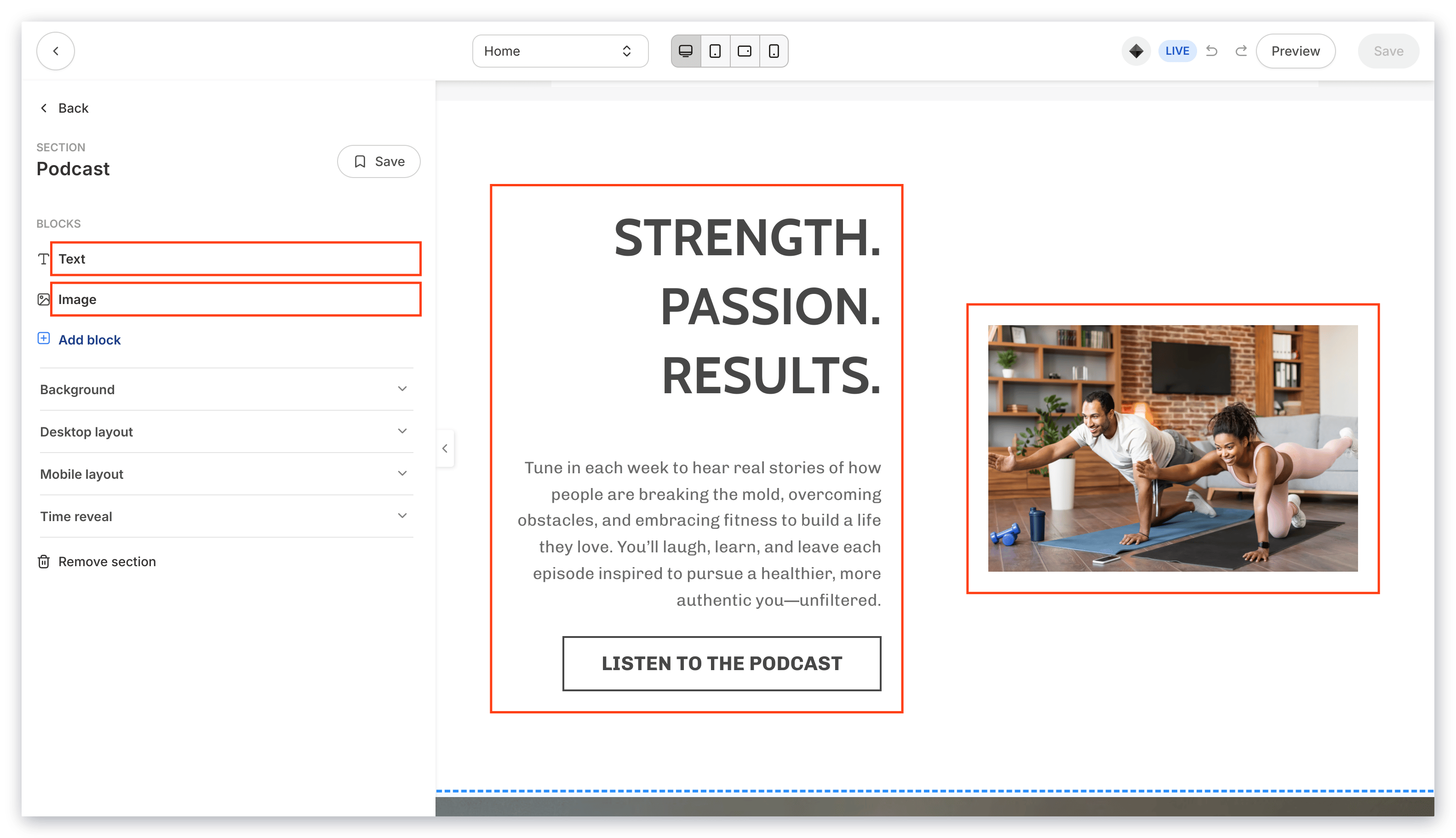 Just as a Section is fully customizable, Blocks allow you to customize various features depending on the Block Type.
***
## Block types
Custom design your pages and deliver your content with the different Block Types.
Depending on the Block selected Block settings will vary.
Click to learn more about each Block Type:
| Block | Block |
| --------------------------------------------------------------------------- | ------------------------------------------------------------------------------------------------------------- |
| [Accordion](../../website/pages/how-to-add-an-accordion-block-to-your-page) | [Assessment](../../website/pages/how-to-add-an-assessment-block) |
| [Blog Post](../../website/pages/how-to-add-a-blog-post-to-your-page) | [Call to Action](../../website/pages/how-to-add-a-call-to-action-block-to-your-website-page-and-landing-page) |
| [Card block](../../website/pages/how-to-add-a-card-block) | [Countdown](../../website/pages/how-to-add-a-countdown-block-to-your-page) |
| [Custom Code](../../website/pages/add-custom-code-to-pages) | [Event](../../website/pages/how-to-add-an-event-to-your-page) |
| [Event Video](../../website/pages/how-to-add-an-event-video-to-your-page) | [Feature](../../website/pages/how-to-add-a-feature-block-to-your-page) |
| [Form](../../website/pages/how-to-add-a-form-to-your-page) | And more... |
***
## Adding Blocks
Kajabi helps you build beautifully designed pages by providing **Sections** and **Blocks** to deliver your content.
While Sections are used to organize and break up your content for your visitors to easily consume, Blocks are the content held within a Section.
### To add a new Block to your Section:
1. Open the **Website** tab from your Dashboard.
2. Select the **Pages** tab.
3. Open the page editor for your Page. [Learn more](../../website/pages/how-to-get-to-the-page-editor)
4. Navigate to the sidebar and select the Section you wish to edit or [create a new Section](../../website/pages/add-sections-to-your-pages).
5. Then, click **Add Content** at the bottom of the Section Editor from the sidebar.
6. Select the Block Type you wish to add:
Just as a Section is fully customizable, Blocks allow you to customize various features depending on the Block Type.
***
## Block types
Custom design your pages and deliver your content with the different Block Types.
Depending on the Block selected Block settings will vary.
Click to learn more about each Block Type:
| Block | Block |
| --------------------------------------------------------------------------- | ------------------------------------------------------------------------------------------------------------- |
| [Accordion](../../website/pages/how-to-add-an-accordion-block-to-your-page) | [Assessment](../../website/pages/how-to-add-an-assessment-block) |
| [Blog Post](../../website/pages/how-to-add-a-blog-post-to-your-page) | [Call to Action](../../website/pages/how-to-add-a-call-to-action-block-to-your-website-page-and-landing-page) |
| [Card block](../../website/pages/how-to-add-a-card-block) | [Countdown](../../website/pages/how-to-add-a-countdown-block-to-your-page) |
| [Custom Code](../../website/pages/add-custom-code-to-pages) | [Event](../../website/pages/how-to-add-an-event-to-your-page) |
| [Event Video](../../website/pages/how-to-add-an-event-video-to-your-page) | [Feature](../../website/pages/how-to-add-a-feature-block-to-your-page) |
| [Form](../../website/pages/how-to-add-a-form-to-your-page) | And more... |
***
## Adding Blocks
Kajabi helps you build beautifully designed pages by providing **Sections** and **Blocks** to deliver your content.
While Sections are used to organize and break up your content for your visitors to easily consume, Blocks are the content held within a Section.
### To add a new Block to your Section:
1. Open the **Website** tab from your Dashboard.
2. Select the **Pages** tab.
3. Open the page editor for your Page. [Learn more](../../website/pages/how-to-get-to-the-page-editor)
4. Navigate to the sidebar and select the Section you wish to edit or [create a new Section](../../website/pages/add-sections-to-your-pages).
5. Then, click **Add Content** at the bottom of the Section Editor from the sidebar.
6. Select the Block Type you wish to add:
Remove a Block by scrolling to the bottom of the Block Editor in the sidebar panel and click **Delete This Block**. [Click here to learn how to rename, duplicate, hide, and delete Blocks on your page](../../website/pages/editing-blocks-on-your-page)
***
## Rearranging Blocks
1. Open the **Website** tab from the Dashboard.
2. Select the **Pages** tab.
3. Open the page editor for your Page. [Learn more](../../website/pages/how-to-get-to-the-page-editor)
4. Navigate to the sidebar panel.
5. Click into the Section containing the Blocks you wish to rearrange.
6. In the sidebar editor, hold `=` and drag the Block to your desired location.
7. Release the Block in your desired location and click **Save** to keep your changes.