> ## Documentation Index
> Fetch the complete documentation index at: https://help.kajabi.com/llms.txt
> Use this file to discover all available pages before exploring further.

<AgentInstructions>

## Submitting Feedback

If you encounter incorrect, outdated, or confusing documentation on this page, submit feedback:

POST https://help.kajabi.com/feedback

```json
{
  "path": "/articles/website/pages/add-custom-code-to-pages",
  "feedback": "Description of the issue"
}
```

Only submit feedback when you have something specific and actionable to report.

</AgentInstructions>

# Add custom code to pages

> Learn how to add custom code to a single page or all pages on your website.

## Overview

In Kajabi, you can add custom code to a single page or all pages on your website. If you want to edit the underlying code of your pages, see [How to Access the Code Editor](../../website/pages/how-to-access-the-code-editor).

<div className="w-full aspect-video">
  <iframe src="https://fast.wistia.net/embed/iframe/m3yy3e42j4" allow="autoplay; fullscreen" allowFullScreen className="w-full h-full" />
</div>

<Warning>
  **Important:** Be careful when adding custom code to your site. If you're adding code from a third-party, make sure you trust them - their custom code might surface negative consequences.
</Warning>

***

## Add custom code to a single page

### Page settings

1. Under **Website**, navigate to the website or landing page you want to edit.
2. Next to the page, click the **Customize** button.
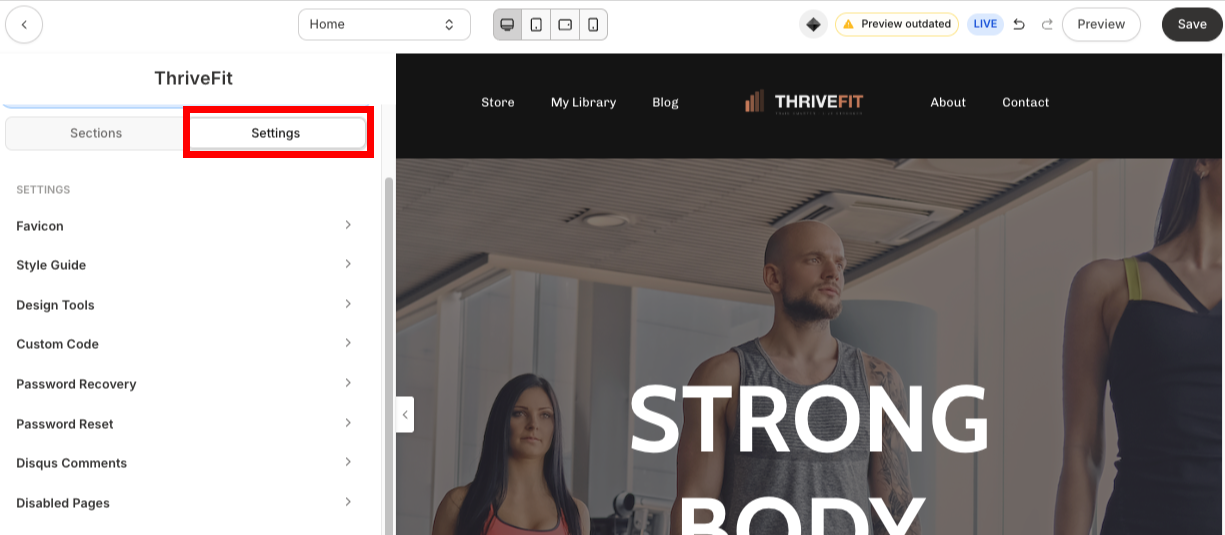
3. In the page builder, click **Settings**.
4. Click **Custom Code**.
5. Add your custom CSS or JavaScript.
6. Click **Save**.

<img src="https://mintcdn.com/kajabi-support/VEiVlZrLfsm2Pkz5/articles/images/9f4cc3ed_f1318a24-0833-4ccc-8c9e-fd55e70c8137_1.gif?s=b941180274a565e3496872231e02966b" alt="Page Settings Custom Code" width="1280" height="584" data-path="articles/images/9f4cc3ed_f1318a24-0833-4ccc-8c9e-fd55e70c8137_1.gif" />

<Note>
  **Note:** Do not include **`<style>`** or **`<script>`** tags in the Custom CSS or JavaScript sections within the page settings.
</Note>

### Custom code block

Adding custom code in a block can be helpful for embedding content on your page, such as a calendar booking widget.

1. Under **Website**, navigate to the website or landing page you want to edit.
2. Next to the page, click the **Customize** button.
3. In the page builder, open a section.
4. Click **Add block**.
5. Click **Custom Code**.
6. Add your custom CSS or Javascript in the Code field.
7. Click **Save**.

<img src="https://mintcdn.com/kajabi-support/N3VXT8aMWFKAgK0L/articles/images/c443c2c2_f845cf50-be1d-400f-9d78-dd35550cfc89.gif?s=50f0f71bbf14183c15ed3aa323167f76" alt="Custom Code Block" width="1280" height="584" data-path="articles/images/c443c2c2_f845cf50-be1d-400f-9d78-dd35550cfc89.gif" />

<Note>
  **Note:** In a custom code block, you'll need to use **`<style>`** (for CSS) and **`<script>`** (for JavaScript) tags for your custom code to work.
</Note>

***

## Add custom code to all pages

Adding custom code to all pages can be helpful if you want to add a cookie disclaimer, custom fonts, analytics, or more to your website.

1. Go to Settings > **[Site details](https://app.kajabi.com/admin/last_site/edit/site-details)**.
2. Under Page scripts, enter your custom code in the **Header Page Scripts** field.
3. Click **Save**.

<img src="https://mintcdn.com/kajabi-support/VEiVlZrLfsm2Pkz5/articles/images/a456466e_d70a3202-adcf-4ee1-b2f5-ac68b670c590_1.gif?s=4c78d1e242ac0c095c9d82aebab6ec3d" alt="Header Page Scripts" width="1280" height="584" data-path="articles/images/a456466e_d70a3202-adcf-4ee1-b2f5-ac68b670c590_1.gif" />

<Note>
  **Note:**
  Custom code added to the Header Page Scripts field will be included in the `<head>` tag of every page on your website, except Offer checkout pages and upsell pages. To add tracking code to checkout pages, see [Add a JavaScript tracking code to checkout pages](../../sales/checkout/how-to-add-a-javascript-tracking-code-to-your-checkout-pages).
</Note>