> ## Documentation Index
> Fetch the complete documentation index at: https://help.kajabi.com/llms.txt
> Use this file to discover all available pages before exploring further.
# Create a website
> Learn to create your website with the Website Builder.
Learn to create your website with the Website Builder.
***
## Get started
Take the first step to building your website on Kajabi.
Begin the website building process by first selecting the template that best fits your business and brand.
* Open the **Website** tab from your Dashboard.
* Click **Design**.
* Then, select **Template Store** from the top menu:
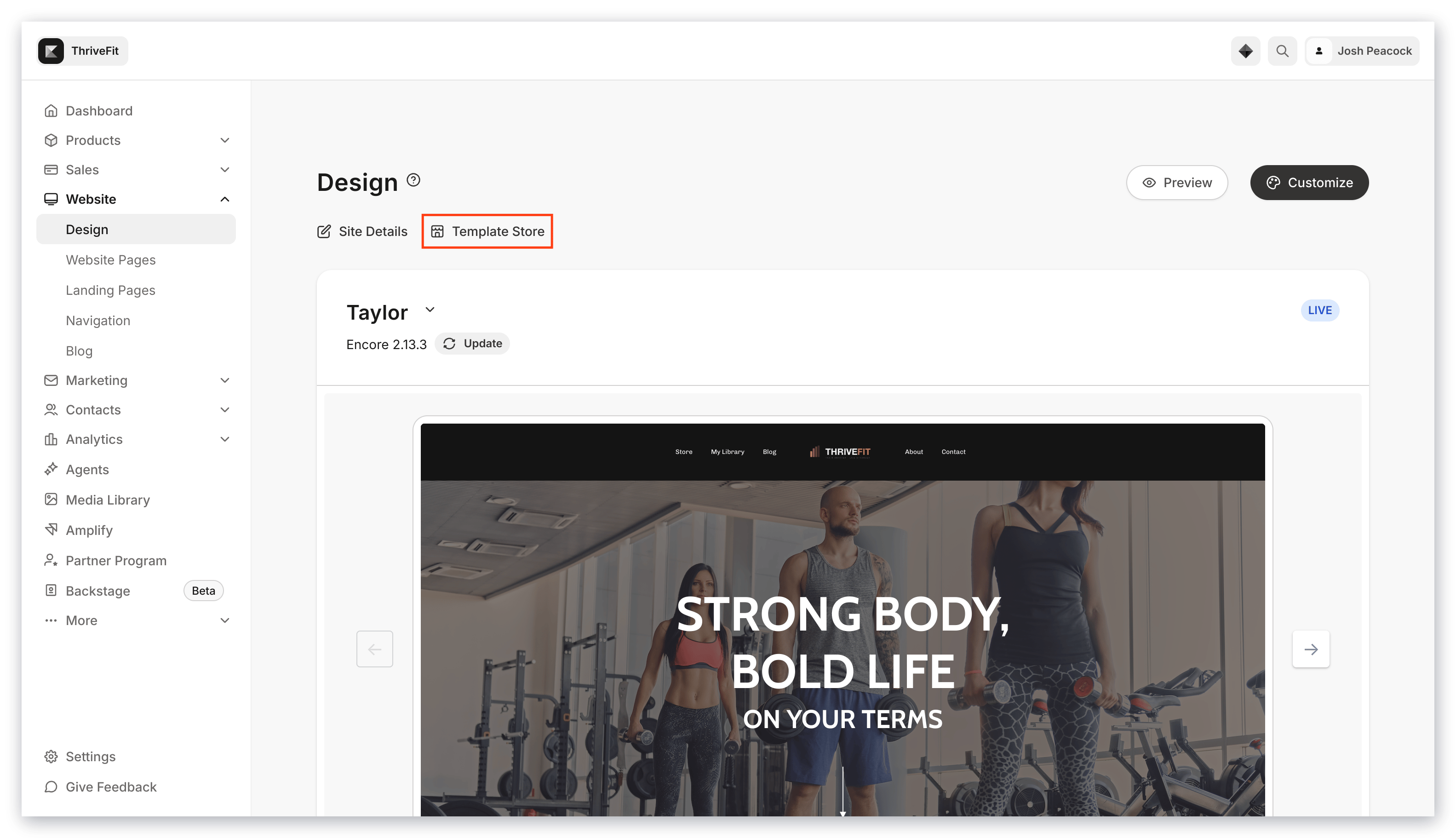 * Select your **Template** from the Template Store.
* Click **Add to saved templates** to save the Template.
***
## Template Store
The Template Store contains all of the streamlined and pre-designed templates available to you to help you get started.
Select a streamlined template to begin your design from scratch or select a pre-designed template that best fits your vision.
With Kajabi, all of the templates are included regardless of your plan and do not cost extra.
And with Kajabi, you are in control.
Both the streamlined templates and the pre-designed templates contain all the same highly customizable page editing features to help you design the page of your dreams.
***
## Site details
Now that you have selected your website template, we recommend setting up your remaining branding settings.
Configure your [**Site Settings**](https://help.kajabi.com/hc/en-us/articles/360043367854) to streamline your website building process.
Two main settings to set up:
* [**Branding**](https://help.kajabi.com/hc/en-us/articles/360037850453) section will allow you upload a favicon and logo that will be used on all newly created pages in Kajabi.
* [**Colors**](https://help.kajabi.com/hc/en-us/articles/360037850453) will give you the option to pick the default color palette that will show up when customizing any page in Kajabi.
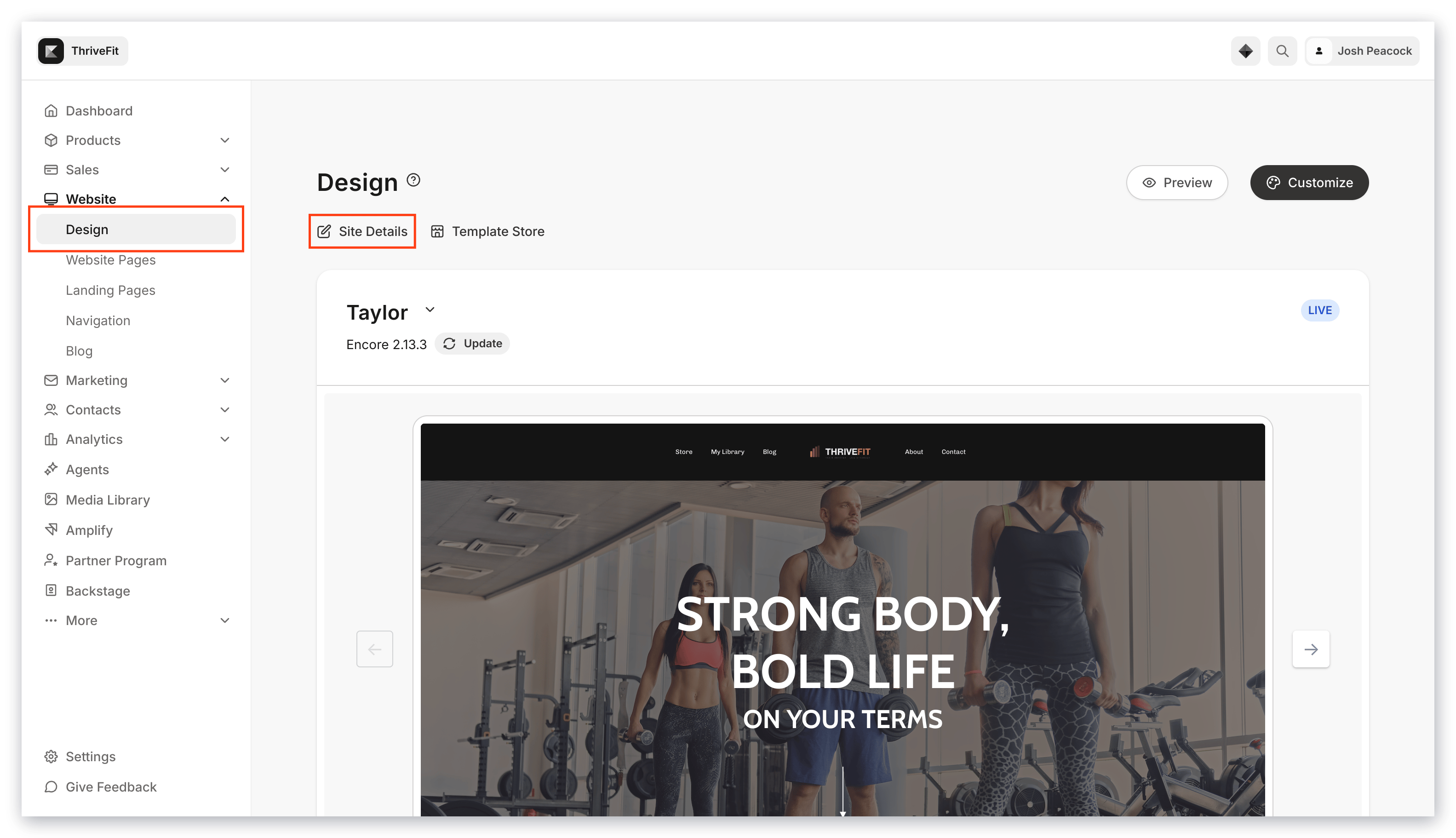
These settings are located in your Site Details:
* Select your **Template** from the Template Store.
* Click **Add to saved templates** to save the Template.
***
## Template Store
The Template Store contains all of the streamlined and pre-designed templates available to you to help you get started.
Select a streamlined template to begin your design from scratch or select a pre-designed template that best fits your vision.
With Kajabi, all of the templates are included regardless of your plan and do not cost extra.
And with Kajabi, you are in control.
Both the streamlined templates and the pre-designed templates contain all the same highly customizable page editing features to help you design the page of your dreams.
***
## Site details
Now that you have selected your website template, we recommend setting up your remaining branding settings.
Configure your [**Site Settings**](https://help.kajabi.com/hc/en-us/articles/360043367854) to streamline your website building process.
Two main settings to set up:
* [**Branding**](https://help.kajabi.com/hc/en-us/articles/360037850453) section will allow you upload a favicon and logo that will be used on all newly created pages in Kajabi.
* [**Colors**](https://help.kajabi.com/hc/en-us/articles/360037850453) will give you the option to pick the default color palette that will show up when customizing any page in Kajabi.
These settings are located in your Site Details:
 ***
## Creating a page
### Step 1. Select your template
Kajabi provides you with basic streamlined pages and premium-designed pages to help you get started designing your pages.
Read [How to Create a New Page](../../website/pages/how-to-add-pages-to-your-website) to get started designing your custom pages.
***
## Creating a page
### Step 1. Select your template
Kajabi provides you with basic streamlined pages and premium-designed pages to help you get started designing your pages.
Read [How to Create a New Page](../../website/pages/how-to-add-pages-to-your-website) to get started designing your custom pages.
### Step 2. Customize your settings
After selecting your template, you may first want to set up your Settings before diving into the design of your custom Page.
### Step 3. Build Sections & Blocks
To begin building your Page, let's discuss the structure of your Page. Kajabi Pages are made up of
* [Blocks](../../website/pages/add-blocks-to-your-page)
* and [Sections](../../website/pages/add-sections-to-your-pages).
Each Section of your Page is made up of specific Blocks (e.g., The [Image Gallery Section](../../website/pages/how-to-add-an-image-gallery-to-your-page) is made up of six Image Blocks).
Although Kajabi provides you with preset sections, each section is customizable. Regardless of the Section you choose, you can always remove, add, and edit the Blocks within your chosen Section according to your design vision.
### Step 4. Design your page
Customize your Page with:
* [Preset Sections](../../website/pages/add-sections-to-your-pages#h_48693c0b-329a-48b6-8edb-9318e4b7eae5)
* [Adjustable spacing](../../website/pages/how-to-customize-the-block-width)
* Optimize visibility by device type by [Block Layout](../../website/pages/customizing-block-layout-settings) and [Section Layout](../../website/pages/customizing-section-layout-settings)
* And create [engaging animations](../../website/pages/customizing-block-animations) to wow your site visitors.