> ## Documentation Index
> Fetch the complete documentation index at: https://help.kajabi.com/llms.txt
> Use this file to discover all available pages before exploring further.
# Customize block animations
> Learn to add animations to your blocks to create a visual effect when a visitor opens your page.
Learn to add Animations to your Blocks to create a visual effect when a visitor opens your page.
***
## Adding animations to your block
Animations can add a lot of personality to your page. With Animations, add motion to each individual Block as the page loads and scrolls.
Select the type, direction, delay, and duration of your animation.
* Open the **Website** tab from your Dashboard.
* Select the **Pages** tab.
* Open the page editor for your Page. [Learn more](/articles/website/pages/how-to-get-to-the-page-editor)
* Hover over the block you want to customize and click **Edit**.
* Navigate to the sidebar and locate your Block Settings.
* Click **Animations** to access the Block Animation Settings
* Be sure to click **Save** to keep and apply your changes:
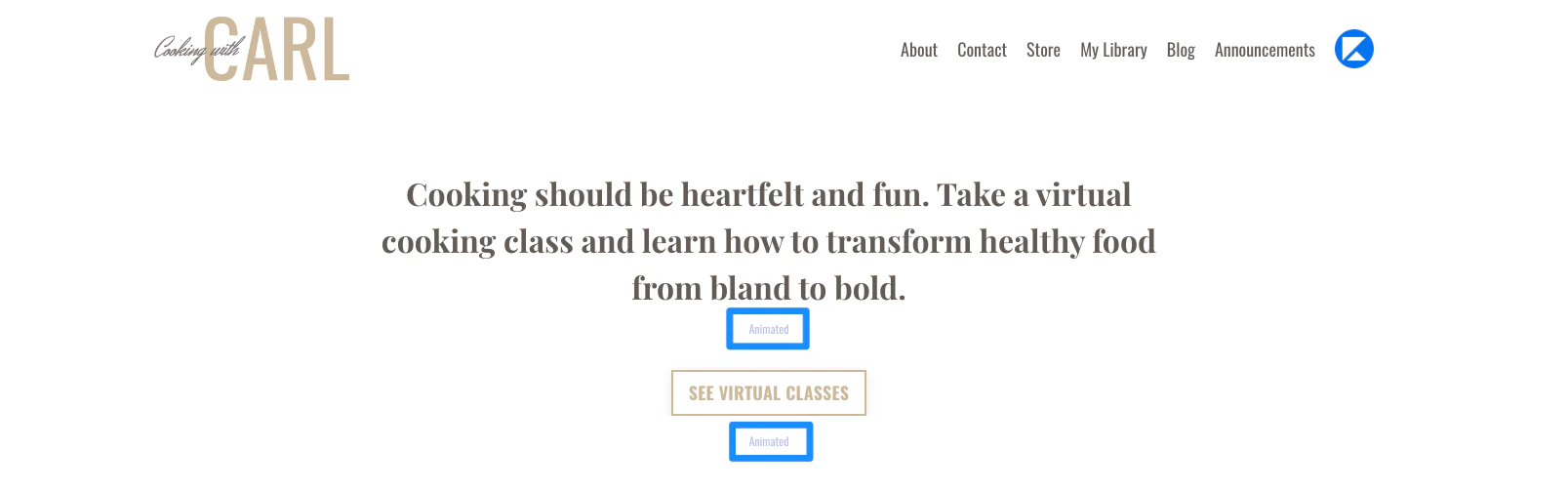
### Easily identify the blocks with animation settings enabled when customizing your page
 ***
## Animation settings
### Animation types
* **None**: select to disable Animations
* [Fade](#fade)
* [Flip](#flip)
* [Zoom](#zoom)
### Fade
Make your Block fade onto the page when a visitor scrolls to the Block:
***
## Animation settings
### Animation types
* **None**: select to disable Animations
* [Fade](#fade)
* [Flip](#flip)
* [Zoom](#zoom)
### Fade
Make your Block fade onto the page when a visitor scrolls to the Block:
### Flip
Make your Block flip onto the page when a visitor scrolls to the Block:
### Zoom
Make your Block zoom onto the page when a visitor scrolls to the Block:
### Direction
Select the direction of the element's Animation:
* Up
* Down
* Left
* Right
### Animation delay
The number of seconds before the element begins its Animation once a visitor reaches the Block.
**Tip:** Be mindful of the Animation Delay; Animations should be timed around the 100ms to 1 second (the "sweet spot") where users can recognize the animation without confusion and are seamlessly led through your landing page flow.
### Animation duration
The number of seconds the animation will last.
This can change how your Animation appears. Depending on the number of seconds selected, your Animation can quickly appear or slowly appear when your visitor scrolls to the Block.