> ## Documentation Index
> Fetch the complete documentation index at: https://help.kajabi.com/llms.txt
> Use this file to discover all available pages before exploring further.
# Customize the footer
> Learn to enable and customize the footer of your page.
Learn to enable and customize the footer of your page.
**Note:** This guide refers to Kajabi Pages and Website Builder. If you are using the Premier Legacy Templates, please refer to the guide [here](/articles/website/pages/how-to-customize-your-footer-in-your-page-with-premier).
***
## Adding a footer section to your page
The Footer of your pages is a great place to include links to additional resources such as your privacy policy, social links, copyright information, and more.
The Footer is built to streamline the process of building extra resources into the final section of your page and can be customized to fit your business and brand.
### Accessing the footer
In the section settings, you can customize the background color and visibility. You can also update your Footer content.
* Open the **Website** tab from the Dashboard.
* Select the **Pages** tab.
* Open the page editor for your Page. [Learn more](/articles/website/pages/how-to-get-to-the-page-editor)
* Navigate to the sidebar panel and click **Footer**:
***
## Customizing your footer
Customize the blocks, behavior, and appearance of your Footer.
First, customize your Footer Text Color, Copyright Text Color, Powered by Kajabi Text Color, and Footer Background Color to best fit your brand.
### How to add footer blocks
* Open the **Website** tab from the Dashboard.
* Select either **Website Pages** or **Landing Pages**.
* Open the page editor for your Page. [Learn more](/articles/website/pages/how-to-get-to-the-page-editor)
* Navigate to the sidebar panel and click **Footer**.
* Click **Add Content**.
* Select your [Block Type](#footer-block-types):
### Footer block types
Customize your Footer by adding Footer Content Blocks:
* [Copyright](#copyright)
* [Logo](#logo)
* [Menu](#link-list)
* [Social Icons](#social-icons)
### Copyright
Customize the text displayed with the Copyright block.
### Logo
Display your brand by adding a Logo Image or Logo Text to the Footer of your page:
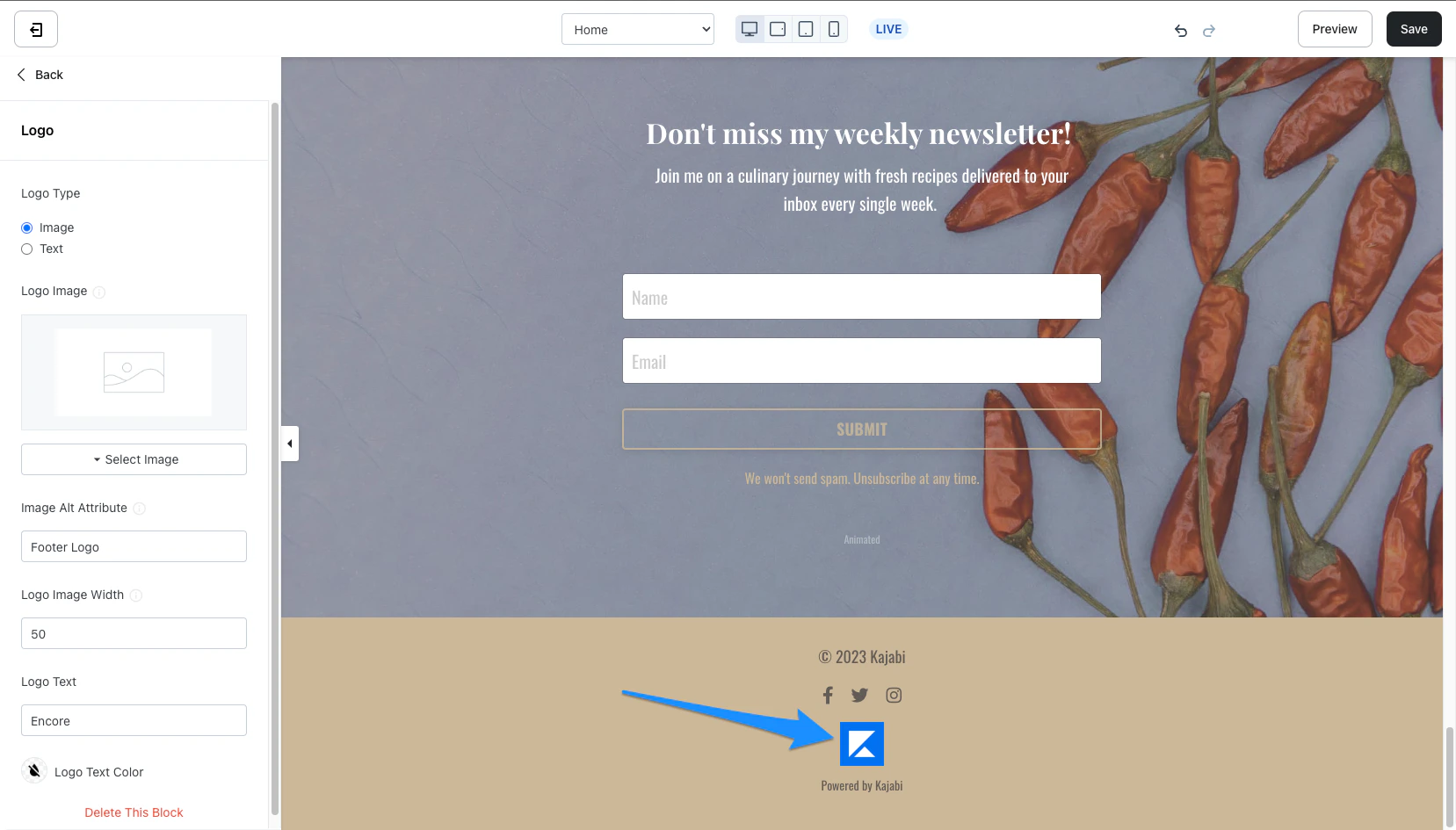 #### Step 1. Select your logo type
After adding the Logo Block Type, select:
* Image
* Text
**Note:** If you have uploaded a Logo Image to the [Branding section of your Site Detail Settings](/articles/website/pages/how-to-upload-your-favicon-and-logo-used-on-new-templates) prior to creating the page, Image Logo Type will default to the Logo uploaded in your Site Detail Settings. If you wish to change the image for your page, follow [Step 2: Upload your Logo](#step-2-upload-your-logo).
#### Step 2. Upload your logo
Depending on the Logo Type selected:
* Upload your Logo Image by clicking **Select Image** and choosing a new file or a recent file.
* Enter text in the **Logo Text** field.
#### Step 3. Customize your logo
**Image Alt Attribute**
Enter a brief image description to identify the image for SEO purposes, accessibility, and if the image cannot be displayed.
**Logo Image Width**
If you have selected **Image** as your Logo Type, customize the width of your image to change the appearance of your Logo on your page.
**Logo Text Color**
If you have selected **Text** as your Logo Type, customize the text color to brand your Logo Text.
### Link list
Add a Navigation Menu to the Footer of your page for your users to easily navigate to additional resources on your website.
#### Step 1. Select your logo type
After adding the Logo Block Type, select:
* Image
* Text
**Note:** If you have uploaded a Logo Image to the [Branding section of your Site Detail Settings](/articles/website/pages/how-to-upload-your-favicon-and-logo-used-on-new-templates) prior to creating the page, Image Logo Type will default to the Logo uploaded in your Site Detail Settings. If you wish to change the image for your page, follow [Step 2: Upload your Logo](#step-2-upload-your-logo).
#### Step 2. Upload your logo
Depending on the Logo Type selected:
* Upload your Logo Image by clicking **Select Image** and choosing a new file or a recent file.
* Enter text in the **Logo Text** field.
#### Step 3. Customize your logo
**Image Alt Attribute**
Enter a brief image description to identify the image for SEO purposes, accessibility, and if the image cannot be displayed.
**Logo Image Width**
If you have selected **Image** as your Logo Type, customize the width of your image to change the appearance of your Logo on your page.
**Logo Text Color**
If you have selected **Text** as your Logo Type, customize the text color to brand your Logo Text.
### Link list
Add a Navigation Menu to the Footer of your page for your users to easily navigate to additional resources on your website.
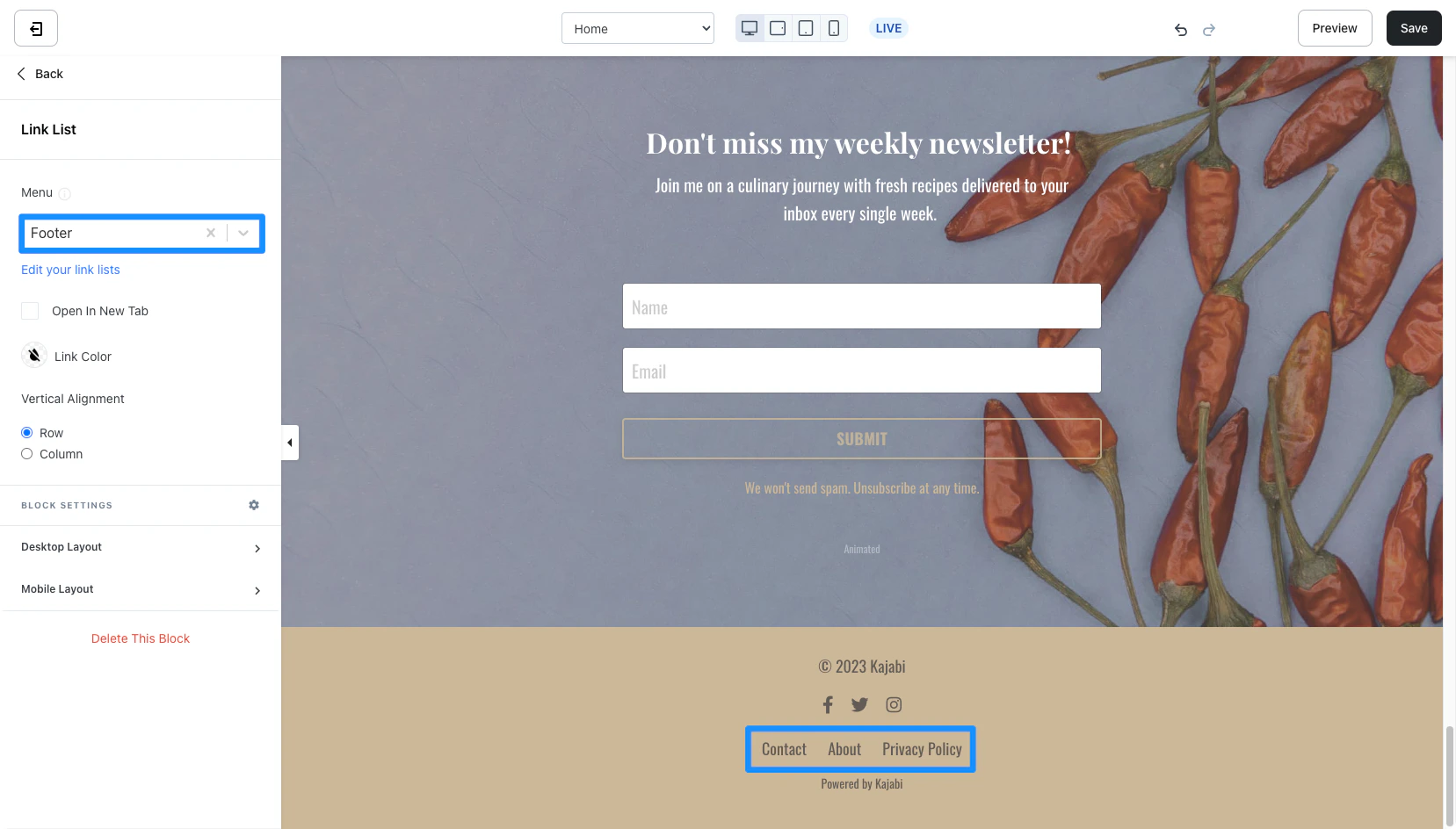 #### Step 1. Select your menu
* Open the **Menu** dropdown.
* Select the **Menu/Link List** that you wish to add to your Header.
**Note:** To create and edit your menu links, click **Edit your link lists** below the Menu header in the sidebar editor.
#### Step 2. Change your menu alignment
Change the alignment of your Menu based on its location in your list of Header Blocks:
* Left
* Center
* Right
### Social icons
Add links to popular social platforms and encourage your visitors to stay connected with your brand and business:
#### Step 1. Select your menu
* Open the **Menu** dropdown.
* Select the **Menu/Link List** that you wish to add to your Header.
**Note:** To create and edit your menu links, click **Edit your link lists** below the Menu header in the sidebar editor.
#### Step 2. Change your menu alignment
Change the alignment of your Menu based on its location in your list of Header Blocks:
* Left
* Center
* Right
### Social icons
Add links to popular social platforms and encourage your visitors to stay connected with your brand and business:
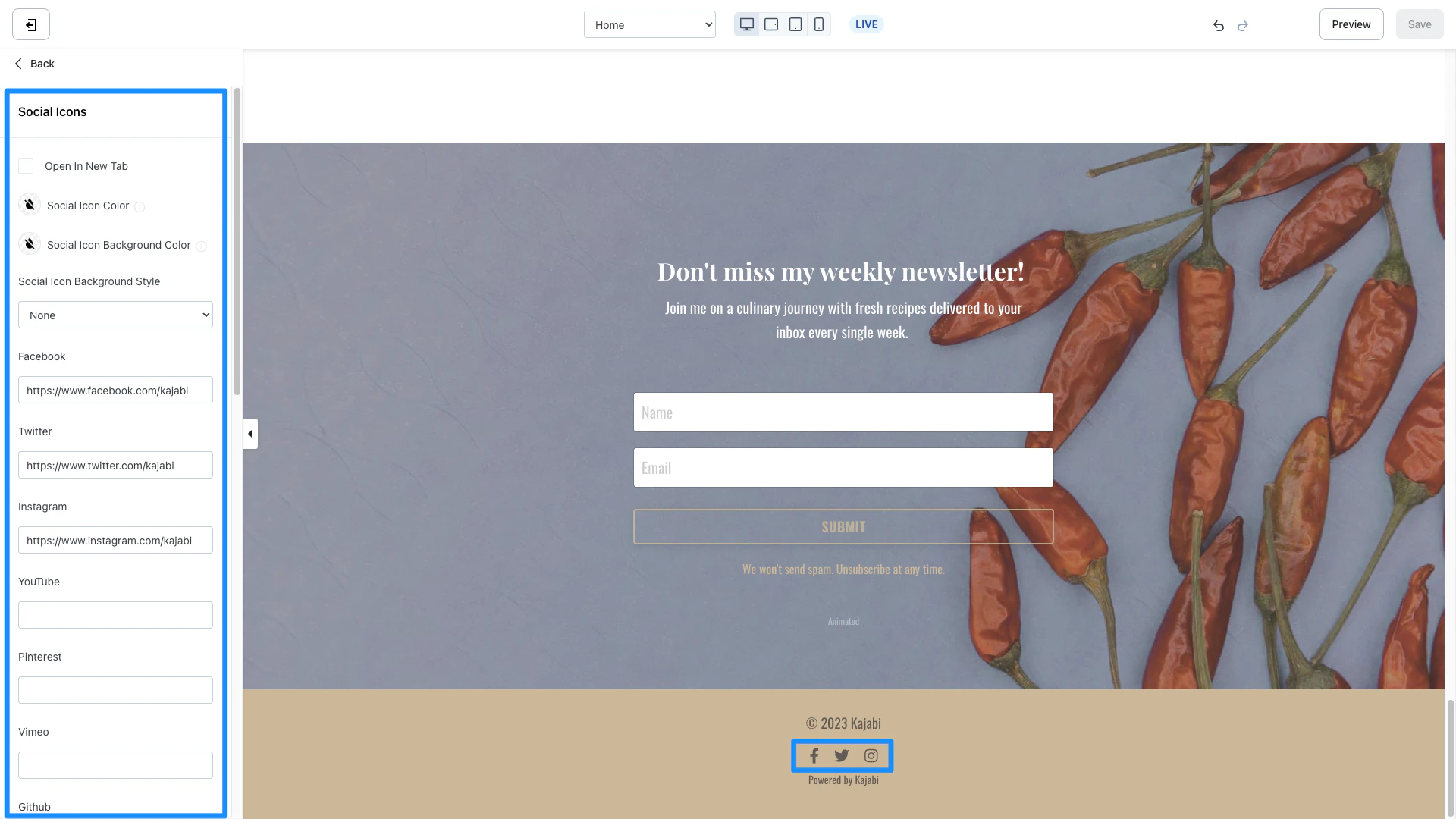 **Step 1. Add your social links**
* Copy the links to your social platform pages (e.g., Facebook, Twitter, Instagram, Youtube, etc.).
* Paste into the Social Icons Block of your Footer.
**Note:** Kajabi currently only supports social links for the following:
Facebook, X, Instagram, YouTube, Pinterest, Vimeo, Github, iTunes, LinkedIn, Soundcloud, Yelp, Tumblr, Slack, Flickr, Dribble, TikTok, Medium, Spotify, and Podcasts.
**Step 2. Brand your social icons**
Click the **Social Icon Color**:
* Change the color for the social icon containing your Social Links.
* Select a color from your default site color palette or select the color wheel to select a custom color.
Click the **Social Icon Background Color**:
* Change the background color for the social icon containers.
* Select a color from your default site color palette or select the color wheel to select a custom color.
Select a **Social Icon Background Style**:
Change the background shape of your Social Icon:
* Round
* Square
* None (no background shape for a minimal style)
***
## Footer section settings
### Desktop layout
Customize your Footer appearance when viewed on Desktop Devices:
* Choose to **Hide Footer**
* Switch to a **Vertical Layout** to stack your Blocks vertically (instead of the default horizontal layout)
### Mobile layout
Customize your Footer appearance when viewed on Mobile Devices:
* Choose to **Hide Footer**
### Typography
Customize the Font Size for text displayed in your Footer when viewed on Desktop and Mobile Devices.
**Step 1. Add your social links**
* Copy the links to your social platform pages (e.g., Facebook, Twitter, Instagram, Youtube, etc.).
* Paste into the Social Icons Block of your Footer.
**Note:** Kajabi currently only supports social links for the following:
Facebook, X, Instagram, YouTube, Pinterest, Vimeo, Github, iTunes, LinkedIn, Soundcloud, Yelp, Tumblr, Slack, Flickr, Dribble, TikTok, Medium, Spotify, and Podcasts.
**Step 2. Brand your social icons**
Click the **Social Icon Color**:
* Change the color for the social icon containing your Social Links.
* Select a color from your default site color palette or select the color wheel to select a custom color.
Click the **Social Icon Background Color**:
* Change the background color for the social icon containers.
* Select a color from your default site color palette or select the color wheel to select a custom color.
Select a **Social Icon Background Style**:
Change the background shape of your Social Icon:
* Round
* Square
* None (no background shape for a minimal style)
***
## Footer section settings
### Desktop layout
Customize your Footer appearance when viewed on Desktop Devices:
* Choose to **Hide Footer**
* Switch to a **Vertical Layout** to stack your Blocks vertically (instead of the default horizontal layout)
### Mobile layout
Customize your Footer appearance when viewed on Mobile Devices:
* Choose to **Hide Footer**
### Typography
Customize the Font Size for text displayed in your Footer when viewed on Desktop and Mobile Devices.