> ## Documentation Index
> Fetch the complete documentation index at: https://help.kajabi.com/llms.txt
> Use this file to discover all available pages before exploring further.
# Customize the header
> The header is a critical element of your website that runs across the top of every web page, typically containing your logo and site navigation.
The Header is a critical element of your website that runs across the top of every web page. Typically, it contains your logo and site navigation. The Header is a great place to showcase your brand colors and logos, and display announcements you want your visitors to see.
**Note:** If you are using the Premier Legacy Templates, please refer to the guide [here](/articles/website/pages/how-to-customize-your-header-in-your-page-with-premier).
***
## Accessing the header editor
* Open the **Website** tab from the Dashboard.
* Select the **Pages** tab.
* Open the page editor for your Page. [Learn more](/articles/website/pages/how-to-get-to-the-page-editor)
* Navigate to the sidebar panel and click **Header**:
***
## Customizing your header
Optimize the topmost section of your page, the Header, by designing a Header that best fits your brand and business.
Design your Header by customizing the overall appearance, functionality, and behavior.
**Note:** Your Header will populate across your website pages. [Learn the difference between pages on Kajabi.](/articles/website/pages/pages-overview)
### Header text and background colors
Start customizing your Header by adding your branding colors to the Header Text Color and Header Background Color.
**Looking to create a simple, standout design with colors to match your brand?**
By default, Kajabi helps you design a smart page by adjusting the text color based on the brightness of your selected background color.
If you choose a dark background color, the text color will change to stand out against the dark background.
If you select a light color, the text color will take on a darker tone to contrast against the light background:
**Want to determine your own branded text and background colors?**
Select your desired colors for both your Header Text Color and Header Background Color to override the dynamically adjusting text colors.
### Header position
After setting your general header text and background colors, customize the behavior, position, sticky text, and background colors.
* **Normal** is the default setting for your Header. This keeps your Header in line with your page and disappears as your visitor scrolls down the page.
* **Overlay** adjusts the Header to overlay the first Section of your page:
* **Enable Sticky Header** or **Fixed on scroll** keeps the Header fixed and visible as your visitor scrolls down your Page:
If you choose to enable **Fixed on scroll**, customize the text and background colors for your header when a visitor scrolls through the page:
* **Sticky Text Color** - Header text color for when the page is scrolled.
* **Sticky Background Color** - Header background color for when the page is scrolled.
**Note:** If you are customizing your header in a landing page (and not the website builder) these settings will be found in the [Desktop Layout of your Section Settings](#desktop-layout).
***
## How to add header blocks
Design a Header unique to you by adding blocks:
* Open the **Website** tab from the Dashboard.
* Select the **Pages** tab.
* Open the page editor for your Page. [Learn more](/articles/website/pages/how-to-get-to-the-page-editor)
* Navigate to the sidebar panel and click **Header**.
* Click **Add Content**.
* Select your desired [Block Type](#header-block-types):
***
## Header block types
Design your header by adding and rearranging your chosen header block types:
### Announcement or Hello Bar
Communicate an important announcement or notification for your page visitors as a banner above your Header. [Learn more](/articles/website/pages/how-to-add-a-hello-bar-to-your-page)
### Call to Action
Encourage your page visitors to take immediate action on your message by using a Call to Action (CTA) block on your Header. [Learn more](/articles/website/pages/how-to-use-a-call-to-action)
### Dropdown Menu
Create a fluid navigation experience for your page visitors by adding a dropdown menu to your Header. [Learn more](/articles/website/pages/add-a-dropdown-menu-to-your-header)
### Logo
Brand your page with your logo at the forefront of your page. [Learn more](/articles/website/pages/how-to-add-a-logo-to-your-page-header)
### Menu
Include a simple navigation menu in your Header to encourage your page visitors to easily explore your site. [Learn more](/articles/website/pages/how-to-add-a-menu-to-your-page-header)
### User Menu
Provide a space for your customers to access their User Account by adding a User Menu to your Page Header. [Learn more](/articles/website/pages/how-to-add-a-user-menu-to-your-page-header)
Want to learn more about Blocks? [Click here to learn how to add blocks to your page.](/articles/website/pages/add-blocks-to-your-page)
***
## Header section settings
### Desktop layout
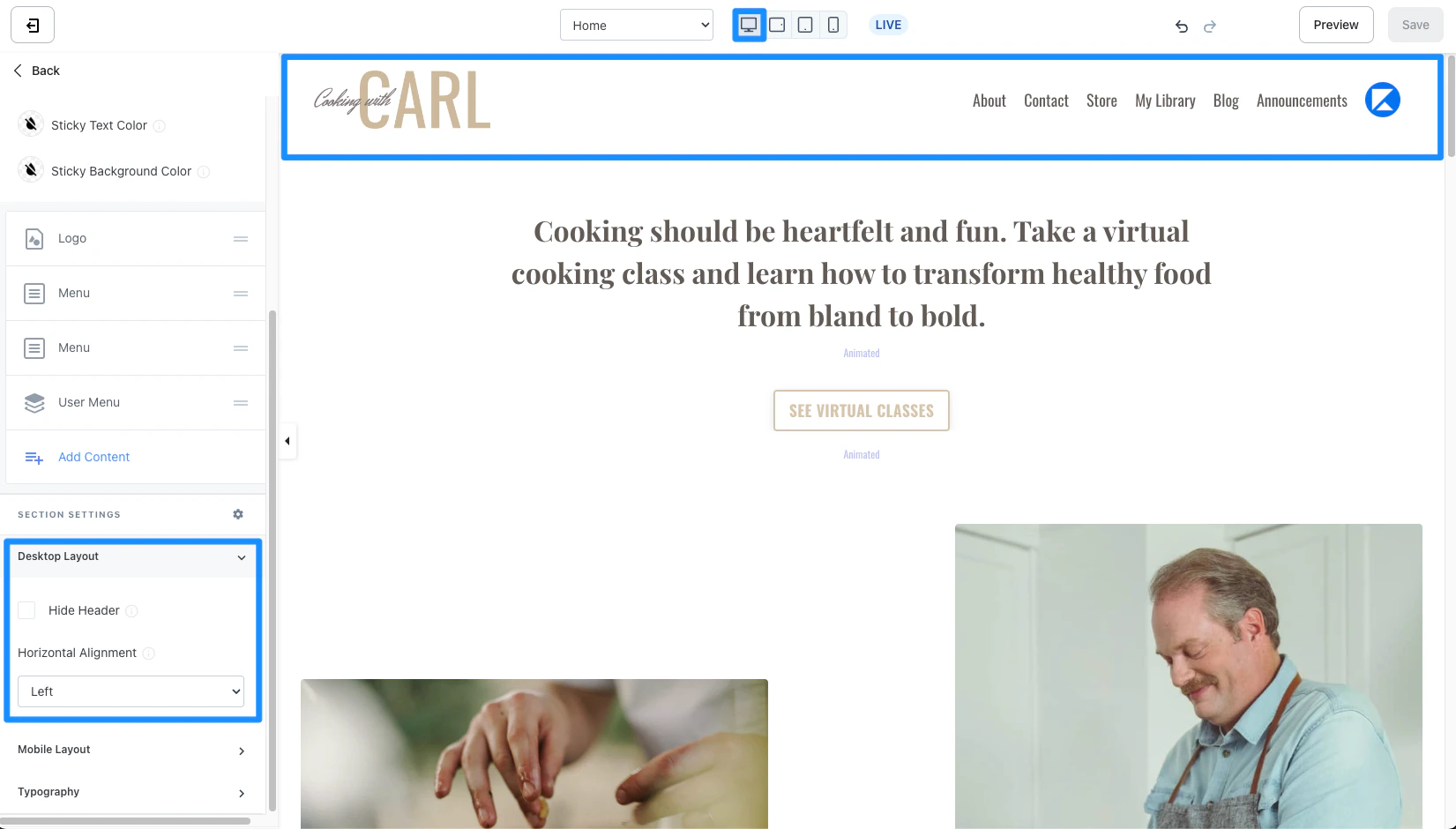
Choose to display or hide your Header and the horizontal alignment of your Header when viewed on desktop devices:
 ### Mobile layout
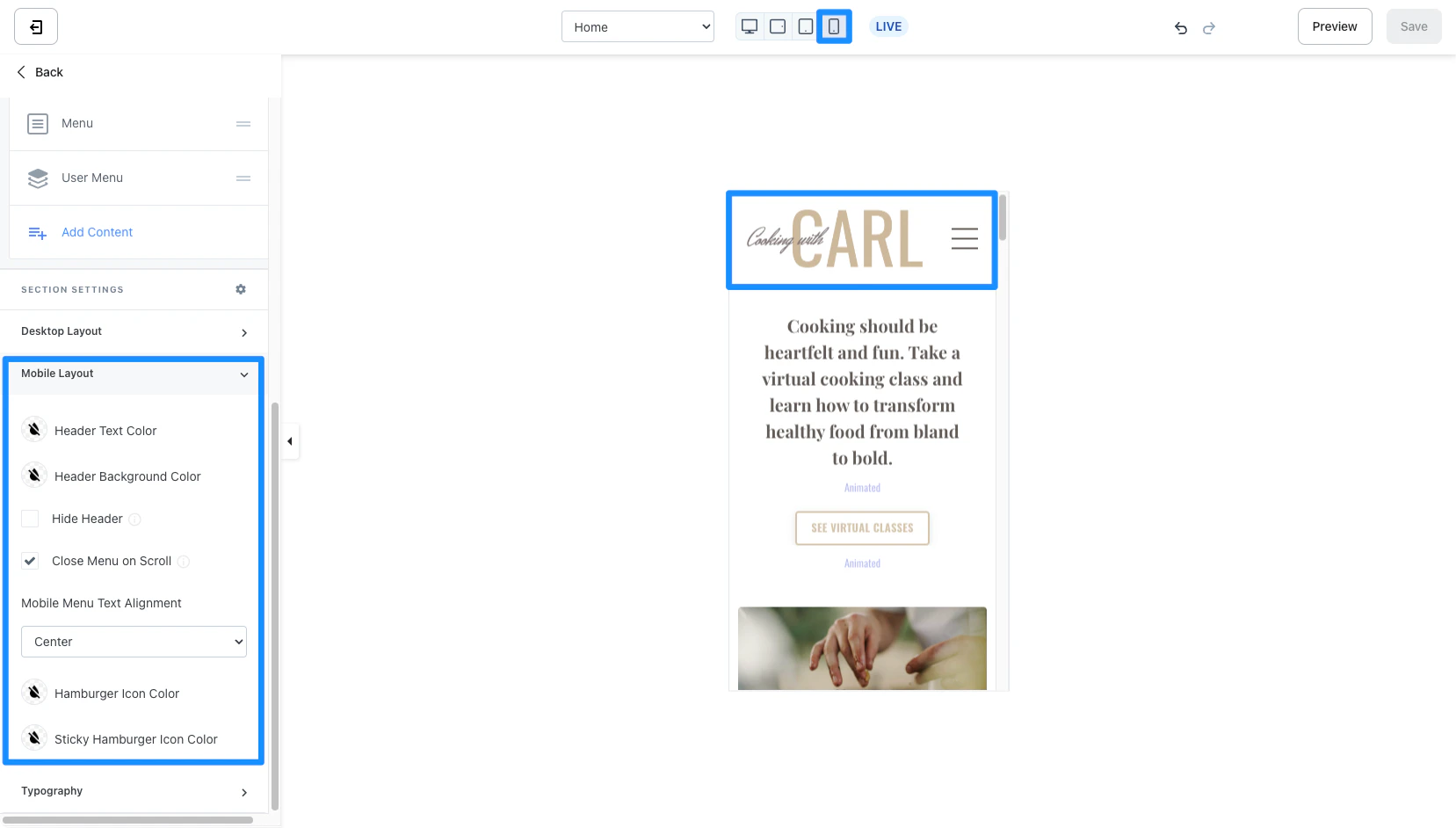
Choose to display or hide your Header, configure the Hamburger Menu Icon Color, and customize the Hamburger Icon Color when [Sticky Header is enabled](#header-position):
### Mobile layout
Choose to display or hide your Header, configure the Hamburger Menu Icon Color, and customize the Hamburger Icon Color when [Sticky Header is enabled](#header-position):
 #### What is a hamburger menu?
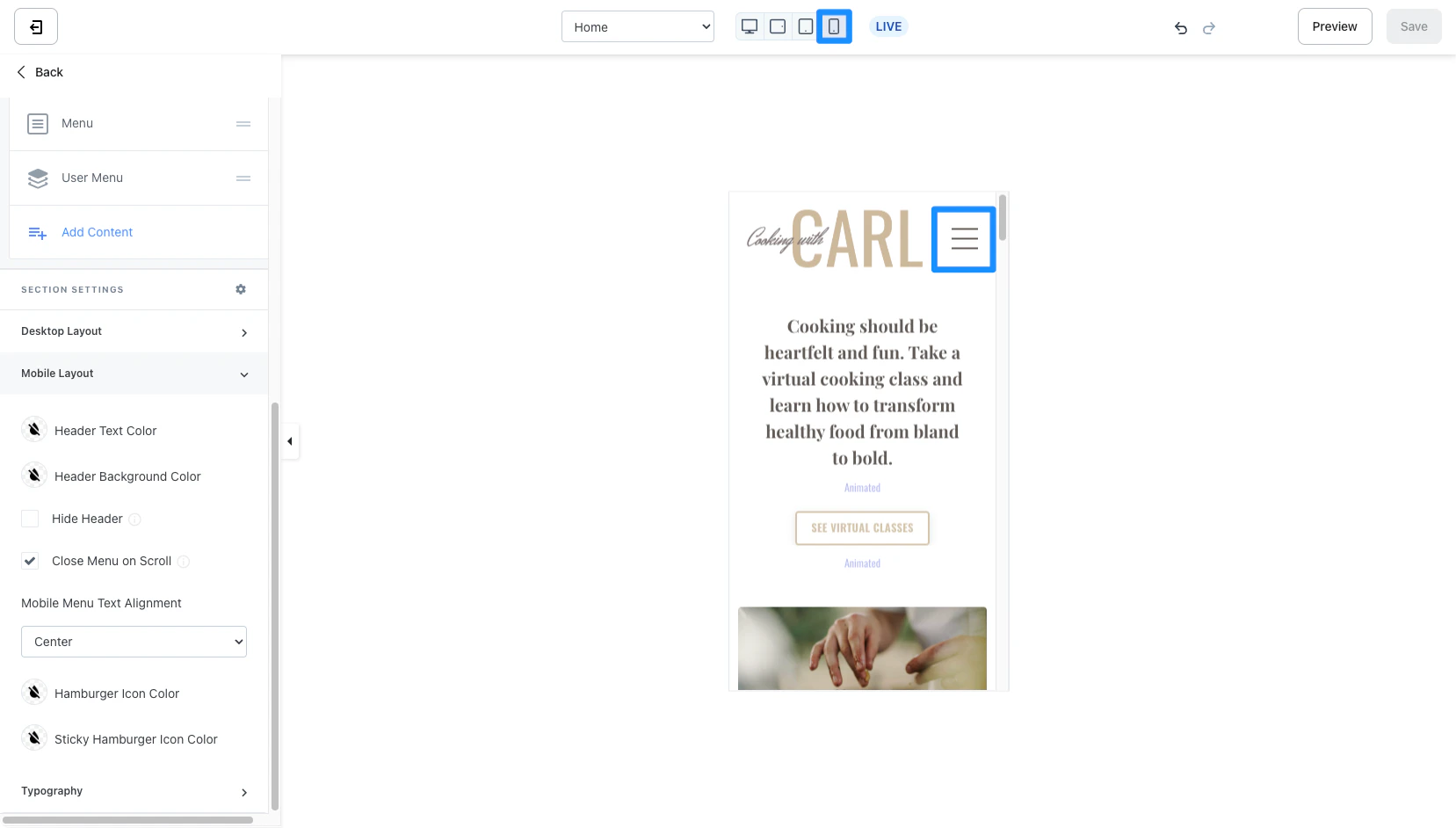
The hamburger menu is the three horizontal lines to communicate to your mobile visitors that there is a dropdown menu:
#### What is a hamburger menu?
The hamburger menu is the three horizontal lines to communicate to your mobile visitors that there is a dropdown menu:
 ### Typography
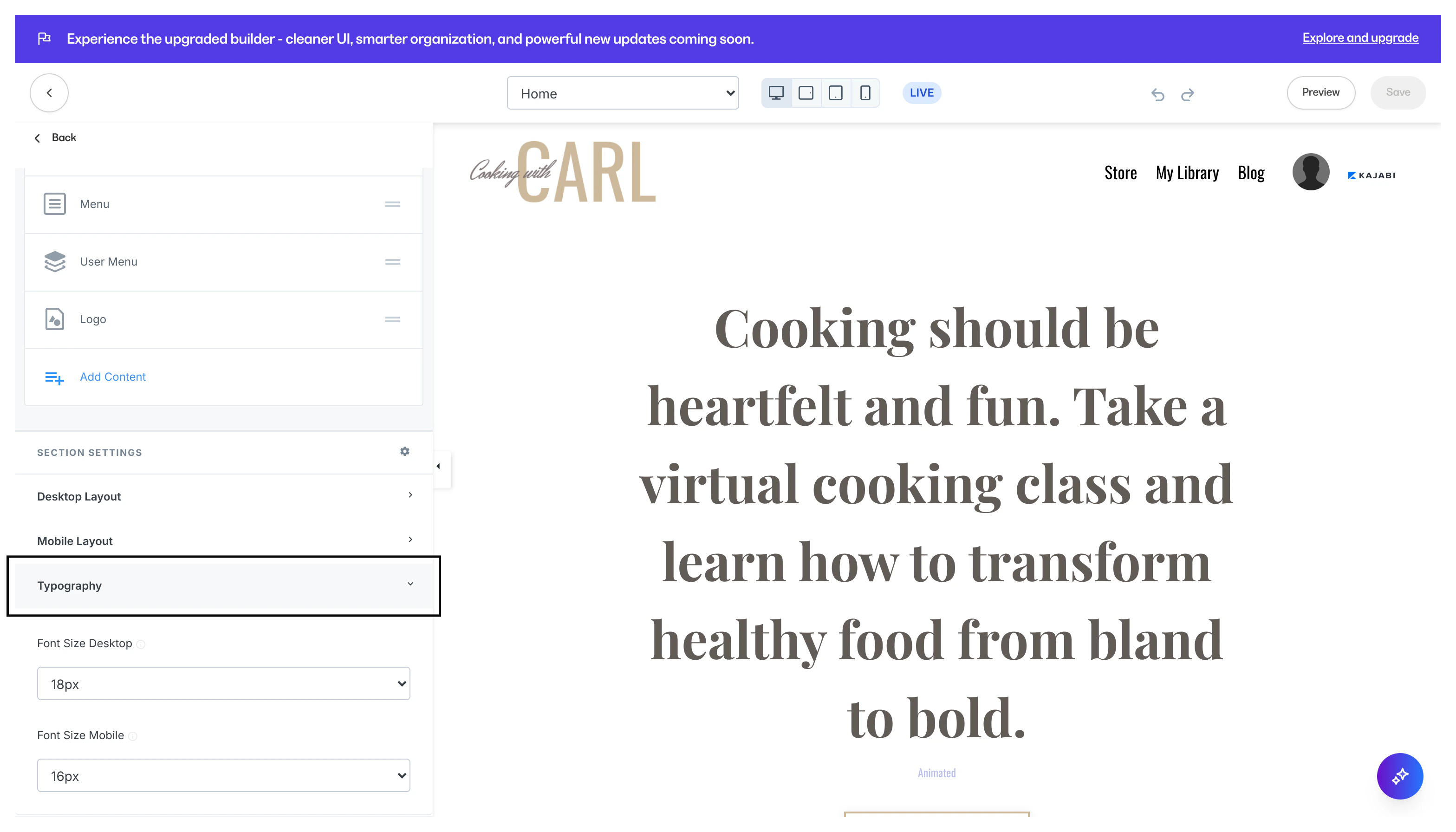
Adjust the Font Size for your Header Text on both Desktop and Mobile Devices:
### Typography
Adjust the Font Size for your Header Text on both Desktop and Mobile Devices: