> ## Documentation Index
> Fetch the complete documentation index at: https://help.kajabi.com/llms.txt
> Use this file to discover all available pages before exploring further.
# Duplicate a page
> Keep your branding uniform throughout all pages by duplicating pages to save time.
Duplicating a Page can be used to keep your branding uniform throughout all pages. This can help save you time to focus on your content. Learn to duplicate your pages.
***
## Duplicating pages
### What is duplicating?
Duplicating a Page in Kajabi creates a copy of your page. Your duplicated page copies the Template, the page settings, and the content from the original page.
Duplicating your Page is a great tool to accomplish various actions, for example:
* Creating a uniform design throughout your website
* Creating pages specific to different languages
* Duplicating a Funnel Page to a standalone Landing Page
Keep in mind, these are simply examples of the possibilities duplicating a Page can achieve. You may find that duplicating a Page can help you in more ways than one that may be specific to your business and vision.
### How do I tell the difference between my original page and the duplicated page?
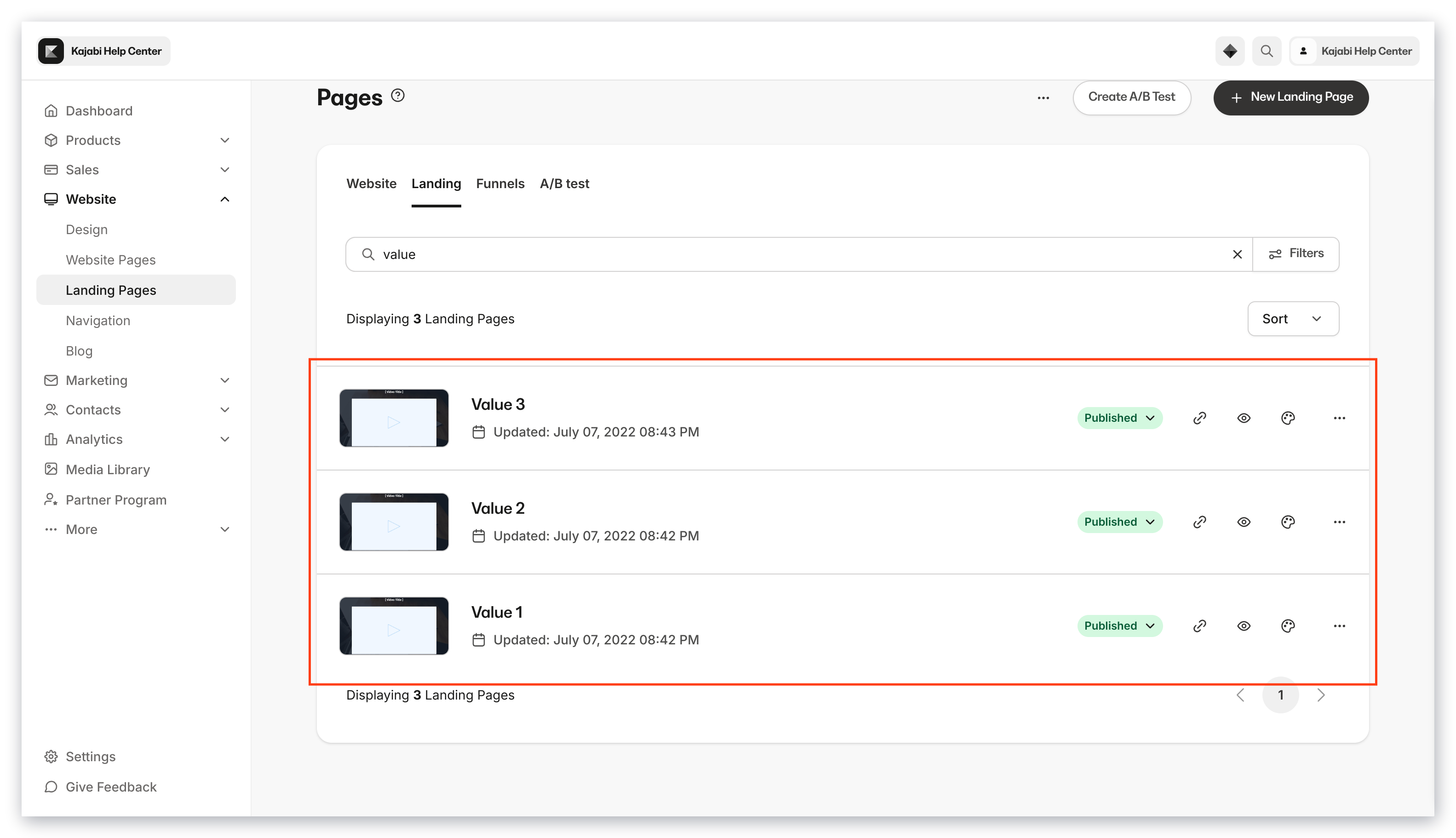
To differentiate between your original page and the duplicate, note that your duplicate page includes a number following the title of the page.
This number signifies the number of times your original page has been duplicated:
 **Note:** [System website pages](/articles/website/pages/customizing-your-website-pages-with-the-website-builder) cannot be cloned. Instead, create new custom pages to match your brand and website. [Learn more](/articles/website/pages/how-to-add-pages-to-your-website)
***
## How to duplicate a page
* Open the **Website** tab from your Dashboard.
* Click **Pages**.
* Locate the Page you wish to duplicate.
* Click `…` and select **Duplicate:**
**Note:** [System website pages](/articles/website/pages/customizing-your-website-pages-with-the-website-builder) cannot be cloned. Instead, create new custom pages to match your brand and website. [Learn more](/articles/website/pages/how-to-add-pages-to-your-website)
***
## How to duplicate a page
* Open the **Website** tab from your Dashboard.
* Click **Pages**.
* Locate the Page you wish to duplicate.
* Click `…` and select **Duplicate:**
After duplicating a Page, you can begin customizing your duplicate Page! If you wish to change the Title and visibility of your duplicated Page, return to your Pages list to edit your [Page Details](/articles/website/pages/customize-your-page-details).
**Note:** Duplicated Pages become standalone Landing Pages after generating. If you have duplicated a Funnel Page, you can locate your duplicate page within the list of standalone Landing Pages under the Pages section of your Website tab.