> ## Documentation Index
> Fetch the complete documentation index at: https://help.kajabi.com/llms.txt
> Use this file to discover all available pages before exploring further.
# Access the code editor
> Learn to access and edit the code in your Website, Product, and Landing Pages on Kajabi with the Pro Plan.
***
## What is the code editor?
With the code editor you can add and edit the code behind your site to design unique pages for your visitors to interact and engage with.
**Note:** The code editor is only available with the Pro Plan. Check out [kajabi.com/pricing](https://kajabi.com/pricing) for more details. If you're unfamiliar with editing code, we recommend consulting and hiring a professional to help.
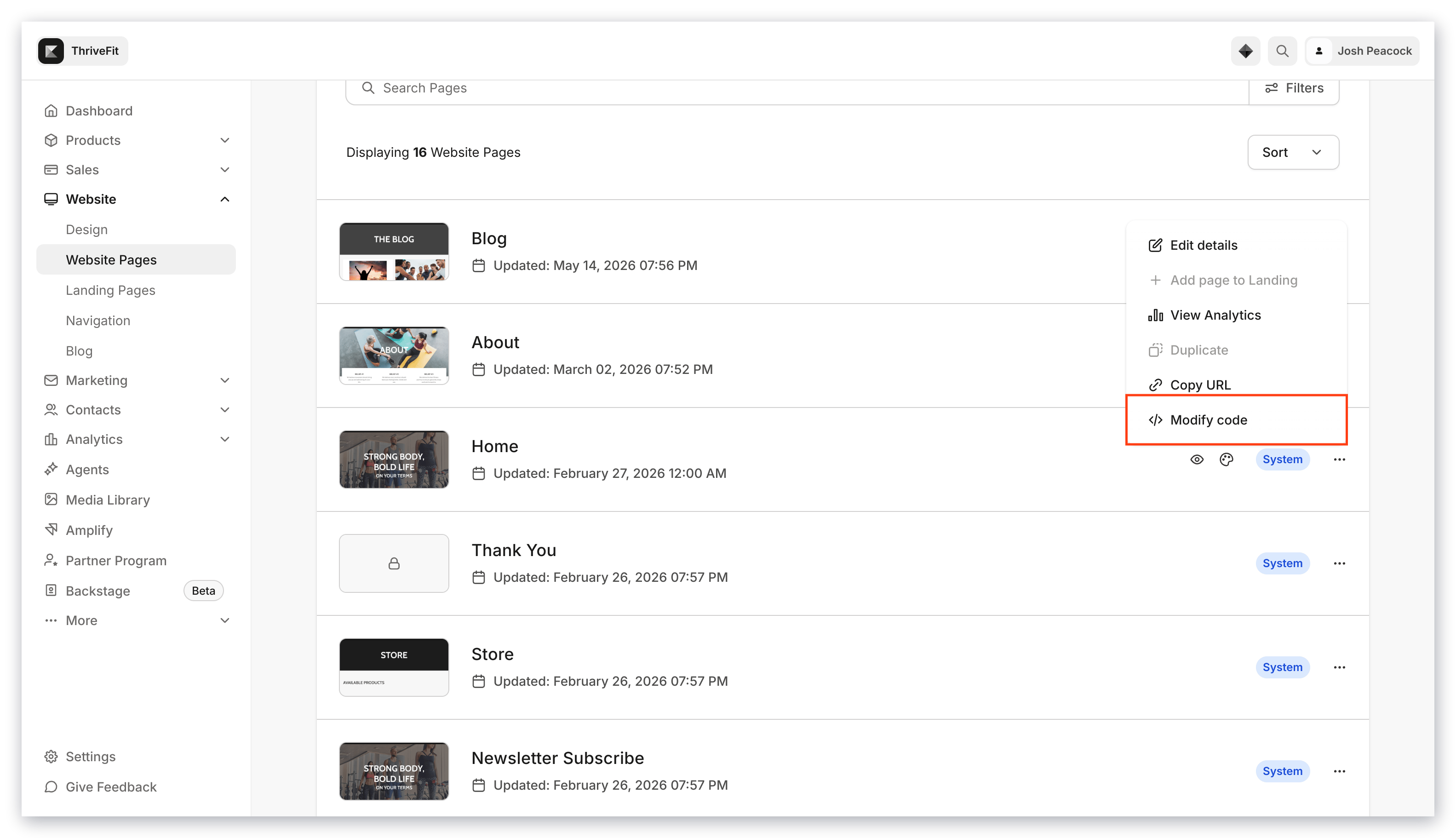
If you have access to the code editor, you'll see the **Modify code** feature when viewing the **More Actions** menu for your pages:
**Note:** The code editor feature is not available for checkout pages.
 ***
## Website template
To access and edit the code for your [Standard Website Pages](/articles/website/pages/customizing-your-website-pages-with-the-website-builder):
* Open the **Website** tab from the Dashboard.
* Locate the template you wish to edit.
* Click either the down arrow on your live template or `…` on your saved template and select **Modify code**:
***
## Website template
To access and edit the code for your [Standard Website Pages](/articles/website/pages/customizing-your-website-pages-with-the-website-builder):
* Open the **Website** tab from the Dashboard.
* Locate the template you wish to edit.
* Click either the down arrow on your live template or `…` on your saved template and select **Modify code**:
**Note:** Looking to update your website template? [Click here](/articles/website/pages/how-to-update-a-template) to learn more. Changes made inside the code editor may not be applied to your updated template version. If you are unfamiliar with editing code please refrain from changing the template structure. We recommend hiring a professional to help.
***
## Course Product template
To edit the code of your **Course Product** template:
* Open the **Products** tab from the Dashboard.
* Select the Course Product you wish to edit.
* Click **Customize**.
* Locate your desired Product template.
* Click `…` and select **Modify code**:
***
## Landing page template
To edit the code of your **Landing Page** template:
* Open the **Website** tab from the Dashboard.
* Click **Pages**.
* Open the **Landing** pages tab.
* Locate the page you wish to edit.
* Click `…` and select **Modify code**:
***
## Using the code editor
Kajabi template code is written in [Liquid](https://themes.kajabi.com/liquid/getting-started/liquid).
With code editor access in Kajabi, you'll have the ability to view and modify your template code directories and corresponding files.
Refer to Kajabi's [Template Documentation](https://themes.kajabi.com/liquid/getting-started/theme-types) for a complete overview of each template directory.
**Note:** It's important to keep in mind that changes to your code will not be retained if you choose to [update your template](/articles/website/pages/how-to-update-a-template).
To use the code editor in Kajabi:
* Open the **code editor** for your template as directed above.
* Select your desired **directory**.
* Select your desired **file**.
* Modify your code as needed.
* Click **Save**.
* Optional step: Click **Preview**:
**Note:** Our support team is unable to assist with creating or modifying custom code. We highly recommend seeking assistance from a professional before modifying your template code.