> ## Documentation Index
> Fetch the complete documentation index at: https://help.kajabi.com/llms.txt
> Use this file to discover all available pages before exploring further.
# Add a card block
> Learn to add a card block to sections of your page.
***
## What is a card block?
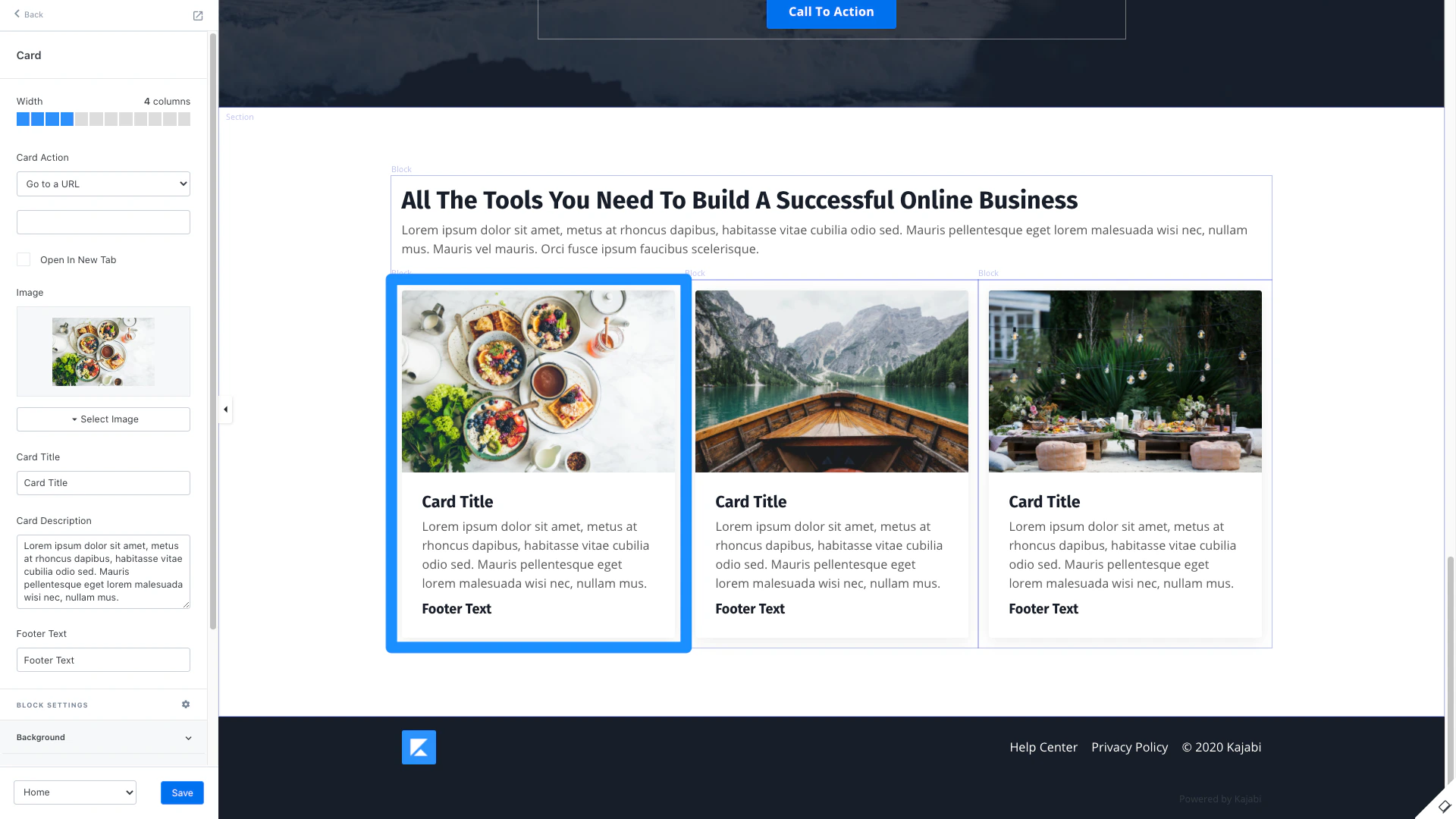
With the Card Block, display an image, configure your Card Action to trigger when clicked, and customize your Card messaging:
 ***
## Adding a card block
* Open the **Website** tab from the Dashboard
* Select the **Pages** tab
* Open the page editor for your Page. [Learn more](/articles/website/pages/how-to-get-to-the-page-editor)
* In the sidebar panel, click the Section you want to edit or [create a new Section](/articles/website/pages/add-sections-to-your-pages)
* In the sidebar, click **Add Content**
* From the list, select **Card**
* Your newly created Card Block will generate at the bottom of the Section
* Click **Save** to keep your changes:
***
## Adding a card block
* Open the **Website** tab from the Dashboard
* Select the **Pages** tab
* Open the page editor for your Page. [Learn more](/articles/website/pages/how-to-get-to-the-page-editor)
* In the sidebar panel, click the Section you want to edit or [create a new Section](/articles/website/pages/add-sections-to-your-pages)
* In the sidebar, click **Add Content**
* From the list, select **Card**
* Your newly created Card Block will generate at the bottom of the Section
* Click **Save** to keep your changes:
***
## Customizing your card block
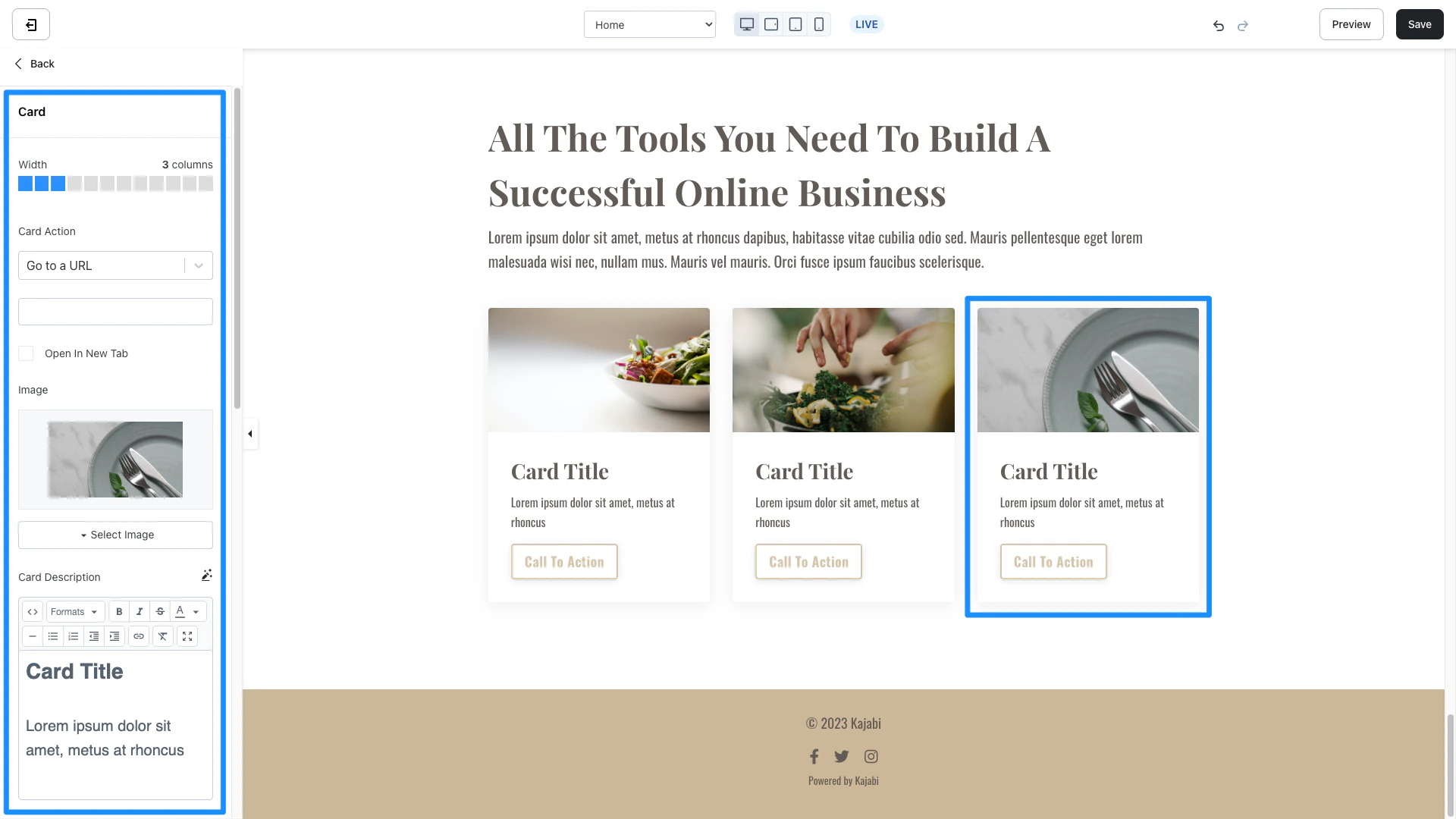
Customize your card block by adjusting the [width](/articles/website/pages/how-to-customize-the-block-width), selecting a Card Action, uploading an image, entering your messaging, and configuring your [Block Settings](/articles/website/pages/how-to-add-an-accordion-block-to-your-page#block-settings):
 ### Card action
Customize your card to trigger an action when clicked:
* Lead a visitor to a custom **Landing Page**
* Lead to a sale by going to a **Checkout Page**
* Encourage your audience to **download a file**
* Lead to any website page with a **URL link**
* Open a **Two-Step Optin Popup**
* Act as a link to **lead to a section of the page**
Additionally, you can set up your action to open in a new tab.
### Upload an image
Brand and design your Card Block by uploading an image:
* In the Card Block sidebar editor, click **select image**
* Click **upload a new file** or **select a recent file**
* Select your image to upload
* Click **Save** to apply and keep your changes:
### Card action
Customize your card to trigger an action when clicked:
* Lead a visitor to a custom **Landing Page**
* Lead to a sale by going to a **Checkout Page**
* Encourage your audience to **download a file**
* Lead to any website page with a **URL link**
* Open a **Two-Step Optin Popup**
* Act as a link to **lead to a section of the page**
Additionally, you can set up your action to open in a new tab.
### Upload an image
Brand and design your Card Block by uploading an image:
* In the Card Block sidebar editor, click **select image**
* Click **upload a new file** or **select a recent file**
* Select your image to upload
* Click **Save** to apply and keep your changes:
[Learn to customize your images with Adobe Express.](/articles/website/pages/how-to-customize-your-images-on-kajabi-with-adobe-express)
### Card messaging
Enter a description, customize the button, and edit your footer text to communicate the Block to your visitors:
 ### Block settings
To adjust the look and feel of the Block, configure your Block Settings by customizing:
* [Background](/articles/website/pages/customizing-block-background-settings)
* [Desktop and Mobile Layout](/articles/website/pages/customizing-block-layout-settings)
* [Animations](/articles/website/pages/customizing-block-animations)
* [Time Reveal](/articles/website/pages/customizing-time-reveal-settings)
### Block settings
To adjust the look and feel of the Block, configure your Block Settings by customizing:
* [Background](/articles/website/pages/customizing-block-background-settings)
* [Desktop and Mobile Layout](/articles/website/pages/customizing-block-layout-settings)
* [Animations](/articles/website/pages/customizing-block-animations)
* [Time Reveal](/articles/website/pages/customizing-time-reveal-settings)