> ## Documentation Index
> Fetch the complete documentation index at: https://help.kajabi.com/llms.txt
> Use this file to discover all available pages before exploring further.
# Add a custom section
> Learn to add Custom Sections on your pages built with Kajabi.
***
## What is a custom section?
The Custom Section Category allows you to design a unique, one-of-a-kind Section from scratch.
You can add a Custom Section to create a blank slate to pick and choose the Block Types you wish to display and/or add a Custom Code Section to enter custom code to a section of your page.
Remember, each Preset Section can be customized to design a unique, one-of-a-kind section, but adding a Custom Section generates a blank Section to build Blocks into according to your vision.
### Adding a custom section
Design a Custom Section with various Block types to present and display your content:
* Open the **Website** tab from your Dashboard
* Select the **Pages** tab
* Open the page editor for your Page. [Learn more](/articles/website/pages/how-to-get-to-the-page-editor)
* Navigate to the sidebar panel
* Click **Add Section**
* Select the **Custom Section** from the Custom category to Preview
* Click **Add** to generate the Preset Section to your Page:
***
## Customizing the preset custom sections
### Custom section
Adding a Custom Section to your page generates an empty Section to add your desired Block Types:
* After adding the Custom Section, navigate to the sidebar editor
* Click **Add Content**
* Select a [Block type](/articles/website/pages/add-blocks-to-your-page#block-types) and begin customizing your section
* Click **Save** to keep your changes:
### Custom code section
Creating a Custom Code Section generates a Custom Code Block to enter custom code or embed code onto your page.
The Custom Code Section is a powerful tool for a variety of purposes, including:
* Adding custom code (like [embedding a calendar](/articles/website/pages/how-to-install-an-add-to-calendar-button-to-your-page) to your page) without requiring access to the Code Editor of your site
* Creating blank spaces on your page to design beautiful, unique landing page layouts (check out the Iris Template below for an example):
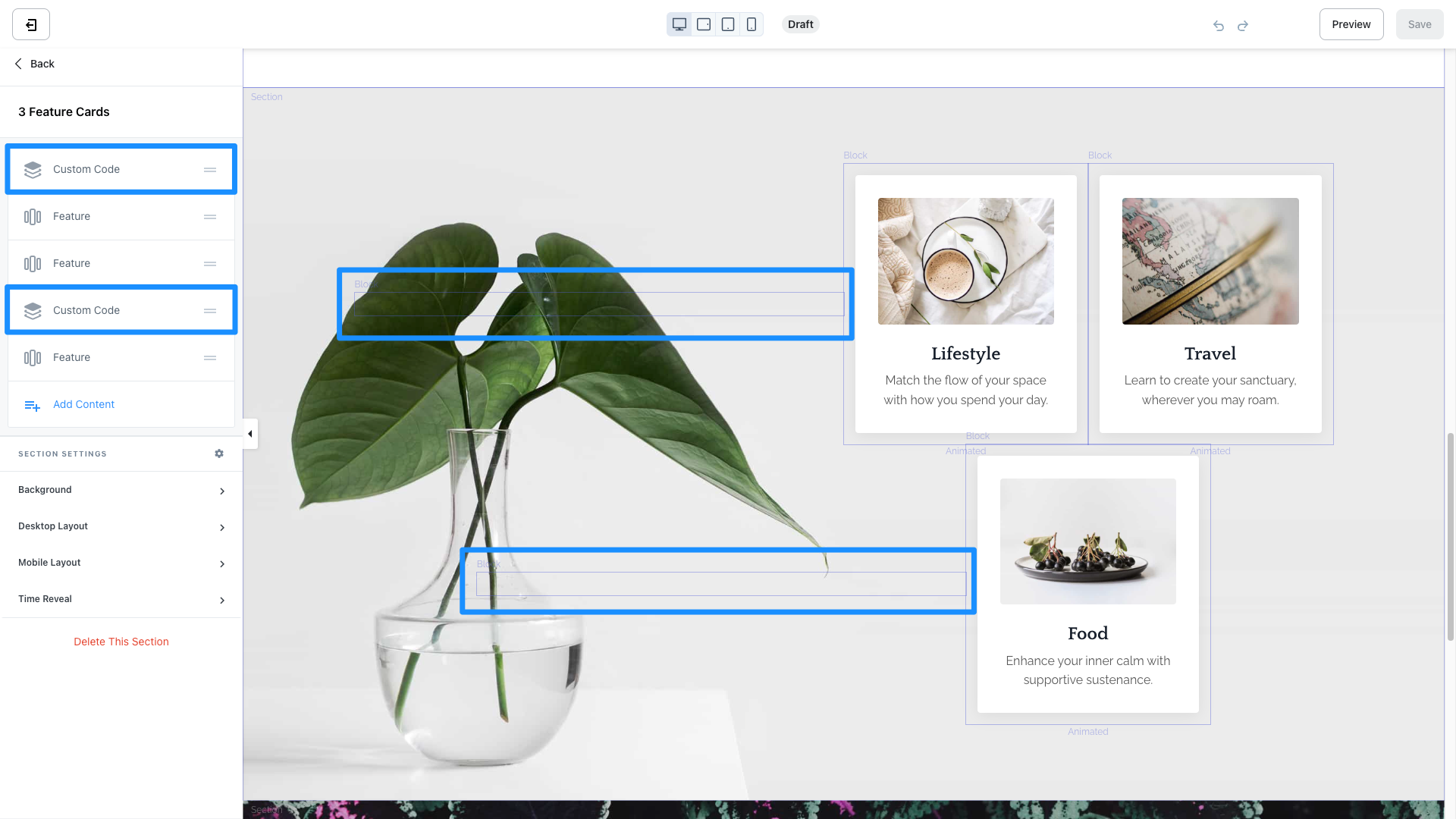 Test out the Custom Code Section to see how you can best use this Block to build custom code into your page with Kajabi Pages.
**Important:** Introducing custom code to your site can open you up to vulnerabilities and potential malware attacks. We recommend using vulnerability tools like [VirusTotal](https://www.virustotal.com/gui/home/url) or [Snyk](https://snyk.io/) to scan any custom code that you intend to use and apply certain [best practices](../../website/domains/code-based-customizations) to help reduce potential impact.
Learn to add and customize [Custom Code Blocks](/articles/website/pages/add-custom-code-to-pages) for more details.
Test out the Custom Code Section to see how you can best use this Block to build custom code into your page with Kajabi Pages.
**Important:** Introducing custom code to your site can open you up to vulnerabilities and potential malware attacks. We recommend using vulnerability tools like [VirusTotal](https://www.virustotal.com/gui/home/url) or [Snyk](https://snyk.io/) to scan any custom code that you intend to use and apply certain [best practices](../../website/domains/code-based-customizations) to help reduce potential impact.
Learn to add and customize [Custom Code Blocks](/articles/website/pages/add-custom-code-to-pages) for more details.