> ## Documentation Index
> Fetch the complete documentation index at: https://help.kajabi.com/llms.txt
> Use this file to discover all available pages before exploring further.
# Add a features section
> Learn to add Features Sections to your pages built with Kajabi.
**Note:** This guide refers to the latest page editor available with the Website Builder and Kajabi Pages. If you are using the Premier Legacy Templates, please refer to the guide [here](/articles/website/pages/how-to-add-a-features-section-to-your-page-with-premier).
***
## What is a features section?
The Features Section is a great way to showcase what's special about your brand, product, or service. In the Features Category, you have the option to choose between a 2 and 3 card display or 2 and 4 column display.
### Adding a features section
* Open the **Website** tab from the Dashboard
* Select the **Sales** tab
* Open the page editor for your Page. [Learn more](/articles/website/pages/how-to-get-to-the-page-editor)
* Navigate to the sidebar panel
* Click **Add Section**
* Select your Section from **Features**:
***
## Preset features sections
Adding Preset Features Sections generates 2-4 Feature Blocks:
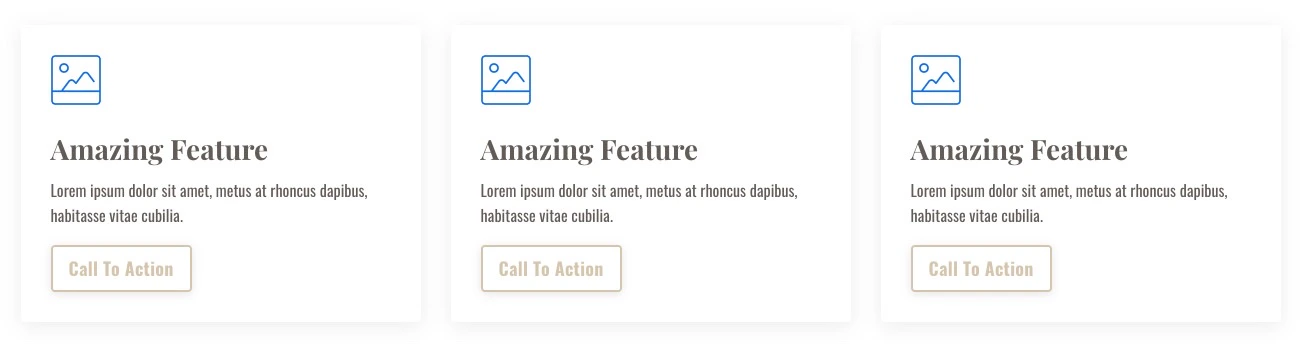 Each Features Section can be replicated in custom Sections, but adding a Preset Features Section can streamline the process of building your page to help you get your site up and running in no time.
### The difference between feature cards and feature columns
#### Feature cards
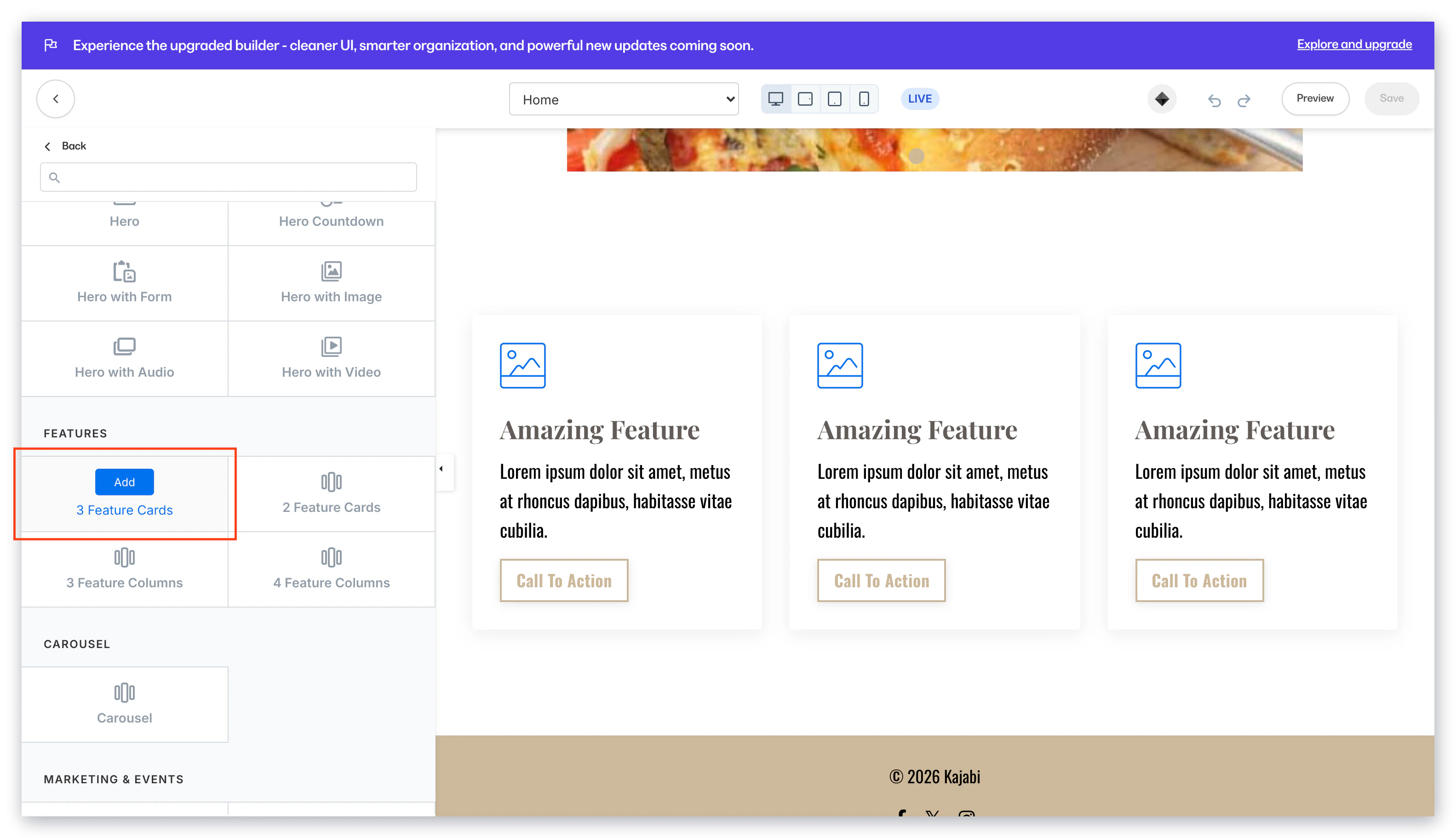
Feature Cards showcase your content with the Call to Action button enabled in the Feature Block Settings. Additionally, Feature Cards have the Background Box Shadow preset to Medium to create a "card" effect:
Each Features Section can be replicated in custom Sections, but adding a Preset Features Section can streamline the process of building your page to help you get your site up and running in no time.
### The difference between feature cards and feature columns
#### Feature cards
Feature Cards showcase your content with the Call to Action button enabled in the Feature Block Settings. Additionally, Feature Cards have the Background Box Shadow preset to Medium to create a "card" effect:
 #### Feature columns
Feature Columns are similar to Feature Cards because they showcase your content, but they do not include a Call to Action button when added to your page. However, you can choose to include a Call to Action button by configuring the Call to Action Setting under the Feature Block Settings.
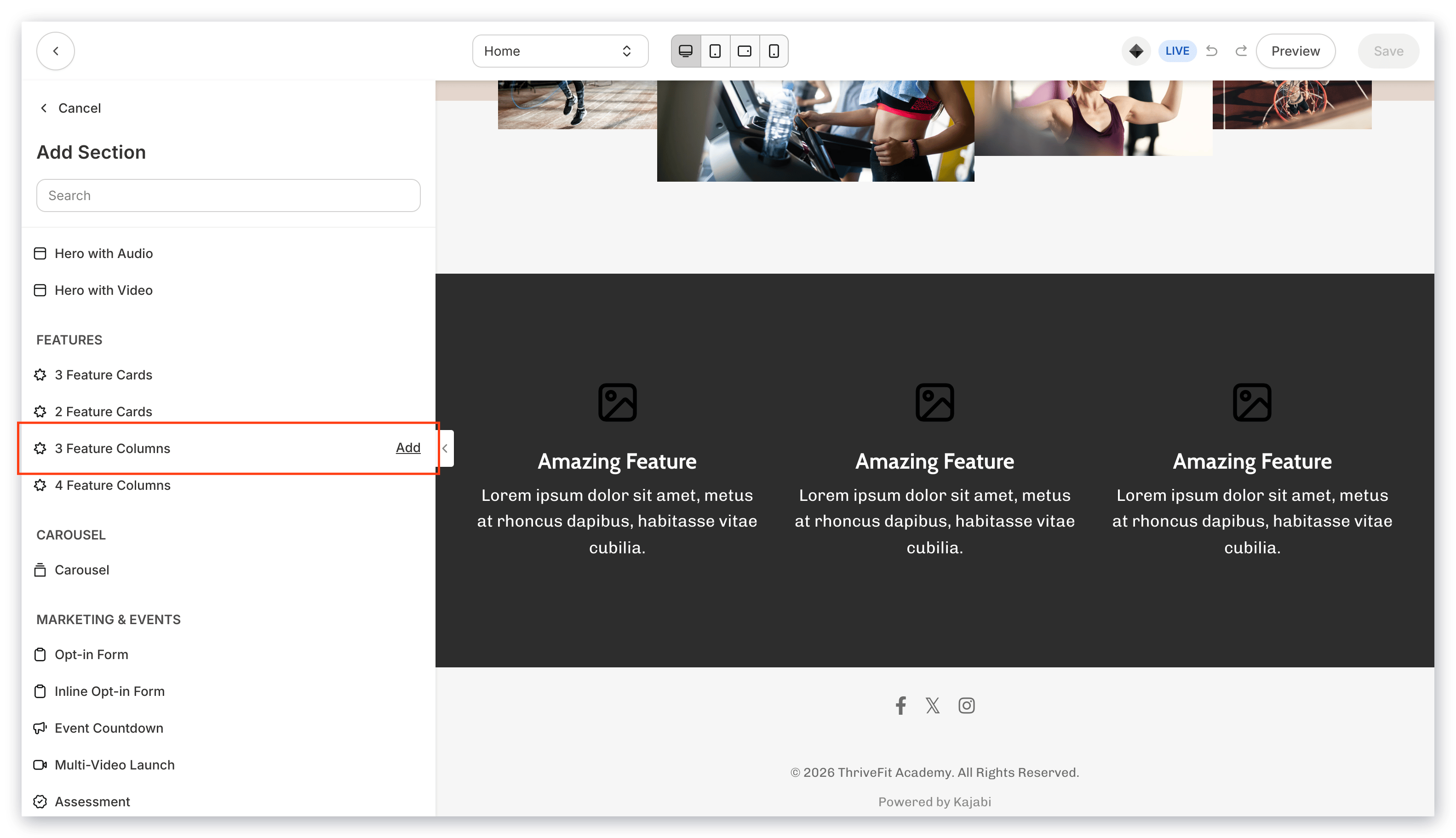
Additionally, Feature Columns and Feature Cards differ in their preset alignment and Background Box Shadow settings. As shown in the image below, the Feature Columns are center-aligned and do not have a Box Shadow effect enabled:
#### Feature columns
Feature Columns are similar to Feature Cards because they showcase your content, but they do not include a Call to Action button when added to your page. However, you can choose to include a Call to Action button by configuring the Call to Action Setting under the Feature Block Settings.
Additionally, Feature Columns and Feature Cards differ in their preset alignment and Background Box Shadow settings. As shown in the image below, the Feature Columns are center-aligned and do not have a Box Shadow effect enabled:
 ***
## Customizing your features section
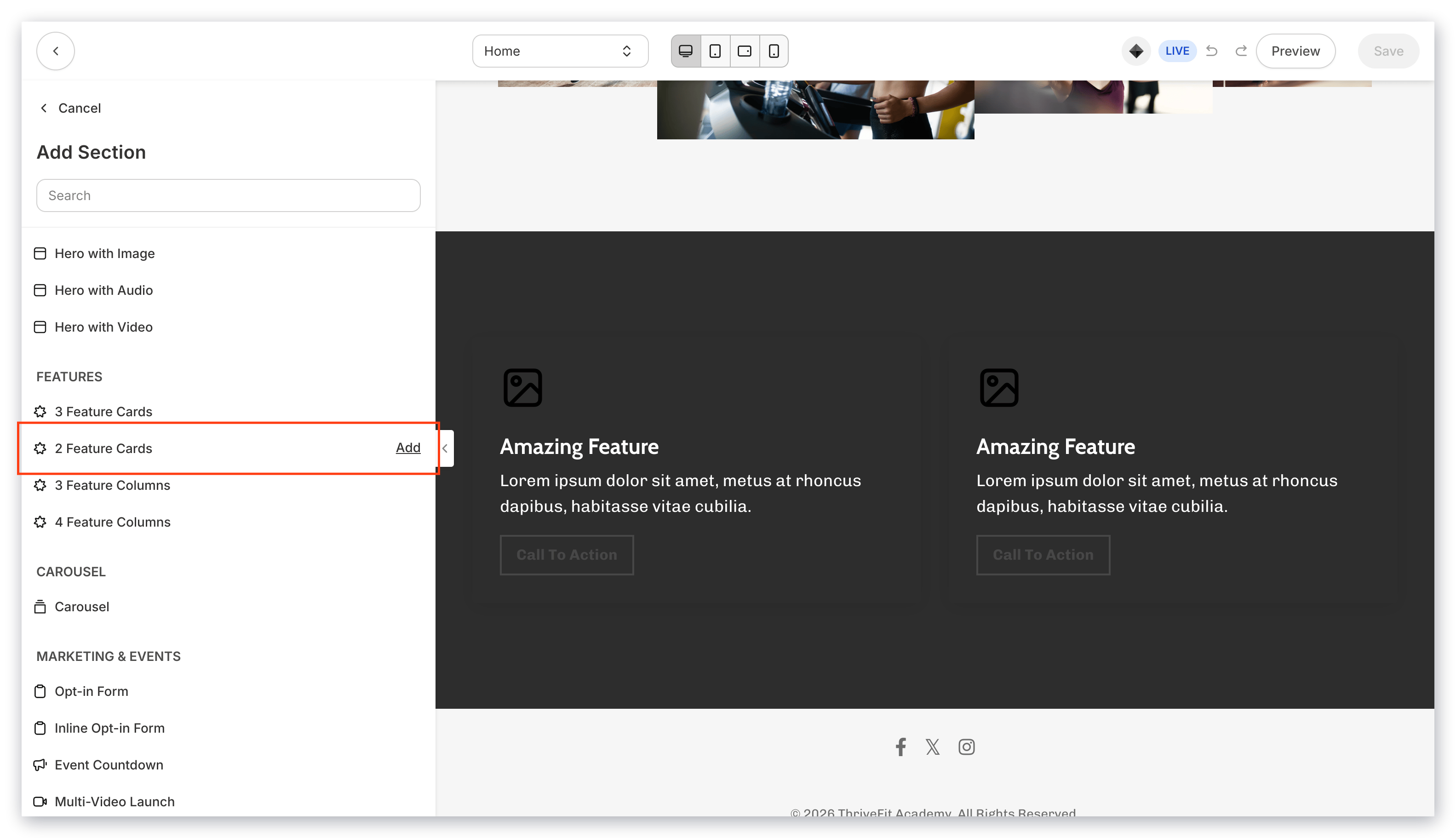
In a Features Section, there are 2-4 Feature Blocks generated. Each Block contains the same settings to customize the appearance and behavior of your Blocks:
***
## Customizing your features section
In a Features Section, there are 2-4 Feature Blocks generated. Each Block contains the same settings to customize the appearance and behavior of your Blocks:
 Learn to customize the [Features Block](/articles/website/pages/how-to-add-a-feature-block-to-your-page#customizing-your-feature-block) for details.
**Section Settings**
To customize the Section containing each Block, configure your Section Settings to change the appearance, behavior, and content.
* [Background](/articles/website/pages/how-to-customize-your-section-background-settings)
* [Section Layout](/articles/website/pages/customizing-section-layout-settings)
* [Time Reveal](/articles/website/pages/customizing-time-reveal-settings)
Learn to customize the [Features Block](/articles/website/pages/how-to-add-a-feature-block-to-your-page#customizing-your-feature-block) for details.
**Section Settings**
To customize the Section containing each Block, configure your Section Settings to change the appearance, behavior, and content.
* [Background](/articles/website/pages/how-to-customize-your-section-background-settings)
* [Section Layout](/articles/website/pages/customizing-section-layout-settings)
* [Time Reveal](/articles/website/pages/customizing-time-reveal-settings)