> ## Documentation Index
> Fetch the complete documentation index at: https://help.kajabi.com/llms.txt
> Use this file to discover all available pages before exploring further.
# Add a hello bar to a page
> Learn to display announcements on your pages with a Hello Bar.
**Note:** This guide refers to the latest page template available with the Website Builder and Kajabi Pages. If you are using the Premier Legacy Templates, please refer to the guide [here](/articles/website/pages/how-to-add-an-announcement-to-your-premier-page).
***
## What is a hello bar?
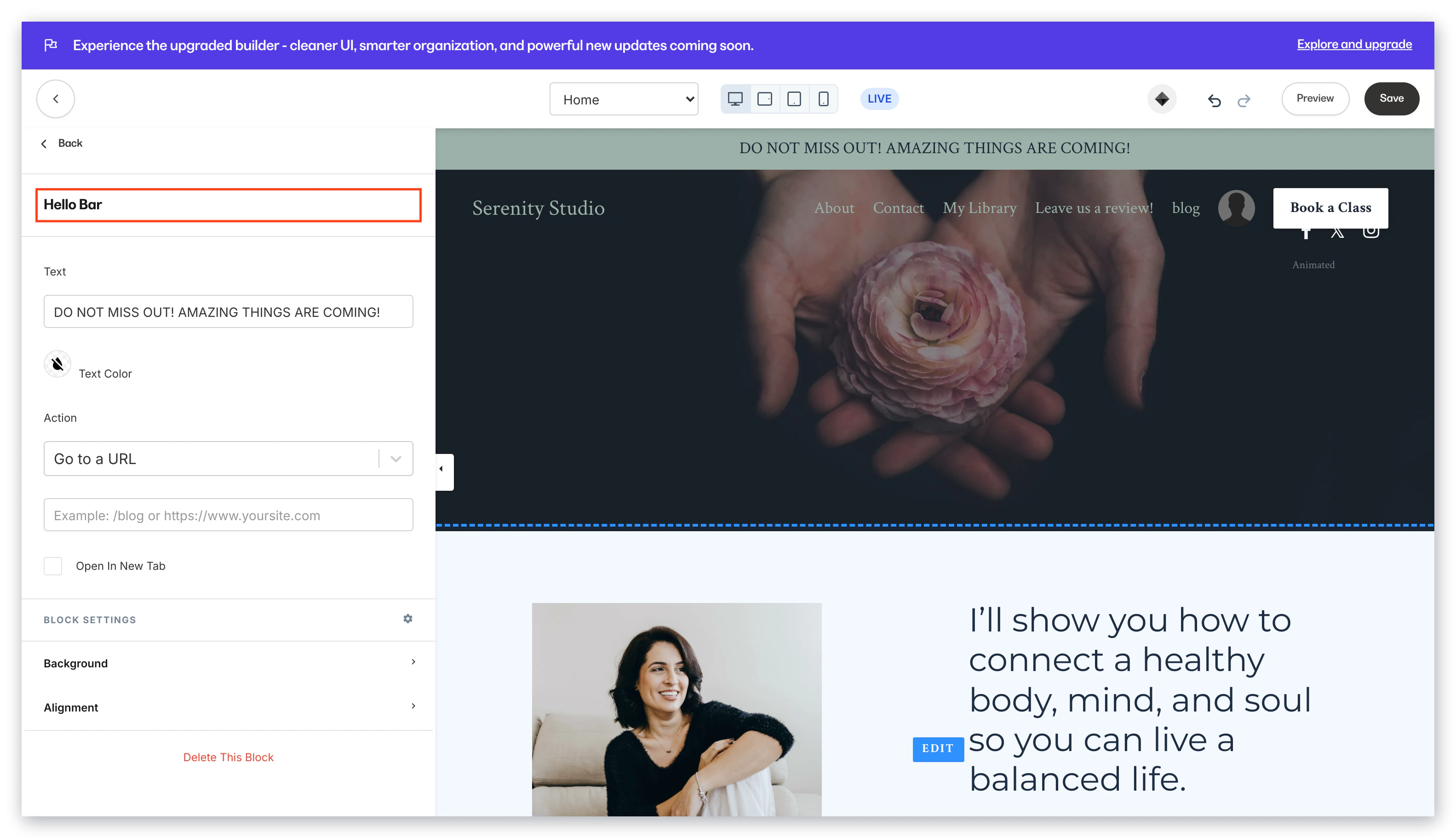
Create an announcement banner at the top of your page with a Hello Bar in your page header.
Design your [website pages with the Website Builder](/articles/website/pages/customizing-your-website-pages-with-the-website-builder) to include a Hello Bar in your header:
 ***
## Adding an announcement to your header
The header is a great place to display your announcements for your users to easily see what you want to share.
### How to add a hello bar
* Open the **Website** tab from the Dashboard
* Select the **Pages** tab
* Open the page editor for your Page. [Learn more](/articles/website/pages/how-to-get-to-the-page-editor)
* Navigate to the sidebar panel and click **Header**
* Then, click **Add Content**
* Select **Announcement**
* Customize your Announcement Text, Announcement Action, and Block Settings
* Click **Save** to keep your changes:
***
## Adding an announcement to your header
The header is a great place to display your announcements for your users to easily see what you want to share.
### How to add a hello bar
* Open the **Website** tab from the Dashboard
* Select the **Pages** tab
* Open the page editor for your Page. [Learn more](/articles/website/pages/how-to-get-to-the-page-editor)
* Navigate to the sidebar panel and click **Header**
* Then, click **Add Content**
* Select **Announcement**
* Customize your Announcement Text, Announcement Action, and Block Settings
* Click **Save** to keep your changes:
***
## Customizing your hello bar block
### Hello bar
#### Text
Enter the text displayed in your Announcement Block.
#### Action
Select an action if you want to create a clickable announcement:
* **Go to a Landing Page**: Redirect your users to a landing page built with Kajabi
* **Go to a Checkout Page**: Open the Checkout Page for Offers built with Kajabi
* **Download a file**: Upload a file from your hard drive for your users to download when the announcement is clicked
* **Go to a URL**: Paste a URL to open any page when the announcement is clicked
* **Open two step optin popup**: With a Hello Bar, connect your two step optin to your announcement to encourage users to submit a form. [Learn more](/articles/website/pages/how-to-use-the-two-step-optin-popup)
* **Go to a section on this page**: With a Hello Bar, redirect your visitors to a specific section of the page after the announcement is clicked
**Note:** When using the **Go to a URL** action, be sure to enter a full URL (e.g., [https://kajabi.com/](https://kajabi.com/)).
#### Open in new tab
Enable this setting to trigger your action in a different tab of your user's browser.
### Block settings
#### Background
Select a Background Color for your Announcement to stand out for your users.
Clicking **Background Color** will open your [site color palette](https://help.kajabi.com/hc/en-us/articles/360037850453#colors).
If you prefer to use a custom color, click the color wheel and then either enter your RGB color code or use the sliders to choose your color:
* The **vertical bar** allows you to select the hue
* The **square box** allows you to adjust the brightness and saturation of your color
* The **horizontal bar** allows you to adjust the opacity of your color
#### Alignment
Open the **Alignment** Block Setting to change the horizontal text alignment in your Announcement Banner.