> ## Documentation Index
> Fetch the complete documentation index at: https://help.kajabi.com/llms.txt
> Use this file to discover all available pages before exploring further.
# Add a mailto link with a CTA
> Learn to insert a Mailto Link in your Call to Action (CTA) to open the default email client in your page visitor's device.
## What is a mailto link?
Mailto Links can be clickable text or buttons that automatically open a new email draft in your page visitor's default email client with pre-filled information (such as your email address). Mailto Links can be used to encourage your page visitors to reach out to you with an easy-to-click, easy-to-create button.
With a Mailto Link, create Contact Us pages, prompt contacts for specific information, and more.
The best part: Mailto Links are simple to create. To create a Mailto Link, just include the link `mailto:` followed by the email address you wish to pre-fill in the new email draft.
For example, the link could be "mailto:[support@guitarlessons.com](mailto:support@guitarlessons.com)" to open a new email draft to send directly to the email address [support@guitarlessons.com](mailto:support@guitarlessons.com).
Want to add a telephone link to encourage your page visitors to call? [Learn to create a telephone link](../../website/pages/how-to-create-a-telephone-link)
***
## How to add a mailto link
### Step 1. Create a call to action (CTA) button
Use a CTA to insert your Mailto Link in your Pages, Email Campaigns, and Products.
Want to learn more about the Call to Action? [Learn to use a Call to Action](../../website/pages/how-to-use-a-call-to-action).
For the purpose of this guide, we will create a Call to Action (CTA) in a page:
* Open the **Website** tab from the Dashboard.
* Click **Pages**.
* Select the Page you wish to edit or create a new one.
* Click **Add Section**.
* Select **Call to Action**.
* Click **Add**. Your newly created Section will generate at the bottom of your Page:
### Step 2. Insert your mailto link
Open the CTA to insert your Mailto Link:
* In the sidebar, open the **Text** Block.
* Navigate to Block Settings and click **Call To Action**.
* Under Button Action, select **Go to a URL**.
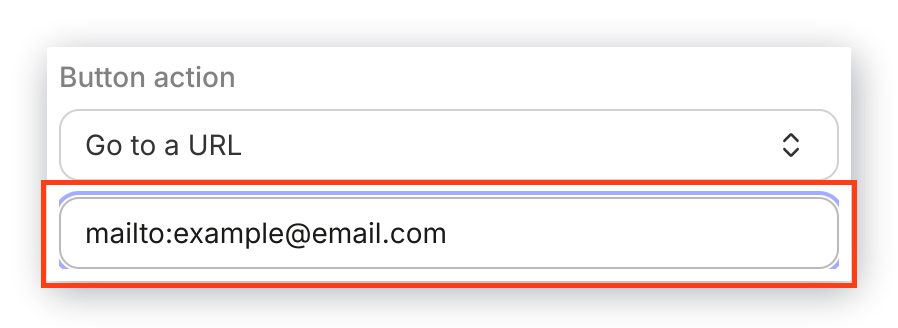
* In the empty field below Button Action, enter your Mailto Link (mailto:[email@example.com](mailto:email@example.com)).
* Click **Save** to apply your changes:
### Step 3. Include additional pre-filled information (optional)
Want to include additional information in the generated email? Learn to add HTML code to your Mailto Link to include additional pre-filled content in the new email draft after your visitors click the Call to Action button on your page.
For the fields you want to pre-fill, change the blue text with your content in the code extension:
* **CC** - Add additional recipients to your email.
```
?cc=name@domain.com
```
* **BCC** - Add additional recipients to your email that your contacts and CC'd recipients won't see.
```
?bcc=name@domain.com
```
* **Subject** - Add a subject line to your email.
**Add a Space:** Use "%20" to add a space between words in your subject line.
```
?subject=This%20is%20a%20subject
```
* **Body** - Add a personalized message to the body of the email.
**Add a Space or a Line Break:**
Use "%20" to add a space between words in your body text.
Use "%0A" to add a line break.
```
?body=This%20is%20body%20text
```
Then, copy and paste your customized code extension to the end of the Mailto Link:
* Place your cursor at the end of your Mailto Link in your Call to Action:
 * Copy and paste your customized code extension.
If you are including multiple extensions (e.g., Subject and Body), replace the question mark (?) with an ampersand (&) between each code extension:
* Copy and paste your customized code extension.
If you are including multiple extensions (e.g., Subject and Body), replace the question mark (?) with an ampersand (&) between each code extension:
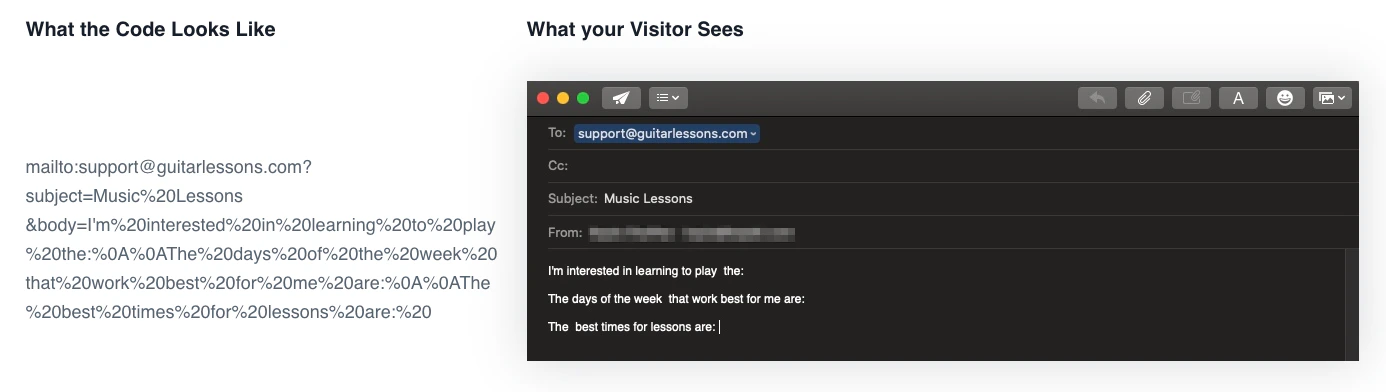
**Example:** mailto:[support@guitarlessons.com](mailto:support@guitarlessons.com)?subject=Music%20Lessons\&body=I'm%20interested%20in%20learning%20to%20play
After adding your Mailto Link, [customize your Call to Action Section](../../website/pages/how-to-use-a-call-to-action#h_9ac92ec9-fb9d-43f6-8d6e-c6d39a45beef) to fit your brand.
**Example**
 **Tip:** [Test your page](../../website/pages/preview-your-page#h_c1dae47b-74d9-4b05-9bbd-7e59dd06662a) with the Call to Action to ensure that everything looks the way you intend. When your visitors click the CTA, their default email client will open to draft a new email with the pre-filled content.