> ## Documentation Index
> Fetch the complete documentation index at: https://help.kajabi.com/llms.txt
> Use this file to discover all available pages before exploring further.
# Add a ManyChat widget to a website
> Learn to embed a Chat widget onto your site with ManyChat as a tool to communicate with your website visitors.
**Tip:** Open two tabs in your browser to easily navigate between your Kajabi account and ManyChat.
***
## Step 1. Set up ManyChat
To set up ManyChat and get the embed code:
* Open an account with [ManyChat](https://manychat.com/).
* Connect ManyChat to your Facebook Page. More information [here](https://support.manychat.com/support/solutions/articles/36000000738-how-to-connect-a-facebook-page-to-manychat).
* Click **Growth Tools** in the sidebar.
* Navigate to the top right corner and click **+ New Growth Tool**.
* Select **Customer Chat**.
* Configure each setting and customize how you want the embed to look on your site. Learn more about [setting up your Customer Chat Growth Tool with ManyChat](https://support.manychat.com/support/solutions/articles/36000088362-customer-chat-growth-tool).
* After setting up the widget, select **Install JavaScript Snippet**.
* Authorize your site's URL with `www.` and without `www.` if they are not already authorized.
* Copy the JavaScript snippet to your clipboard:
***
## Step 2. Paste the JavaScript snippet in Kajabi
* Navigate back to your Kajabi account.
* Open the **Settings** tab from the Dashboard.
* Select **Site Details**.
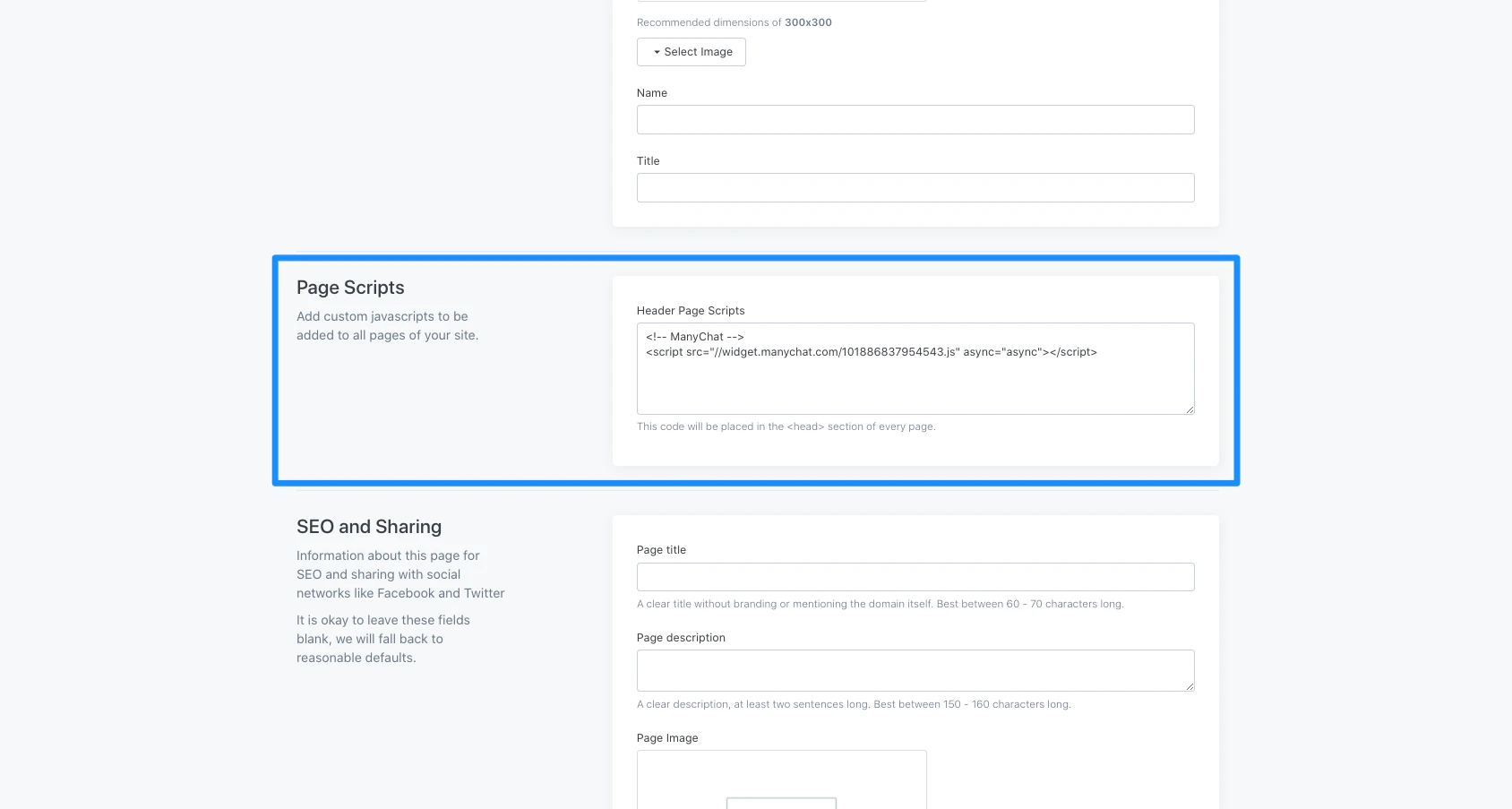
* Scroll down to the **Page Scripts** section.
* Paste the JavaScript snippet in the Page Scripts field to automatically apply the snippet to the `` section of every page on your site.
* Click **Save** to keep and apply your changes:
 ***
## Step 3. Enter the URLs
The last step is to add the URLs where you'd like the widget to display:
* Navigate back to ManyChat.
* Enter your exact `https://www.yourdomain.com` URL into the **Only show on these pages** field.
* **Save** the flow.
* Open your Kajabi website to preview the widget:
***
## Step 3. Enter the URLs
The last step is to add the URLs where you'd like the widget to display:
* Navigate back to ManyChat.
* Enter your exact `https://www.yourdomain.com` URL into the **Only show on these pages** field.
* **Save** the flow.
* Open your Kajabi website to preview the widget: