> ## Documentation Index
> Fetch the complete documentation index at: https://help.kajabi.com/llms.txt
> Use this file to discover all available pages before exploring further.
# Add a strikethrough in an offer pricing card on a page
> Learn to add a Strikethrough Price in a Pricing Card to market a discounted offer.
## Why add a strikethrough price?
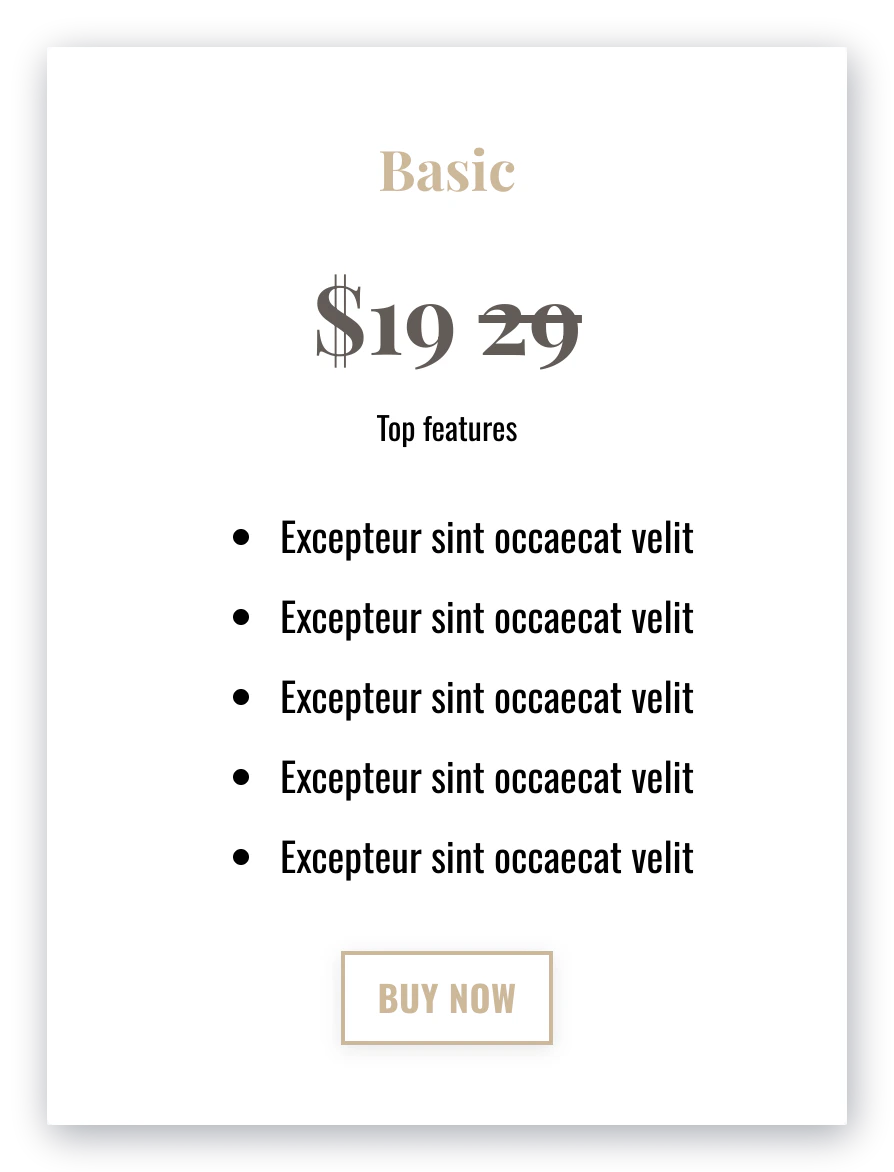
Adding a Strikethrough Price on your Pricing Card is an excellent way to advertise a lower rate or limited time discount. It will draw the viewer's eye to the deal and showcase the savings they will receive:
 ***
## Add a pricing card block
First you'll need to create a Pricing Card Block on your page.
To add a Pricing Card Block:
* Open the **Website** tab from the Dashboard.
* Select either **Website Pages** or **Landing Pages**.
* Open the page editor for your page. [Learn more](../../website/pages/how-to-get-to-the-page-editor)
* Click the Section you want to edit or [create a new Section](../../website/pages/add-sections-to-your-pages).
* In the sidebar, click **Add Content**.
* From the list, select **Pricing Card**.
* Your newly created Pricing Card Block will generate at the bottom of the Section.
* Click **Save** to keep your changes:
***
## Add a pricing card block
First you'll need to create a Pricing Card Block on your page.
To add a Pricing Card Block:
* Open the **Website** tab from the Dashboard.
* Select either **Website Pages** or **Landing Pages**.
* Open the page editor for your page. [Learn more](../../website/pages/how-to-get-to-the-page-editor)
* Click the Section you want to edit or [create a new Section](../../website/pages/add-sections-to-your-pages).
* In the sidebar, click **Add Content**.
* From the list, select **Pricing Card**.
* Your newly created Pricing Card Block will generate at the bottom of the Section.
* Click **Save** to keep your changes:
To learn more about adding a Pricing Card Block and other Pricing Card features, please [go here](../../website/pages/how-to-add-pricing-cards-to-your-page).
***
## Add the strikethrough price
Next, you'll add the Strikethrough Price code to the Pricing Card:
* Click on the **Pricing Card** you created.
* In the field titled "Price" add this code: **\ORIGINAL PRICE HERE\**
* In the code snippet, replace "**ORIGINAL PRICE HERE**" with the price you want to strike through. This should be the **original price of the offer**, NOT the discounted price.
* After the \ tag, add the **discounted price** to showcase it on the card.
* Remember to click **save** to keep your changes: