> ## Documentation Index
> Fetch the complete documentation index at: https://help.kajabi.com/llms.txt
> Use this file to discover all available pages before exploring further.
# Add a text block to a page
> Learn to add a Text Block to your page to communicate with your visitors, market your content, and describe your value.
**Note:**
This guide covers the latest page editor for the Website Builder and Kajabi Pages. If you are using Premier Legacy Templates, refer to the [Premier Templates guide](/articles/website/pages/how-to-add-text-to-your-page-with-premier).
## Adding a text block
* Open the **Website** tab from the Dashboard.
* Select the **Pages** tab.
* Open the page editor for your Page. [Learn more](../../website/pages/how-to-get-to-the-page-editor)
* Click the Section you want to edit or [create a new Section](../../website/pages/add-sections-to-your-pages).
* In the sidebar, click **Add Content**.
* From the list, select **Text**.
* Your newly created Text Block will generate at the bottom of the Section.
* Click **Save** to keep your changes:
## Customizing your text block
In a Text Block, customize the:
* [Block Width](../../website/pages/how-to-customize-the-block-width)
* Text
* Block Settings
### Text editor
In the sidebar Text Editor, you have the ability to customize multiple features of your Text content.
#### Cofounder
Use **Cofounder** to help generate text content for your page. Click the **Cofounder icon** in the text editor sidebar to open Cofounder. [Learn more about Cofounder](/articles/cofounder/cofounder-overview).
#### Source code
Access your Text **source code** to manually modify the HTML code for your page:
 **Warning:**
If you're not familiar with editing the source code, we advise avoiding this feature or reaching out to a professional developer to guide you through its functionality.
#### Text formats
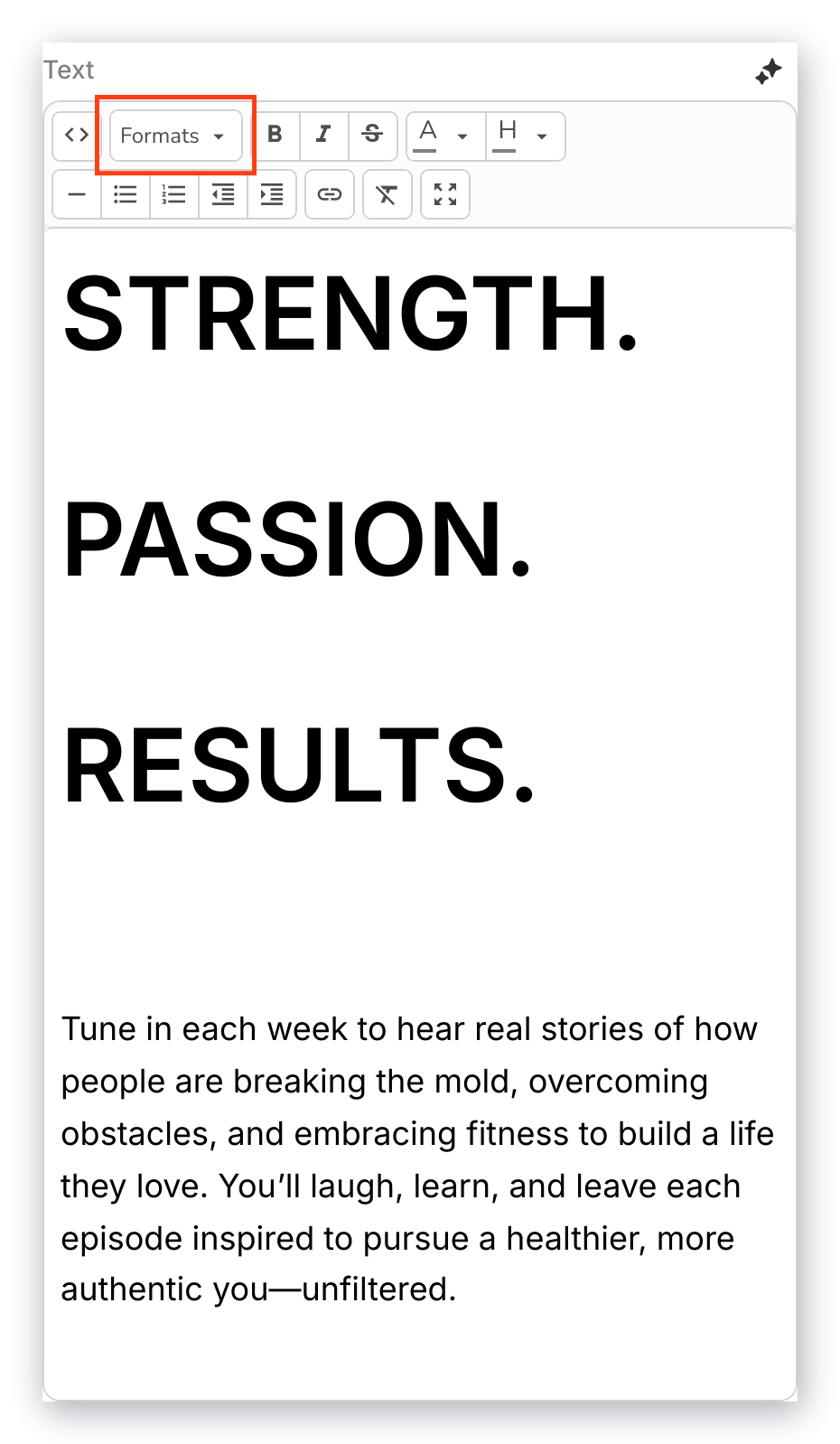
Customize your Text appearance by adjusting the Format settings:
* Select your chosen **Heading Size** to change the font size of your highlighted Text. Use this feature with the [Style Guide Font Sizes](../../website/pages/customize-your-page-font-and-style-with-the-style-guide#desktop-and-mobile-font-sizes) in your Page Settings.
* Select your **Inline** setting to change the Text Appearance (e.g., Bold, Italic, Underline, Strikethrough, Superscript, Subscript, and Code).
* Select your desired **Blocks** to adjust the appearance of your highlighted Text (e.g., Paragraph, Blockquote, Div, and Pre).
* Select your Text **Alignment** for your highlighted Text (e.g., Left, Center, Right, and Justify):
**Warning:**
If you're not familiar with editing the source code, we advise avoiding this feature or reaching out to a professional developer to guide you through its functionality.
#### Text formats
Customize your Text appearance by adjusting the Format settings:
* Select your chosen **Heading Size** to change the font size of your highlighted Text. Use this feature with the [Style Guide Font Sizes](../../website/pages/customize-your-page-font-and-style-with-the-style-guide#desktop-and-mobile-font-sizes) in your Page Settings.
* Select your **Inline** setting to change the Text Appearance (e.g., Bold, Italic, Underline, Strikethrough, Superscript, Subscript, and Code).
* Select your desired **Blocks** to adjust the appearance of your highlighted Text (e.g., Paragraph, Blockquote, Div, and Pre).
* Select your Text **Alignment** for your highlighted Text (e.g., Left, Center, Right, and Justify):
 ### Text appearance
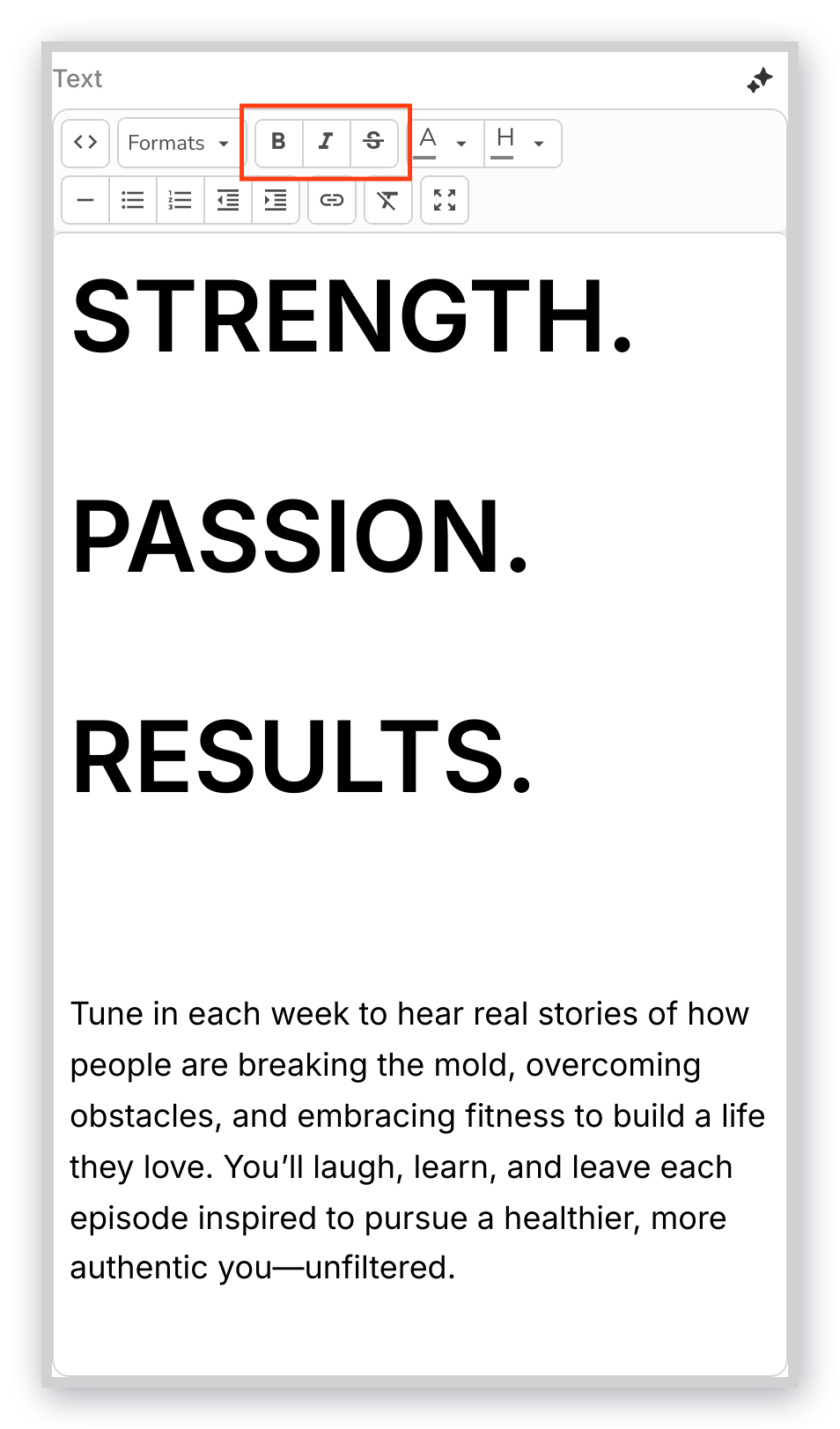
Customize the appearance of your highlighted Text by making it **bold**, **italicized**, or **strikethrough**:
### Text appearance
Customize the appearance of your highlighted Text by making it **bold**, **italicized**, or **strikethrough**:
 #### Text color
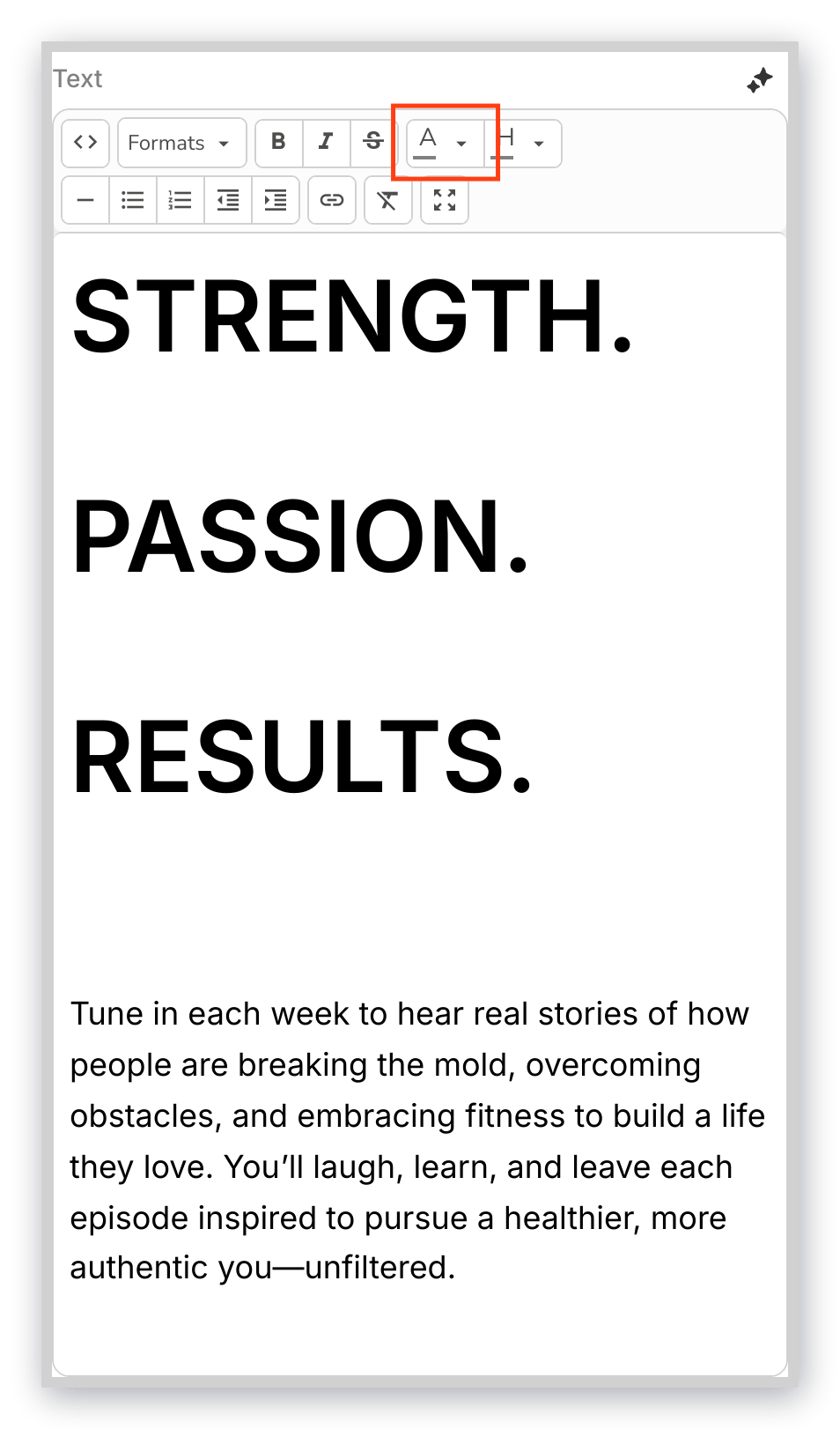
Highlight sections of your Text or your entire Text to customize its color:
#### Text color
Highlight sections of your Text or your entire Text to customize its color:
 [Learn how to customize your text editor color picker.](../../website/pages/how-to-edit-the-text-editor-color-picker-for-your-pages)
#### Horizontal line
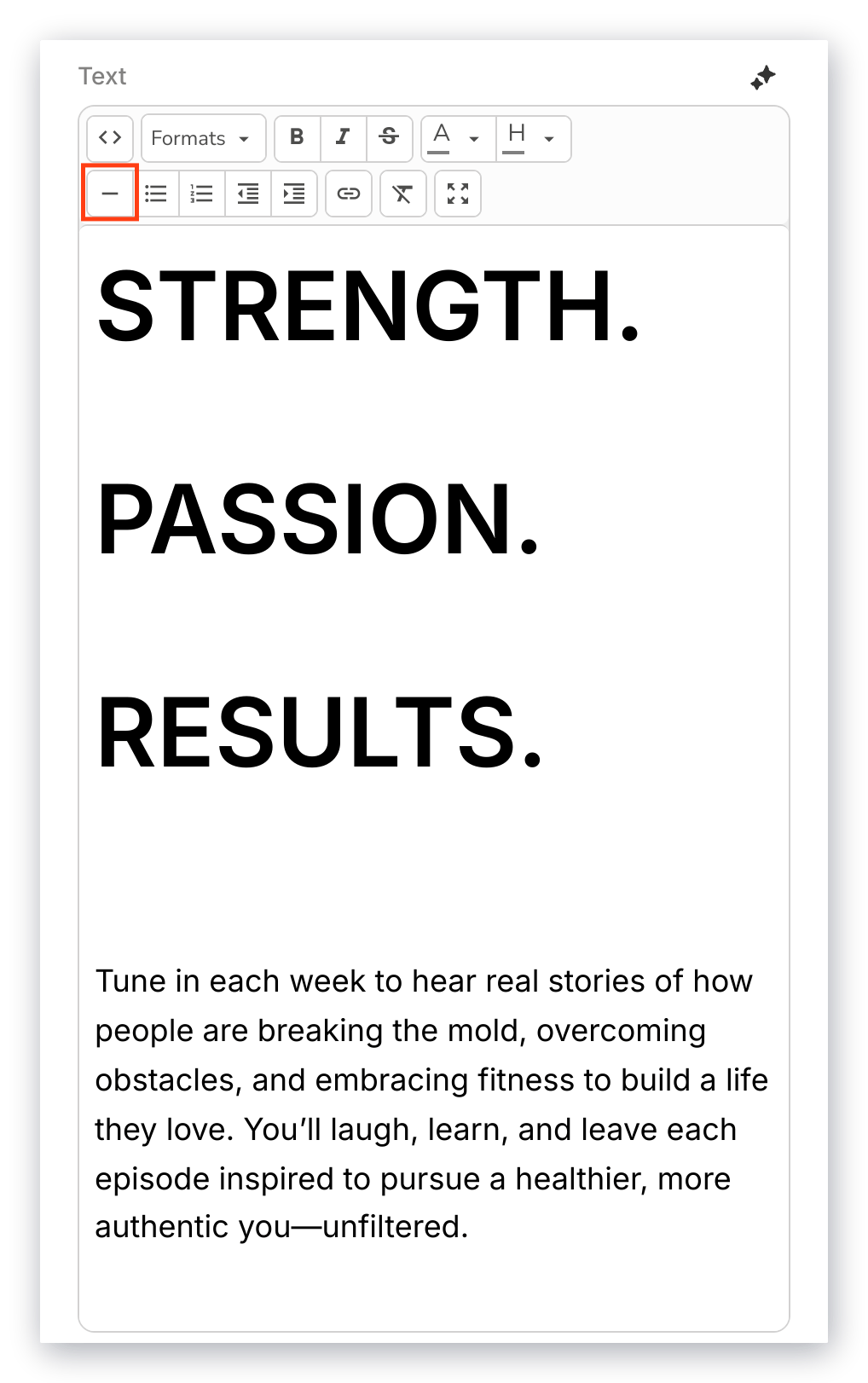
Insert a horizontal line in your Text content to break up your Text:
[Learn how to customize your text editor color picker.](../../website/pages/how-to-edit-the-text-editor-color-picker-for-your-pages)
#### Horizontal line
Insert a horizontal line in your Text content to break up your Text:
 #### Lists
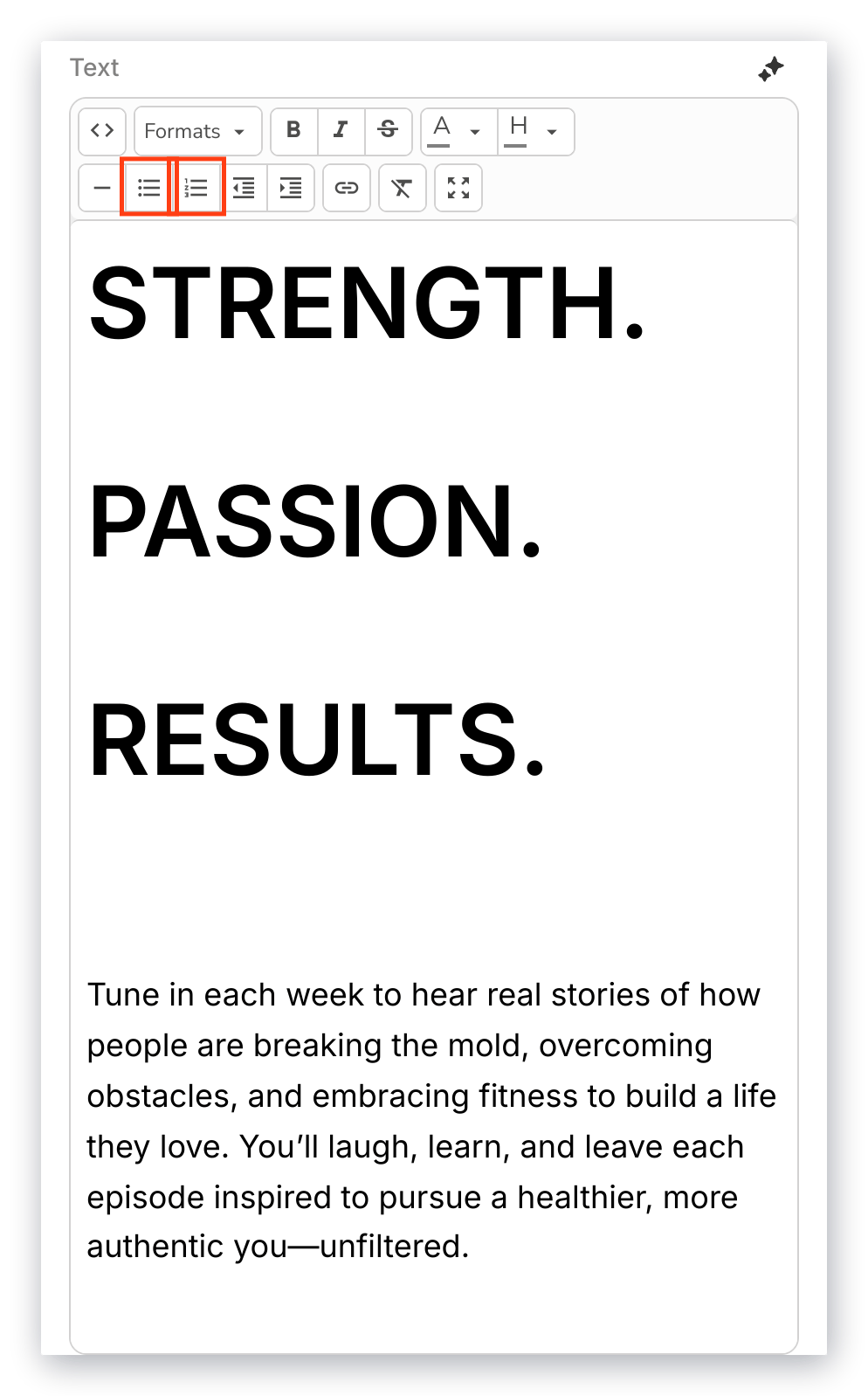
Format your Text into an **ordered** or **unordered list**:
#### Lists
Format your Text into an **ordered** or **unordered list**:
 #### Clear formatting
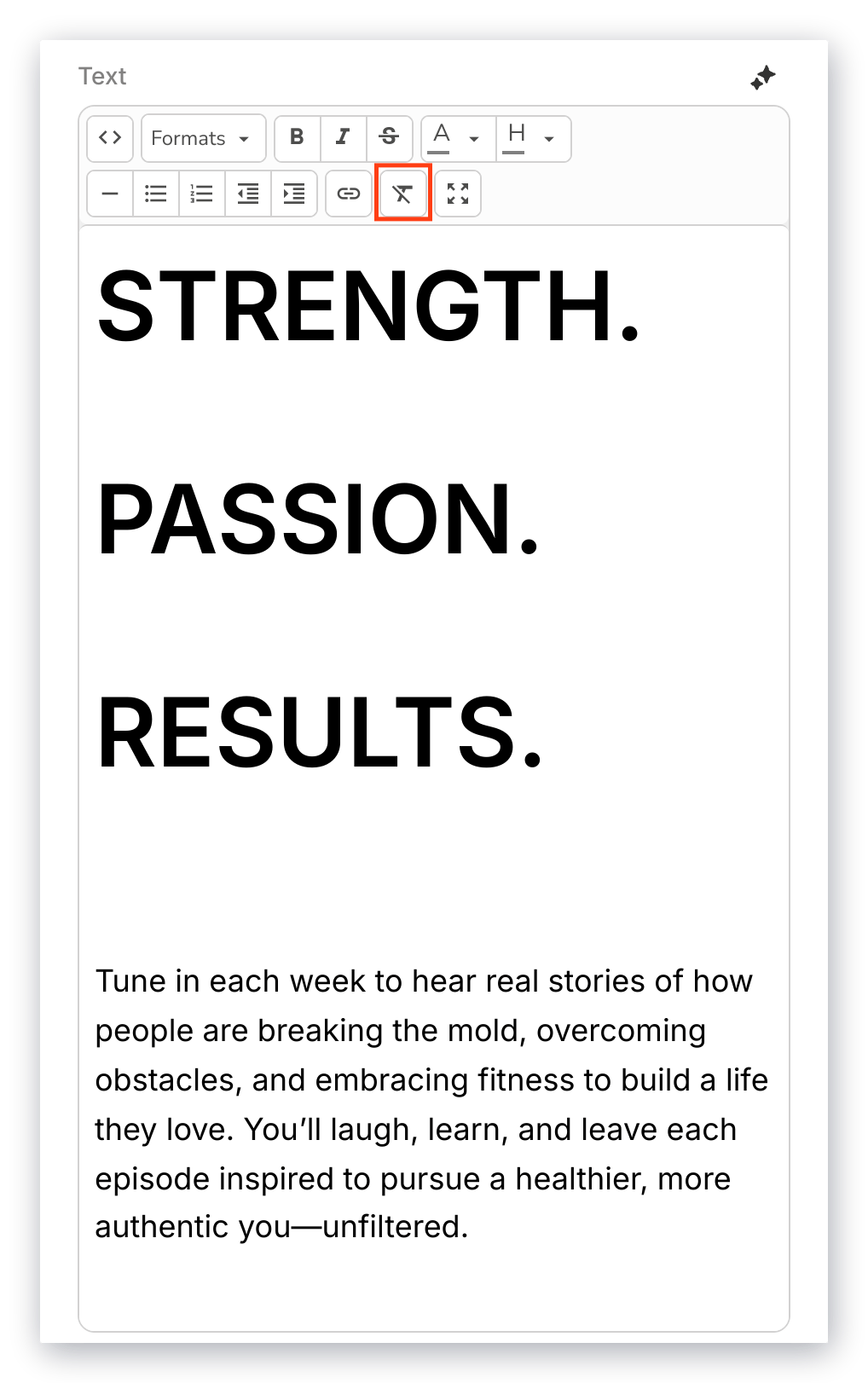
Highlight your Text and click the **Clear Formatting** button to remove all of the formatting that has been applied:
#### Clear formatting
Highlight your Text and click the **Clear Formatting** button to remove all of the formatting that has been applied:
 **Tip:**
Are you copying and pasting content from an external source, like a Word document? Use the Clear Formatting button to remove any unwanted formatting that was copied over with your Text.
#### Text indentation
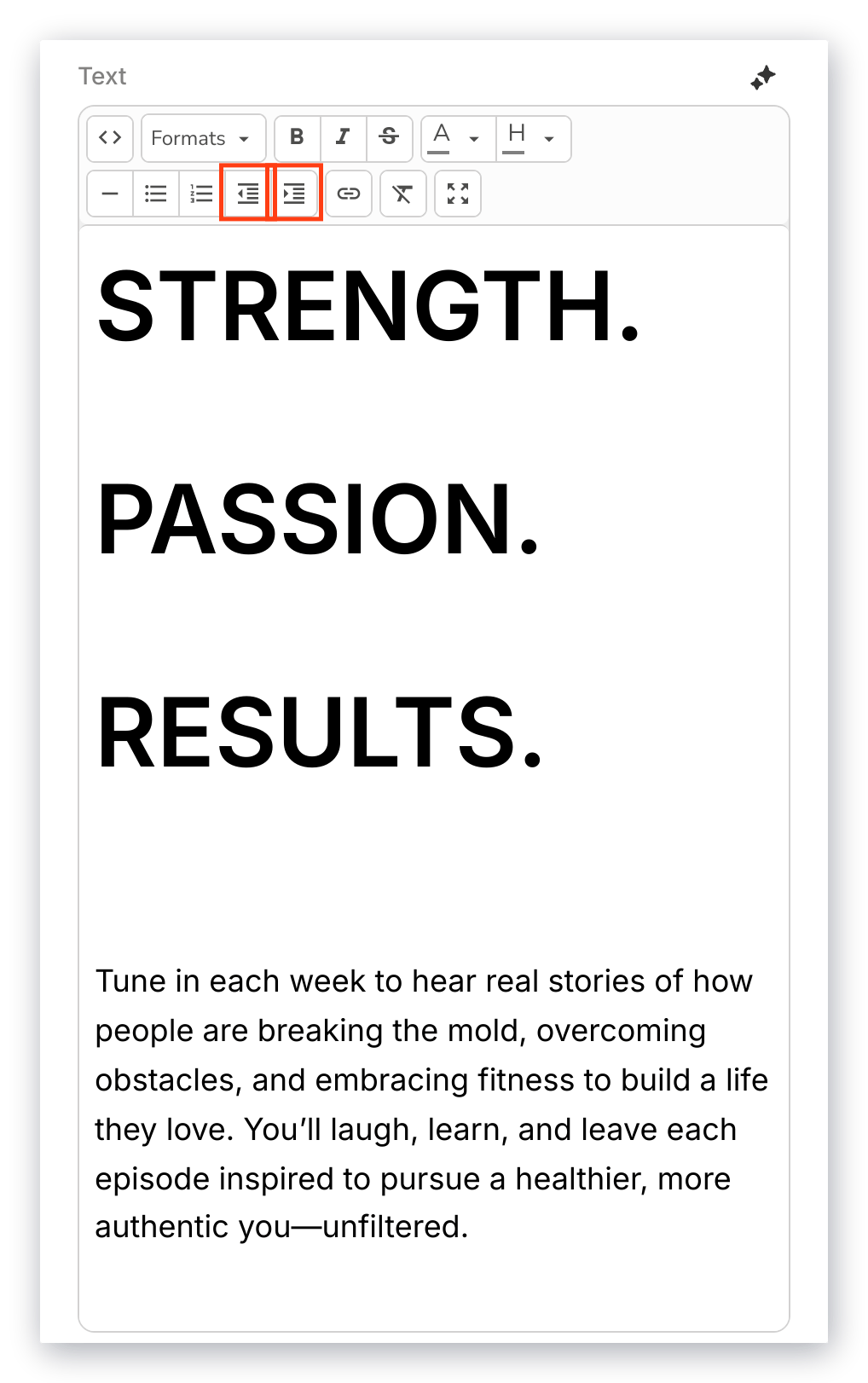
Increase or decrease the **indentation** of your Text:
**Tip:**
Are you copying and pasting content from an external source, like a Word document? Use the Clear Formatting button to remove any unwanted formatting that was copied over with your Text.
#### Text indentation
Increase or decrease the **indentation** of your Text:
 #### Hyperlink
Insert a clickable **URL** in your Text to link to a different web page or section:
#### Hyperlink
Insert a clickable **URL** in your Text to link to a different web page or section:
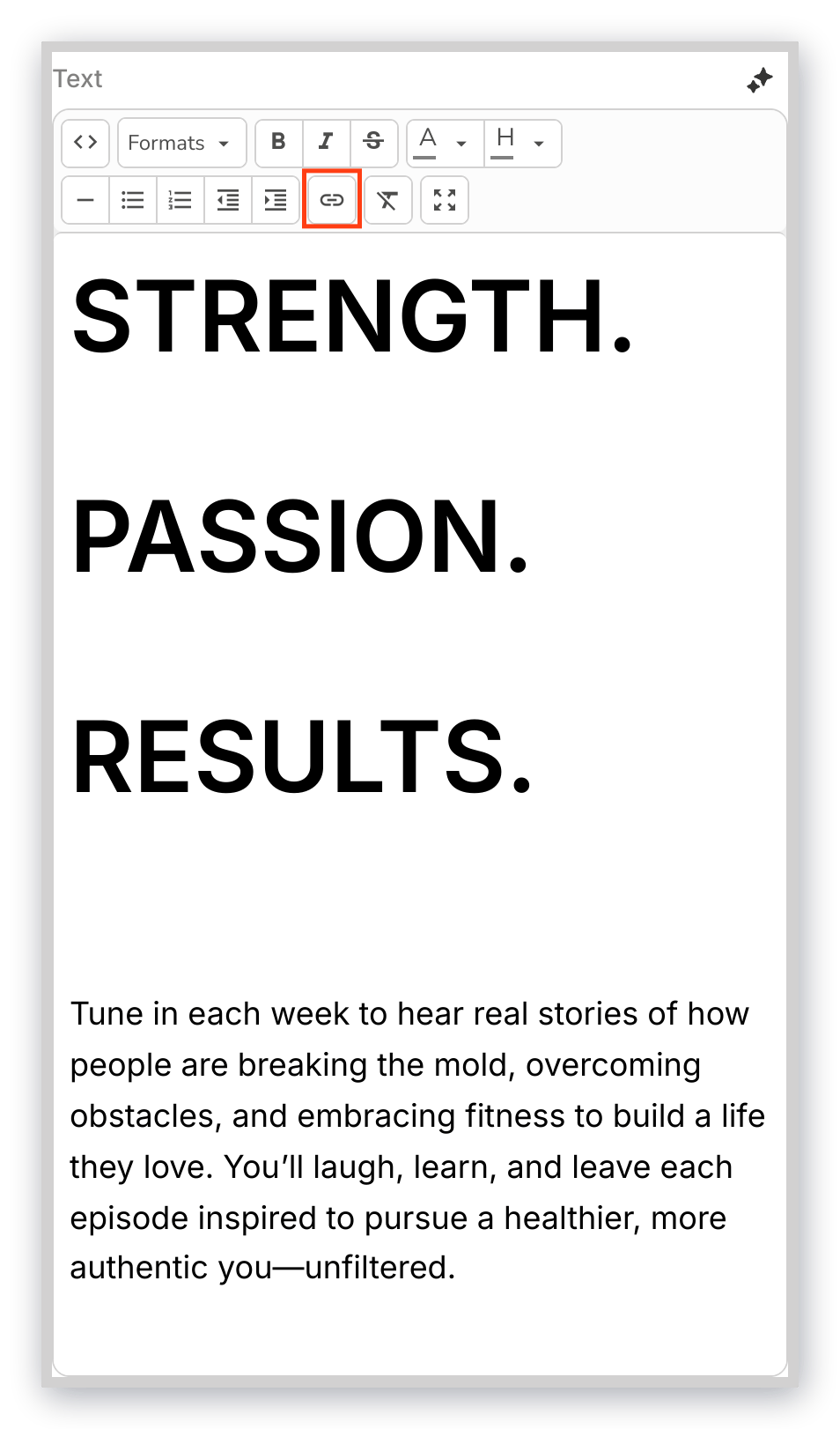 Creating hyperlinked Text prompts you to enter:
* full URL of the page you wish to link (example: [https://kajabi.com](https://kajabi.com))
* Text to display with the link formatting applied
* title of your link
* Target (New Window: open in a new browser window, or None: open in the current browser window)
#### Fullscreen mode
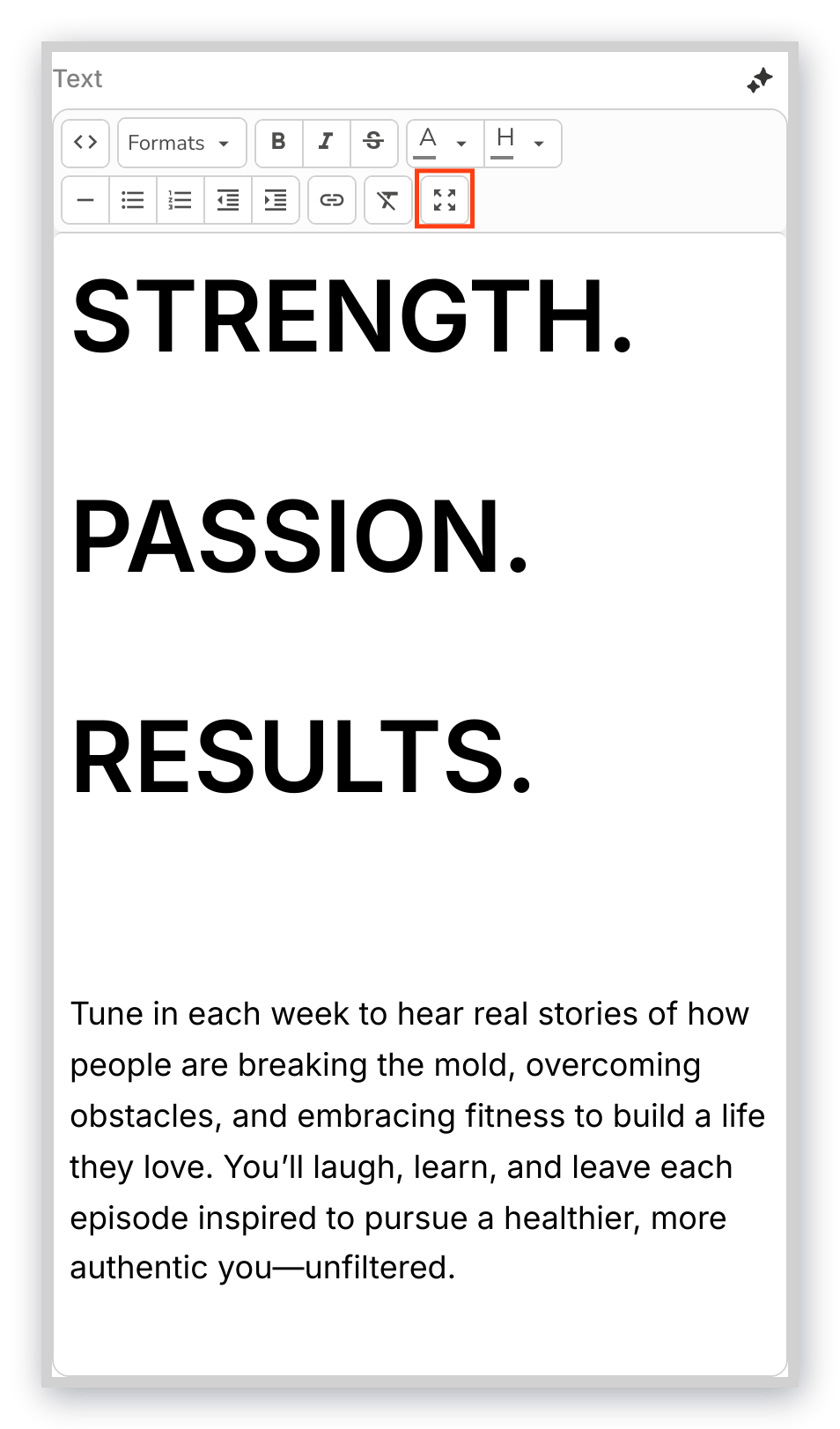
Click to **maximize** the size of the Text Editor to better view your edits, then click again to **minimize** the Text Editor back to the sidebar:
Creating hyperlinked Text prompts you to enter:
* full URL of the page you wish to link (example: [https://kajabi.com](https://kajabi.com))
* Text to display with the link formatting applied
* title of your link
* Target (New Window: open in a new browser window, or None: open in the current browser window)
#### Fullscreen mode
Click to **maximize** the size of the Text Editor to better view your edits, then click again to **minimize** the Text Editor back to the sidebar:
## Block settings
To adjust the look and feel of the Block, customize your Block Settings:
* Call to Action
* Typography
* [Background](../../website/pages/customizing-block-background-settings)
* [Desktop and Mobile Layout](../../website/pages/customizing-block-layout-settings)
* [Animations](../../website/pages/customizing-block-animations)
* [Time Reveal](../../website/pages/customizing-time-reveal-settings)
### Call to action
If you choose to include a **Call to Action** button in your Text Block, choose to:
* Go to a Landing Page
* Go to a Checkout Page
* Download a File
* Go to a URL
* Open a two step opt-in popup
* Go to a section on this page
Learn more about customizing your [Call to Action Settings](../../website/pages/how-to-add-a-call-to-action-block-to-your-website-page-and-landing-page#customize-your-call-to-action-block).
**Note:**
When using the **Go to a URL** action, be sure to enter a full URL (example: [https://kajabi.com](https://kajabi.com)).
### Typography
* **Enable Drop Cap**: Enabling Drop Cap enlarges the first letter of the first paragraph in the body of your Text.
* **Drop Cap Color**: Selecting a Drop Cap Color assigns a color to the enlarged first letter of the first paragraph.