> ## Documentation Index
> Fetch the complete documentation index at: https://help.kajabi.com/llms.txt
> Use this file to discover all available pages before exploring further.
# Add a video block to pages
> Adding video to your page is an entertaining and impactful way to engage with your audience, quickly informing your visitors while giving your site a discernible personality.
This guide refers to the pages available with the Website Builder and Kajabi Pages. If you are using the Premier Legacy Templates, please refer to the guide [here](../../website/pages/how-to-add-a-video-to-your-page-with-premier).
***
## Adding a video block
* Open the **Website** tab from the Dashboard.
* Select the **Pages** tab.
* Open the page editor for your Page. [Learn more](../../website/pages/how-to-get-to-the-page-editor)
* Click the Section you want to edit or [create a new Section](../../website/pages/add-sections-to-your-pages).
* In the sidebar, click **Add Content**.
* From the list, select **Video**.
* Your newly created Video Block will generate at the bottom of the Section.
* Click **Video Actions** from the side panel to upload your video to the Video Block as a New File or a Recent File.
* Click **Save** to keep your changes:
**Note:**
Want to delete the video? Remove the Block from your page. [Learn more](../../website/pages/editing-blocks-on-your-page#to-rename-duplicate-hide-and-delete-a-section)
***
## Customizing your video block
In a Video Block, customize the [width of the Block](../../website/pages/how-to-customize-the-block-width) in the Section, upload your Video, upload the Video Thumbnail, customize the Video Player Controls, and change the look and feel of your Block with the Video Block Settings.
### Select the video
Select the Video displayed in the Block:
* Navigate to the side control panel.
* Click **Video Actions**.
* Then, choose your desired upload method:
* Upload a New File
* Select a Recent File
Read [Video Formats Supported by Kajabi](../../products/courses/video-formats-supported-by-kajabi) for more details.
### Select the video thumbnail
Select the Image displayed as the Video Thumbnail:
* Upload a New File
* Select a Recent File
[Compatible File Types: GIF, JPG, PNG](../../website/pages/what-are-compatible-file-types-i-can-upload-in-kajabi)
**Note:**
You will need to add a thumbnail image to your Landing Page video or our default image placeholder will remain as the thumbnail for the video.
***
## Block settings
To adjust the look and feel of the Block, customize your Block Settings by customizing the:
* Player Settings
* [Background](../../website/pages/customizing-block-background-settings)
* [Desktop and Mobile Layout](../../website/pages/customizing-block-layout-settings)
* [Animations](../../website/pages/customizing-block-animations)
* [Time Reveal](../../website/pages/customizing-time-reveal-settings)
### Player settings
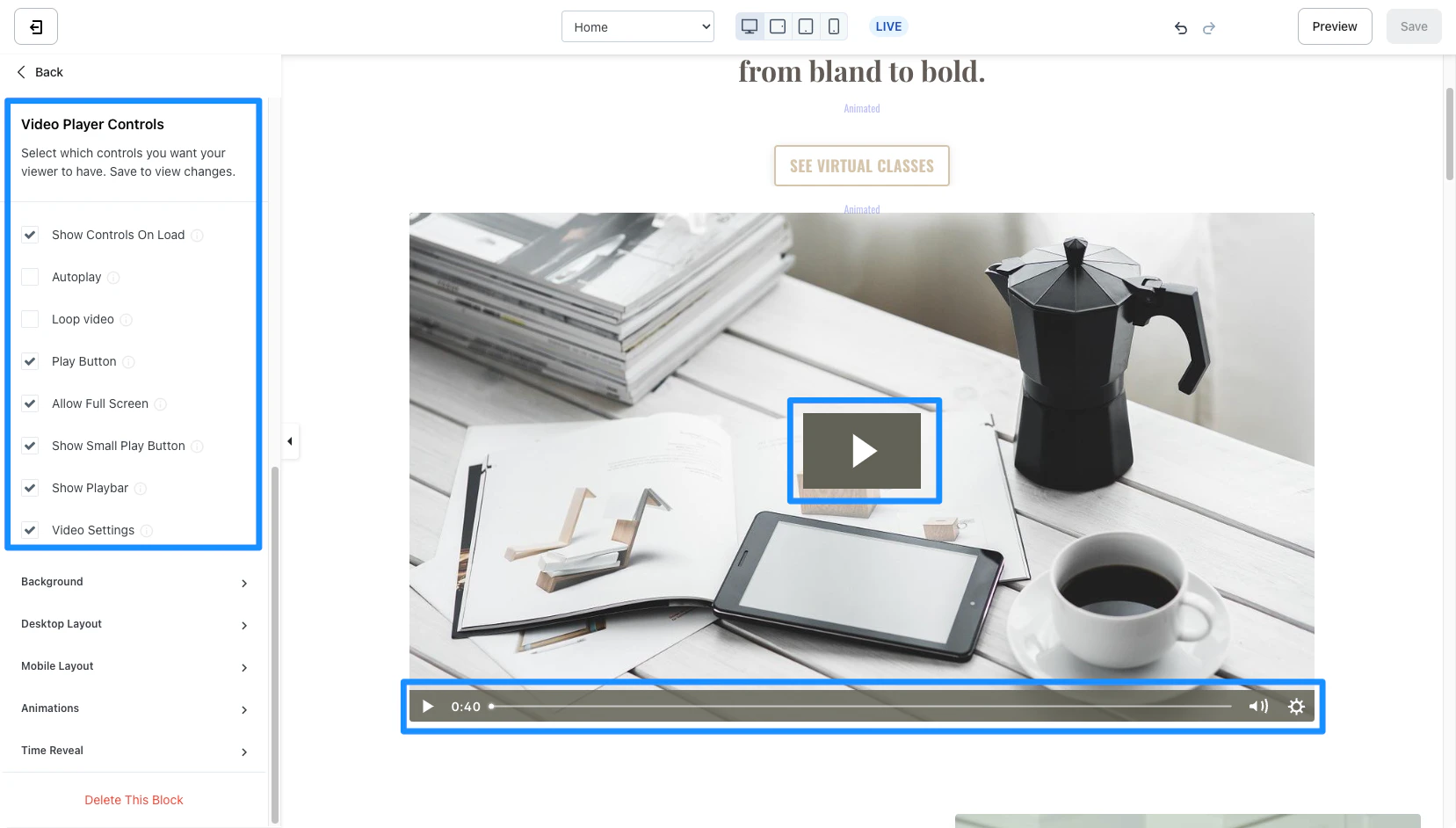
Customize the Video Player Controls to select which controls you want your viewers to have when viewing your video content:
* Check or uncheck **Show Controls On Load** to display player controls when autoplay is disabled.
* Check or uncheck **Autoplay** to autoplay a muted video when the page loads.
* Check **Loop Video** to infinitely replay the video each time it ends.
* Check the **Play Button** setting to display a play button when autoplay is disabled or the volume badge when autoplay is enabled.
* Check **Allow Full Screen** to allow your viewers to watch the video in fullscreen.
* Check **Show Small Play Button** to display a small play button in the bottom left corner of the video.
* Check **Show Playbar** to display a playbar.
*Example with all Video Player Controls enabled:*
 **Tip:**
By default, the color of your Video Player Controls is determined by the [Primary Color of your Page](../../website/pages/customize-your-page-font-and-style-with-the-style-guide#colors). Override the default setting by changing the Player accent color in the Video Block sidebar editor.
**Tip:**
By default, the color of your Video Player Controls is determined by the [Primary Color of your Page](../../website/pages/customize-your-page-font-and-style-with-the-style-guide#colors). Override the default setting by changing the Player accent color in the Video Block sidebar editor.