> ## Documentation Index
> Fetch the complete documentation index at: https://help.kajabi.com/llms.txt
> Use this file to discover all available pages before exploring further.
# Add an accordion block to a page
> Learn to add Accordion Blocks to your pages built with Kajabi to organize content on your Page.
This guide refers to the latest page template available with the Website Builder and Kajabi Pages. If you are using the Premier Legacy Templates, please refer to the guide [here](../../website/pages/how-to-add-an-accordion-section-to-your-premier-page).
***
## What is an accordion block?
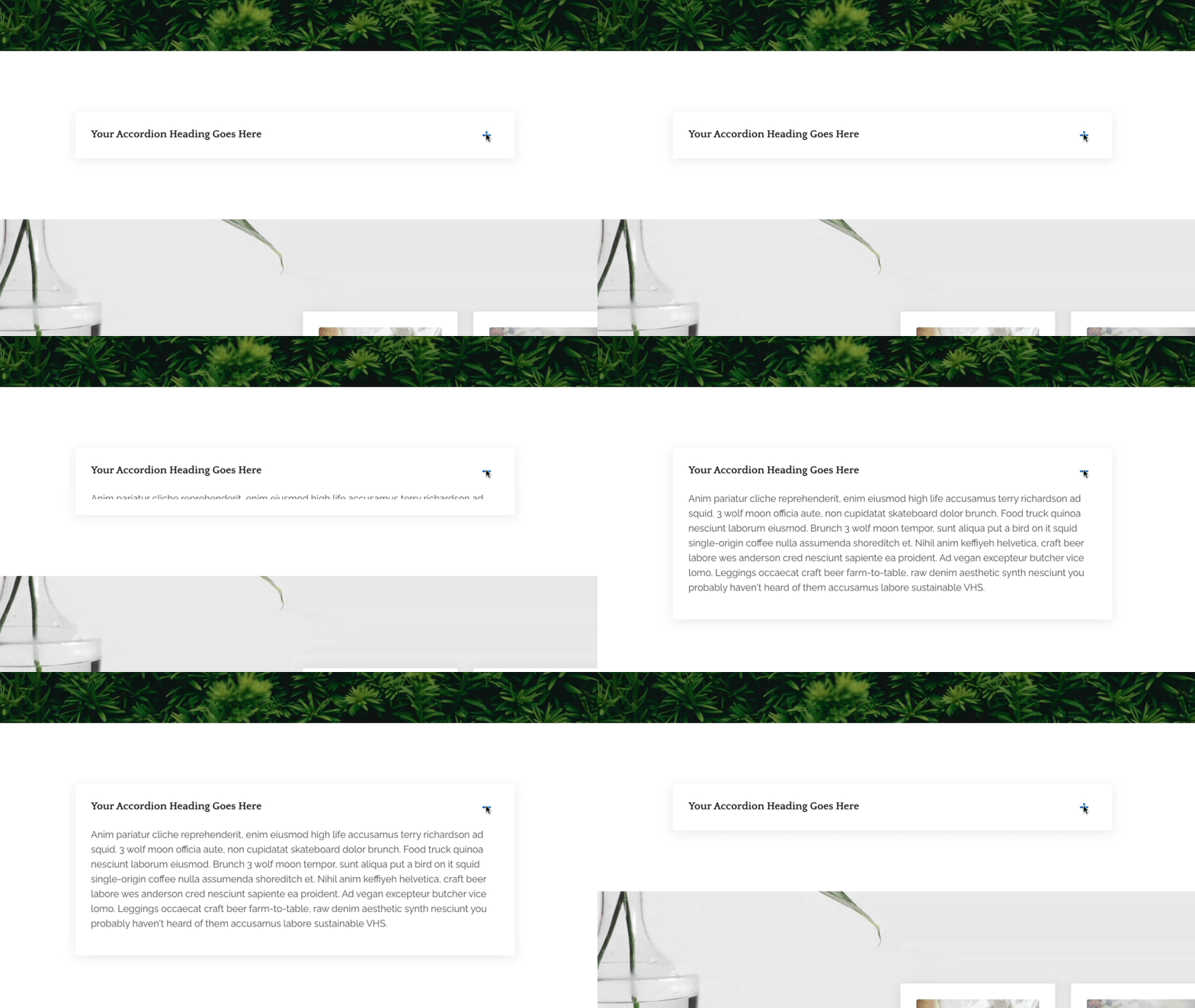
Accordions are a great way to organize sets of content on your page, relieving your page viewers from long walls of text.
The Accordion Block behaves as a dropdown bar with a Heading Text identifying the Block. When a user clicks open the Accordion Block on your Page, they can view the Body Text:
 ***
## Adding an accordion block
* Open the **Website** tab from the Dashboard.
* Select the **Pages** tab.
* Open the page editor for your Page. [Learn more](../../website/pages/how-to-get-to-the-page-editor)
* Click the Section you want to edit or [create a new Section](../../website/pages/add-sections-to-your-pages).
* In the sidebar, click **Add Content**.
* From the list, select **Accordion**.
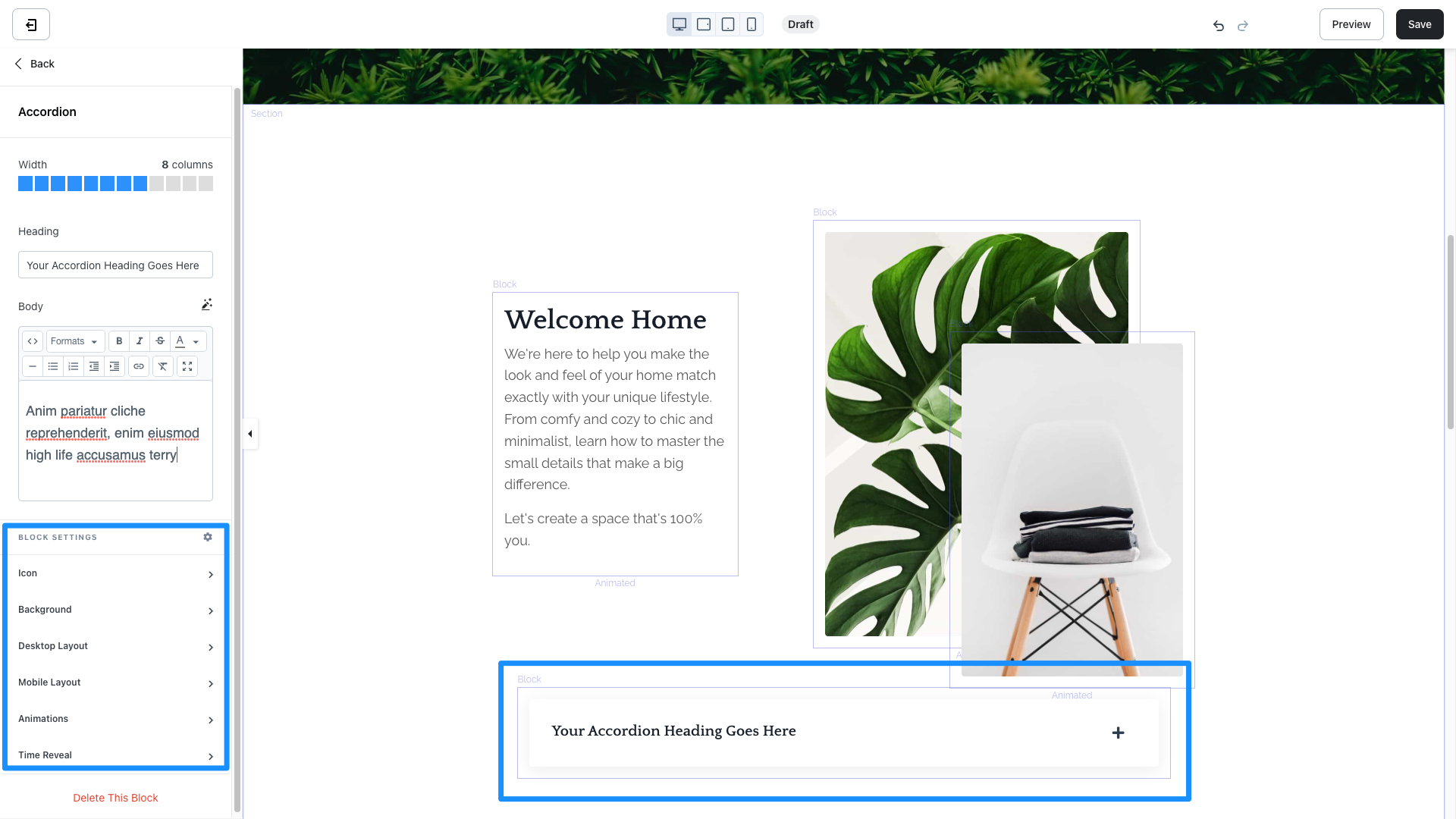
* Your newly created Accordion Block will generate at the bottom of the Section.
* Click **Save** to keep your changes:
***
## Adding an accordion block
* Open the **Website** tab from the Dashboard.
* Select the **Pages** tab.
* Open the page editor for your Page. [Learn more](../../website/pages/how-to-get-to-the-page-editor)
* Click the Section you want to edit or [create a new Section](../../website/pages/add-sections-to-your-pages).
* In the sidebar, click **Add Content**.
* From the list, select **Accordion**.
* Your newly created Accordion Block will generate at the bottom of the Section.
* Click **Save** to keep your changes:
**Tip:**
To include additional Accordion blocks in the Section, simply click **+ Add Content** in the Section editor and repeat the steps for adding the Accordion Block. To format your blocks in a Grid, we recommend adding an [FAQ Grid Section](../../website/pages/how-to-add-an-faq-section).
***
## Customizing an accordion block
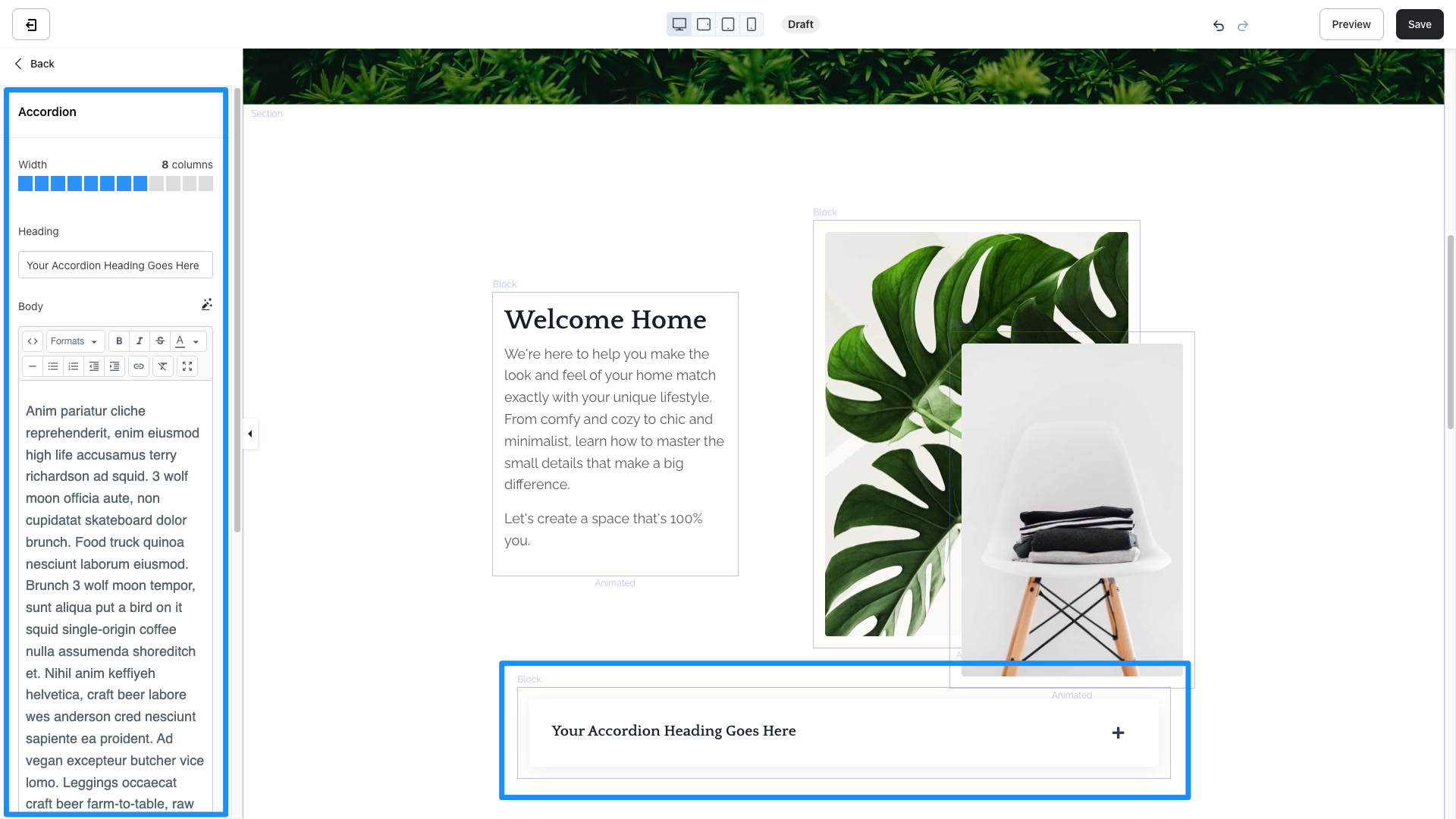
In an Accordion Block, configure the [Width](../../website/pages/how-to-customize-the-block-width) of the Block, Heading text, Body text, and your Block Settings:
 **Tip:**
[Utilize the Body Text Editor](../../marketing/email-campaigns/can-i-make-the-text-box-larger-when-editing) to easily add your text content to your Accordion Block.
***
## Block settings
To adjust the look and feel of the Block, configure your Block Settings by customizing the:
* **Icon:** Change the Icon Style to a Plus or an Arrow and select an Icon Color to fit your brand
* [Background](../../website/pages/customizing-block-background-settings)
* [Desktop and Mobile Layout](../../website/pages/customizing-block-layout-settings)
* [Animations](../../website/pages/customizing-block-animations)
* [Time Reveal](../../website/pages/customizing-time-reveal-settings)
**Accessing your Accordion Block Settings:**
* Open the **Website** tab from the Dashboard.
* Select the **Pages** tab.
* Open the page editor for your Page. [Learn more](../../website/pages/how-to-get-to-the-page-editor)
* Hover over the Accordion Block you wish to customize and click **Edit**.
* Navigate to the sidebar panel to access your Accordion Block Settings:
**Tip:**
[Utilize the Body Text Editor](../../marketing/email-campaigns/can-i-make-the-text-box-larger-when-editing) to easily add your text content to your Accordion Block.
***
## Block settings
To adjust the look and feel of the Block, configure your Block Settings by customizing the:
* **Icon:** Change the Icon Style to a Plus or an Arrow and select an Icon Color to fit your brand
* [Background](../../website/pages/customizing-block-background-settings)
* [Desktop and Mobile Layout](../../website/pages/customizing-block-layout-settings)
* [Animations](../../website/pages/customizing-block-animations)
* [Time Reveal](../../website/pages/customizing-time-reveal-settings)
**Accessing your Accordion Block Settings:**
* Open the **Website** tab from the Dashboard.
* Select the **Pages** tab.
* Open the page editor for your Page. [Learn more](../../website/pages/how-to-get-to-the-page-editor)
* Hover over the Accordion Block you wish to customize and click **Edit**.
* Navigate to the sidebar panel to access your Accordion Block Settings: