> ## Documentation Index
> Fetch the complete documentation index at: https://help.kajabi.com/llms.txt
> Use this file to discover all available pages before exploring further.
# Add an assessment block
> Learn to add an Assessment Block with Kajabi Pages to grow your list.
**Note:** This guide refers to the latest page template available with the Website Builder and Kajabi Pages. If you are using the Premier Legacy Templates, please refer to the guide [here](/articles/website/pages/how-to-add-an-assessment-to-your-page-with-premier).
***
## What is an assessment block?
Assessments in Kajabi can be used as tests or surveys on your Pages. Adding an Assessment to your Page is a great tool to encourage your visitors to opt-in or send them to a Sales Page.
Adding an Assessment Block displays your selected Assessment in a Section of your Page.
When your site visitors complete your Assessment, they are automatically prompted to subscribe to your email list with their name and email address:
Keep in mind, the Assessment Block simply displays the Assessment selected on your page. To edit and customize the content within your Assessment, you must create and customize the Assessment in your Contacts tab.
Learn more about [Assessments in Kajabi](../../contacts/create-manage-and-share-assessments/create-and-customize-assessments) for details.
***
## Adding an assessment block
To add an Assessment Block to your page:
* Open the **Website** tab from the Dashboard.
* Select the **Pages** tab.
* Open the page editor for your Page. [Learn more](/articles/website/pages/how-to-get-to-the-page-editor)
* Click the Section you want to edit or [create a new Section](/articles/website/pages/add-sections-to-your-pages).
* In the sidebar, click **Add Content**.
* From the list, select **Assessment**.
* Your newly created Assessment Block will generate at the bottom of the Section.
* Select your Assessment in the dropdown located in the sidebar panel.
* Click **Save** to keep your changes:
**Tip:** To select an Assessment from the dropdown, you must first create an Assessment in your Contacts tab. Below the Assessment field, click "Edit your assessments" to edit and create an Assessment.
***
## Customizing your assessment block
In an Assessment Block, customize the [Block Width](/articles/website/pages/how-to-customize-the-block-width), select an [existing Assessment](../../contacts/create-manage-and-share-assessments/create-and-customize-assessments), and configure your Block Settings.
### Block settings
To adjust the look and feel of the Block, configure your Block Settings by customizing the:
* [Background](/articles/website/pages/customizing-block-background-settings)
* [Desktop and Mobile Layout](/articles/website/pages/customizing-block-layout-settings)
* [Animations](/articles/website/pages/customizing-block-animations)
* [Time Reveal](/articles/website/pages/customizing-time-reveal-settings)
**Accessing your Assessment Block Settings:**
* Open the **Website** tab from the Dashboard.
* Select the **Pages** tab.
* Open the page editor for your Page. [Learn more](/articles/website/pages/how-to-get-to-the-page-editor)
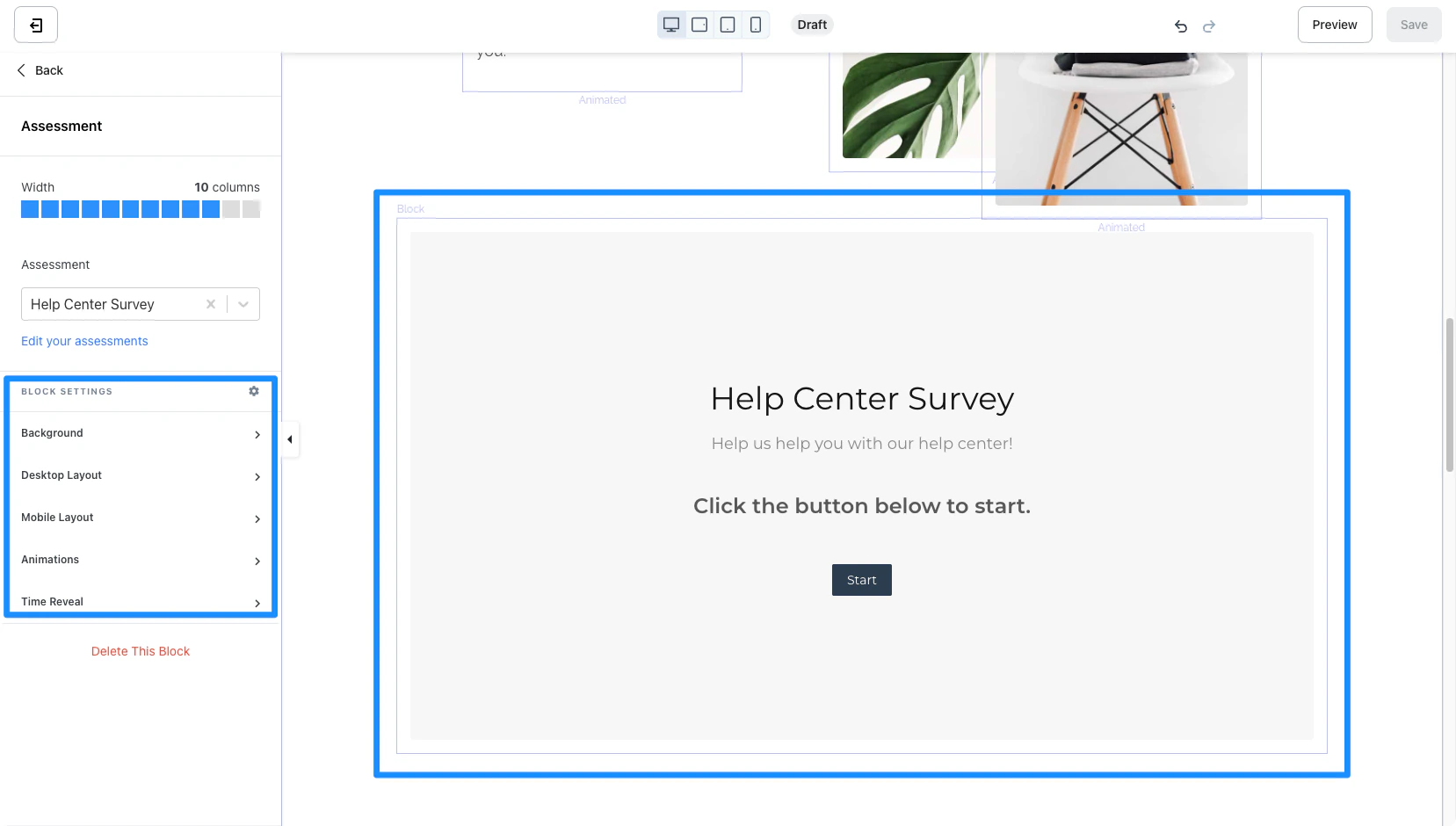
* Hover over the Assessment Block you wish to customize and click **Edit**.
* Navigate to the sidebar panel to access your Assessment Block Settings: