> ## Documentation Index
> Fetch the complete documentation index at: https://help.kajabi.com/llms.txt
> Use this file to discover all available pages before exploring further.
# Add an audio section to a page
> Adding audio to your page is an entertaining and impactful way to engage with your audience. Learn to add an Audio Section to a page.
**Note:** Audio Sections are only available with Encore Site v1.1.0 and above for Website pages and Encore 2.0 and above for Landing pages. To include an Audio Section on your page, create a [new Landing page](/articles/website/pages/how-to-add-pages-to-your-website) or [install a new Website template](/articles/website/pages/how-to-make-the-switch-to-the-new-website-builder). Updating a previous template will display an error message, as these updates are incompatible with the previous versions.
***
## Adding an audio section
Include an Audio Section on your page to provide an engaging audio experience for your page visitors.
### To add an audio section:
* Open the **Website** tab from the Dashboard.
* Select either **Website Pages** or **Landing Pages**.
* Open the page editor for your page. [Learn more](/articles/website/pages/how-to-get-to-the-page-editor)
* Click **Add Section** from the sidebar on the left.
* From the list, you have the option to choose from **Audio** or **Text & Audio**. The newly created Audio Section of your choice will generate at the bottom of your page.
* Next, click into **Audio** in the sidebar editor for your newly created Section.
* Click **Add Audio** to upload your audio file.
* Then, click **Save** to keep your changes:
**Note:** Want to delete the audio file from your page? Remove the block from your page. [Learn more](editing-blocks-on-your-page#to-rename-duplicate-hide-and-delete-a-section)
***
## Preset audio sections
### Audio
Adding audio to your page is an entertaining and impactful way to engage with your audience, quickly informing your visitors while giving your site a discernible personality:
Customize your Audio Section by editing the Block and Section Settings to change the appearance, behavior, and content.
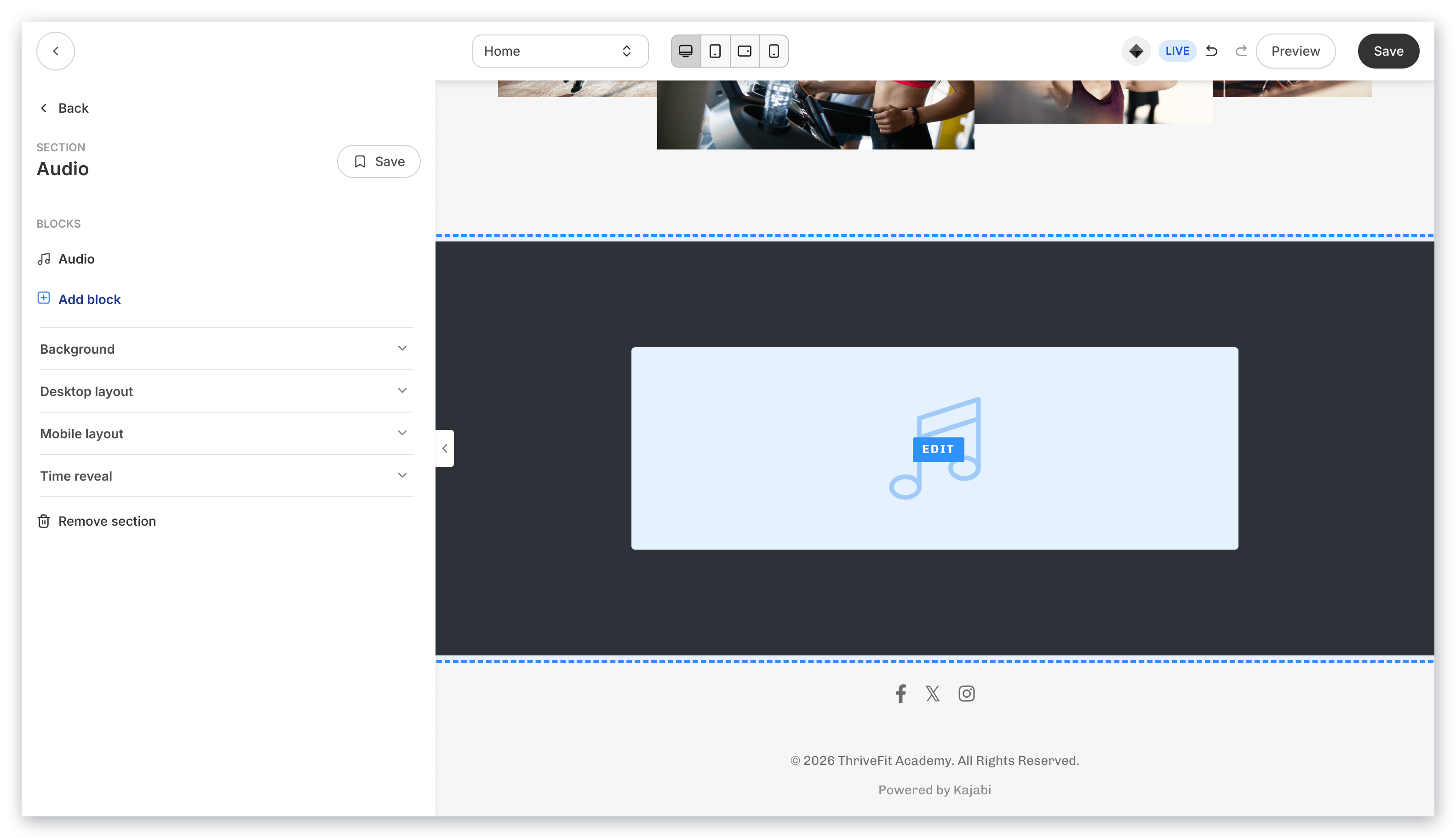 **Section Settings:**
* [Background](/articles/website/pages/how-to-customize-your-section-background-settings)
* [Section Layout](/articles/website/pages/customizing-section-layout-settings)
* [Time Reveal](/articles/website/pages/customizing-time-reveal-settings)
### Text & audio
Combine Audio and Text Blocks to create a simplistic approach to tell your story to your audience.
Adding a Text & Audio Section generates a single Text Block as well as the Audio Player Block:
**Section Settings:**
* [Background](/articles/website/pages/how-to-customize-your-section-background-settings)
* [Section Layout](/articles/website/pages/customizing-section-layout-settings)
* [Time Reveal](/articles/website/pages/customizing-time-reveal-settings)
### Text & audio
Combine Audio and Text Blocks to create a simplistic approach to tell your story to your audience.
Adding a Text & Audio Section generates a single Text Block as well as the Audio Player Block:
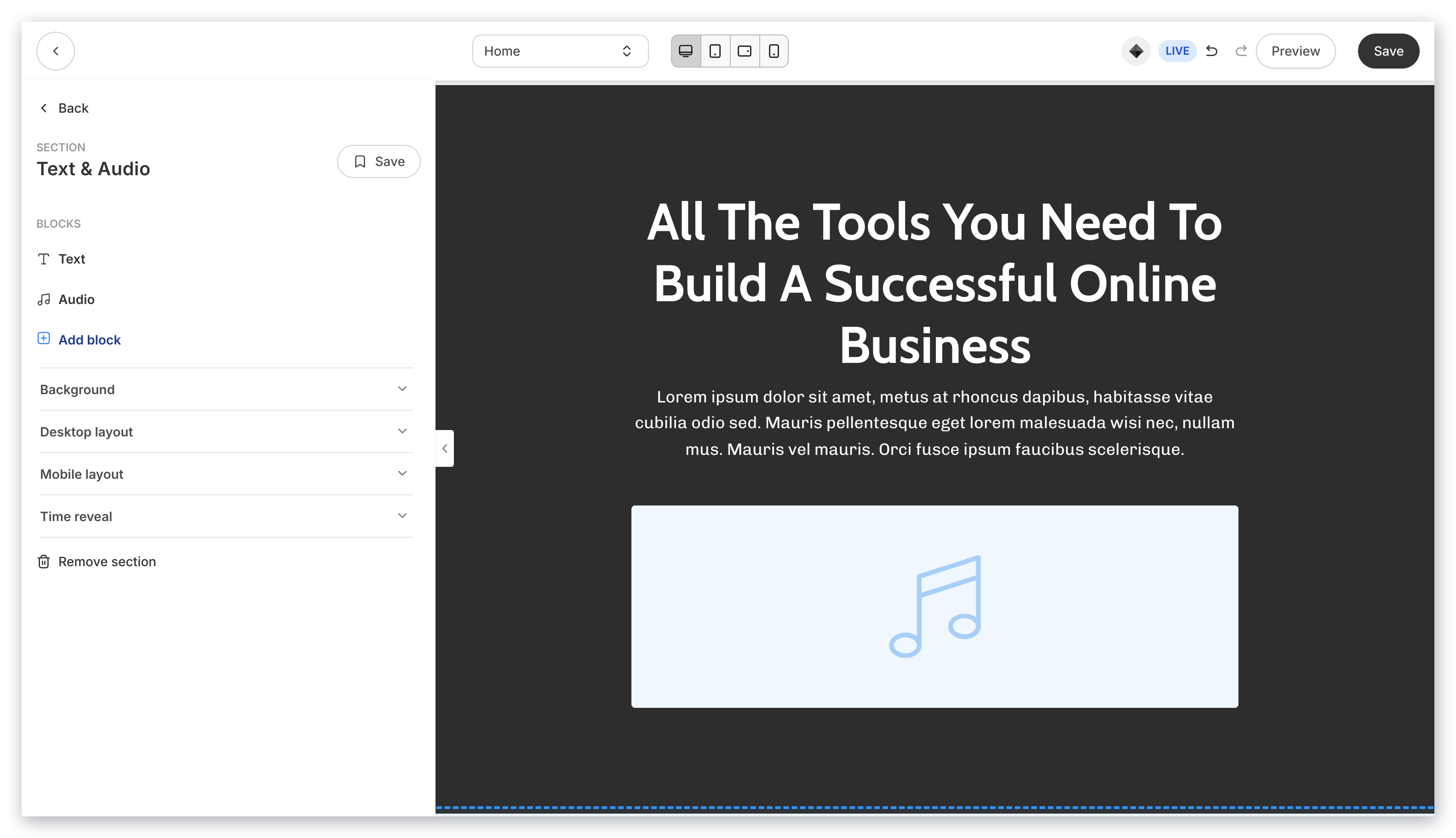 Customize your Text & Audio Section by editing the Block and Section Settings to change the appearance, behavior, and content.
**Section Settings:**
* [Background](/articles/website/pages/how-to-customize-your-section-background-settings)
* [Section Layout](/articles/website/pages/customizing-section-layout-settings)
* [Time Reveal](/articles/website/pages/customizing-time-reveal-settings)
Customize your Text & Audio Section by editing the Block and Section Settings to change the appearance, behavior, and content.
**Section Settings:**
* [Background](/articles/website/pages/how-to-customize-your-section-background-settings)
* [Section Layout](/articles/website/pages/customizing-section-layout-settings)
* [Time Reveal](/articles/website/pages/customizing-time-reveal-settings)