> ## Documentation Index
> Fetch the complete documentation index at: https://help.kajabi.com/llms.txt
> Use this file to discover all available pages before exploring further.
# Add offers to a Premier page
> Learn to add an Offer to your Premier Page and encourage your visitors to checkout.
**Note:** This article refers to the Premier Legacy Templates, which may be outdated. If you are using the Kajabi Pages Templates, please refer to the updated guide [here](/articles/website/pages/add-an-offer-to-a-page).
***
## What is an offer?
In Kajabi, an **Offer** is the price tag and checkout page for your [Product](../../products/products-overview/kajabi-products-overview).
For Products to be purchased or granted, they must first be connected to an Offer. With Offers, you can create multiple prices for the same products, provide different payment plans for your products, and bundle products together.
To add an Offer Block to your Page, you must first create an Offer in the Products tab.
Learn more about [Offers in Kajabi](../../sales/offers/offers-overview) for details.
***
## Adding an offer to your page
* Open the **Website** tab from the Dashboard.
* Click **Pages**.
* Select the page you wish to customize or [create a new page](/articles/website/pages/how-to-create-a-new-page-with-premier).
* Click **Customize** to open the template editor.
* Click **+ Add Section** from the sidebar.
* Select **Offer**.
* Click **Add**.
* Your newly created Offer Section will generate at the bottom of the page.
* Click **Save** to keep your changes:
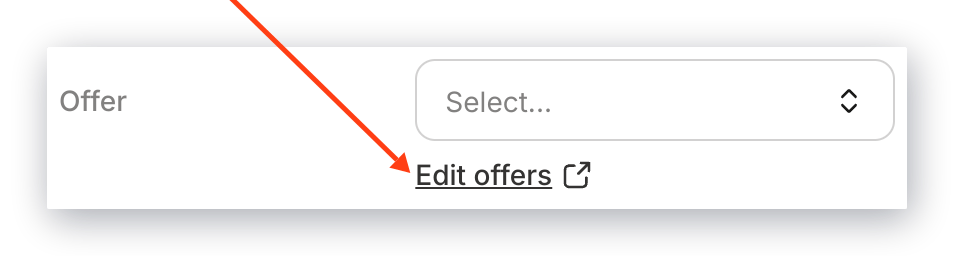
**Note:** To select an Offer from the dropdown, you must first create an Offer in your Products tab. Click "Edit your offers" to edit and create an Offer.
***
## Customizing your offer section
### Heading and subheading
Customize your Offers Section message displayed above the Offer and Custom Cards.
### Section appearance
Configure your Section Appearance to change the Background and Text Color, select the Text Alignment, and change the Spacing of the Section.
### Add content
Add Content to include your Offer Card or Custom Card to display your Offers on your Page.
***
## Customizing your offer content
### Select the offer
* In the Offers sidebar editor, click **Add Content**.
* There, select either **Offer Card** or **Custom Card**:
***
## Customizing an offer card
### Offer card
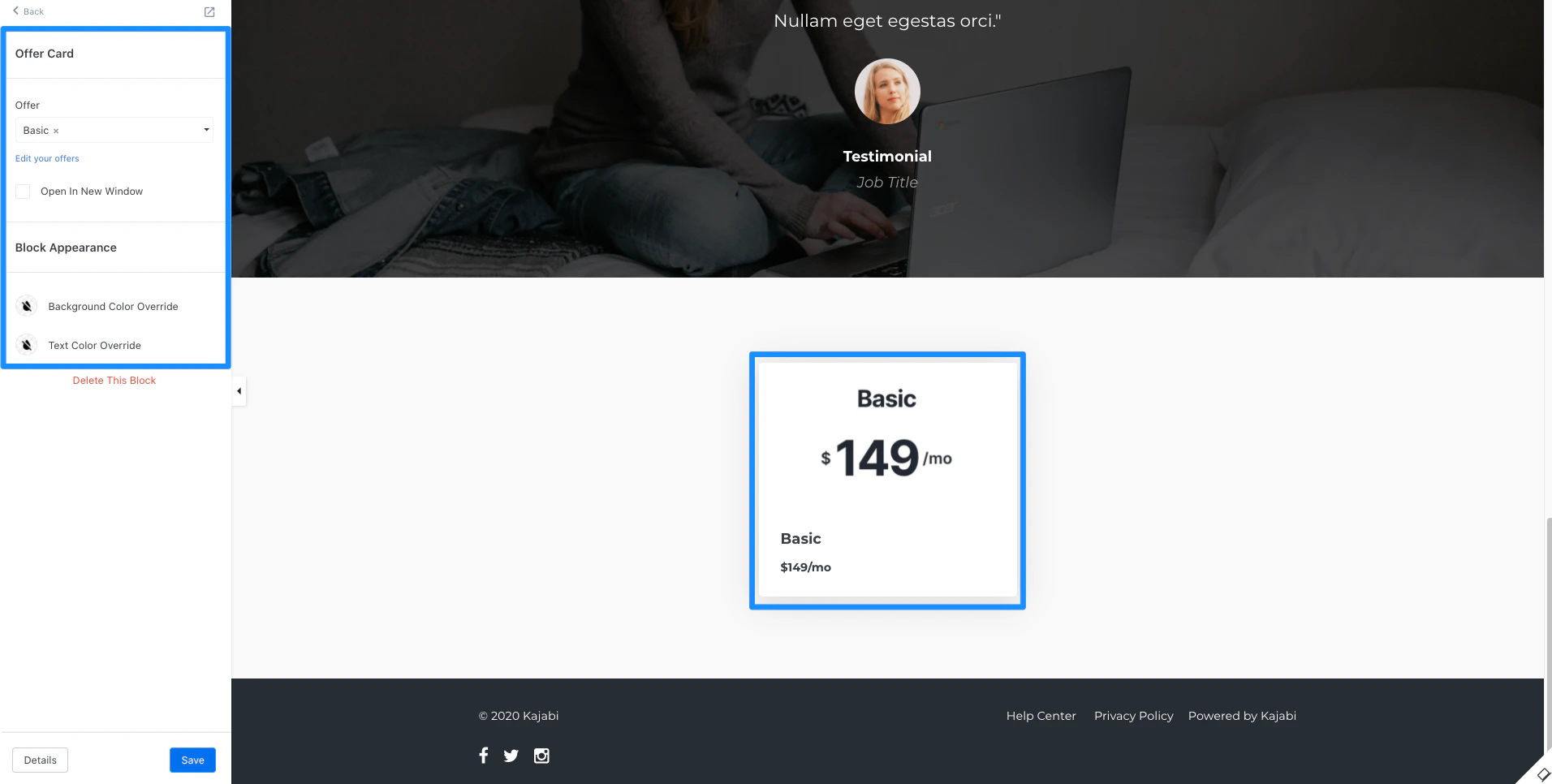 First, select an Offer to display in your Offer Card.
Click **Edit your offers** to change or create new Offers in the Product tab:
First, select an Offer to display in your Offer Card.
Click **Edit your offers** to change or create new Offers in the Product tab:
 Choose to open the Offer Checkout Page in a new window/tab when clicked by selecting **Open In New Window**.
### Block appearance
Customize the appearance of your Offer Card by changing the Background and Text Color.
***
## Customizing a custom card
Choose to open the Offer Checkout Page in a new window/tab when clicked by selecting **Open In New Window**.
### Block appearance
Customize the appearance of your Offer Card by changing the Background and Text Color.
***
## Customizing a custom card
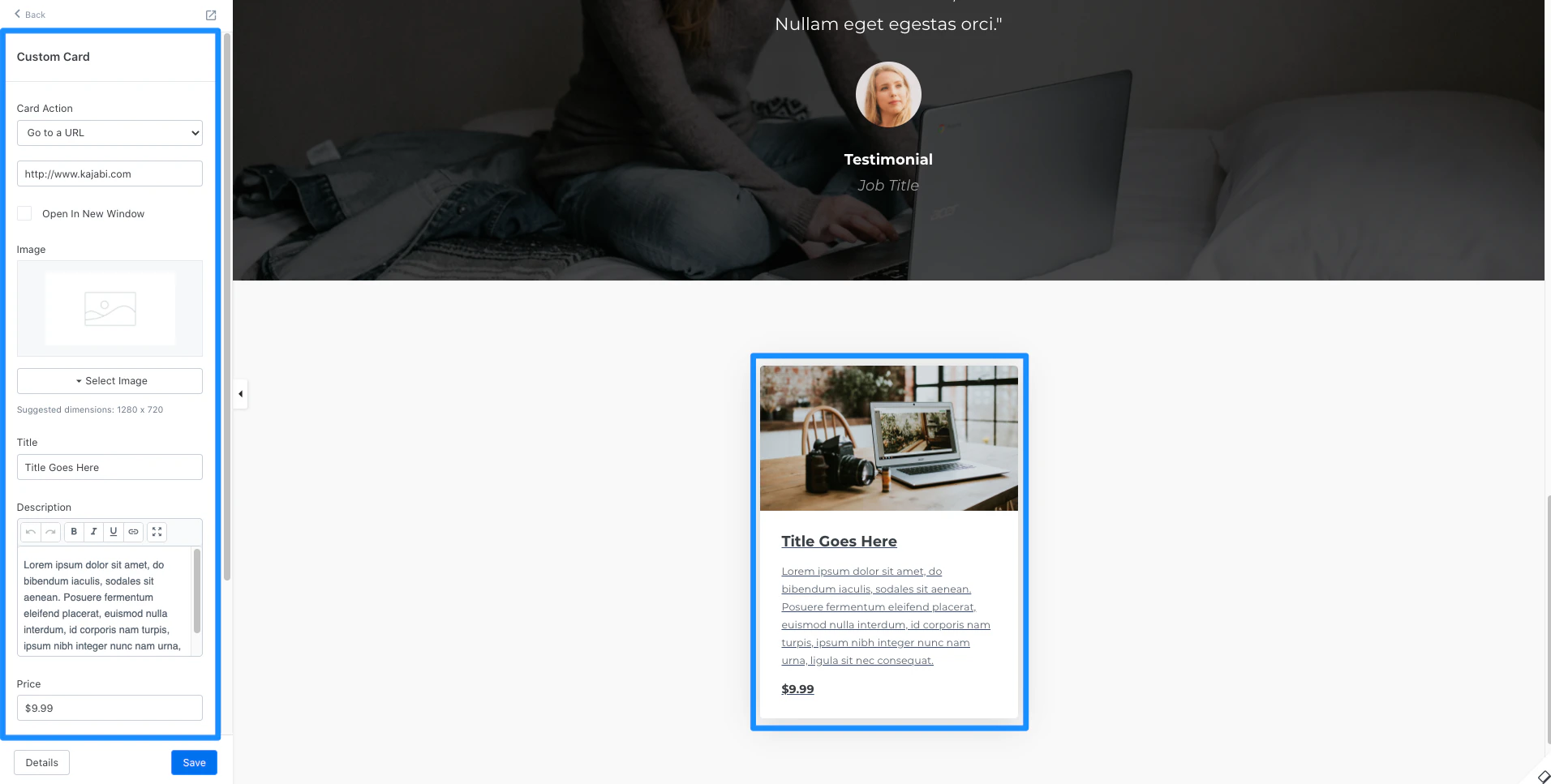 ### Card action
With the Custom Card, lead your site visitors to:
* Go to a Landing Page
* Go to a Checkout Page
* Download a File
* Go to a URL
* Open a two step optin popup
* Go to a section on the page
The Card Action gives you the flexibility to connect your Custom Card to Sales Pages, third-party checkout pages, and more.
**Note:** When using the **Go to a URL** action, be sure to enter a full URL (e.g., [https://kajabi.com/](https://kajabi.com/)).
### Open in new window
Choose to open the Offer Checkout Page in a new window/tab when clicked by selecting **Open In New Window**.
### Title and description
Customize your Custom Card messaging by editing the Title and the Description.
### Price
Display your Offer Pricing in the bottom of your Custom Card or enter text for additional, brief messaging.
### Block appearance
Customize the appearance of your Custom Card by changing the Background and Text Color.
### Card action
With the Custom Card, lead your site visitors to:
* Go to a Landing Page
* Go to a Checkout Page
* Download a File
* Go to a URL
* Open a two step optin popup
* Go to a section on the page
The Card Action gives you the flexibility to connect your Custom Card to Sales Pages, third-party checkout pages, and more.
**Note:** When using the **Go to a URL** action, be sure to enter a full URL (e.g., [https://kajabi.com/](https://kajabi.com/)).
### Open in new window
Choose to open the Offer Checkout Page in a new window/tab when clicked by selecting **Open In New Window**.
### Title and description
Customize your Custom Card messaging by editing the Title and the Description.
### Price
Display your Offer Pricing in the bottom of your Custom Card or enter text for additional, brief messaging.
### Block appearance
Customize the appearance of your Custom Card by changing the Background and Text Color.