> ## Documentation Index
> Fetch the complete documentation index at: https://help.kajabi.com/llms.txt
> Use this file to discover all available pages before exploring further.
# Change the language in the password recovery and password reset pages
> Learn to edit the language for your Password Recovery and Password Reset pages.
## Password recovery
Edit the language for your Password Recovery page in the [global page settings of the Website Builder](/articles/website/pages/how-to-use-your-style-settings-with-the-website-builder).
[Learn about the website builder](/articles/website/pages/customizing-your-website-pages-with-the-website-builder).
### What is the password recovery page?
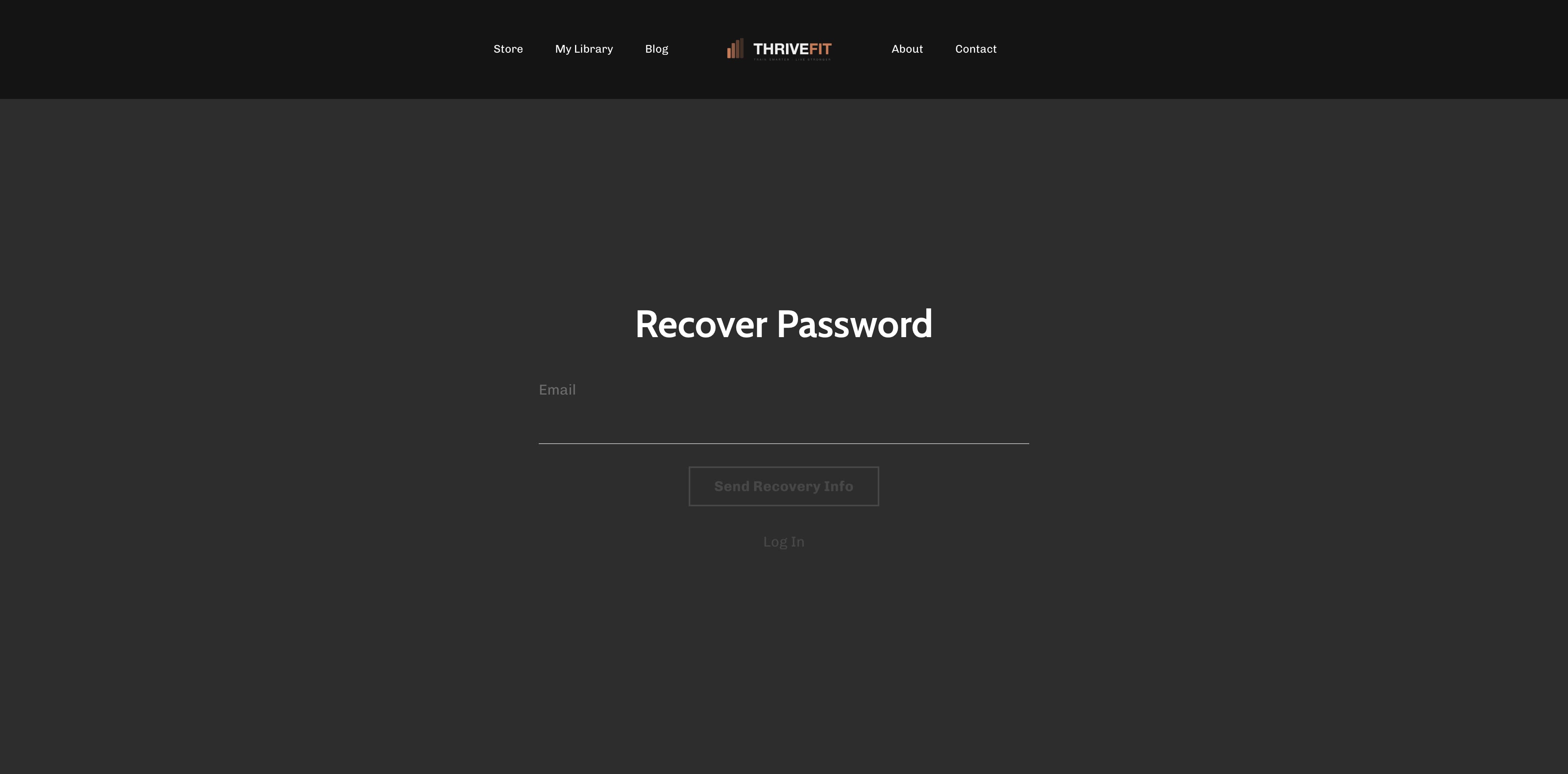
The Password Recovery page appears after a user clicks the [Forgot password button in the Login Page](../../contacts/manage-your-contacts/how-to-reset-your-customers-password#h_a14b791c-5fc5-45b8-ae37-1117f46c6237).
Your customer can submit their email address through the Password Recovery page to reset their password if the email address submitted exists in your Contacts tab.
Password Recovery page:
 ### How to edit the password recovery page
1. From the Dashboard, click the **Website** tab.
2. Select the **Website Pages** tab.
3. Select any page in your list of website pages.
4. Click **Customize**.
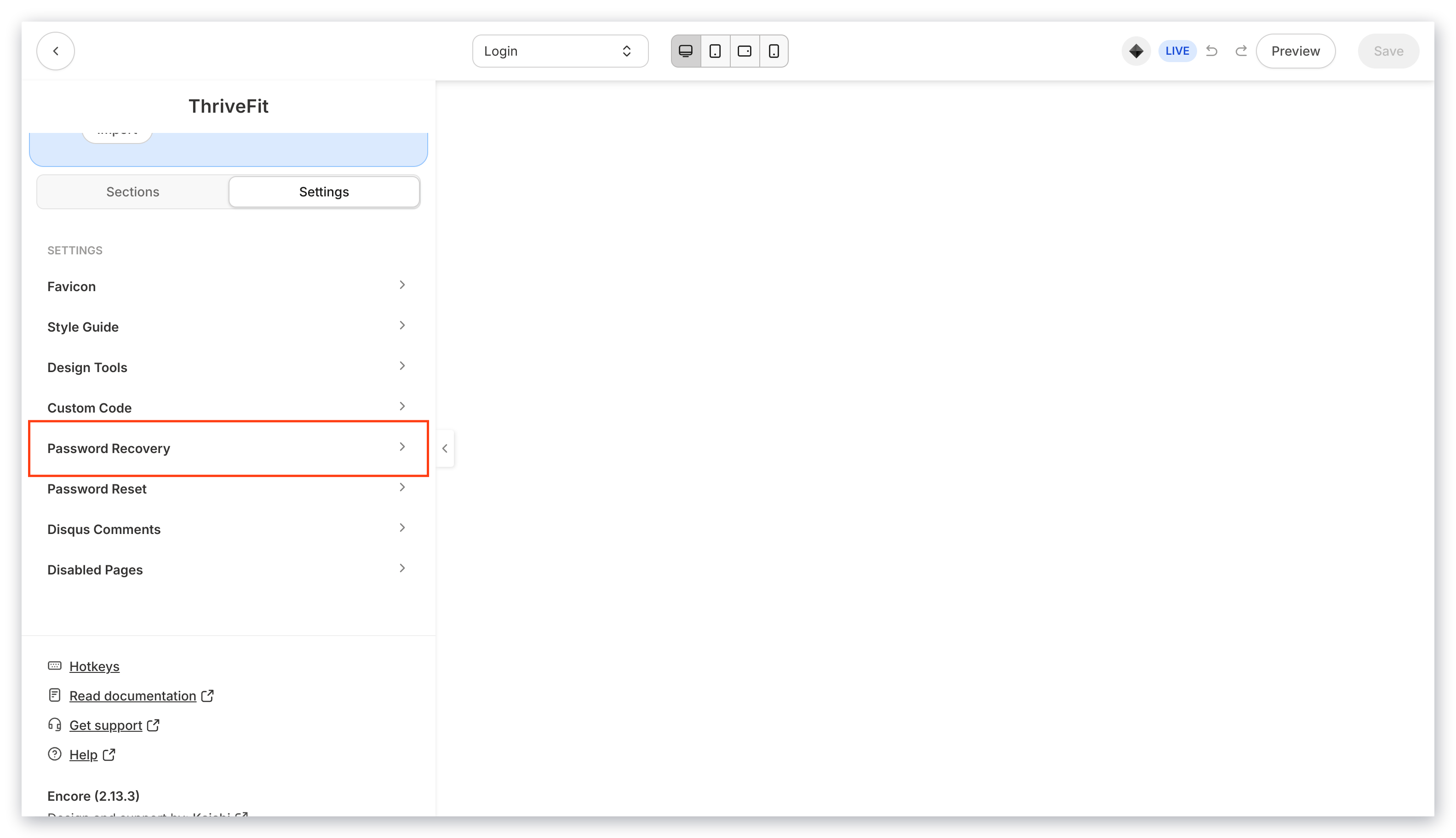
5. Open **Settings** from the sidebar panel.
6. Select **Password Recovery**.
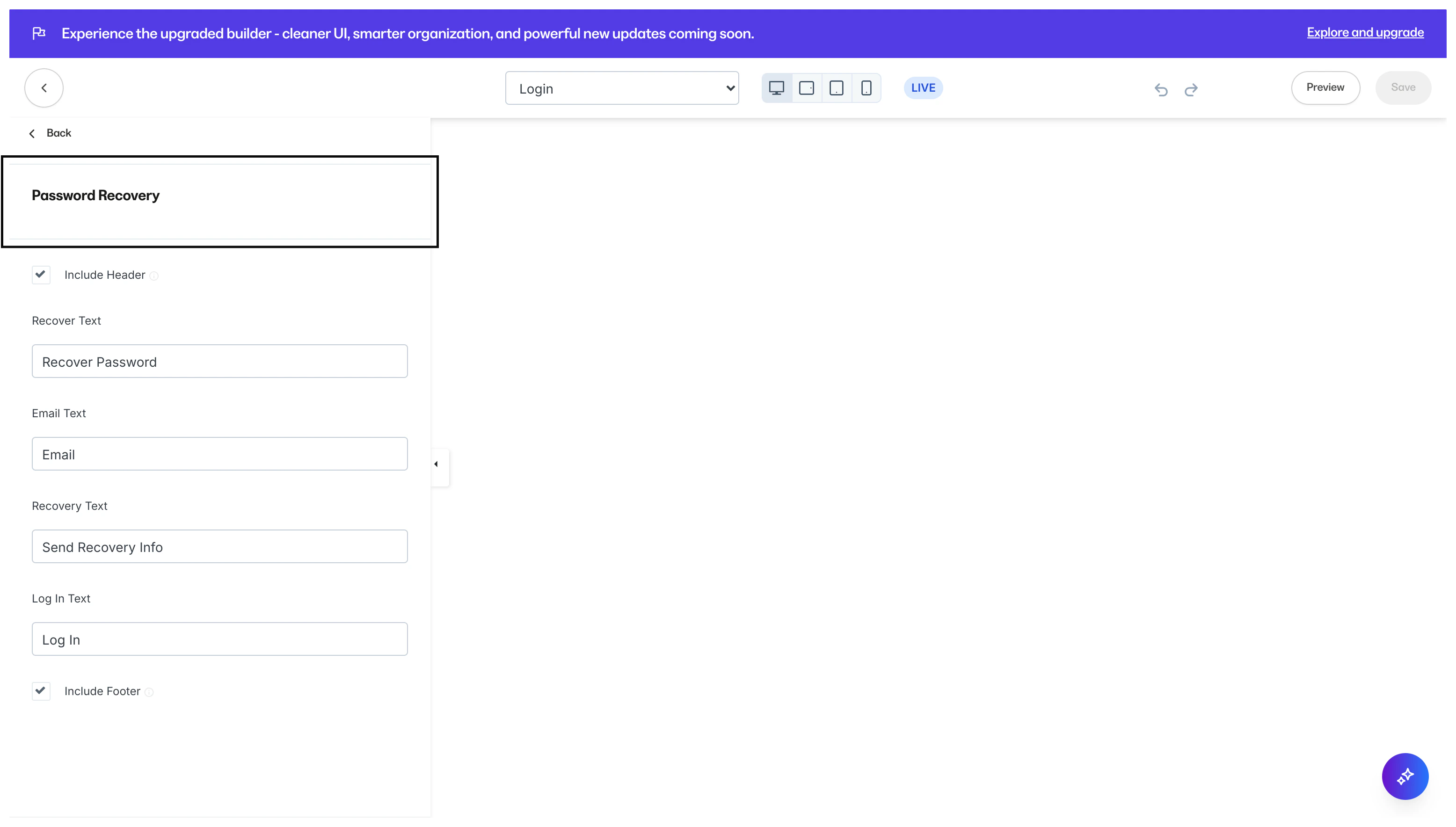
7. Navigate to the sidebar panel to edit the language for each field:
### How to edit the password recovery page
1. From the Dashboard, click the **Website** tab.
2. Select the **Website Pages** tab.
3. Select any page in your list of website pages.
4. Click **Customize**.
5. Open **Settings** from the sidebar panel.
6. Select **Password Recovery**.
7. Navigate to the sidebar panel to edit the language for each field:
 ## Password reset
Edit the language for your Password Reset page in the global page settings of the Website Builder.
### What is the password reset page?
If your user has forgotten their password, they can reset their password through the Password Reset page.
[Learn how your customer can reset their password.](../../contacts/manage-your-contacts/how-to-reset-your-customers-password)
In the reset password instructions email your customer will receive, they'll be provided with the link to the Reset Password page:
## Password reset
Edit the language for your Password Reset page in the global page settings of the Website Builder.
### What is the password reset page?
If your user has forgotten their password, they can reset their password through the Password Reset page.
[Learn how your customer can reset their password.](../../contacts/manage-your-contacts/how-to-reset-your-customers-password)
In the reset password instructions email your customer will receive, they'll be provided with the link to the Reset Password page:
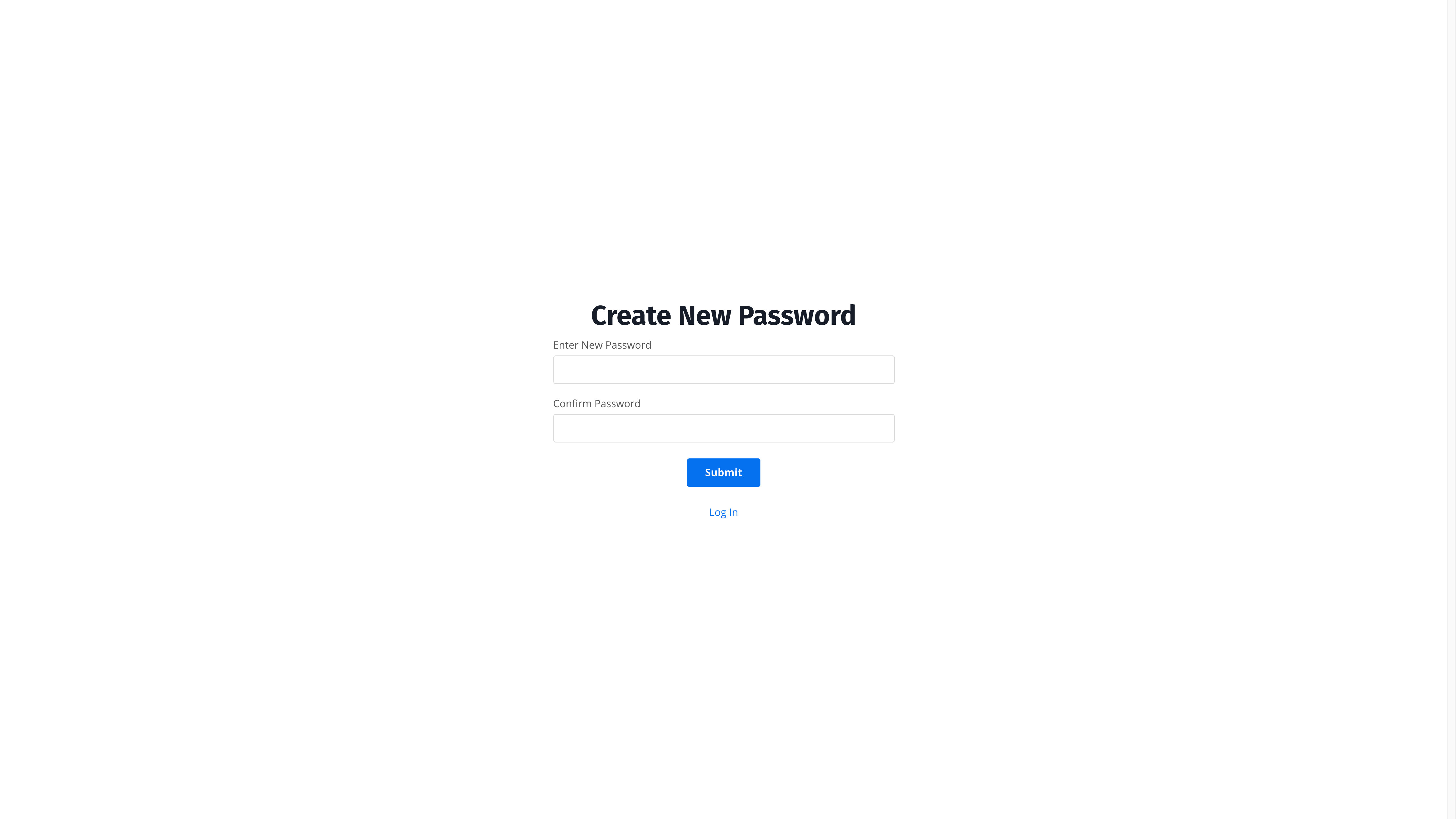
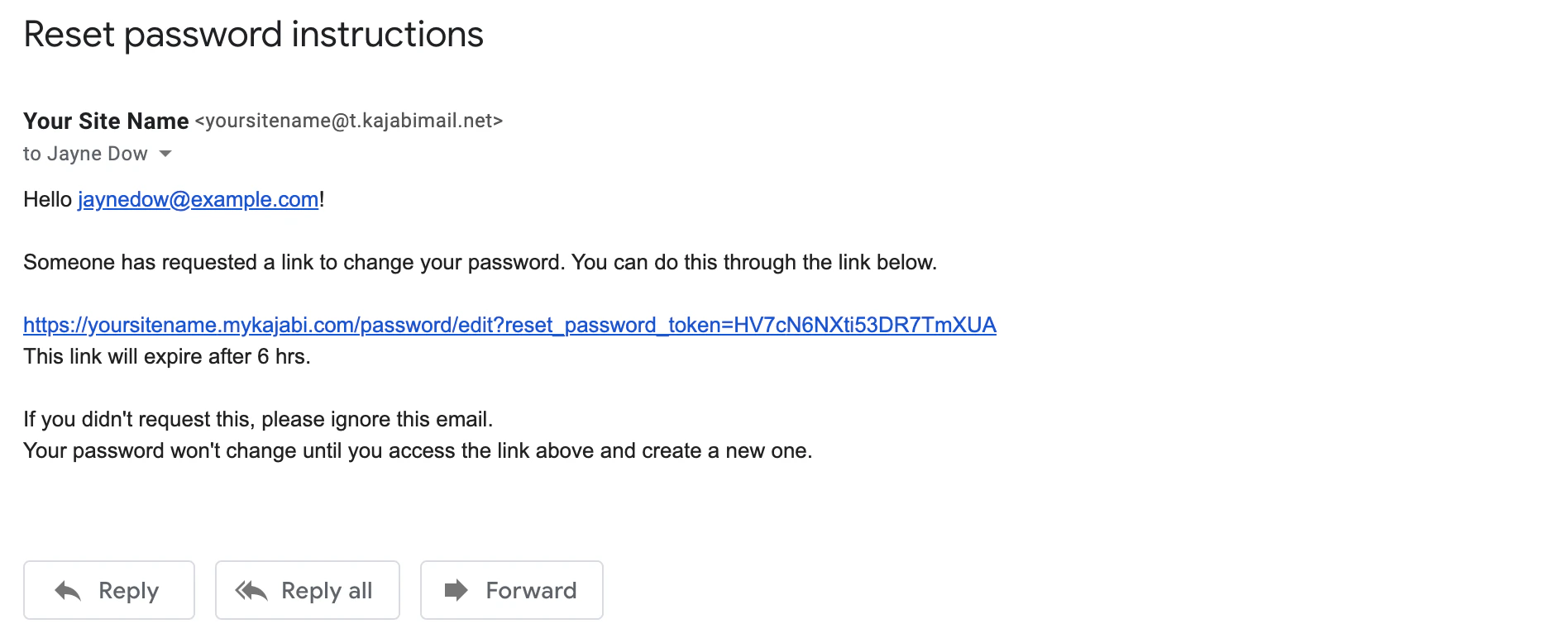 If your user clicks the link provided in the email, they will be redirected to your Reset Password page to create a new password for their account:
 ### How to edit the password reset page
1. From the Dashboard, click the **Website** tab.
2. Select the **Website Pages** tab.
3. Select any page in the list of website pages.
4. Click **Customize**.
5. Open **Settings** from the sidebar panel.
6. Select **Password Reset**.
7. Navigate to the sidebar panel to edit the language for each field:
### How to edit the password reset page
1. From the Dashboard, click the **Website** tab.
2. Select the **Website Pages** tab.
3. Select any page in the list of website pages.
4. Click **Customize**.
5. Open **Settings** from the sidebar panel.
6. Select **Password Reset**.
7. Navigate to the sidebar panel to edit the language for each field: