> ## Documentation Index
> Fetch the complete documentation index at: https://help.kajabi.com/llms.txt
> Use this file to discover all available pages before exploring further.
# Compress a video file using Handbrake
> Learn to use Handbrake to compress your video files.
Learn to use Handbrake to compress your video files.
***
## Why compress my videos?
**Compressing your videos is required for files larger than 4GB, but is also beneficial for a number of reasons with and without Kajabi.**
For example, if you simply want to share your videos (whether by website, social media, messaging, etc.), compression reduces the file size to make it easier to process.
But, in this case, if you want to upload your videos with Kajabi, your video files must be within the 4GB file size limit.
We recommend downloading [Handbrake](https://handbrake.fr/downloads.php) to compress your videos.
**But remember, there are a lot of tools out there.**
The best recommendation is to research and find the video compression tool that you prefer.
***
## Compressing your videos with Handbrake
### Step 1. Download Handbrake
**Note:** This guide uses Handbrake for MacOS 10.11 and later. Read [Handbrake's documentation](https://handbrake.fr/docs/en/1.5.0/) for additional assistance.
Follow along with this guide by first downloading Handbrake to your device.
[Click here to Download Handbrake](https://handbrake.fr/downloads.php).
### Step 2. Compressing your video
* Click **Open Source** and choose a file to compress with Handbrake.
* Set the **Format** to MP4.
* Set the **Dimensions** (typically 1920x1080).
* Click **Video** and make sure the **Video Encoder** is set to **H.264**.
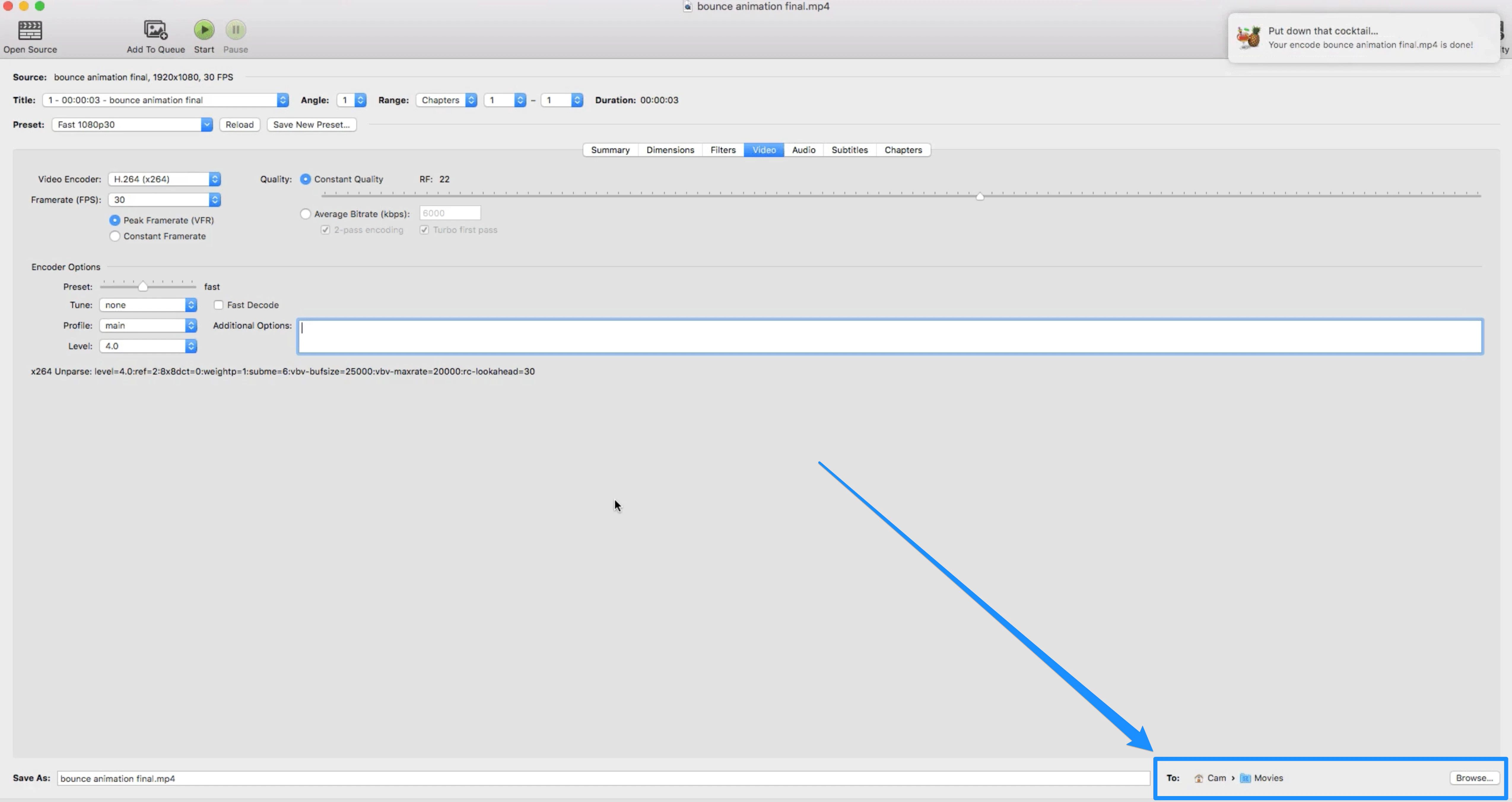
* Choose the **Destination** in the bottom right-hand corner by selecting **Browse** (consider choosing Desktop so the file is easy to find after compression).
* Click **Start**:
**Note:** When uploading videos that were recorded from a screen capture application such as Loom, Zoom, etc., Kajabi may be unable to complete the upload as these videos are not web optimized. To resolve this issue, select the "Web Optimize" button located in the summary tab (under where you selected a format).
### Step 3. Locating your compressed video
After your video has finished encoding, locate your compressed file in the Destination you selected (located in the bottom right corner of Handbrake):
 **Tip:** Are you having issues uploading your video? [Here are some troubleshooting tips](../../products/courses/how-to-troubleshoot-videos-not-uploading-or-playing).