> ## Documentation Index
> Fetch the complete documentation index at: https://help.kajabi.com/llms.txt
> Use this file to discover all available pages before exploring further.
# Connect landing pages to a website
> Learn to link your Landing Pages to your website with navigation menus and buttons.
Learn to link your Landing Pages to your website with navigation menus and buttons.
***
## Website pages vs. landing pages
Website Pages are the standard site pages Kajabi has created and connected for you that make up the foundation of your website.
Standard Website Pages include pages like your:
* [Homepage](/articles/website/pages/how-to-build-your-custom-homepage)
* [Library Page](/articles/website/pages/customizing-your-library-page)
* [Login Page](/articles/website/pages/how-to-build-your-login-page)
But you may need more than just the essentials to make your website work for your business.
This is where your standalone pages (i.e. Landing Pages) come in.
Landing Pages are independent pages that can be connected to your standard Website Pages or used separately.
Your unique standalone Landing Pages can be used to:
* Encourage opt-ins to grow your list. [Learn about Forms on Kajabi.](../../marketing/forms/create-and-build-your-form)
* Provide supporting materials (e.g., video content, downloadable files). [Learn to add downloadable files.](/articles/website/pages/how-to-upload-a-pdf-onto-a-page)
* Create Sales Pages for your digital products.
The sky is the limit with your custom Landing Page. Build and design your Landing Pages to work for your unique business.
Looking to expand your website with Landing Pages?
Continue reading to learn how to connect your Landing Pages to your website using navigation menus and call to action buttons.
***
## Creating navigation menus
Navigation menus provide a set of links to help your website visitors easily navigate between pages.
*Navigation menu example:*
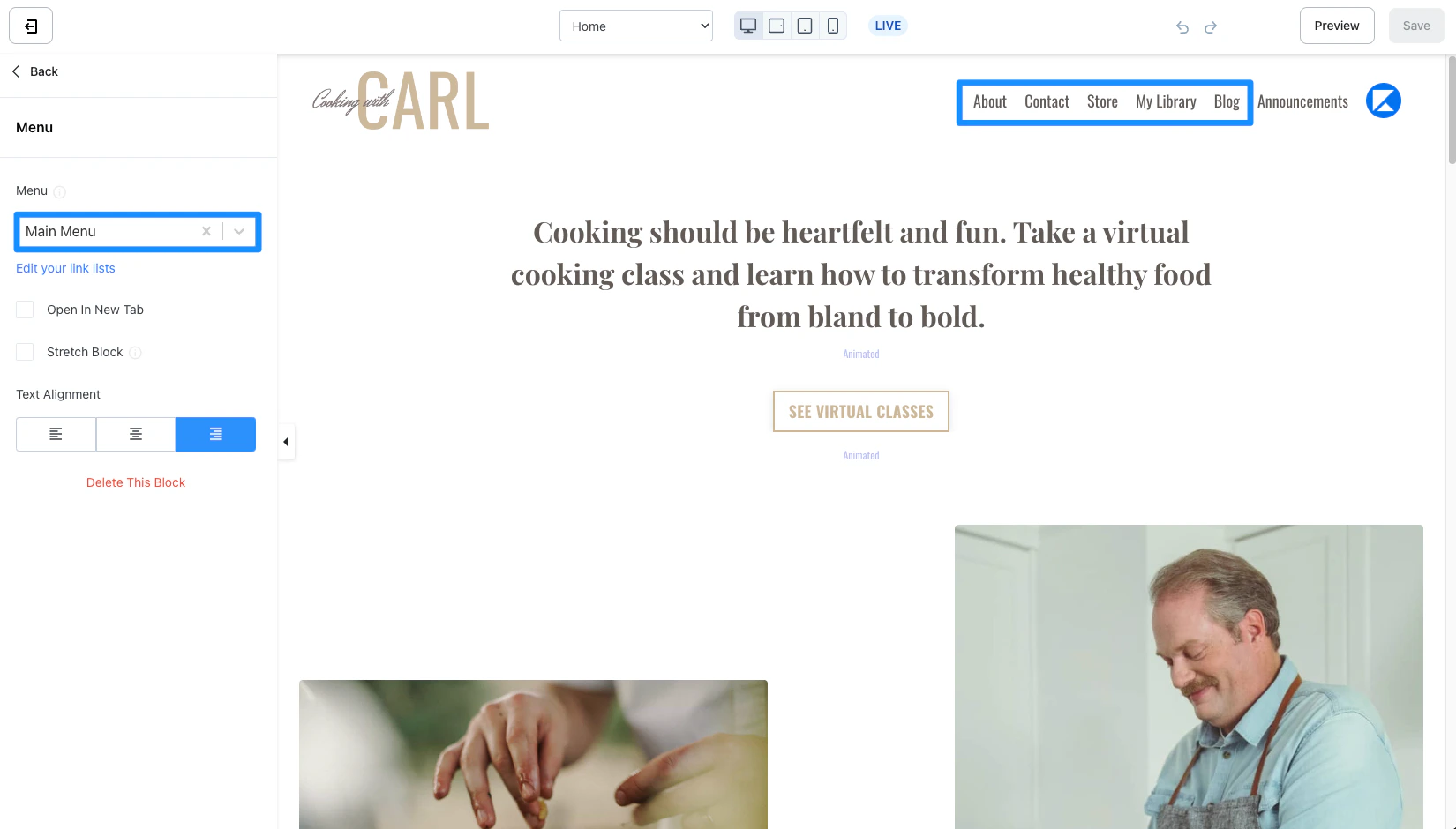 Typically, navigation menus can be found in the header and footer (i.e., the top and bottom) of a page.
With Kajabi, you can use navigation menus (also referred to as [link lists](/articles/website/pages/how-to-add-a-link-list-block)) in the headers, footers, and various sections of your pages.
Connect your Landing Pages to your website by adding your Landing Page links to the navigation menu(s) used on your standard Website Pages.
### How to add your landing page to a navigation menu:
* From your Dashboard, select the **Website** tab.
* Then, select the **Navigation** tab.
* Locate the navigation menu you wish to update with your Landing Page link.
* Click **+ Add** and select **Add Page**.
* Enter your link Name (note: this is the link name that will appear in your navigation menu).
* Then, select your Landing Page from the "Linked object composite" dropdown menu.
* (Optional) Select the **Visible to logged in users only** checkbox if you want the link to only appear for logged in customers of your site.
* Click **Save** to keep and apply your changes.
* Preview a Website Page containing the navigation menu you updated to verify your changes:
Typically, navigation menus can be found in the header and footer (i.e., the top and bottom) of a page.
With Kajabi, you can use navigation menus (also referred to as [link lists](/articles/website/pages/how-to-add-a-link-list-block)) in the headers, footers, and various sections of your pages.
Connect your Landing Pages to your website by adding your Landing Page links to the navigation menu(s) used on your standard Website Pages.
### How to add your landing page to a navigation menu:
* From your Dashboard, select the **Website** tab.
* Then, select the **Navigation** tab.
* Locate the navigation menu you wish to update with your Landing Page link.
* Click **+ Add** and select **Add Page**.
* Enter your link Name (note: this is the link name that will appear in your navigation menu).
* Then, select your Landing Page from the "Linked object composite" dropdown menu.
* (Optional) Select the **Visible to logged in users only** checkbox if you want the link to only appear for logged in customers of your site.
* Click **Save** to keep and apply your changes.
* Preview a Website Page containing the navigation menu you updated to verify your changes:
### Link types:
* **Product** - Add a navigation link to a **Course Module** or **Lesson**.
* **Page** - Add a link to any of your **Website** or **Landing Pages** in Kajabi.
* **Link** - Add a link to any URL.
[Learn more about building your navigation menus](../../website/navigation/build-navigation-menus)
***
## Adding call to action buttons
Don't want to link your Landing Page in a navigation menu?
Add a Call to Action button to your page instead.
You can build sales pages for your offers, opt-in pages to subscribe contacts to your list, promotional campaigns, and more with your custom Landing Pages.
Then, add a Call to Action button to a standard Website Page (like your homepage) to encourage your site visitors to view your custom Landing Page.
**What is a Call to Action?**
A Call to Action is typically used to provoke an immediate response from your site visitors to subscribe or purchase.
Kajabi has built a Call to Action button which can be used for a variety of purposes by configuring the Button Action:
* Lead a visitor to a custom **Landing Page**
* Lead to a sale by going to a **Checkout Page**
* Encourage your audience to **download a file**
* Lead to any page with a **URL**
* Open a **Two Step Opt-in Popup**
* Act as a link to **lead to a section of the page**
*Example Call to Action button:*
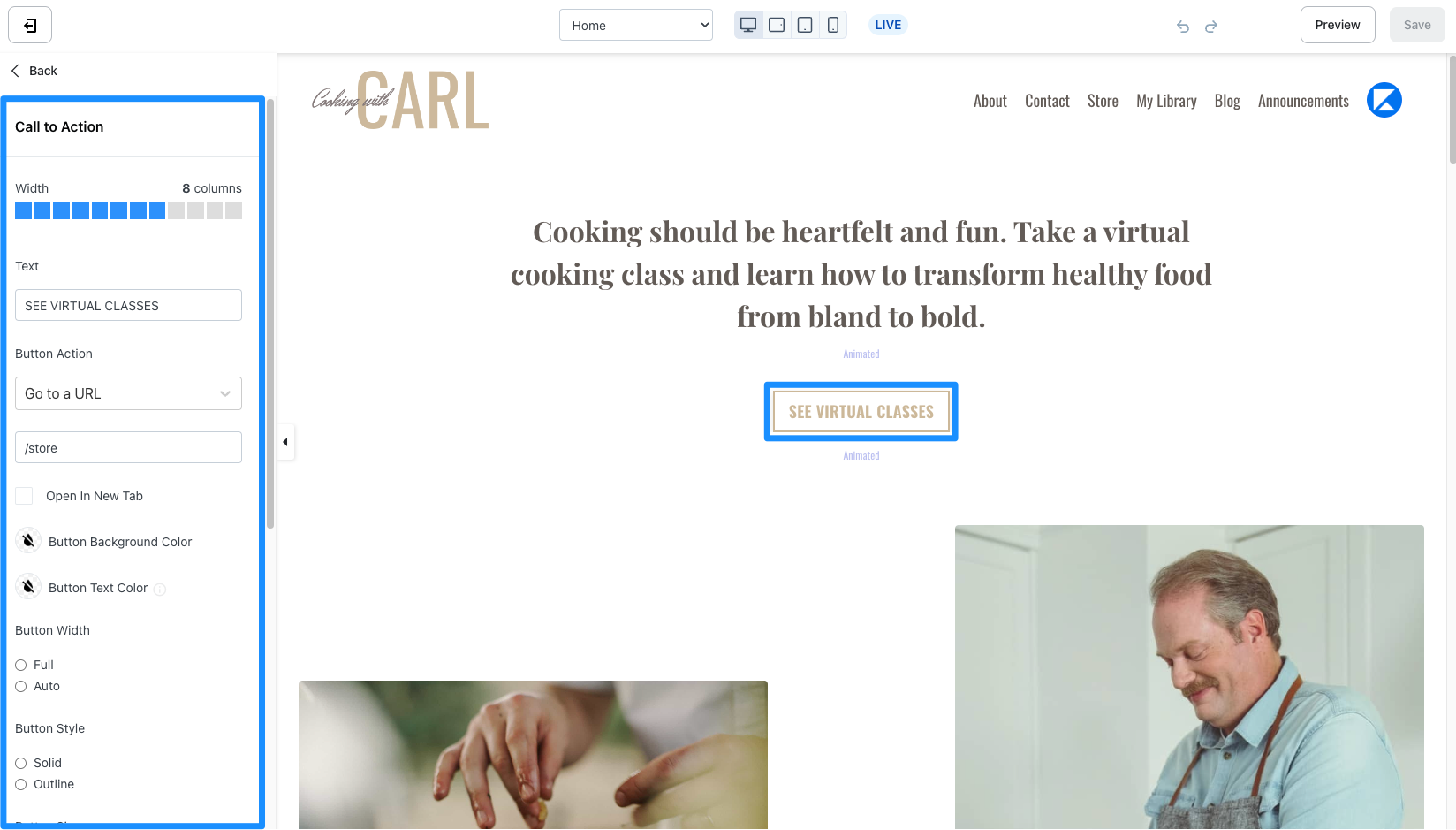 Connect your Landing Page(s) to your standard Website Page(s) by adding a Call to Action button.
### How to add a Call to Action button to your page:
* Open the **Website** tab from the Dashboard.
* Open the page editor for your standard Website Page. [Learn more](/articles/website/pages/how-to-get-to-the-page-editor)
* Click the Section you want to edit or [create a new Section](/articles/website/pages/add-sections-to-your-pages).
* In the sidebar, click **Add Content**.
* From the list, select **Call to Action**. Your newly created Call to Action will generate at the bottom of the Section.
* For the Button Action, select **Go to a Landing Page**.
* Choose your Landing Page from the dropdown menu.
* Customize your Call to Action. [Learn more](/articles/website/pages/how-to-add-a-call-to-action-block-to-your-website-page-and-landing-page#customizing-your-call-to-action-block)
* Click **Save** to keep and apply your changes:
Connect your Landing Page(s) to your standard Website Page(s) by adding a Call to Action button.
### How to add a Call to Action button to your page:
* Open the **Website** tab from the Dashboard.
* Open the page editor for your standard Website Page. [Learn more](/articles/website/pages/how-to-get-to-the-page-editor)
* Click the Section you want to edit or [create a new Section](/articles/website/pages/add-sections-to-your-pages).
* In the sidebar, click **Add Content**.
* From the list, select **Call to Action**. Your newly created Call to Action will generate at the bottom of the Section.
* For the Button Action, select **Go to a Landing Page**.
* Choose your Landing Page from the dropdown menu.
* Customize your Call to Action. [Learn more](/articles/website/pages/how-to-add-a-call-to-action-block-to-your-website-page-and-landing-page#customizing-your-call-to-action-block)
* Click **Save** to keep and apply your changes:
[Learn more about Calls to Action](/articles/website/pages/how-to-use-a-call-to-action).