> ## Documentation Index
> Fetch the complete documentation index at: https://help.kajabi.com/llms.txt
> Use this file to discover all available pages before exploring further.
# Copy a page link
> Learn to copy your Page URL to share, link, and connect your content like your emails, buttons, and more to your Page.
## Overview
Copy your Page URL to share, link, and connect your content like your emails, buttons, and more to your Page.
***
## Copying your landing page link
Link your landing pages with navigation menus or keep them separate and use various mediums such as marketing emails or social media accounts to drive traffic to your landing pages.
To copy your landing page link:
* Open the **Website** tab from the Dashboard.
* Click the **Pages** tab.
* Select the **Landing** tab.
* Locate the Page you wish to use and click `...`.
* From the dropdown menu, click **Copy URL**:
***
## Copying your website page link
Your system website pages are built with the [Website Builder](./customizing-your-website-pages-with-the-website-builder).
By default, your [standard website pages](./customizing-your-website-pages-with-the-website-builder#h_01EN1JN9B28AMX6MRCKTTCAN3N) are connected for you with various navigation menus to make up the foundation of your website:
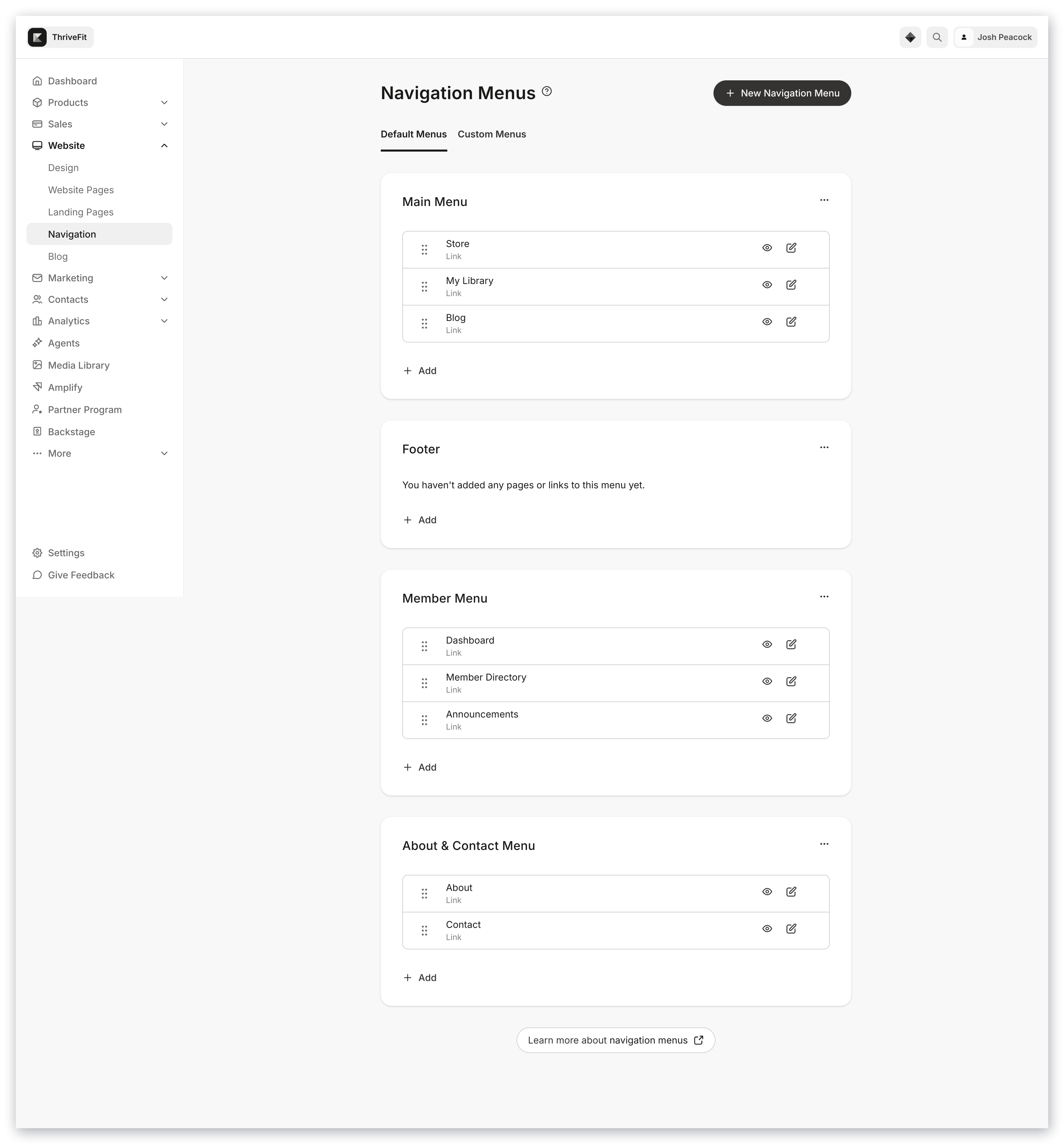 [Learn to build navigation menus](../navigation/build-navigation-menus)
Unlike landing pages, your standard website page links cannot be changed.
A standard website page link contains your Kajabi subdomain or your [custom domain](../../marketing/email-campaigns/connecting-a-custom-email-domain) and a path to specify the page.
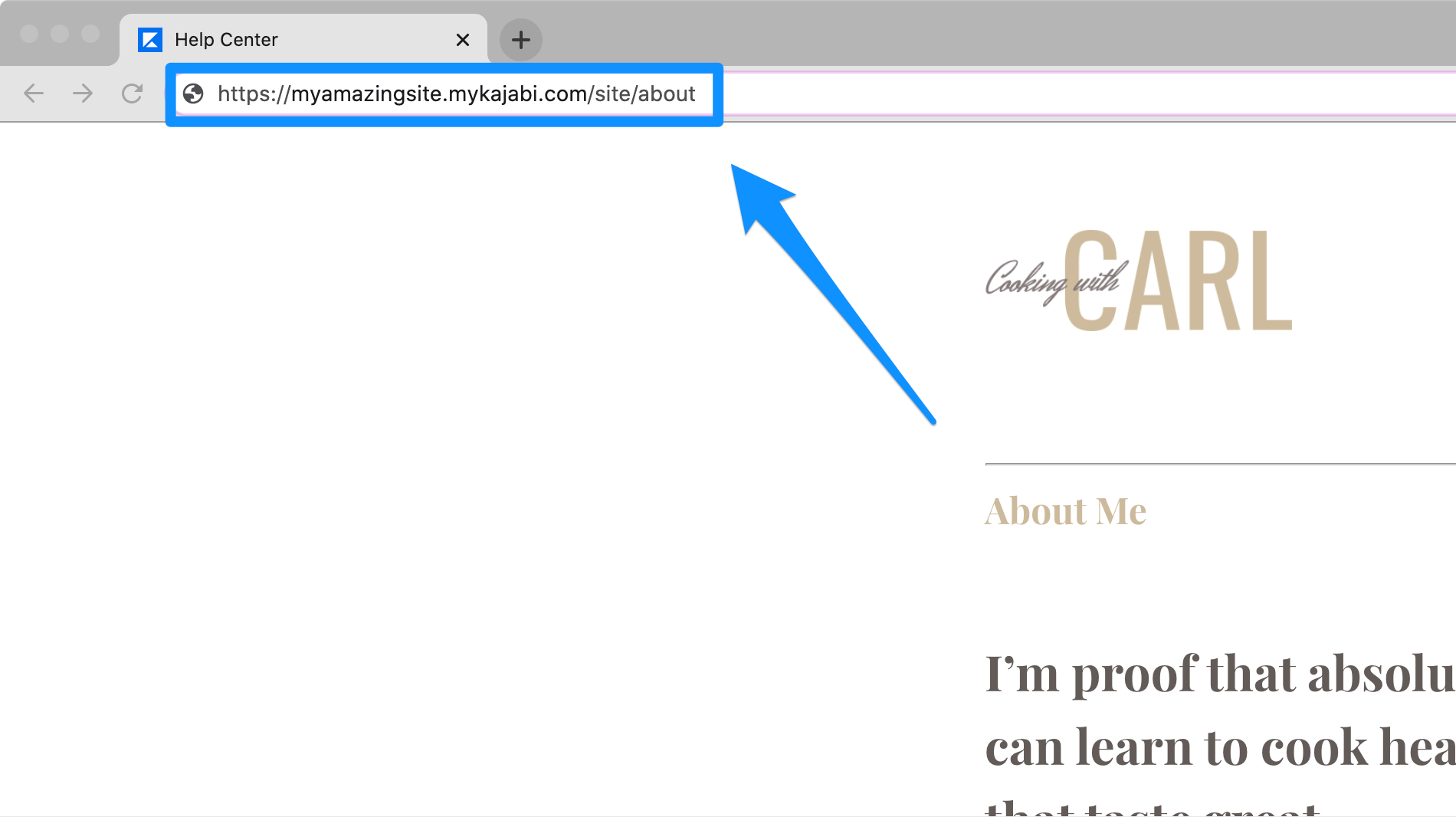
For example, if your domain is `https://myamazingsite.mykajabi.com`, then your [About page](./how-to-build-your-about-page) (a system website page) link would be, `https://myamazingsite.mykajabi.com/site/about`:
[Learn to build navigation menus](../navigation/build-navigation-menus)
Unlike landing pages, your standard website page links cannot be changed.
A standard website page link contains your Kajabi subdomain or your [custom domain](../../marketing/email-campaigns/connecting-a-custom-email-domain) and a path to specify the page.
For example, if your domain is `https://myamazingsite.mykajabi.com`, then your [About page](./how-to-build-your-about-page) (a system website page) link would be, `https://myamazingsite.mykajabi.com/site/about`:
 ### Standard website page paths
* About: `/site/about`
* Contact: `/site/contact`
* Library: `/library`
* Member Directory: `/member_dashboard/members`
* Announcements: `/member_dashboard/announcements`
* Blog: `/blog`
* Login: `/login`
* Store: `/store`
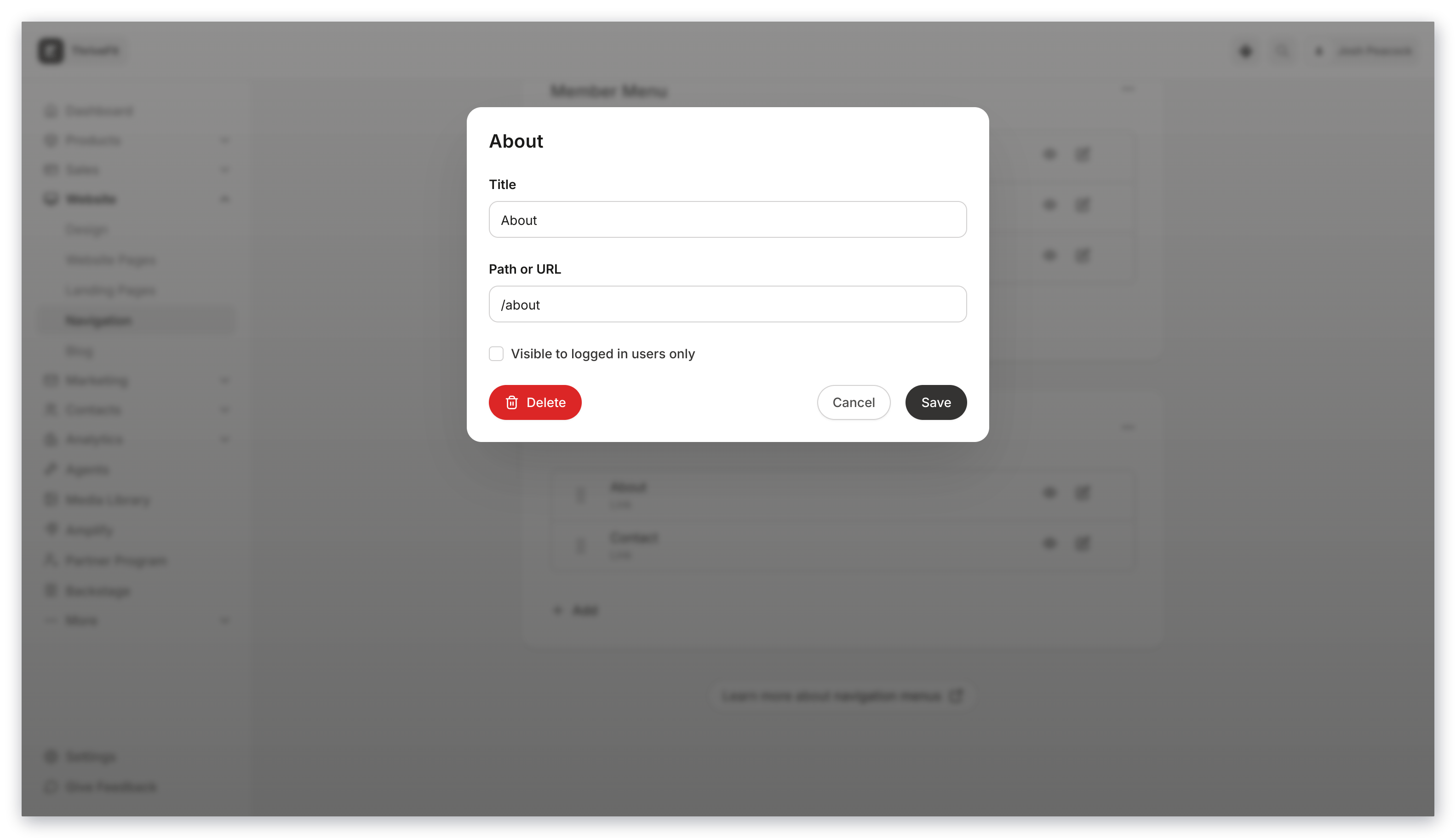
Create navigation menus with your standard website pages by entering the website page path (e.g., `/site/about`) as the link:
### Standard website page paths
* About: `/site/about`
* Contact: `/site/contact`
* Library: `/library`
* Member Directory: `/member_dashboard/members`
* Announcements: `/member_dashboard/announcements`
* Blog: `/blog`
* Login: `/login`
* Store: `/store`
Create navigation menus with your standard website pages by entering the website page path (e.g., `/site/about`) as the link:
 To copy your website page links:
* Open the **Website** tab from the Dashboard.
* Click the **Pages** tab.
* Locate the Page you wish to use and click `...`.
* From the dropdown menu, click **Copy URL**:
To copy your website page links:
* Open the **Website** tab from the Dashboard.
* Click the **Pages** tab.
* Locate the Page you wish to use and click `...`.
* From the dropdown menu, click **Copy URL**: