> ## Documentation Index
> Fetch the complete documentation index at: https://help.kajabi.com/llms.txt
> Use this file to discover all available pages before exploring further.
# Create member only pages
> Learn to create pages that can only be accessed by logged in customers.
## Overview
Create pages that can only be accessed by logged in customers to offer exclusive content to your paying audience.
***
## What are member only pages?
Member only pages are custom website pages that are locked behind a login to only allow your customers to access your custom pages.
Need a page to host your Member-only Webinar? Looking to provide exclusive, valuable content to your customers with a stylized page?
Build a custom website page and set visibility to Members only.
 ### What will they see?
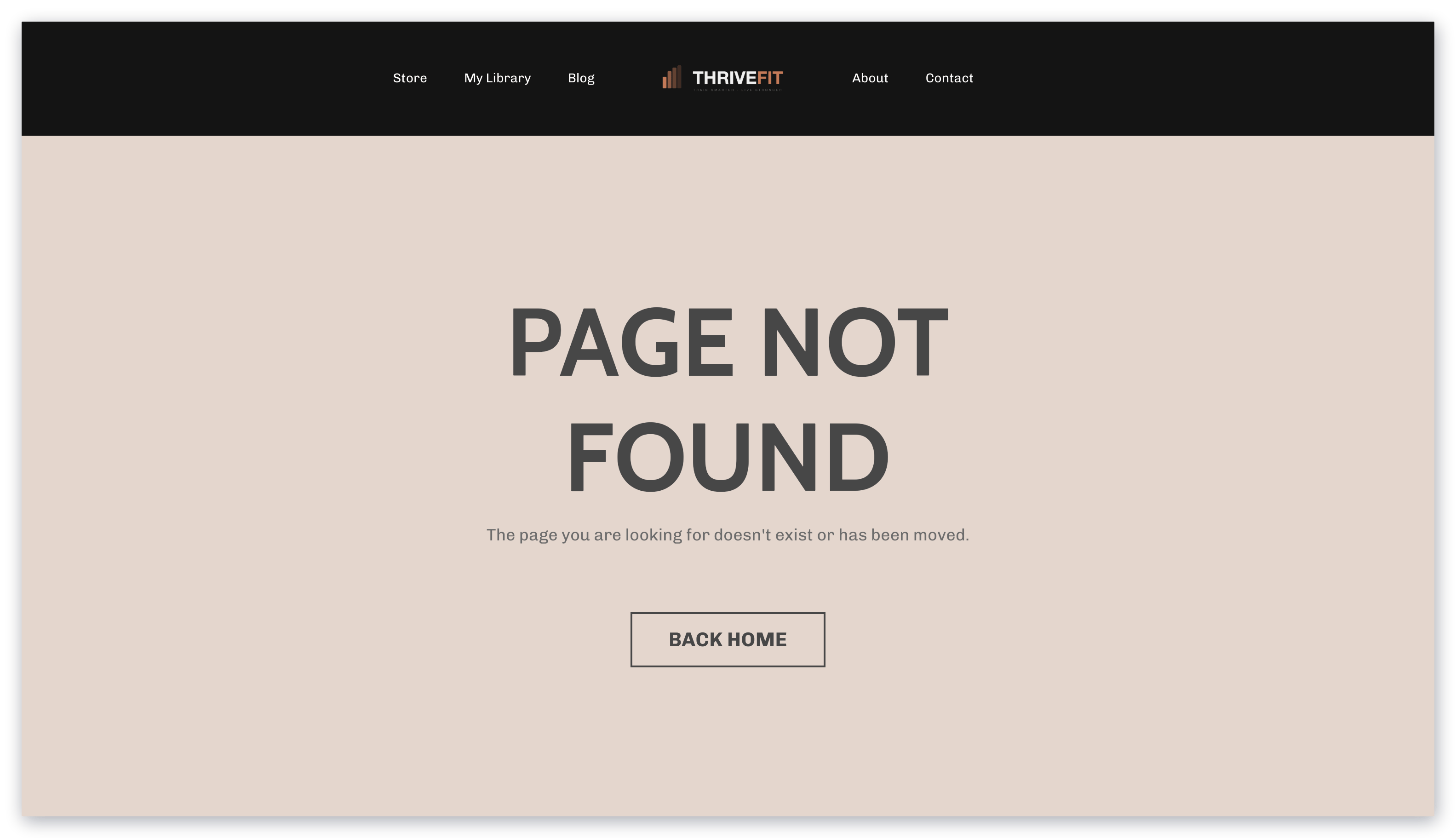
If a visitor (i.e., not a paying customer) attempts to access the page without logging in, they will encounter your 404 system page:
### What will they see?
If a visitor (i.e., not a paying customer) attempts to access the page without logging in, they will encounter your 404 system page:
 If a customer (i.e., Member) is logged into your site they will be able to access your custom website page.
***
## How to create a member only page
To create a member only page, you must first create a new custom website page.
**Note:** Member only pages can only be created for website pages and are not available for landing pages.
After creating the page, you can update the page details to set visibility to Members only.
### Step 1. Create a new website page
* Open the **Website** tab from your Dashboard.
* Click the **Pages** tab.
* Select the **Website** folder.
* Click **+ New Website Page** in the top right corner.
* Enter the name for your new website page.
* Then, click **Customize Page** to begin building your custom page:
If a customer (i.e., Member) is logged into your site they will be able to access your custom website page.
***
## How to create a member only page
To create a member only page, you must first create a new custom website page.
**Note:** Member only pages can only be created for website pages and are not available for landing pages.
After creating the page, you can update the page details to set visibility to Members only.
### Step 1. Create a new website page
* Open the **Website** tab from your Dashboard.
* Click the **Pages** tab.
* Select the **Website** folder.
* Click **+ New Website Page** in the top right corner.
* Enter the name for your new website page.
* Then, click **Customize Page** to begin building your custom page:
Proceed to customize and build your page. [Learn to customize your website pages](./customizing-your-website-pages-with-the-website-builder).
After customizing your page, continue to step 2.
### Step 2. Edit website page details
After creating your new website page, edit your website page details:
* Navigate to the top left corner of your page editor.
* Click **Back to Website Pages**.
* Locate your newly created website page.
* Click the `…` icon to the right of your website page.
* Select **Edit Details**.
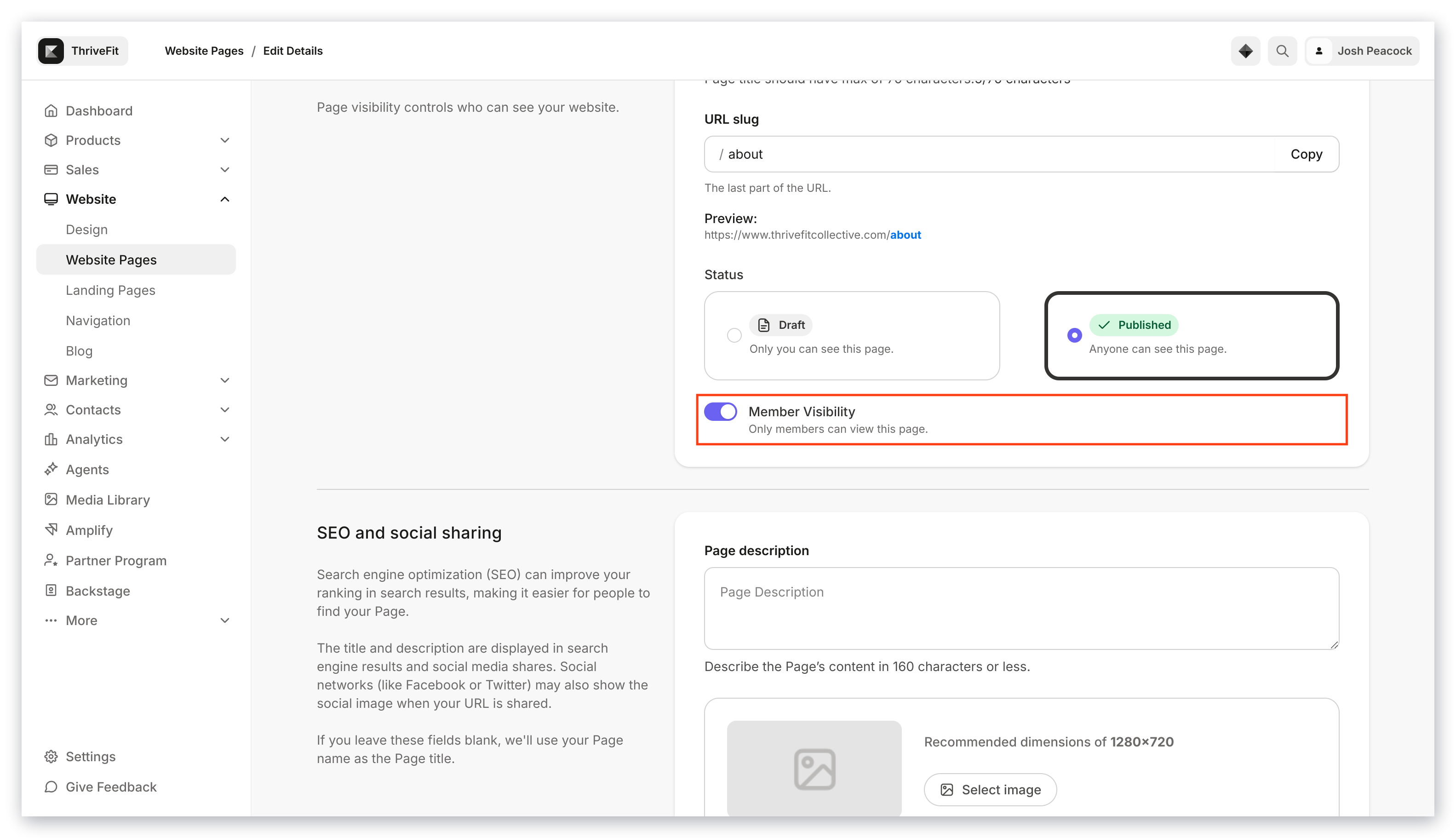
* Navigate to the Member visibility toggle.
* Click the **toggle** to limit visibility to members only.
* Be sure to click **Save** to keep and apply your changes:
After setting your website page to limit visibility to members only, if a logged-out visitor attempts to access the page through a button or the page link, they will not be able to access the page.