> ## Documentation Index
> Fetch the complete documentation index at: https://help.kajabi.com/llms.txt
> Use this file to discover all available pages before exploring further.
# Customize the font on a page
> Learn to customize your font with the Style Guide for your standard website pages, standalone pages, and funnel pages built with the latest page editor.
## Overview
Customize your font with the Style Guide for your standard website pages, standalone pages, and funnel pages built with the latest page editor.
***
## Change your font
Fonts play a significant role in the personality and character of your copy.
Select the font that fits your brand from the Style Guide available for pages built with the latest page editor.
[Learn to customize your pages with the Style Guide](./customize-your-page-font-and-style-with-the-style-guide).
In the Font settings of your Style Guide, select from a variety of Font Types, customize the Font Weight, and adjust the Line Height for your Text Body and Headings.
### To change your fonts
* Open the **Website** tab from the Dashboard.
* Select either **Website Pages** or **Landing Pages**.
* Open the page editor for your Page. [Learn more](./how-to-get-to-the-page-editor)
* Navigate to the sidebar editor and open **Settings**.
* Click **Style Guide**.
* Scroll down to the **Fonts** section and configure your Fonts settings:
**Note:** Looking to use Google Fonts or your licensed font file? [Click here](./add-custom-fonts) to learn how to add custom fonts.
***
## Customize your font colors
Customize your Font Colors to brand your Body and Heading Font across your page.
With the [Style Guide](./customize-your-page-font-and-style-with-the-style-guide) available with the [Website Builder](./customizing-your-website-pages-with-the-website-builder) and [Kajabi Pages](./pages-explained), you can customize your font to reflect the colors of your brand.
**Note:** Looking to customize individual letters of your Text? Learn to [add and customize your Text Block](./how-to-add-a-text-block-to-your-page#customize-your-text-block).
### To change your body and heading font colors
* Open the **Website** tab from the Dashboard.
* Select either **Website Pages** or **Landing Pages**.
* Open the page editor for your Page. [Learn more](./how-to-get-to-the-page-editor)
* Navigate to the sidebar editor and open **Settings**.
* Click **Style Guide**.
* There, scroll down to the **Font Colors** section.
* Click the colored circle next to Body Font Color or Heading Font Color to select a new color:
Customize your colors by clicking the color wheel and then entering your RGB color code or by using the sliders to choose your color.
* The **square box** allows you to adjust the brightness and saturation of your color.
* The **horizontal rainbow bar** allows you to select the hue.
* The **horizontal gradient bar** allows you to select the opacity of your color.
Looking to use Google Fonts or your licensed font file? [Click here](./add-custom-fonts) to learn how to add custom fonts.
***
## Optimize your desktop and mobile font sizes
Design your page to look great on both desktop and mobile devices.
With pages built with the [Website Builder](./customizing-your-website-pages-with-the-website-builder) and [Kajabi Pages](./pages-explained), you can customize your Font Sizes for optimal Desktop and Mobile viewing.
This ensures that no matter which device type your audience is using, your typography looks exactly how you intend.
On Kajabi, your text size is based on standard web heading sizes:
* Heading 1 (h1) is generally the largest and is great for titles.
* Heading 2 (h2) is generally the next largest, and so on for Headings 3 (h3), 4 (h4), 5 (h5) and 6 (h6).
* Your "Body" size refers to the standard paragraph text, like what you're reading right now. By default, the "Body" size is the paragraph text or small text in a [text block](./how-to-add-a-text-block-to-your-page).
### To change your heading and body font sizes
* Open the **Website** tab from the Dashboard.
* Select either **Website Pages** or **Landing Pages**.
* Open the page editor for your Page. [Learn more](./how-to-get-to-the-page-editor)
* Navigate to the sidebar editor and open **Settings**.
* Click **Style Guide**.
* Scroll to the bottom of the sidebar editor and locate **Desktop Font Sizes** and **Mobile Font Sizes**.
* Click into each dropdown menu to configure your font sizes. Font sizes are listed in pixels (like you'd see in your Word Processing program):
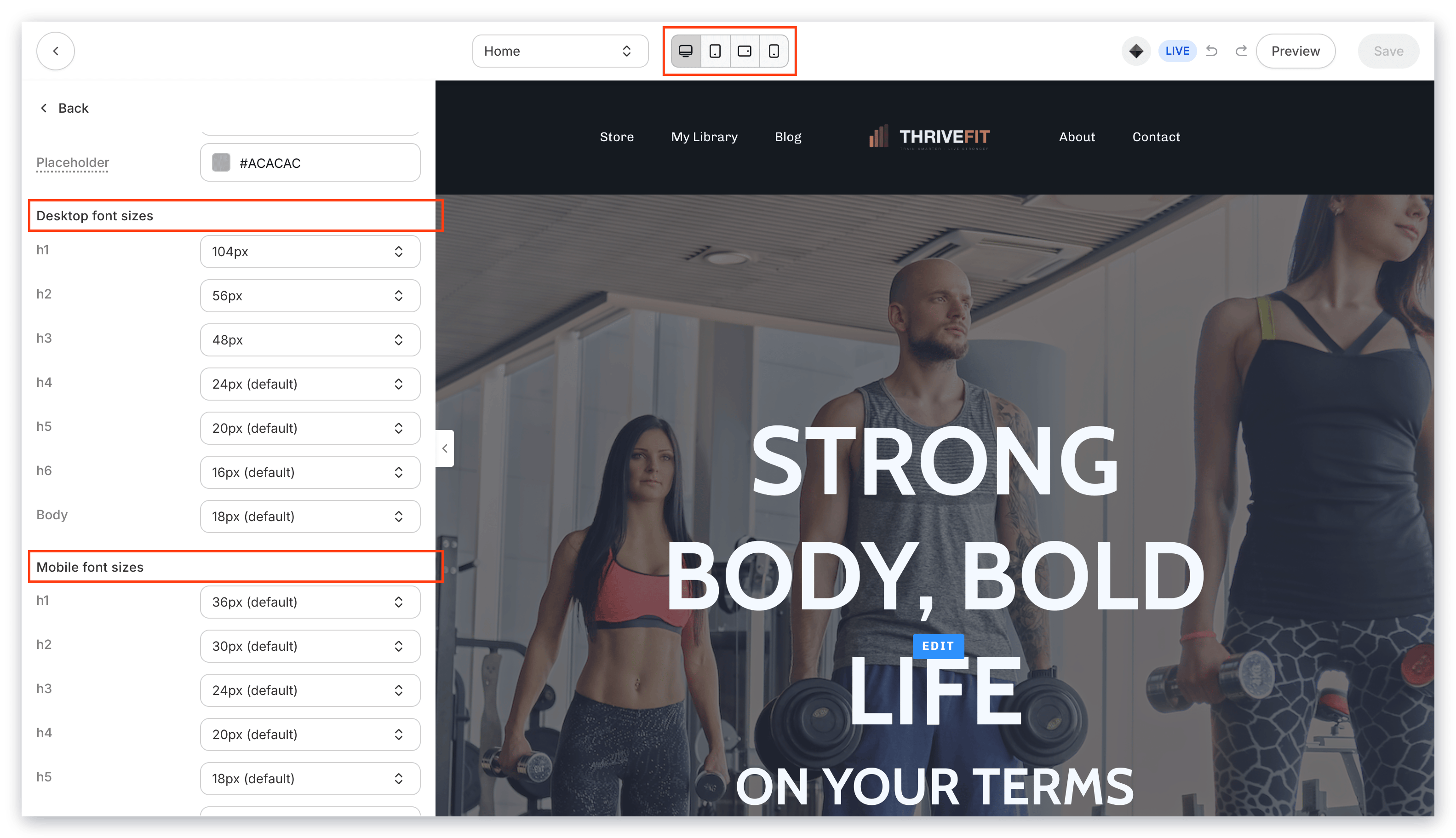 **Tip:** Customize your Desktop and Mobile font sizes with the corresponding Preview located in the bottom right corner of the Template Editor.