> ## Documentation Index
> Fetch the complete documentation index at: https://help.kajabi.com/llms.txt
> Use this file to discover all available pages before exploring further.
# Customize a footer in a page with Premier
> A Footer can be used to provide copyright information, and often menu items are duplicated in the Footer as well. Learn to customize your Footer using the Premier Template.
## Overview
A Footer can be used to provide copyright information, and often menu items are duplicated in the Footer as well. Learn to customize your Footer using the Premier Template.
**Note:** This article refers to the Premier Legacy Templates, which may be outdated. If you are using the Kajabi Pages Templates, please refer to the updated guide [here](./customizing-your-footer).
***
## Edit the footer
In the Section Settings, you can customize your Footer background color and visibility. You can also edit the Footer content:
* Open the **Website** tab from the Dashboard.
* Click **Pages**.
* Click on the page you wish to customize, to open the [page editor](./how-to-get-to-the-page-editor).
* From the page editor, click **Footer** in the sidebar.
* Then, begin customizing your Footer Logo, Copyright, Menu, and Social Icons.
* Click **Save** to keep your changes:
***
## Customize the footer
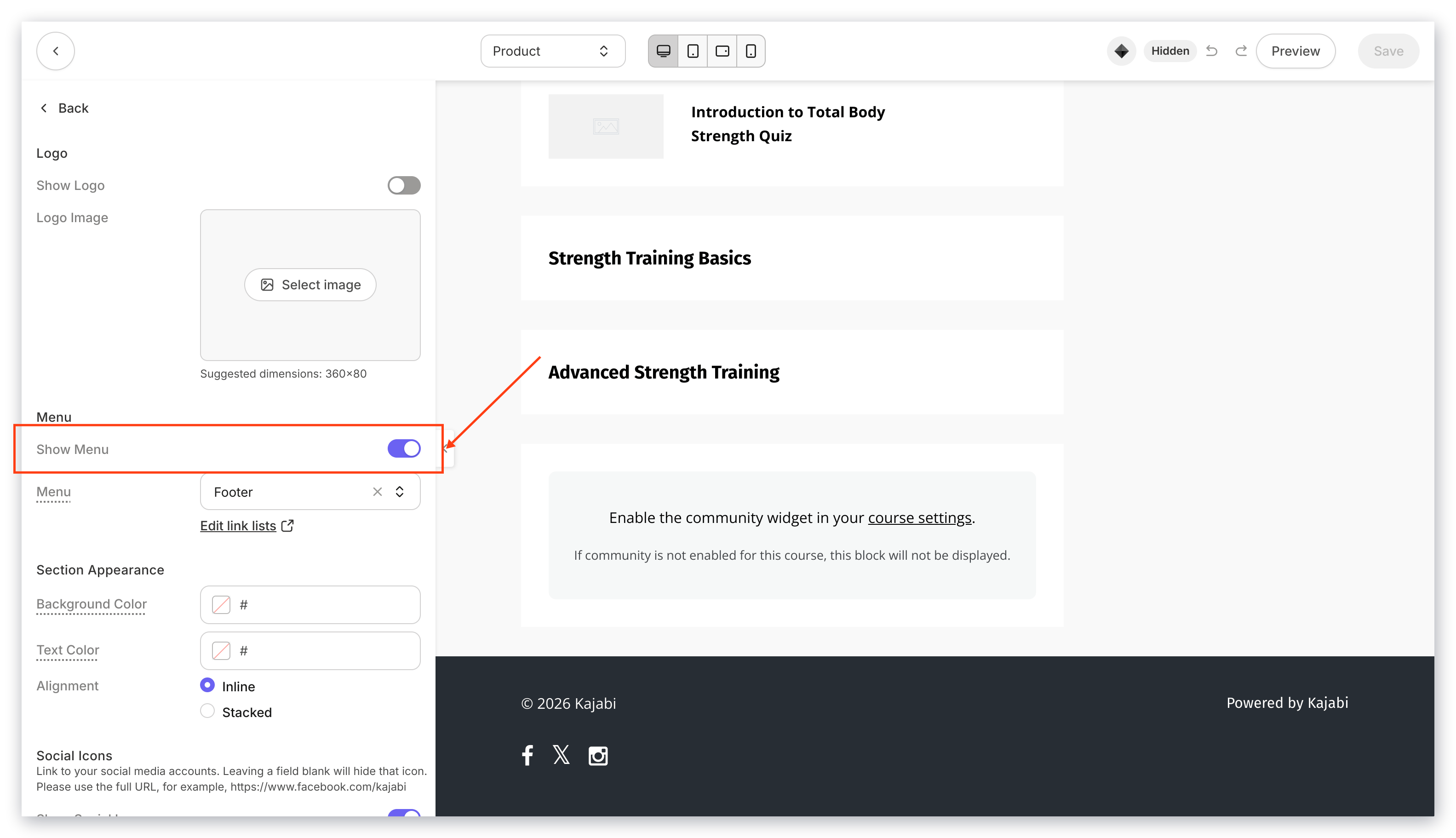
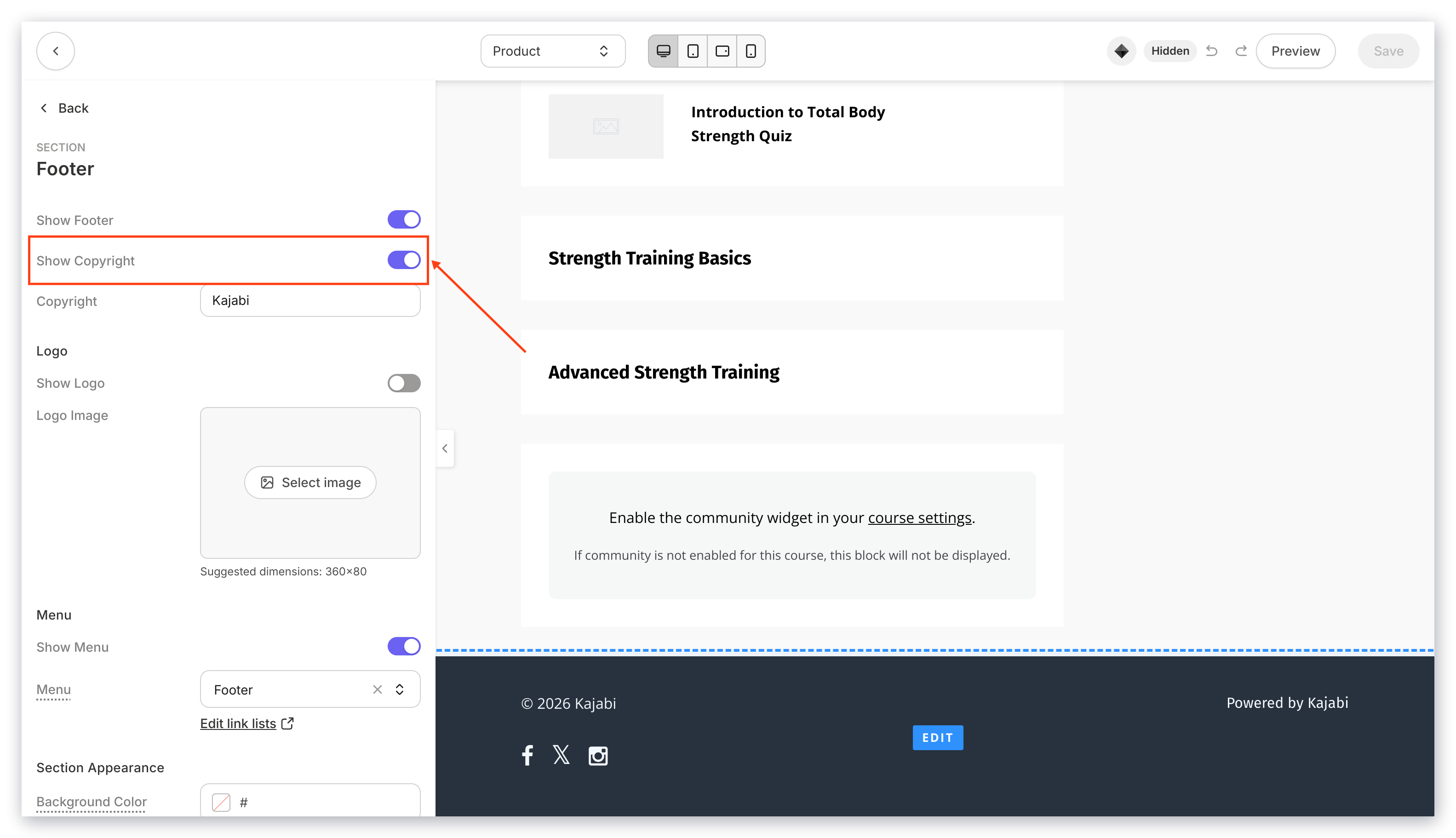
In Kajabi, you can add a Logo, a Navigation Menu, and Copyright Content to your Website Footer. Additionally, the Footer is a great place to display your Social Icons.
### Logo
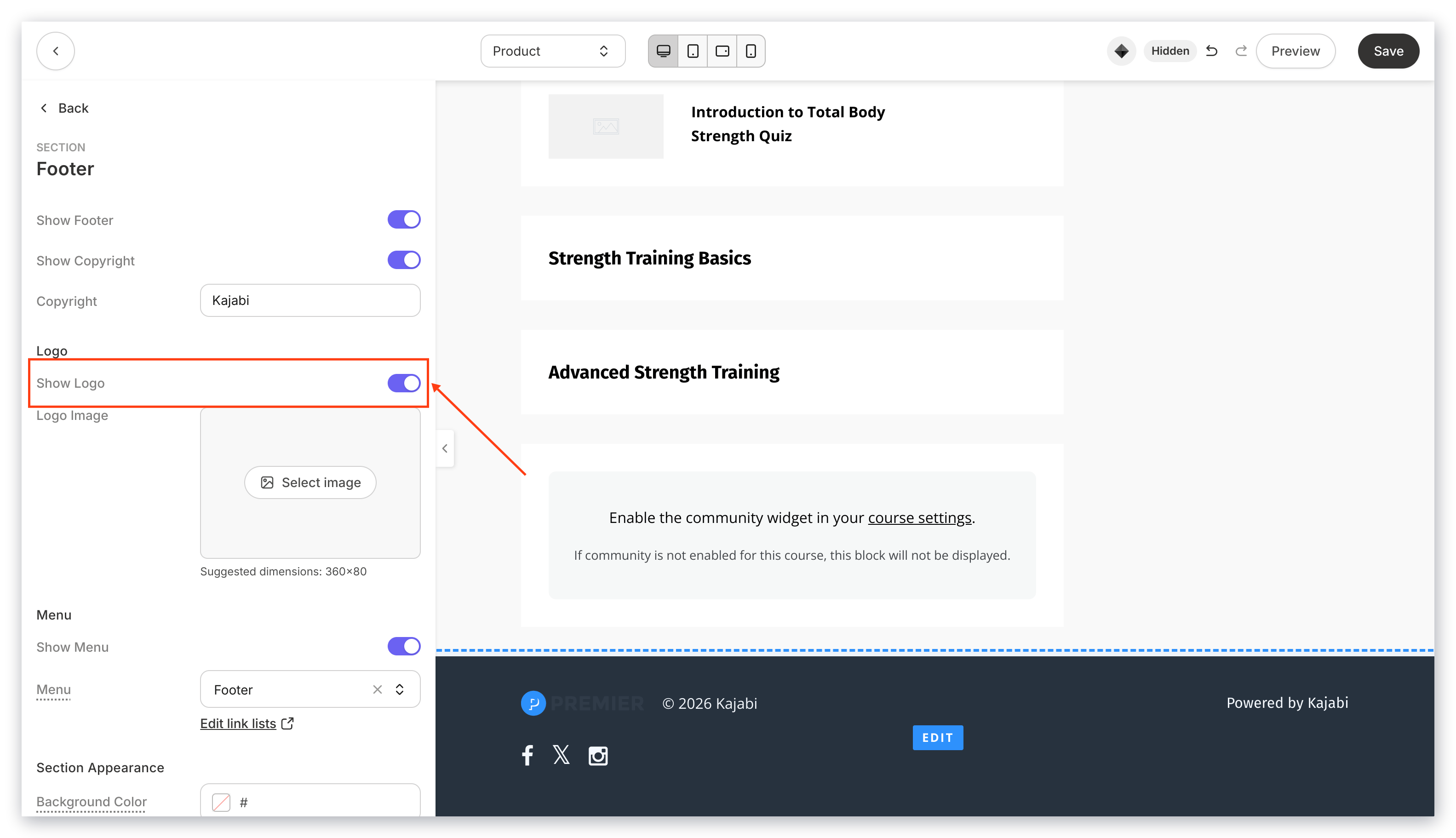
Click **Show Logo** to display your uploaded Logo image. If you wish to remove your Logo, simply deselect **Show Logo**:
 ### Menu
 ### Copyright
 ### Add social icons to your footer
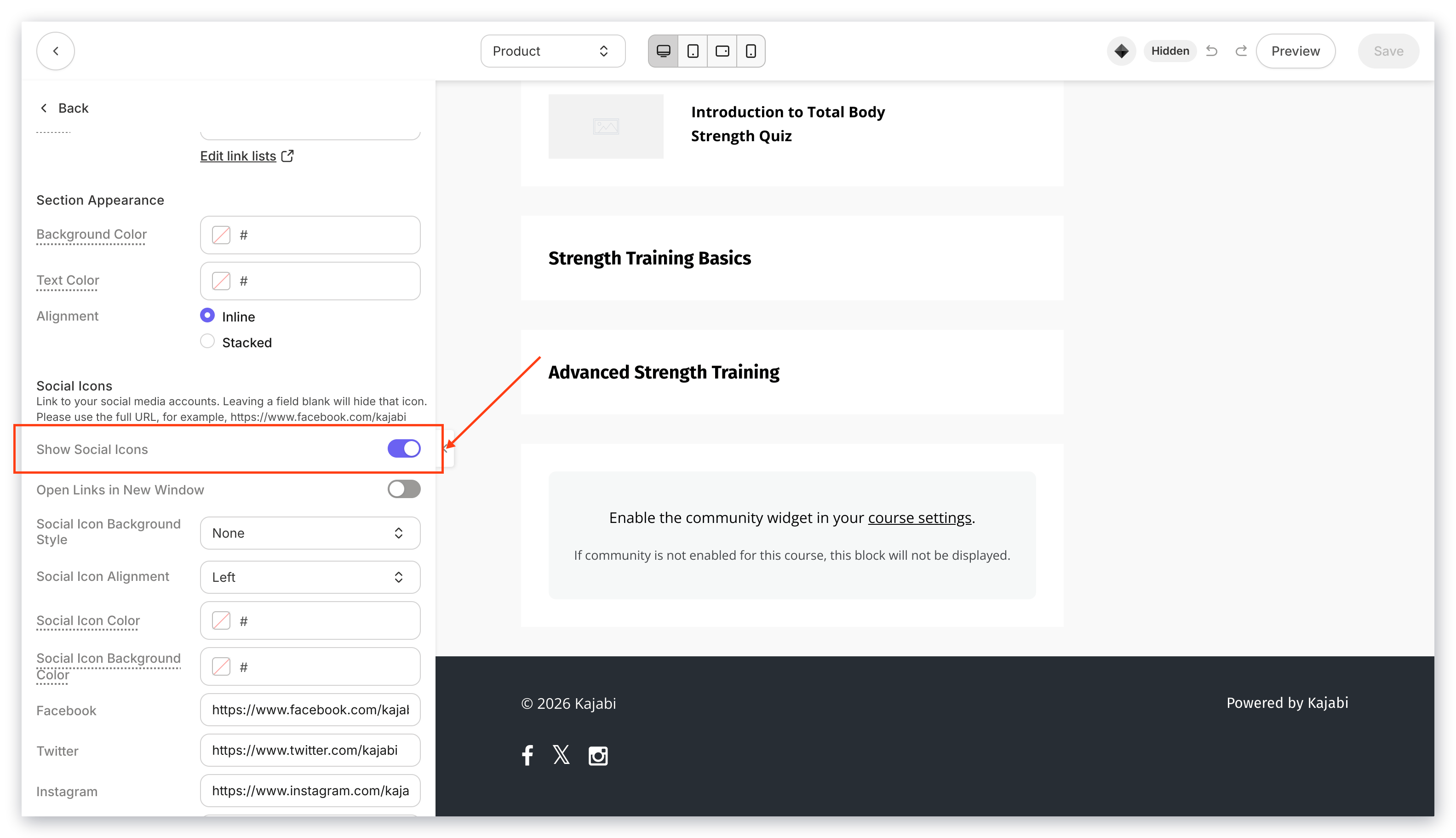
* Under the Social Icons header, check the **Show Social Icons** box.
* Then, enter the full URL for your social media accounts.
* Begin customizing the icons.
* Click **Save** to keep your changes:
**Note:** Kajabi currently only supports social links for the following:
Facebook, X, Instagram, YouTube,Pinterest, Vimeo, Github, iTunes, LinkedIn, Soundcloud, Yelp, Tumblr, Slack, Flickr, Dribble, TikTok, Medium, Spotify, and Podcasts.
### Add social icons to your footer
* Under the Social Icons header, check the **Show Social Icons** box.
* Then, enter the full URL for your social media accounts.
* Begin customizing the icons.
* Click **Save** to keep your changes:
**Note:** Kajabi currently only supports social links for the following:
Facebook, X, Instagram, YouTube,Pinterest, Vimeo, Github, iTunes, LinkedIn, Soundcloud, Yelp, Tumblr, Slack, Flickr, Dribble, TikTok, Medium, Spotify, and Podcasts.
 ***
## Hide the footer
If you prefer to hide the Footer altogether, you can do so in your Section Settings as well:
* Open the **Website** tab from the Dashboard.
* Click **Pages**.
* Click on the page you wish to customize, to open the [page editor](./how-to-get-to-the-page-editor).
* From the page editor, click **Footer** in the sidebar.
* Then, uncheck the **Show Footer** checkbox.
* Click **Save** to keep your changes:
***
## Hide the footer
If you prefer to hide the Footer altogether, you can do so in your Section Settings as well:
* Open the **Website** tab from the Dashboard.
* Click **Pages**.
* Click on the page you wish to customize, to open the [page editor](./how-to-get-to-the-page-editor).
* From the page editor, click **Footer** in the sidebar.
* Then, uncheck the **Show Footer** checkbox.
* Click **Save** to keep your changes: