> ## Documentation Index
> Fetch the complete documentation index at: https://help.kajabi.com/llms.txt
> Use this file to discover all available pages before exploring further.
# Edit the text editor color picker for pages
> Customize the color picker for your text editor to match your brand.
Create a simple, standout design with colors that match your brand using the text editor color picker.
## Overview
Kajabi helps you design smart pages by automatically adjusting text color based on the brightness of your selected background. For example, if you choose a dark background, the text color changes to stand out. If you select a light background, the text takes on a darker tone.
You can also override these dynamic colors and define your own branded text and background colors using the site brand settings.
***
## Customizing your color palette
By default, Kajabi adjusts text color based on your background brightness:
To determine your own branded text and background colors, select your desired colors for both text and background to override the dynamically adjusting text colors.
When changing text color in the text editor, select from your site brand colors to streamline the build and design of your pages.
***
## Change your site brand colors
1. Open the **Settings** tab from your Dashboard.
2. Click **Site Details**.
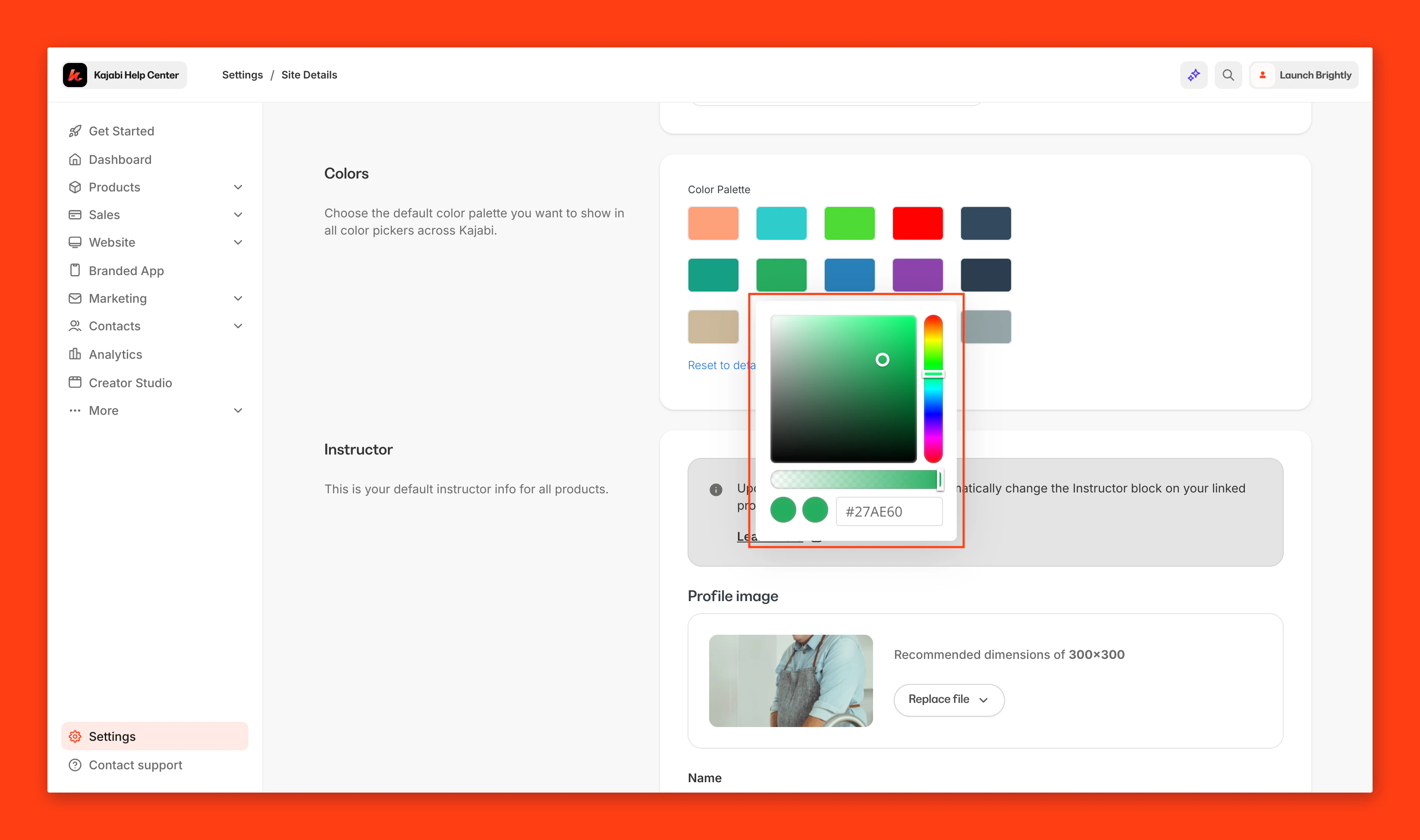
3. Scroll to **Colors**.
4. Click each color you wish to change to create your desired custom color.
5. Click **Save** to keep and apply your changes.
[Learn more about your Site Brand Settings](https://help.kajabi.com/hc/en-us/articles/360037850453)
***
## Create a custom color
To create your custom color palette, click the color you wish to change and enter your RGB color code in the bottom right field or use the sliders to select your color:
* Use the **vertical bar** to select the hue
* Use the **square box** to adjust the saturation and brightness of your color
* Use the **horizontal bar** to adjust opacity of your color
* Use the **color code box** to insert a pre-designed custom code
**Note:** You can find hundreds of pre-customized codes online or by using [this site](https://htmlcolorcodes.com/color-names/).