> ## Documentation Index
> Fetch the complete documentation index at: https://help.kajabi.com/llms.txt
> Use this file to discover all available pages before exploring further.
# Sell physical products on Kajabi with Shopify buy buttons
> Connect your Shopify Collection to your Kajabi site to sell physical products directly through your website.
Connect your Shopify Collection to your Kajabi site to combine the power of Shopify and Kajabi, allowing you to sell your physical products directly through your website.
***
## Create a buy button in your Shopify account
If you don't already have a Shopify account, you can create a [Shopify Lite account here](https://www.shopify.com/lite). Before creating your Buy Button, add your products to your Shopify Collection.
[Learn more about the Buy Button sales channel.](https://help.shopify.com/en/manual/online-sales-channels/buy-button/setup?section=Desktop)
**Create a Buy Button**
* Log into your Shopify account.
* Search **Buy Button** in the search bar.
* Select the **Buy Button channel**.
* Click **Install**:
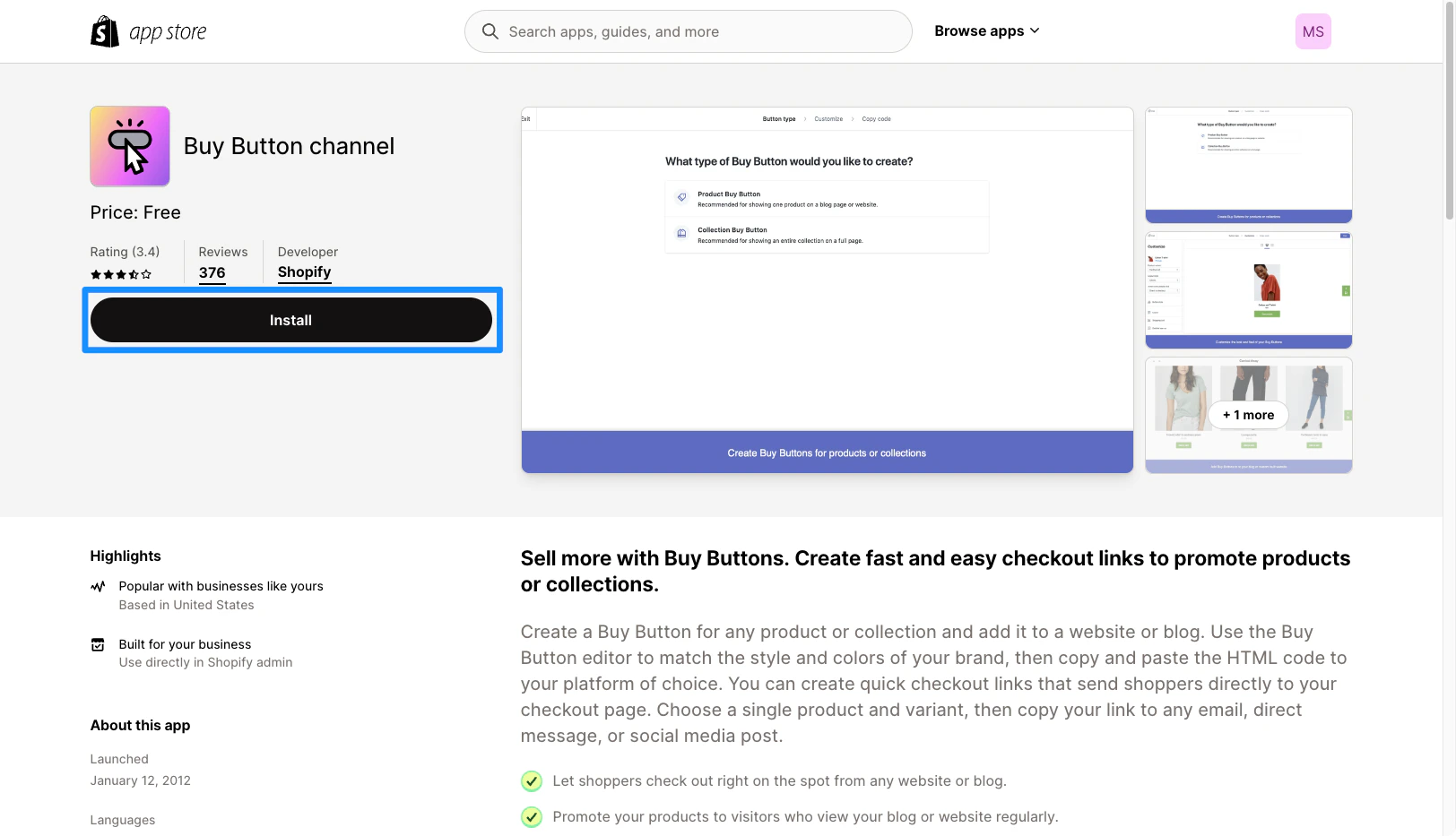 * Click **Add Sales Channel** to install.
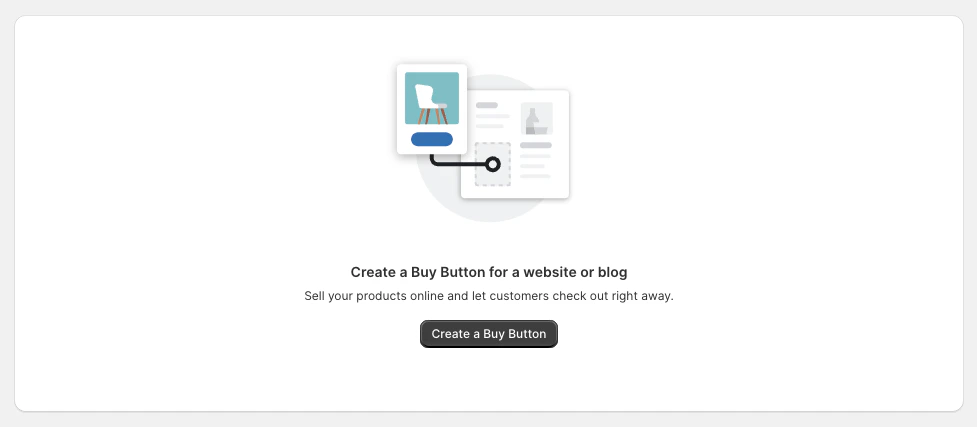
* Then, click **Create a Buy Button**:
* Click **Add Sales Channel** to install.
* Then, click **Create a Buy Button**:
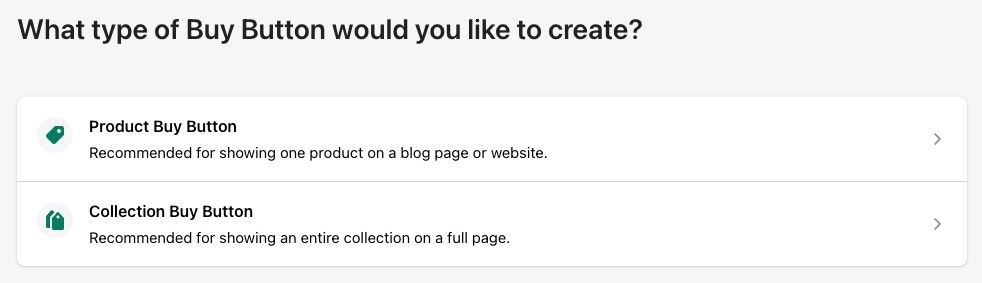
 * Select the type of Buy Button you want to create.
We recommend creating the "Collection Buy Button" so that every time you change, add, or remove a Product from the Collection in your Shopify account it will dynamically adjust on your website. Conversely, the Product Buy Button will be updated individually per Product from your Shopify account:
* Select the type of Buy Button you want to create.
We recommend creating the "Collection Buy Button" so that every time you change, add, or remove a Product from the Collection in your Shopify account it will dynamically adjust on your website. Conversely, the Product Buy Button will be updated individually per Product from your Shopify account:
 * Select the Product you wish to add or the Collection and click **Select**.
* Customize your Buy Button in the sidebar.
Be sure to customize the **Action when people click** according to your preference. Configuring this setting will allow your visitors to add items to a cart, checkout immediately, or view product details.
* Click **Next** after customizing your Buy Button.
* Click **Copy code to clipboard** to copy your Embed Code:
[Learn more about creating a Shopify Buy Button](https://help.shopify.com/en/manual/online-sales-channels/buy-button/create-buy-button).
***
## Add your collection to your Kajabi site
**Important:** Introducing custom code to your site can open you up to vulnerabilities and potential malware attacks. We recommend using vulnerability tools like [VirusTotal](https://www.virustotal.com/gui/home/url) or [Snyk](https://snyk.io/) to scan any custom code that you intend to use and apply certain [best practices](../../website/domains/code-based-customizations) to help reduce potential impact.
Add your copied Embed Code:
* Open the **Website** tab from the Dashboard.
* Open the page editor for your Page. [Learn more](../../website/pages/how-to-get-to-the-page-editor)
* Navigate to the sidebar and click **Add Section**.
* Then, select **Custom Code** and click **Add**.
* Paste your Embed Code into the Custom Code text box.
* Click **Save** to keep your changes.
* Navigate to the top right corner of the sidebar to **Preview** and test:
* Select the Product you wish to add or the Collection and click **Select**.
* Customize your Buy Button in the sidebar.
Be sure to customize the **Action when people click** according to your preference. Configuring this setting will allow your visitors to add items to a cart, checkout immediately, or view product details.
* Click **Next** after customizing your Buy Button.
* Click **Copy code to clipboard** to copy your Embed Code:
[Learn more about creating a Shopify Buy Button](https://help.shopify.com/en/manual/online-sales-channels/buy-button/create-buy-button).
***
## Add your collection to your Kajabi site
**Important:** Introducing custom code to your site can open you up to vulnerabilities and potential malware attacks. We recommend using vulnerability tools like [VirusTotal](https://www.virustotal.com/gui/home/url) or [Snyk](https://snyk.io/) to scan any custom code that you intend to use and apply certain [best practices](../../website/domains/code-based-customizations) to help reduce potential impact.
Add your copied Embed Code:
* Open the **Website** tab from the Dashboard.
* Open the page editor for your Page. [Learn more](../../website/pages/how-to-get-to-the-page-editor)
* Navigate to the sidebar and click **Add Section**.
* Then, select **Custom Code** and click **Add**.
* Paste your Embed Code into the Custom Code text box.
* Click **Save** to keep your changes.
* Navigate to the top right corner of the sidebar to **Preview** and test:
Now that you have added your collection to your site, preview your page to test your visitors' experience! [Learn to preview your page.](../../website/pages/preview-your-page)