> ## Documentation Index
> Fetch the complete documentation index at: https://help.kajabi.com/llms.txt
> Use this file to discover all available pages before exploring further.
# Set up a multi-video launch section
> Learn to set up a multi-video launch section to create a unique, interactive video viewing experience for your visitors.
Adding a Multi-Video Launch Section to your page displays multiple interactive images and a single video to give you the flexibility to design a unique viewing experience for your visitors.
Create and design your Multi-Video Launch Section and encourage your viewers to interact with your site to explore and learn more about the value you offer.
Learn to set up your Multi-Video Launch Section.
***
**Note:** This guide walks you through the process of utilizing the Multi-Video Launch Section to bring your viewer's focus to the value you offer, showcase your upcoming and recently published content, and actively engage viewers with your page. If you wish to display multiple videos that can be viewed directly from one page, read [How to Add Multiple Videos to Your Page](../../website/pages/how-to-add-multiple-videos-to-your-page) for details.
***
## Multi-video launch section vs. multi-video launch block
### What is a multi-video launch section?
Adding the Multi-Video Launch Section can create a seamless video viewing experience for your visitors. The Multi-Video Launch Section is a great way to build anticipation, create teasers, and more for your videos and [Products](../../products/courses/courses-overview) while encouraging your visitors to actively engage with your page.
The **Multi-Video Launch Section** contains the following:
* Four **[Multi-Video Launch Blocks.](../../website/pages/how-to-add-a-multi-video-launch-block)**
* One **[Video Block](../../website/pages/how-to-add-a-video-block-to-your-pages)** to display a video directly from your page.
Take a look at the experience you can create with a Multi-Video Launch Section:
The important features that make the Multi-Video Launch Section work to create an engaging video viewing experience for your visitors include:
| One Video Block | Four Multi-Video Launch Blocks |
| ------------------------------------------ | -------------------------------- |
| Upload your main **Video** | Upload your **Thumbnail Images** |
| Upload your main Video **Thumbnail Image** | Configure your **Image Actions** |
### What is a multi-video launch block?
The [**Multi-Video Launch Block**](../../website/pages/how-to-add-a-multi-video-launch-block) is an interactive image. It can be used to create teasers for your Product, showcase past, present, and future video content, or simply display a thumbnail image for your videos to launch into separate pages to enhance your visitor's experience on your page:
The Multi-Video Launch Block can be used with any variety of Blocks in a Section to create unique, interactive pages, as in the example displayed above. However, using the Multi-Video Launch Block with a Video Block in the Multi-Video Launch Section can help you create a unique video viewing experience for your page visitors.
***
## Setting up your multi-video launch section
Begin building your interactive video experience by adding and designing your Multi-Video Launch Section.
### Step 1. Add a multi-video launch section
This will add four Multi-Video Launch Blocks and one Video Block to your Section to create a seamless experience for your visitors.
* Click the **Website** tab from your Dashboard.
* Select the **Pages** tab.
* Open the page editor for your Page. [Learn more](../../website/pages/how-to-get-to-the-page-editor)
* In the sidebar search bar, enter **Multi-Video Launch**.
* Select **Multi-Video Launch**.
* Click **Add**:
### Step 2. Upload your main video
* Hover over the large Video Block and click **Edit**.
* In the sidebar, click the **Video Actions** dropdown menu.
* Select **Upload a New File** or **Select a Recent File**.
* Select your Video File and click **Save**.
* Once uploaded, click **Save** to continue processing:
Read [How to Add a Video Block to your Page](../../website/pages/how-to-add-a-video-block-to-your-pages#customize-your-video-block) for a breakdown of uploading a video and adding your thumbnail image.
### Step 3. Upload images for each multi-video launch block
* Hover over the Multi-Video Launch Block you wish to edit.
* Click **Edit**.
* In the sidebar, click **Select Image**.
* From the dropdown menu, click **Upload a New File** or **Select a Recent File**.
* Use the File Picker to select your Image.
* Click **Save** to keep your changes.
* Repeat for each Multi-Video Launch Block:
**Tip:** Upload the thumbnail image used for your main Video Block in the Active Multi-Video Launch Block. This will communicate to your viewers that the Active Multi-Video Launch Block is available to view by clicking the Play button displayed over the main Video Block. [Learn to customize your images with Adobe Express.](../../website/pages/how-to-customize-your-images-on-kajabi-with-adobe-express)
***
## What can you do with the multi-video launch block?
Remember, the Multi-Video Launch Block is an interactive image. This means the next step of designing your Multi-Video Launch Block Section is configuring your Multi-Video Launch Block **Image Action**.
Allow your creativity to take flight with this step.
### Image action
* **Go to a Landing Page** to redirect your visitors to any custom Page on your Kajabi site. This can be anything from a Sales Page or a [Page containing a Video Block](../../website/pages/how-to-add-a-video-block-to-your-pages) that plays the Video displayed in the Thumbnail image. Simply create a separate Page with your Video and link to your Page from the Multi-Video Launch Block. This is a great option for a clickable Multi-Video Launch Block for previously active Videos.
* **Go to a Checkout Page** to make a sale by redirecting your visitors to an Offer Checkout Page in order to gain access to the video or product advertised in the Block.
* **Download a file** can be used to allow your page visitors to [download a file](../../website/pages/how-to-upload-a-pdf-onto-a-page) of your choosing. Perhaps you want to allow your visitors to download your Video showcased by the thumbnail image in the Block.
* **Go to a URL** to lead to another Page. The sky is the limit with this option. Simply copy and paste the link of any page you choose. For example, paste the URL of an external Website Page, a Checkout Page, a Social Networking Page, and more.
* **Open two step optin popup** to trigger a popup optin form when the image is clicked. Learn how to use the [two step optin popup](../../website/pages/how-to-use-the-two-step-optin-popup).
* **Go to a section on this page** can be used to redirect your visitor to a separate Section of the Page.
### State
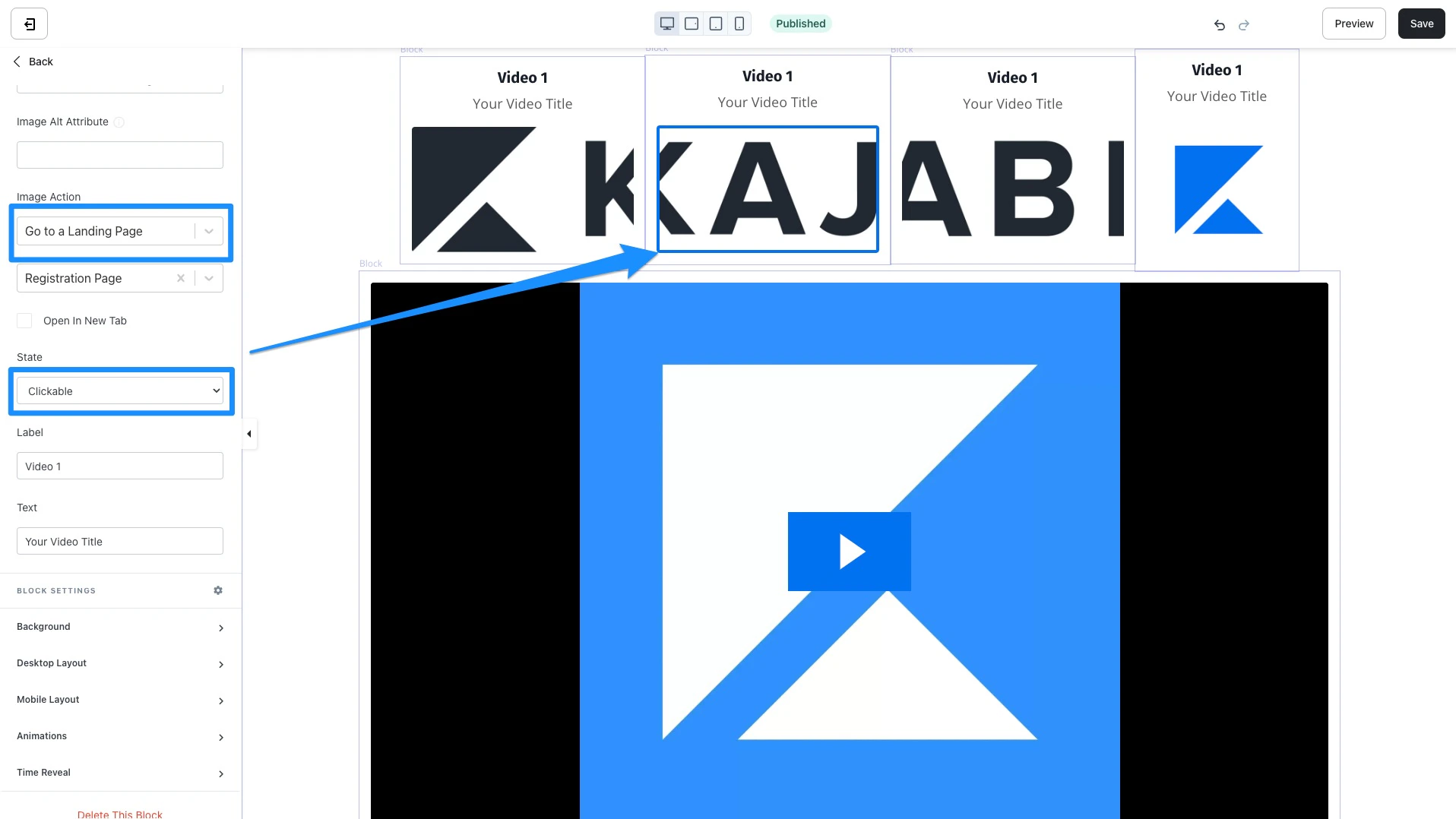
Selecting the State of your Multi-Video Launch Block is a crucial step to making your Section work to create a seamless experience for your visitors. Customize your Multi-Video Launch Section to be Clickable, Active, or Locked.
#### Clickable
If you set up your Image Action, selecting Clickable as the State will make your image trigger the Action as specified by the Image Action:
 #### Active
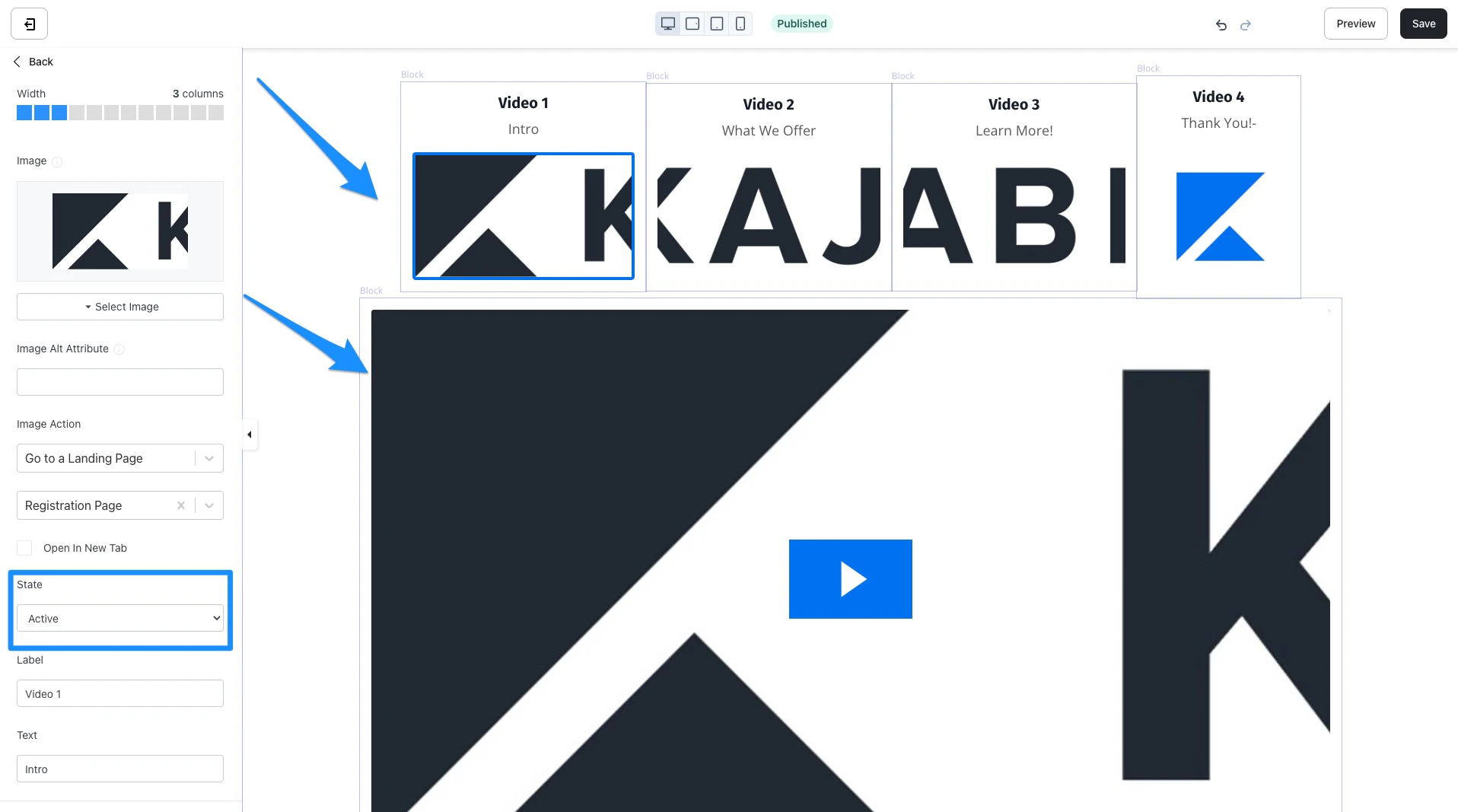
The Image is in a static state (unclickable), but the image retains its color, differentiating itself from Locked. You will also notice that your Multi-Video Launch Block thumbnail is surrounded by a thin blue border to signal to your visitors that the video is Active.
Use this State to communicate to your visitors that the Main Video Block on the Page is the Active Multi-Video Launch Block. To do so, use identical Thumbnail images for your Active Multi-Video Launch Block and your Video Block:
#### Active
The Image is in a static state (unclickable), but the image retains its color, differentiating itself from Locked. You will also notice that your Multi-Video Launch Block thumbnail is surrounded by a thin blue border to signal to your visitors that the video is Active.
Use this State to communicate to your visitors that the Main Video Block on the Page is the Active Multi-Video Launch Block. To do so, use identical Thumbnail images for your Active Multi-Video Launch Block and your Video Block:
 #### Locked
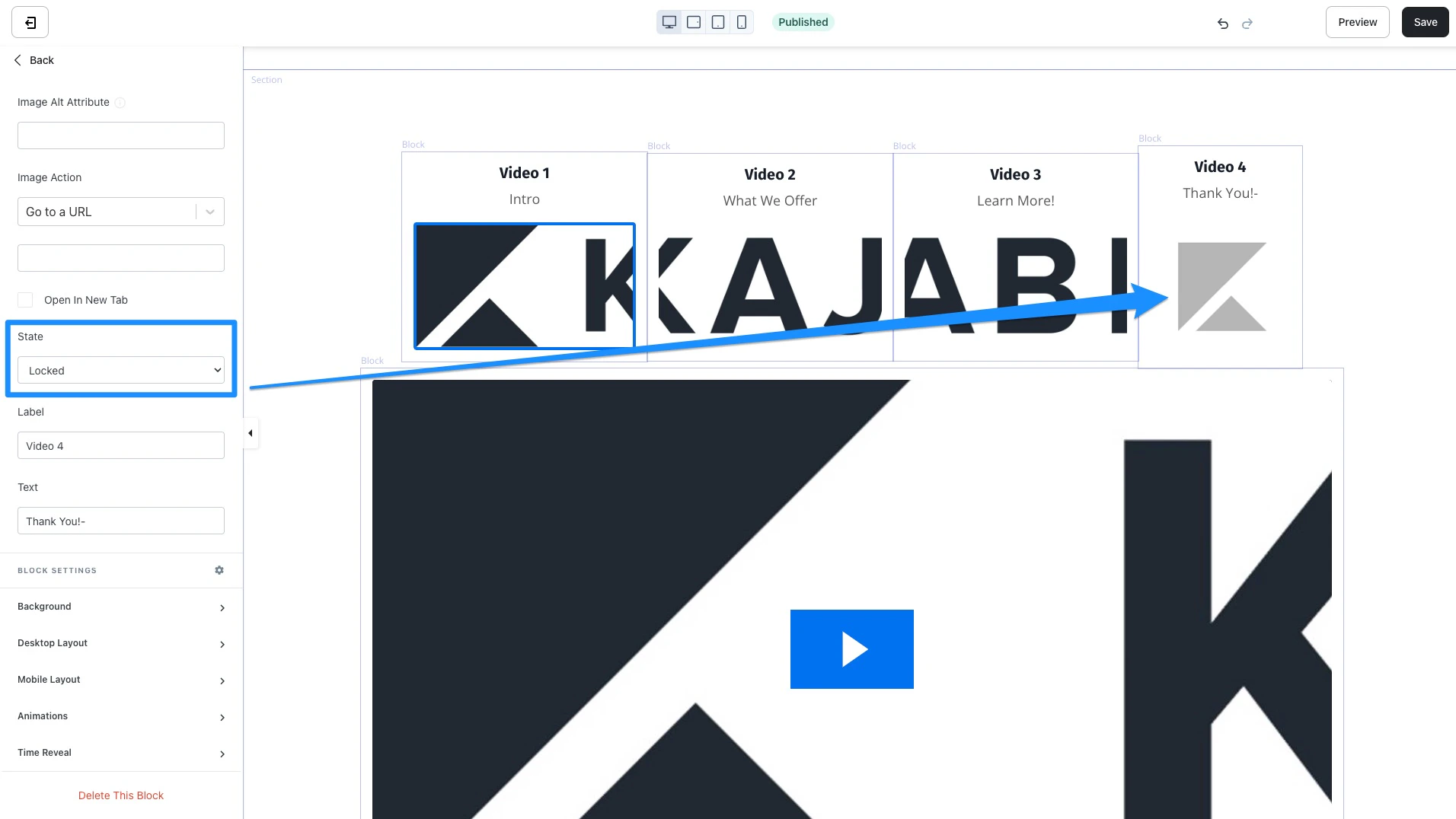
Selecting Locked will make your Image unclickable and greyed out. This is a great way to create teasers or anticipation with the Block:
#### Locked
Selecting Locked will make your Image unclickable and greyed out. This is a great way to create teasers or anticipation with the Block:
 **Tip:** If you choose to Activate a Locked Multi-Video Launch Block, simply switch out the Thumbnail Image and Video uploaded into your main Video Block to match the Multi-Video Launch Block you choose to Activate. Then, change the State of your Multi-Video Launch Block to Active.
### Label
Customize the text displayed above the Title.
Default Label: Video 1
### Text
Customize the text immediately above the Image.
Default Text: Your Video Title
**Tip:** Read [How to Add a Multi-Video Launch Block](../../website/pages/how-to-add-a-multi-video-launch-block) for more details to customize the look and feel of your Block.
**Tip:** If you choose to Activate a Locked Multi-Video Launch Block, simply switch out the Thumbnail Image and Video uploaded into your main Video Block to match the Multi-Video Launch Block you choose to Activate. Then, change the State of your Multi-Video Launch Block to Active.
### Label
Customize the text displayed above the Title.
Default Label: Video 1
### Text
Customize the text immediately above the Image.
Default Text: Your Video Title
**Tip:** Read [How to Add a Multi-Video Launch Block](../../website/pages/how-to-add-a-multi-video-launch-block) for more details to customize the look and feel of your Block.