> ## Documentation Index
> Fetch the complete documentation index at: https://help.kajabi.com/llms.txt
> Use this file to discover all available pages before exploring further.
# Use a Call to Action in a page with Premier
> Learn to use a Call to Action on your landing pages to encourage website visitors to take action.
Learn to use a Call to Action on your landing pages to encourage your website visitors to open a separate page, purchase an offer, and much more.
***
**Note:** This article refers to the Premier Legacy Templates, which may be outdated! If you are using the Kajabi Pages Templates, please refer to the updated guide [here](../../website/pages/how-to-use-a-call-to-action).
***
## What is a Call to Action?
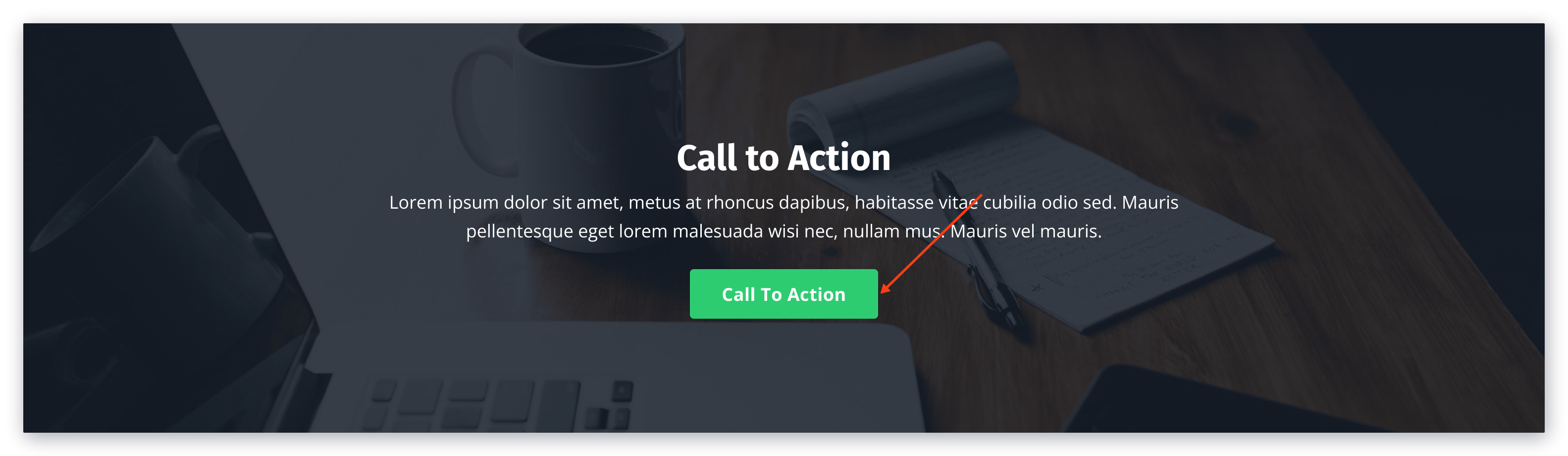
A Call to Action (CTA) is an instruction to your audience intended to provoke an immediate response, usually using an imperative verb such as buy now, find out more, or visit a store today.
The Call to Action button in Kajabi can be used to:
* Lead a visitor to a custom Landing Page
* Lead to a sale by going to a Checkout Page
* Encourage your audience to download a file
* Lead to any website page with a URL link
* Open a Two Step Optin Popup
* Act as an anchor link to lead to a section of the page
 ***
## Where can I use a Call to Action button?
A Call to Action (CTA) button can be used throughout your Kajabi website in your **Website**, **Products**, and **Funnel** pages including the Premier Template in the Kajabi Legacy Templates.
The Call to Action button can be used in many of the sections in Premier, including:
* Call to Action
* Custom Content
* Event
* Event Video
* Facebook Comments
* Features
* Hero
* Offers
* Pricing Options
* Showcase
* Video
* Text
* Text & Image
**Tip:** CTA Actions can also be accomplished through using Image Actions in different sections. Keep an eye out for the sections containing an Actions drop-down menu!
***
## Adding a Call to Action to a Premier Page
To add a Call to Action (CTA) button to your Premier Page:
* Open the **Website** tab from the Dashboard.
* Select the **Pages** tab.
* Open the page editor for your Page. [Learn more](../../website/pages/how-to-get-to-the-page-editor)
* Click the Section you want to edit or [create a Section](../../website/pages/add-sections-to-your-pages).
* In the sidebar, click **Add Content**.
* From the list, select **Call to Action**.
* Your newly created Call to Action Block will generate at the bottom of the Section.
* Click **Save** to keep your changes:
***
## Where can I use a Call to Action button?
A Call to Action (CTA) button can be used throughout your Kajabi website in your **Website**, **Products**, and **Funnel** pages including the Premier Template in the Kajabi Legacy Templates.
The Call to Action button can be used in many of the sections in Premier, including:
* Call to Action
* Custom Content
* Event
* Event Video
* Facebook Comments
* Features
* Hero
* Offers
* Pricing Options
* Showcase
* Video
* Text
* Text & Image
**Tip:** CTA Actions can also be accomplished through using Image Actions in different sections. Keep an eye out for the sections containing an Actions drop-down menu!
***
## Adding a Call to Action to a Premier Page
To add a Call to Action (CTA) button to your Premier Page:
* Open the **Website** tab from the Dashboard.
* Select the **Pages** tab.
* Open the page editor for your Page. [Learn more](../../website/pages/how-to-get-to-the-page-editor)
* Click the Section you want to edit or [create a Section](../../website/pages/add-sections-to-your-pages).
* In the sidebar, click **Add Content**.
* From the list, select **Call to Action**.
* Your newly created Call to Action Block will generate at the bottom of the Section.
* Click **Save** to keep your changes: