> ## Documentation Index
> Fetch the complete documentation index at: https://help.kajabi.com/llms.txt
> Use this file to discover all available pages before exploring further.
# Use a Google Font on a site with Premier
> Learn to add a Google Font to your page with the Legacy Template, Premier.
Google Fonts can be added to Website Templates, Course Templates, and Landing Page Templates. Learn to add a Google Font to your page with the Legacy Template, Premier.
**Note:** This article refers to the Premier Legacy Templates, which may be outdated! If you're using the Kajabi Pages Templates, please refer to the updated guide [here](../../website/pages/how-to-embed-custom-fonts-to-your-page).
***
**Note:** Adding Google Fonts to your site with the Premier Template requires access to the Code Editor available with the Pro Plan. Learn more about our different plans at [kajabi.com/pricing](https://kajabi.com/pricing/).
Learn to [add Google Fonts to Kajabi Pages](../../website/pages/how-to-embed-custom-fonts-to-your-page) without accessing the Code Editor.
***
## Step 1. Click here to choose a Google Font
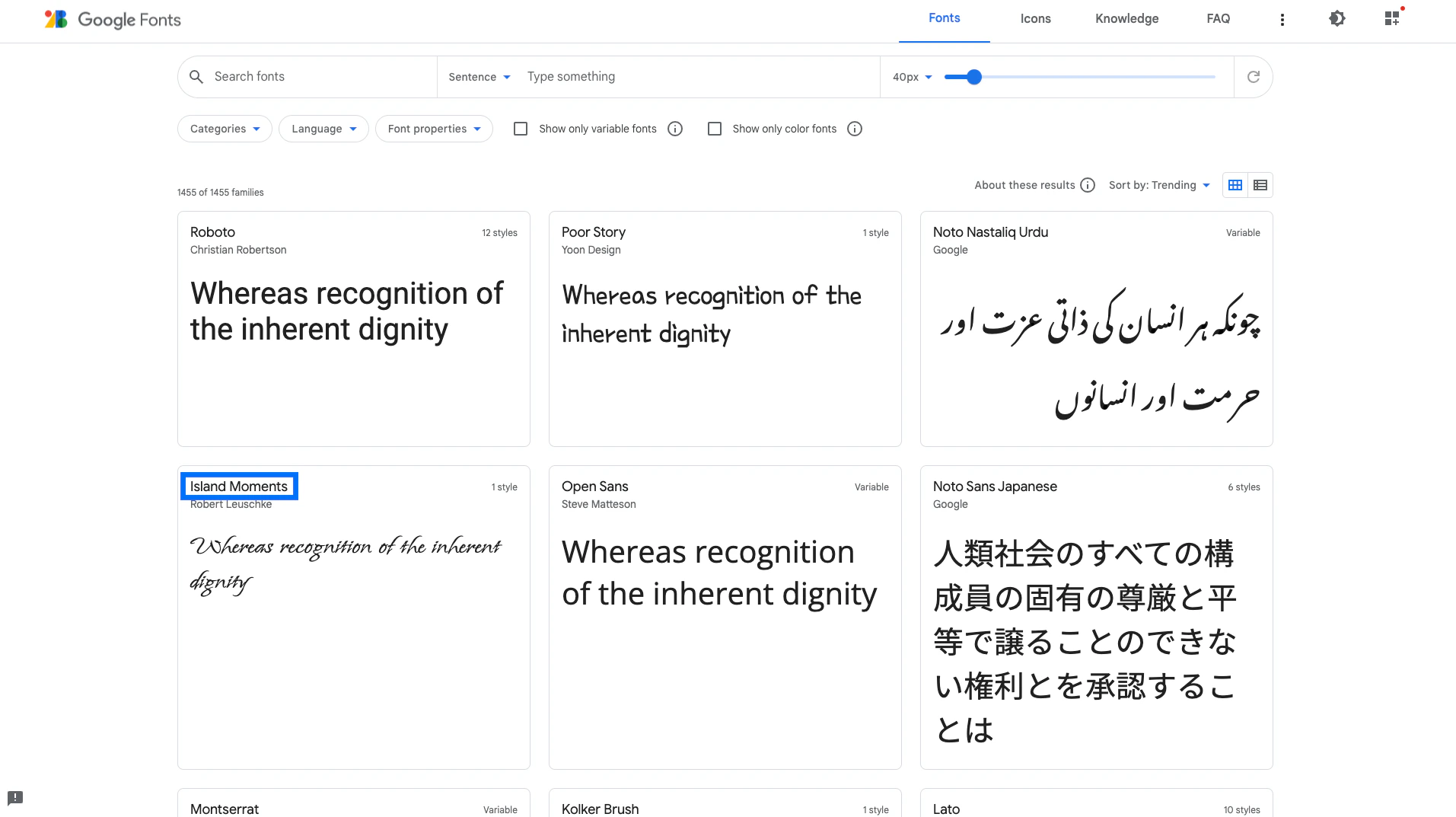
* Find and copy the exact name of the Google Font you wish to use on your site. You'll need it in just a moment. For example:
 ***
## Step 2. Add your Google Font to your site code
Navigate to your Kajabi account and open the Code Editor for the page where you wish to add your Google Font.
[Learn to access the Code Editor.](../../website/pages/how-to-access-the-code-editor)
**Important:** Introducing custom code to your site can open you up to vulnerabilities and potential malware attacks. We recommend using vulnerability tools like [VirusTotal](https://www.virustotal.com/gui/home/url) or [Snyk](https://snyk.io/) to scan any custom code that you intend to use and apply certain [best practices](../../website/domains/code-based-customizations) to help reduce potential impact.
In the Code Editor for your Page:
* Open the `config` folder.
* Open the `settings_schema.json` file.
* Locate `"name": "Typography"` near **line 29:**
***
## Step 2. Add your Google Font to your site code
Navigate to your Kajabi account and open the Code Editor for the page where you wish to add your Google Font.
[Learn to access the Code Editor.](../../website/pages/how-to-access-the-code-editor)
**Important:** Introducing custom code to your site can open you up to vulnerabilities and potential malware attacks. We recommend using vulnerability tools like [VirusTotal](https://www.virustotal.com/gui/home/url) or [Snyk](https://snyk.io/) to scan any custom code that you intend to use and apply certain [best practices](../../website/domains/code-based-customizations) to help reduce potential impact.
In the Code Editor for your Page:
* Open the `config` folder.
* Open the `settings_schema.json` file.
* Locate `"name": "Typography"` near **line 29:**
**Note:** The line numbers may be different depending on your current settings.
* Find the square brackets to input "options" near **lines 59** and **77**:
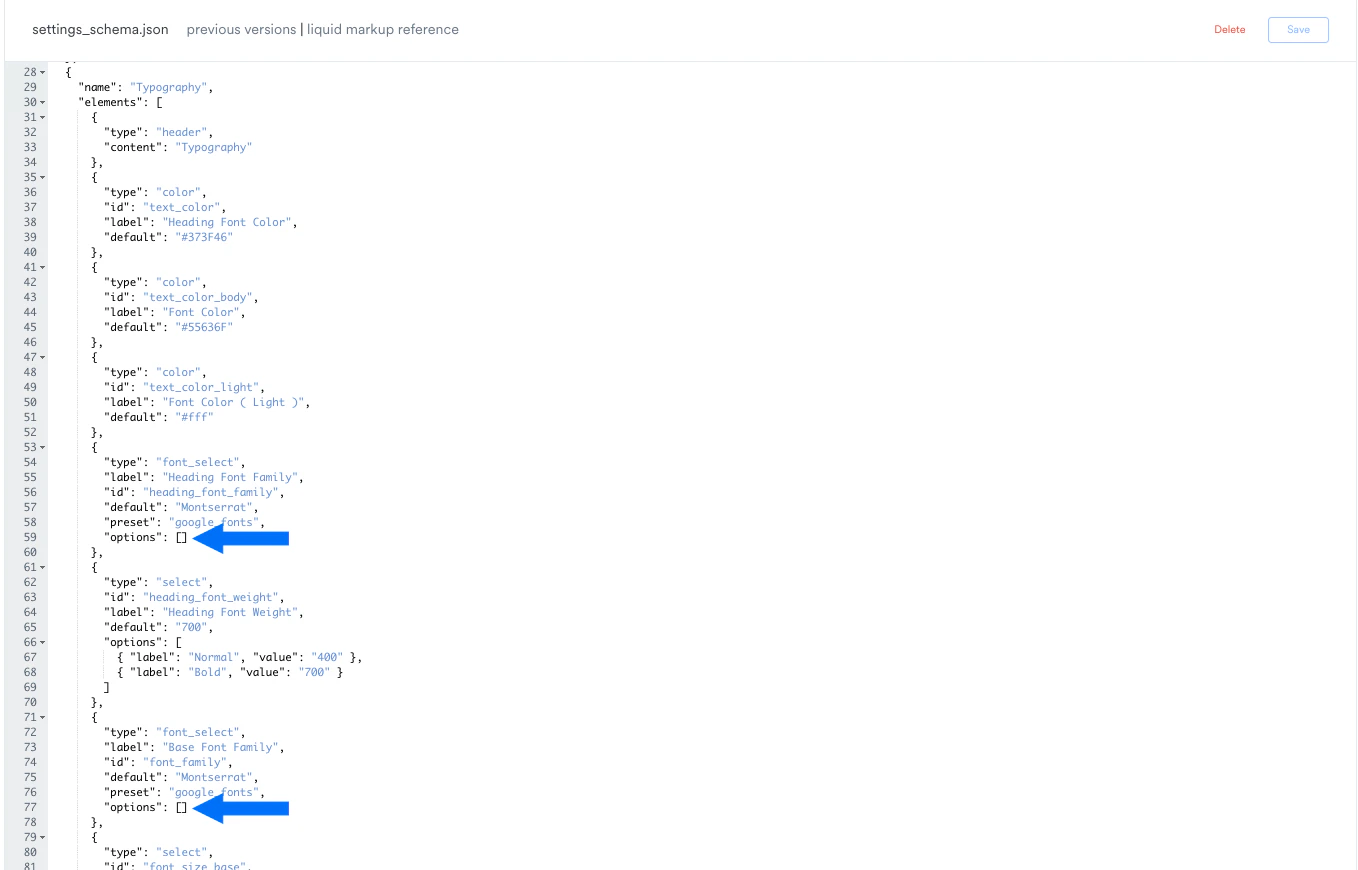 Adding your font to the **Base Font Family** will add your font as an option for the normal paragraph text on your site.
Adding your font to the **Heading Font Family** will add your font as an option for the heading text on your site.
If you'd like to add your font as an option for all of your paragraph and heading elements, make sure to complete the following steps in both places.
* Next, place your cursor in between the square "options" brackets and add curly brackets containing the name of your font exactly as shown below, replacing **Name of Google Font** with the name of your chosen Google Font:
`{"label": "Name of Google Font", "value": "Name of Google Font"}`
Adding your font to the **Base Font Family** will add your font as an option for the normal paragraph text on your site.
Adding your font to the **Heading Font Family** will add your font as an option for the heading text on your site.
If you'd like to add your font as an option for all of your paragraph and heading elements, make sure to complete the following steps in both places.
* Next, place your cursor in between the square "options" brackets and add curly brackets containing the name of your font exactly as shown below, replacing **Name of Google Font** with the name of your chosen Google Font:
`{"label": "Name of Google Font", "value": "Name of Google Font"}`
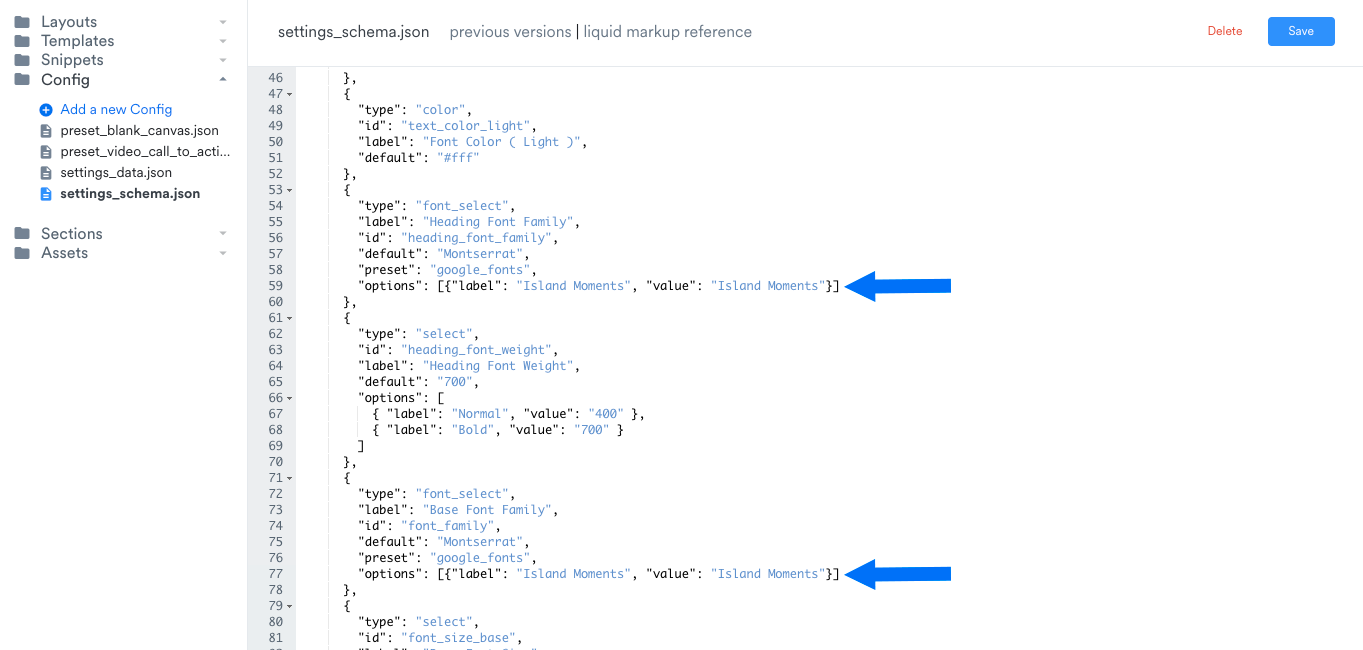 * Click **Save,** then click **Customize**:
***
## Step 3. Select your Google Font in the Page Editor
* Click **Settings** in the left sidebar editor.
* Then, select **Typography**.
* Choose your Google Font from the Heading Font Family and/or Base Font Family dropdown menus (it will appear at the top of the list).
* Click **Save** to apply and keep your changes: