> ## Documentation Index
> Fetch the complete documentation index at: https://help.kajabi.com/llms.txt
> Use this file to discover all available pages before exploring further.
# Use YouTube Live on a page
> Go Live with YouTube directly from your site using a Video Embed Block and deliver content in real-time.
Go Live with YouTube directly from your site using a Video Embed Block and deliver your content in real-time.
***
Looking to include the YouTube Live Chat Box with your YouTube Live?
[Click here](../../marketing/funnels/how-to-add-a-chat-box-to-a-live-webinar-funnel) to learn how to build a Live Webinar Funnel to include a YouTube Live Chat Box.
***
## Step 1. Verify your YouTube account
Before you go Live with YouTube there are a few steps you'll need to complete on your **YouTube** account.
First, make sure that the Live Stream feature is enabled in your account settings on YouTube.
* Log into your YouTube account.
* Go to your [YouTube Studio](https://studio.youtube.com/).
* Click **Settings** in the bottom left corner.
* Select **Channel**.
* Click **Feature Eligibility**.
* Ensure that your Default Features and Features that require phone verification are Enabled:
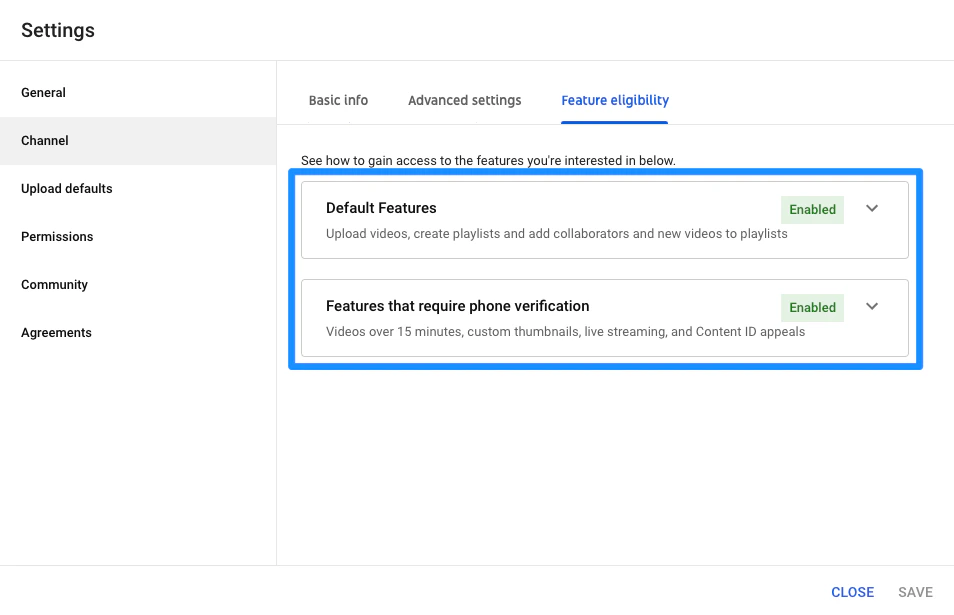 If your features are disabled, verify your YouTube account.
[Click here](https://support.google.com/youtube/answer/171664?hl=en) to learn how to verify your YouTube account with YouTube's support guide.
***
## Step 2. Set up your YouTube Live and create an embed code
If your YouTube account allows live streaming as verified in [Step 1](https://support.google.com/youtube/answer/171664?hl=en), set up your YouTube Live and create an embed code to embed into your Course Lesson on Kajabi.
### To create your YouTube Live
* In your YouTube Studio dashboard, click **Create**.
* Then, select **Go Live**.
* In the Live dashboard, select **Stream** or **Webcam**.
* Proceed to customize your Live stream details by creating a title, specifying your time and date, and selecting your audience type.
* Then, click **Next**.
This will prompt a streaming preview.
* If you wish to upload a custom image for the Thumbnail or retake your Thumbnail, hover over the image and select your desired option:
If your features are disabled, verify your YouTube account.
[Click here](https://support.google.com/youtube/answer/171664?hl=en) to learn how to verify your YouTube account with YouTube's support guide.
***
## Step 2. Set up your YouTube Live and create an embed code
If your YouTube account allows live streaming as verified in [Step 1](https://support.google.com/youtube/answer/171664?hl=en), set up your YouTube Live and create an embed code to embed into your Course Lesson on Kajabi.
### To create your YouTube Live
* In your YouTube Studio dashboard, click **Create**.
* Then, select **Go Live**.
* In the Live dashboard, select **Stream** or **Webcam**.
* Proceed to customize your Live stream details by creating a title, specifying your time and date, and selecting your audience type.
* Then, click **Next**.
This will prompt a streaming preview.
* If you wish to upload a custom image for the Thumbnail or retake your Thumbnail, hover over the image and select your desired option:
[Learn more about live streaming with YouTube](https://support.google.com/youtube/answer/2474026?hl=en)
### To copy your embed code
* After customizing your Live Stream details, click the **SHARE** button.
* Click the **copy** icon next to your Video link.
* Paste your Video link into a different tab on your web browser.
* Navigate to the **SHARE** button directly below the video player.
* Click **Embed**.
* Then, click **Copy**:
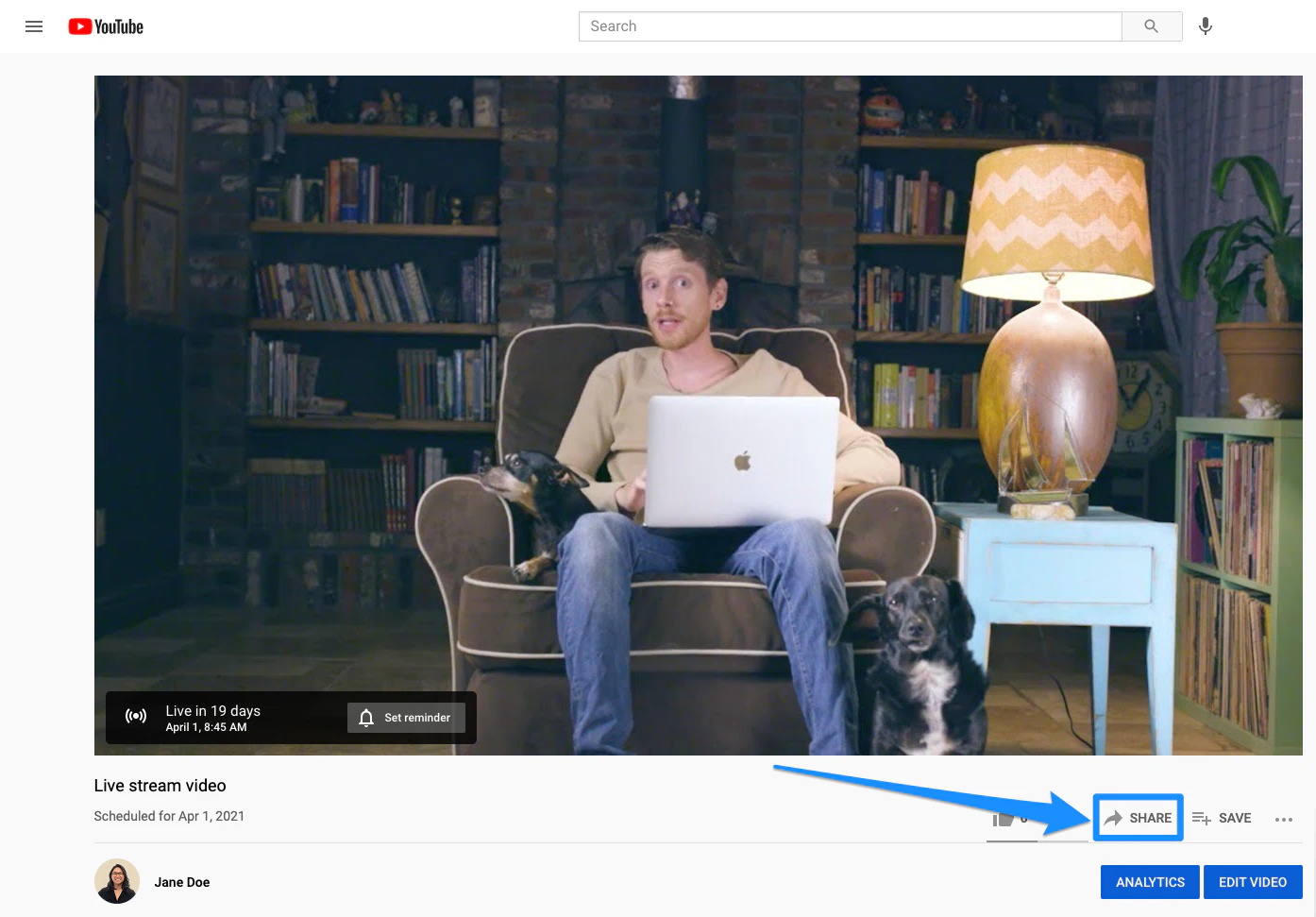 **Don't see an embed option?** [Learn to embed videos and playlists with YouTube's support guide](https://support.google.com/youtube/answer/171780?hl=en)
**Note:** You must allow embedding for your Video to play directly from your Page. If it is left unchecked, your viewers will be prompted to open in YouTube.
***
## Step 3. Connect your YouTube Live to your page
Embed your YouTube Live using a Video Embed Block on your Page.
### Add a Video Embed Block
* Open the **Website** tab from the Dashboard.
* Select the **Pages** tab.
* Open the page editor for your Page. [Learn more](../../website/pages/how-to-get-to-the-page-editor)
* In the sidebar panel, click the Section you want to edit or [create a Section](../../website/pages/add-sections-to-your-pages).
* In the sidebar, click **Add Content**.
* From the list, select **Video Embed**.
* Your newly created Video Embed Block will generate at the bottom of the Section.
* In the sidebar, paste the embed code into the Embed Code field.
* Click **Save** to keep your changes:
**Don't see an embed option?** [Learn to embed videos and playlists with YouTube's support guide](https://support.google.com/youtube/answer/171780?hl=en)
**Note:** You must allow embedding for your Video to play directly from your Page. If it is left unchecked, your viewers will be prompted to open in YouTube.
***
## Step 3. Connect your YouTube Live to your page
Embed your YouTube Live using a Video Embed Block on your Page.
### Add a Video Embed Block
* Open the **Website** tab from the Dashboard.
* Select the **Pages** tab.
* Open the page editor for your Page. [Learn more](../../website/pages/how-to-get-to-the-page-editor)
* In the sidebar panel, click the Section you want to edit or [create a Section](../../website/pages/add-sections-to-your-pages).
* In the sidebar, click **Add Content**.
* From the list, select **Video Embed**.
* Your newly created Video Embed Block will generate at the bottom of the Section.
* In the sidebar, paste the embed code into the Embed Code field.
* Click **Save** to keep your changes:
Continue customizing your Page and prepare to Go Live.
**Tip:** Make sure to test your YouTube Live functionality outside of the Page Preview mode (i.e. using a direct link). If your YouTube video is listed as Private or Made for Kids, it will not stream.