> ## Documentation Index
> Fetch the complete documentation index at: https://help.kajabi.com/llms.txt
> Use this file to discover all available pages before exploring further.
# View page analytics
> Track statistics for individual pages to understand the impact on your conversion rates.
Tracking statistics for individual pages can help you understand the impact an individual page has on your conversion rates. With Kajabi Pages you are able to see the views, opt-ins, and conversions. Learn about your individual page stats.
***
## Defining your page analytics
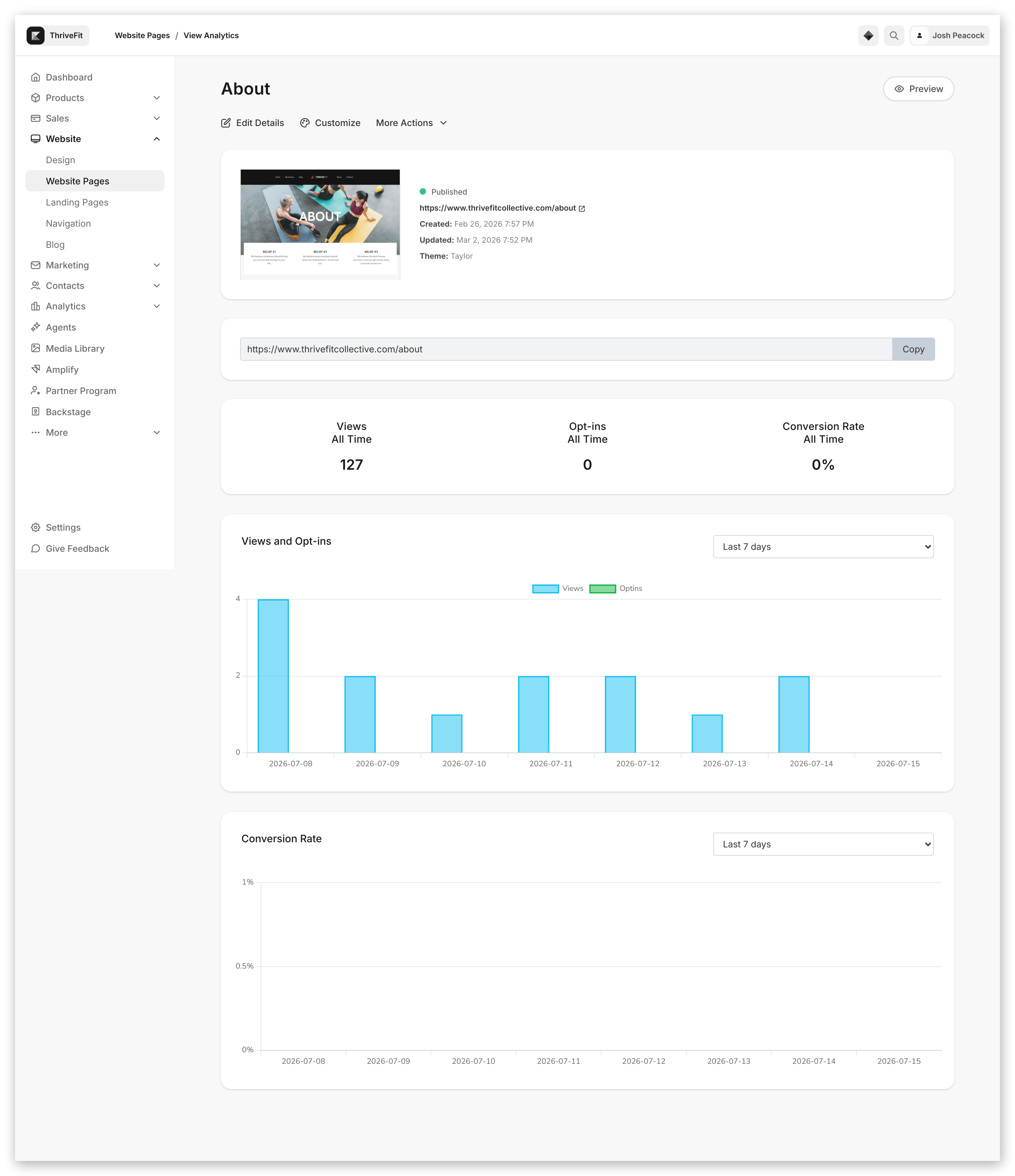 **Views** are the number of Page Views.
* Use the time frame dropdown located in the top right corner of the **Views and Opt-ins Card** to bring focus to your stats.
**Opt-ins** display the number of Opt-in Forms submitted from the Page.
* Use the time frame dropdown located in the top right corner of the **Views and Opt-ins Card** to bring focus to your stats.
**Conversion Rate** is the percentage of Opt-ins (Form Submissions) per number of Page Views.
* Use the time frame dropdown located in the top right corner of the **Conversion Rate Card** to view your conversion rate within a specific period of time.
**Recent Opt-ins** provide insight into the recent activity of your page. View the contacts that submitted a specific Form on the page and view the date the Form was submitted.
**Note:** If your page does not include a Form or a Form has not been submitted the Recent Opt-ins card will not display in your Page Dashboard.
***
## View your Website page analytics
View your website page analytics to track the performance of your website pages:
* Open the **Website** tab from your Dashboard.
* Click **Pages**.
* Locate the title of the Website Page you wish to view.
* Open the three dots menu.
* Select **View Analytics**.
* Scroll down the Page Dashboard to view your Page Analytics:
**Views** are the number of Page Views.
* Use the time frame dropdown located in the top right corner of the **Views and Opt-ins Card** to bring focus to your stats.
**Opt-ins** display the number of Opt-in Forms submitted from the Page.
* Use the time frame dropdown located in the top right corner of the **Views and Opt-ins Card** to bring focus to your stats.
**Conversion Rate** is the percentage of Opt-ins (Form Submissions) per number of Page Views.
* Use the time frame dropdown located in the top right corner of the **Conversion Rate Card** to view your conversion rate within a specific period of time.
**Recent Opt-ins** provide insight into the recent activity of your page. View the contacts that submitted a specific Form on the page and view the date the Form was submitted.
**Note:** If your page does not include a Form or a Form has not been submitted the Recent Opt-ins card will not display in your Page Dashboard.
***
## View your Website page analytics
View your website page analytics to track the performance of your website pages:
* Open the **Website** tab from your Dashboard.
* Click **Pages**.
* Locate the title of the Website Page you wish to view.
* Open the three dots menu.
* Select **View Analytics**.
* Scroll down the Page Dashboard to view your Page Analytics:
***
## View your Landing page analytics
View your individual landing page analytics to track the performance of specific pages:
* Open the **Website** tab from your Dashboard.
* Open your **Landing** page tab.
* Locate the title of the Page you wish to view.
* Open the three dots menu.
* Select **View Analytics**.
* Scroll down the Page Dashboard to view your Page Analytics:
Looking for additional Page View information? [Click here to learn more about your unique page views](../../analytics/report-page-views).
**Note:** Page stats cannot be reset. Instead, duplicate your page and edit the URL to reflect the original page to begin tracking stats. Learn to [duplicate your page](../../website/pages/duplicate-a-page) and [edit your page details](../../website/pages/customize-your-page-details).