> ## Documentation Index
> Fetch the complete documentation index at: https://help.kajabi.com/llms.txt
> Use this file to discover all available pages before exploring further.
# Why does the login page or 404 error keep appearing when editing my site?
> Learn how to resolve login page or 404 errors when customizing your site by enabling cookies.
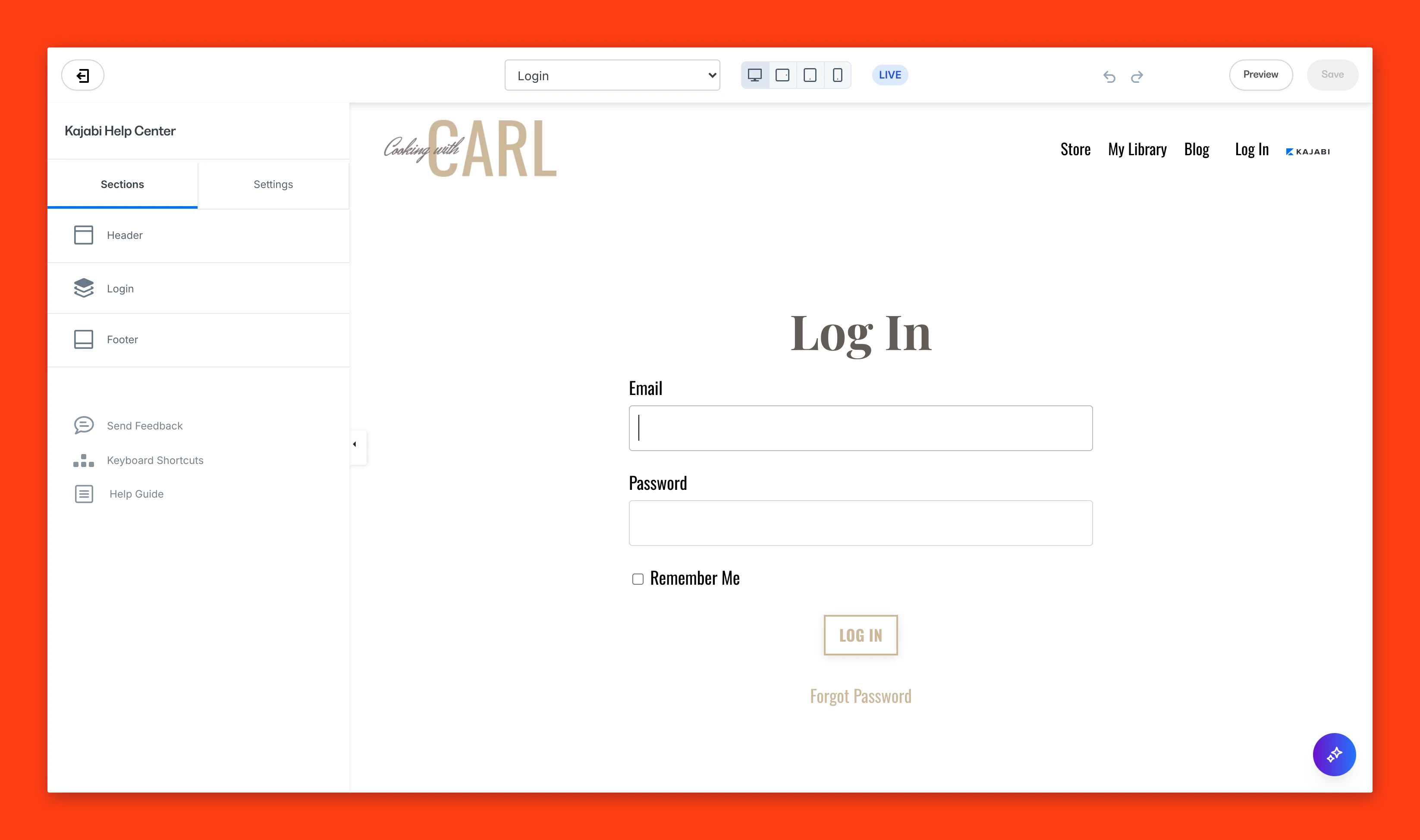
If you are experiencing issues customizing the template for your Website and Product Pages because your site Login Page is displayed, or seeing a 404 page not found error image when customizing draft pages, your browser may be blocking Kajabi's cookies to allow you to access the editor. Learn to enable Kajabi's cookies to customize your page.
***
## Why does this happen?
The Login Page may appear when attempting to customize your Website Pages or Product Pages if your web browser is set to block third-party cookies.
Are you seeing a 404-page not found error when customizing a Website or Product Page? This error appears when a page's visibility is set to **draft**, and not published, while your web browser is set to block third-party cookies.
Learn more about page visibility settings [here](https://kajabi.zendesk.com/Default%20Visibility%20for%20a%20New%20Page).
If you are experiencing either of these issues, you may have cookie blockers, plugins, or extensions blocking Kajabi's cookies.
Resume customizing your Website Page or Product Page by enabling third-party cookies on your web browser or clearing your web browser's cache and cookies from the web browser settings.
In this guide, you will find instructions for how to enable cookies for a few of the most popular web browsers.
If you are using another web browser, check its support site for instructions on enabling cookies or clearing cache and cookies.
### Login displayed when attempting to customize a Product Page:
 **Note:**
Entering valid credentials into the displayed log in will not fix the issue you may be experiencing. Instead, you will see an error message stating "the change you wanted was rejected." If you are experiencing these issues, enable third-party cookies on your web browser or clear your browser's cache and cookies to continue customizing your page.
***
## Chrome
### Enable third-party cookies
* On your computer, open **Chrome**.
* In the top right, click the More icon (the three vertically-aligned dots).
* Then, click **Settings**.
* Click **Privacy and Security** from the left sidebar.
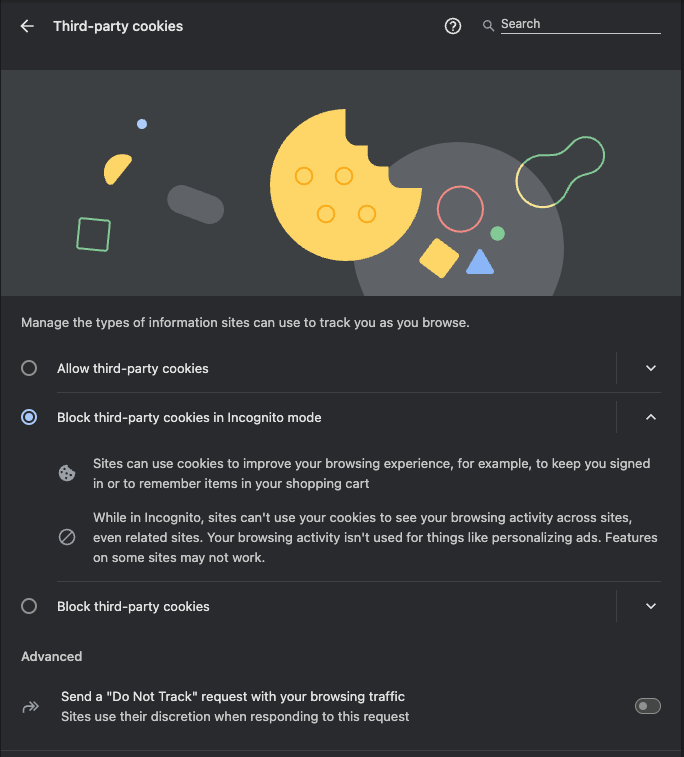
* Scroll down and open **Third-party cookies**.
* Then, select **Block third-party cookies in Incognito Mode**:
**Note:**
Entering valid credentials into the displayed log in will not fix the issue you may be experiencing. Instead, you will see an error message stating "the change you wanted was rejected." If you are experiencing these issues, enable third-party cookies on your web browser or clear your browser's cache and cookies to continue customizing your page.
***
## Chrome
### Enable third-party cookies
* On your computer, open **Chrome**.
* In the top right, click the More icon (the three vertically-aligned dots).
* Then, click **Settings**.
* Click **Privacy and Security** from the left sidebar.
* Scroll down and open **Third-party cookies**.
* Then, select **Block third-party cookies in Incognito Mode**:
 Read [Google's Support Guide](https://support.google.com/accounts/answer/32050?co=GENIE.Platform%3DDesktop\&hl=enIn) to clear cache and cookies.
***
## Safari
### Enable website tracking and cookies
* On your computer, open **Safari**.
* Click the **Safari** drop-down menu then open **Preferences**.
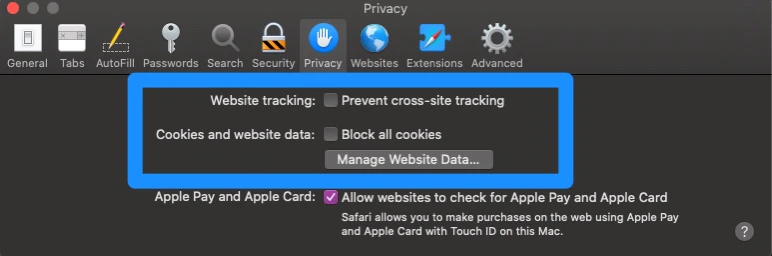
* Click **Privacy** from the top menu.
* Uncheck both:
* **Website tracking**
* **Cookies and website data**
Read [Google's Support Guide](https://support.google.com/accounts/answer/32050?co=GENIE.Platform%3DDesktop\&hl=enIn) to clear cache and cookies.
***
## Safari
### Enable website tracking and cookies
* On your computer, open **Safari**.
* Click the **Safari** drop-down menu then open **Preferences**.
* Click **Privacy** from the top menu.
* Uncheck both:
* **Website tracking**
* **Cookies and website data**
 Read [Apple's Support Guide](https://support.apple.com/guide/safari/clear-your-browsing-history-sfri47acf5d6/mac) to clear history, cache, and cookies.
***
## Additional popular web browsers
### Using a browser not listed above?
Refer to the list of popular browsers below and select your preferred web browser to view their specific instructions.
If your browser is not listed, we recommend searching your browser's help documentation for step-by-step instructions on how to enable third-party cookies.
### Additional web browser guides:
* [Opera](https://help.opera.com/en/latest/web-preferences/#cookies)
* [Firefox](https://support.mozilla.org/en-US/kb/websites-say-cookies-are-blocked-unblock-them)
* [Internet Explorer](https://support.microsoft.com/en-us/topic/delete-and-manage-cookies-168dab11-0753-043d-7c16-ede5947fc64d)
* [Microsoft Edge](https://support.microsoft.com/en-us/topic/delete-and-manage-cookies-168dab11-0753-043d-7c16-ede5947fc64d?ui=en-us\&rs=en-us\&ad=us)
Read [Apple's Support Guide](https://support.apple.com/guide/safari/clear-your-browsing-history-sfri47acf5d6/mac) to clear history, cache, and cookies.
***
## Additional popular web browsers
### Using a browser not listed above?
Refer to the list of popular browsers below and select your preferred web browser to view their specific instructions.
If your browser is not listed, we recommend searching your browser's help documentation for step-by-step instructions on how to enable third-party cookies.
### Additional web browser guides:
* [Opera](https://help.opera.com/en/latest/web-preferences/#cookies)
* [Firefox](https://support.mozilla.org/en-US/kb/websites-say-cookies-are-blocked-unblock-them)
* [Internet Explorer](https://support.microsoft.com/en-us/topic/delete-and-manage-cookies-168dab11-0753-043d-7c16-ede5947fc64d)
* [Microsoft Edge](https://support.microsoft.com/en-us/topic/delete-and-manage-cookies-168dab11-0753-043d-7c16-ede5947fc64d?ui=en-us\&rs=en-us\&ad=us)