

- Automatically generate transcripts for any uploaded video
- Edit transcripts in the interactive editor
- Instantly translate your transcription from 30+ source languages into 70+ languages
- Download and edit SRT files
- Add dubbed voice-over in multiple languages
AI credits
AI credits power the Transcriptions and Translations feature. Growth and Pro plan users receive a monthly credit allotment. Additional credits are available for purchase on any plan. Learn more about AI credits.Use Transcriptions, Translations, and Dubbing
Transcriptions, Translations & Dubbing can be used with any video already uploaded to your Course lesson, course live video, website editor, coaching session, or anywhere else you use a video in Kajabi, as well as with uploaded videos.Note: A transcription, translation, or dub is attached to the video itself in your Media Library — not to a specific lesson, page, or session. Once you add one to a video, it appears everywhere that video is used.
- Upload a video or choose an already uploaded video.
- Once the video has finished uploading, click Video Actions.
- Select View in media library.
- Select the specific video inside the Media Library.
Add a transcription
A transcription must exist before you can translate or dub a video. Under Transcriptions, choose one of two options.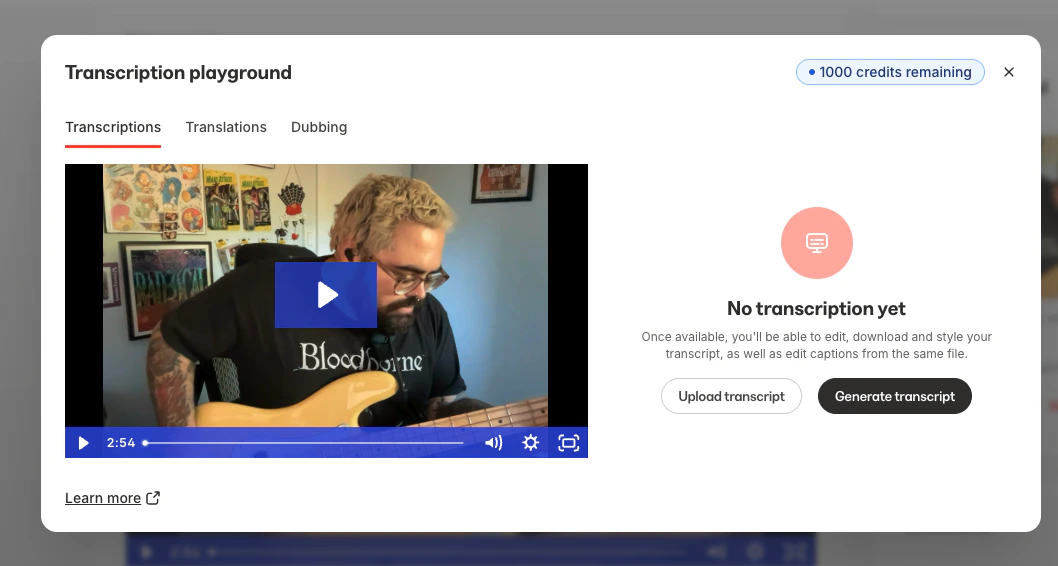
- Click Generate a transcript.
- Select the source language spoken in the video.
- Kajabi generates the transcript and attaches it to this video. Upload your own transcription file
- Click Upload a transcription.
- Select your
.srtfile from your computer. Already generated a transcript and want to fine-tune it? Download it as an SRT file, edit the text or timing in any text editor or captioning tool, then upload the edited file using the steps above to replace it.
Translate a video
Once a transcription exists, under Translations, use the Translations tool to translate your video to a different language: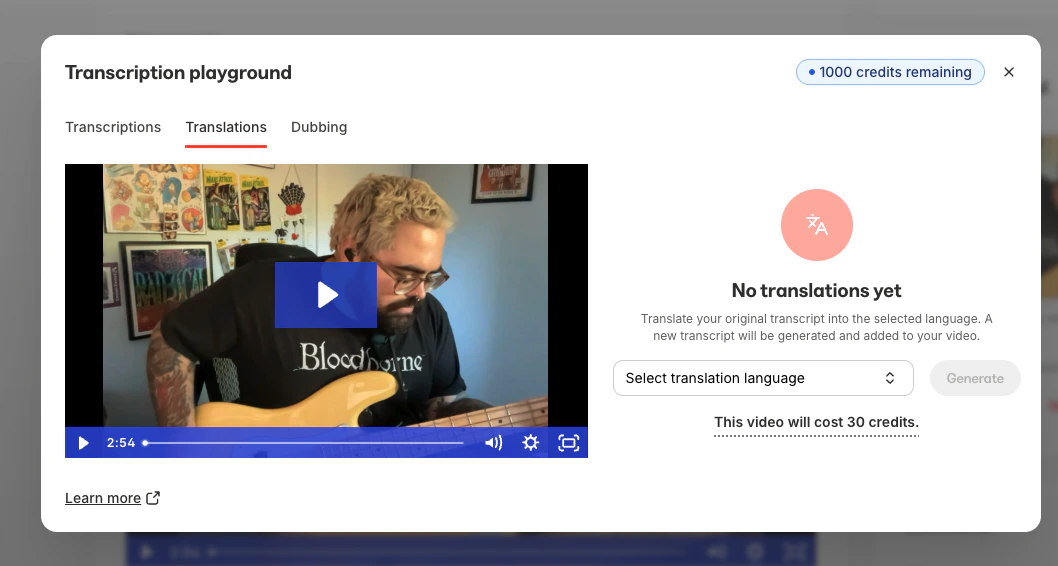
Dub a video
Alternatively, under Dubbing, use the Dubbing tool to generate a video featuring a dubbed voiceover in another language: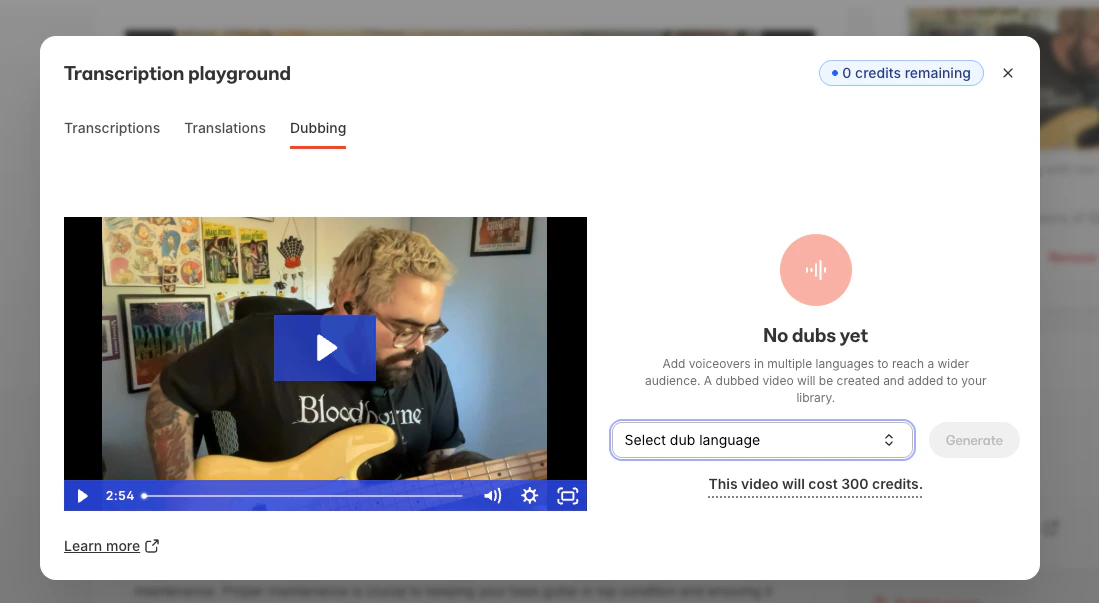
Important notes
Note:
- To use the Translations or Dubbing feature, a transcription must be uploaded or created first.
- Coaching live sessions and Cohort live sessions can be used with Transcriptions and Translations, but the Dubbing feature does not currently support Coaching & Cohort live sessions.
- The Dubbing feature may take a few minutes to process. You can safely navigate away after submitting your video, and you’ll receive an email notification once the dubbed video is ready.
- Transcriptions, Translations, & Dubbing all require AI credits. Learn more about AI credits.
- Wistia currently supports 70+ languages for translation. To view the list of available languages, visit Wistia’s transcription languages page.