

Documentation Index
Fetch the complete documentation index at: https://help.kajabi.com/llms.txt
Use this file to discover all available pages before exploring further.
Add an account user
- Go to Settings > Manage Users.
- Click New User.
- Fill in the user’s details: First name, Last name, Email, Phone number (optional), Time zone, and Password.
- Select a role.
- Choose which sites and communities they should have access to.
- Click Save.
Notes:
- Note: Account users log in at the Kajabi login page. They are managed under Settings > Manage Users, not under Contacts.
- If you receive an error that the email address has already been taken, it means that their email is already associated with another Kajabi account. Many email providers allow you to add a ”+” and any word or number to the email (e.g., example+kajabi@example.com), including Gmail, Outlook.com, and Yahoo. In this case, your account user will still receive email notifications at their original email. However, if their email provider doesn’t support this, you will need to enter a different email address.
Verify an account user
When you create an account user, they receive a “Confirmation instructions” email from Kajabi. They must verify their account before logging in. Unverified users will see an error when attempting to sign in. Important: The verification link expires after 24 hours. If a user needs a new confirmation email:- Click Didn’t receive confirmation instructions? on the login page.
- Enter the email address in the Email field.
- Click Resend confirmation instructions.
Important: The verification link expires after 24 hours.
Edit an account user
- Go to Settings > Manage Users.
- Click the Edit icon next to the user.
- Update the relevant details and click Save.
Important: When changing or updating an account user’s email, they will receive a new “Confirmation instructions” email and must verify their account again.
Any changes to their email will not display on the Account Users page until the new email address is verified.
Any changes to their email will not display on the Account Users page until the new email address is verified.
Reset a password for an account user
- From Manage Users, click Edit next to the user.
- Click Reset password, then confirm.
Note: Account users can also reset their password at any time on the Kajabi login page.
Suspend an account user
- Go to Settings > Manage Users.
- Click the Edit link next to one of your account users.
- Scroll down and click Suspend User.
- Click Suspend user.
- To unsuspend them, click Unsuspend User.
Notes:
- On the account user edit page, there is not an option to delete a user.
- Suspended account users do not count against your plan limit.
Account user roles
There are 4 roles that can be assigned to an account user:- Owner (also known as, “sub-owners”)
- Administrator
- Assistant
- Support Specialist
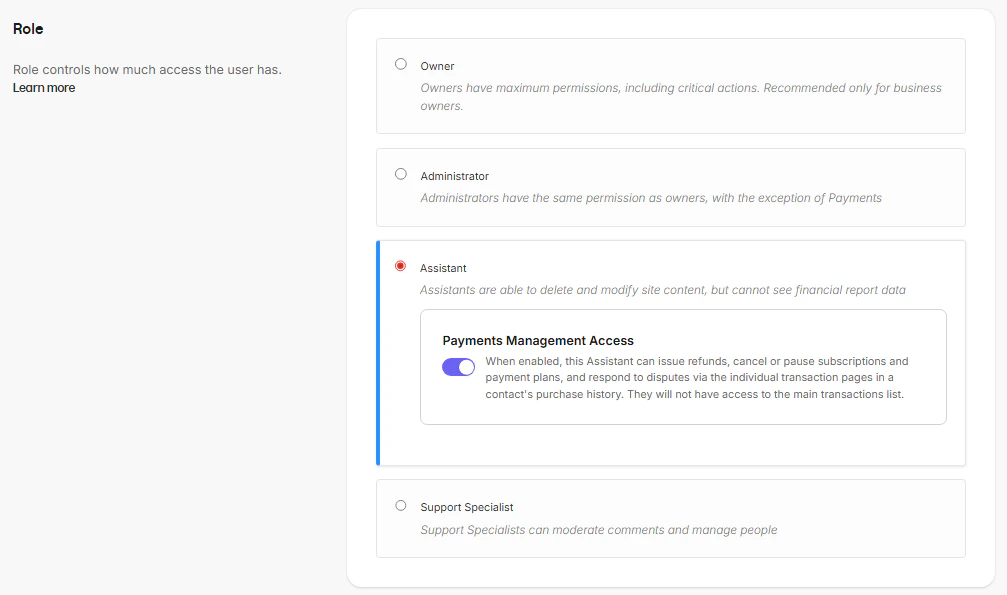
Owner
Owners have maximum permissions, including critical actions. Recommended only for business owners.Administrator
Administrators have the same access as Owners, with one exception: they cannot connect payment processors. If an Administrator attempts to connect Kajabi Payments, Stripe, or PayPal, they’ll be prompted to contact the Account Owner.Note: Administrators have access to every site associated with the account, including all notifications, comments, and settings across all sites.
Assistant
Assistants can create and modify site content but cannot access the Settings, Sales or Analytics menus. Assistants retain access to individual transaction pages but cannot perform payment management actions by default and will be prompted to contact an administrator. To enable payment management for an Assistant, an Owner or Administrator can turn on the Payment Management Access sub-permission in that user’s settings. This will allow the Assistant to perform individual payment management actions, including:- Issuing refunds
- Cancelling or pausing subscriptions or payment plans
- Editing billing amounts or dates
- Uploading dispute evidence
- Retrying failed payments.
- Create manual transactions for affiliate users.
Note: Assistants can still view customer product progress reports by going to a specific Product > More Actions > View Progress, even without Analytics access.
Support Specialist
Support Specialists have limited access to moderate comments and manage the Contact list for the site(s) the Account Owner gives them permission to access.Account user role permissions
| Feature | Support Specialist | Assistant | Administrator | Owner |
|---|---|---|---|---|
| Website | ✅ | ✅ | ✅ | |
| Design | ✅ | ✅ | ✅ | |
| Pages | ✅ | ✅ | ✅ | |
| Blog | ✅ | ✅ | ✅ | |
| Analytics | ✅ | ✅ | ||
| Products | ✅ | ✅ | ✅ | |
| Courses > Manage Comments | ✅ | ✅ | ✅ | ✅ |
| Payouts | ✅ | ✅ | ||
| Offers | ✅ | ✅ | ✅ | |
| Payments | ✅ | ✅ | ||
| Payment Management (refunds, cancellations, etc.) | ✅ (if enabled) | |||
| Payments Setup | ✅ | |||
| Sales Tax Setup | ✅ | |||
| Sales Tax Management | ✅ | ✅ | ✅ | ✅ |
| Coupons | ✅ | ✅ | ✅ | |
| Marketing | ✅ | ✅ | ✅ | |
| Funnels | ✅ | ✅ | ✅ | |
| Email Campaigns | ✅ | ✅ | ✅ | |
| Automations | ✅ | ✅ | ✅ | |
| Events | ✅ | ✅ | ✅ | |
| Forms | ✅ | ✅ | ✅ | |
| Contacts | ✅ | ✅ | ✅ | ✅ |
| Contacts > Bulk Export | ✅ | ✅ | ✅ | |
| Contacts > Bulk Unsubscribe | ✅ | ✅ | ||
| Contacts > Bulk Delete | ✅ | ✅ | ||
| Contacts > Individual Unsubscribe | ✅ | ✅ | ✅ | ✅ |
| Contacts > Individual Delete | ✅ | ✅ | ✅ | ✅ |
| Assessments | ✅ | ✅ | ✅ | |
| Affiliates | ✅ | ✅ | ✅ | |
| All Kajabi Sites (My Sites) | ✅ | ✅ | ||
| Kajabi University | ✅ | ✅ | ✅ | ✅ |
| Site Settings | ✅ | ✅ | ||
| Account Settings | ✅ | ✅ | ✅ | ✅ |
| Account Details | ✅ | ✅ | ✅ | ✅ |
| API Credentials (in Account Details) | ✅ | ✅ | ||
| Billing | ✅ | ✅ | ||
| Password | ✅ | ✅ | ✅ | ✅ |
| Contact Info | ✅ | ✅ | ✅ | ✅ |
| Notifications and Privacy | ✅ | ✅ | ✅ | ✅ |
| Users | ✅ | ✅ | ||
| Partner Dashboard | ✅ | ✅ | ✅ | ✅ |
Note: Custom account user roles are not available. The ✅ (if enabled) for Assistant Payment Management reflects a sub-permission that is disabled by default and must be turned on by an Owner or Administrator.