

A DMARC (Domain-based Message Authentication, Reporting, and Conformance) record helps prevent email spoofing and improves deliverability. Adding this record to DNS ensures your emails are authenticated and trusted by recipient mail servers.Documentation Index
Fetch the complete documentation index at: https://help.kajabi.com/llms.txt
Use this file to discover all available pages before exploring further.
General instructions
The process of adding a DMARC record varies depending on your DNS provider, but the general setup is the same. For a specific DNS provider, please find your DNS provider in the next section. Add the following record to your DNS settings:| Field | Value |
|---|---|
| Type | TXT |
| Name | _dmarc.kjbm |
| Content (or Value) | "v=DMARC1; p=none; pct=100; fo=1; ri=3600; rua=mailto:ce4b0f5c@dmarc.mailgun.org,mailto:1be13cfa@inbox.ondmarc.com; ruf=mailto:ce4b0f5c@dmarc.mailgun.org,mailto:1be13cfa@inbox.ondmarc.com" |
Important:
Be sure to include all special characters, including quotation marks, apostrophes, and spaces. Copying and pasting the full value exactly as shown is recommended.
GoDaddy
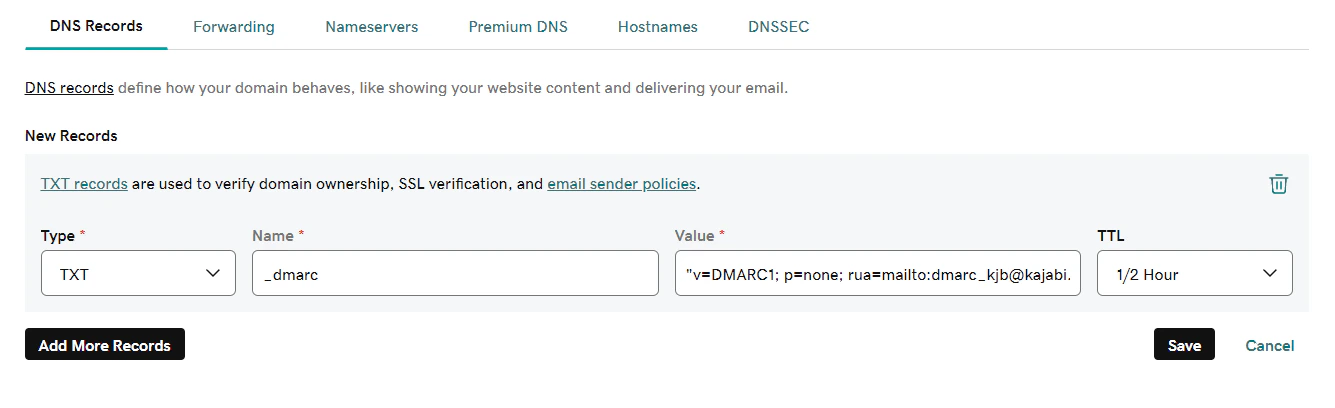
To add a DMARC record in GoDaddy:- In your GoDaddy DNS Records, click Add and select TXT from the Type dropdown.
- Enter
_dmarc.kjbminto the Name field. - Paste the full value into the Value field.
- Keep the default TTL.
- Click Add record.
Cloudflare
To add a DMARC record in Cloudflare:- Log into your Cloudflare dashboard and select your active domain.
- Go to the DNS tab.
- Click + Add Record and select TXT as the type.
- Enter
_dmarc.kjbminto the Name field. - Paste the full value into the Content field.
- Keep the default TTL.
- Click Save.
Bluehost
To add a DMARC record in Bluehost:- In your Bluehost DNS Manager, scroll to the TXT section and click Add Record.
- Enter
_dmarc.kjbminto the Name field. - Paste the full value into the TXT Value field.
- Select 4 Hours in the TTL field.
- Click Save.
Namecheap
To add a DMARC record in Namecheap:- In your Namecheap Advanced DNS settings, locate your Host Records.
- Click + Add New Record and select TXT Record from the dropdown.
- Enter
_dmarc.kjbminto the Host field. - Paste the full value into the Value field.
- Keep the TTL set to Automatic.
- Click Save All Changes.
SiteGround
To add a DMARC record in SiteGround:- In your SiteGround Site Tools, navigate to Domain > DNS Zone Editor.
- Click Create New Record and select TXT as the type.
- Enter
_dmarc.kjbminto the Name field. - Paste the full value into the Value field.
- Click Create.