

Install an Evergreen Course template
- From the Dashboard, open Products > Courses.
- Click the Title of the Evergreen Course you wish to edit.
- Click the Customize tab.
- Click Install Template.
- Select a template and click Install Template. You can also use Upload Template. You need to activate your template before it’s live.
Install a Cohort Course template
- From the Dashboard, open Products > Courses.
- Click the Title of the Cohort Course you wish to edit.
- Click the Title of the cohort you wish to edit, or click the ellipsis menu
…and select Edit. - Click the Customize tab.
- Click Install Template.
- Select a template and click Install Template. You can also use Upload Template. You need to activate your template before it’s live.
Note: If you want to check out more templates, visit the Kajabi Template Store.
Customize a Course template
- From the Dashboard, open Products > Courses.
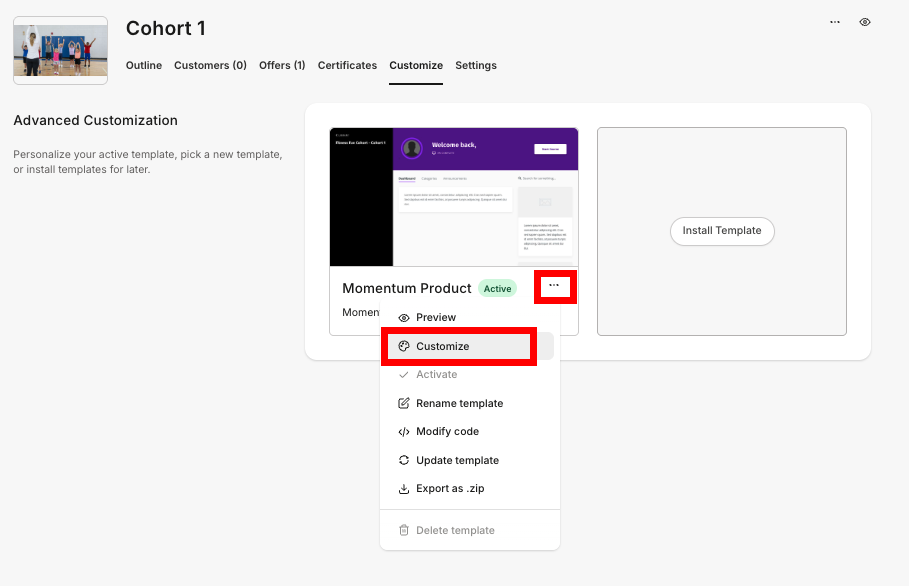
- For an Evergreen Course, click the Title of the Course you wish to edit. For a Cohort Course,click the Title of the cohort you wish to edit, or click the ellipsis menu
…and select Edit. - Click the Customize tab.
- Click the ellipsis menu
…in the template card. - Click Customize.
- On the top bar, select a page to customize in the dropdown menu.
- To customize the sections of a page, simply click on the section you would like to edit in the sidebar editor. Once you’ve clicked inside a section, you’ll see all of the different customization options available:
Activate a Course template
If you’ve picked a template for your Course and customized your Course pages, the last step is to activate the template. After you activate the template, it can viewed by customers taking the Course.- From the Dashboard, open Products > Courses.
- For an Evergreen Course, click the Title of the Course you wish to edit. For a Cohort Course,click the Title of the cohort you wish to edit, or click the ellipsis menu
…and select Edit. - Click the Customize tab.
- Click the ellipsis menu
…in the template card. - Select Activate.
Available templates
Momentum
The Momentum template displays a video or image at the forefront and is designed to be visually engaging from the start. With Momentum, your content takes up the most real estate on the page, while still making it easy to navigate from lesson to lesson.Premier
The Premier template presents your Course outline at the forefront and is great for understanding the structure and order of your Course. With Premier, you can design a Course that is uniquely yours and encourage your customers to complete and engage with your Course.Creative
The Creative template is meant for the creative inside of you. Stand out with this template with colors that pop and grab the attention of your customers.Prosper
Design a clean, professional Course with the Prosper template. Eliminate distractions and encourage an environment of professionalism and success.Sunset
The Sunset template is great for creators looking for a visually striking product design: Sunset features include:- Collapsible sidebar menu with accordion-style syllabus
- Optional header with optional top navigation menu
- Customizable “welcome page” style dashboard body
- Categories page with visually appealing category cards
- No course progress widget (great for membership sites)