Note: This article shows how to download videos to your hard drive as an administrator. Are you looking to allow your customers access to download your videos in Products instead? Learn how to enable video downloads for your customers in Products.
Download videos from a Course
Download videos from your Products to store on your computer or hard drive:- Open the Products tab from your Dashboard
- Select the Course containing the video you wish to download
- Click the Course Title, then the Lesson containing the video
- Open the Video Actions dropdown menu under the video player
- Click Download Video
- After selecting Download Video, your web browser will open a tab containing your video
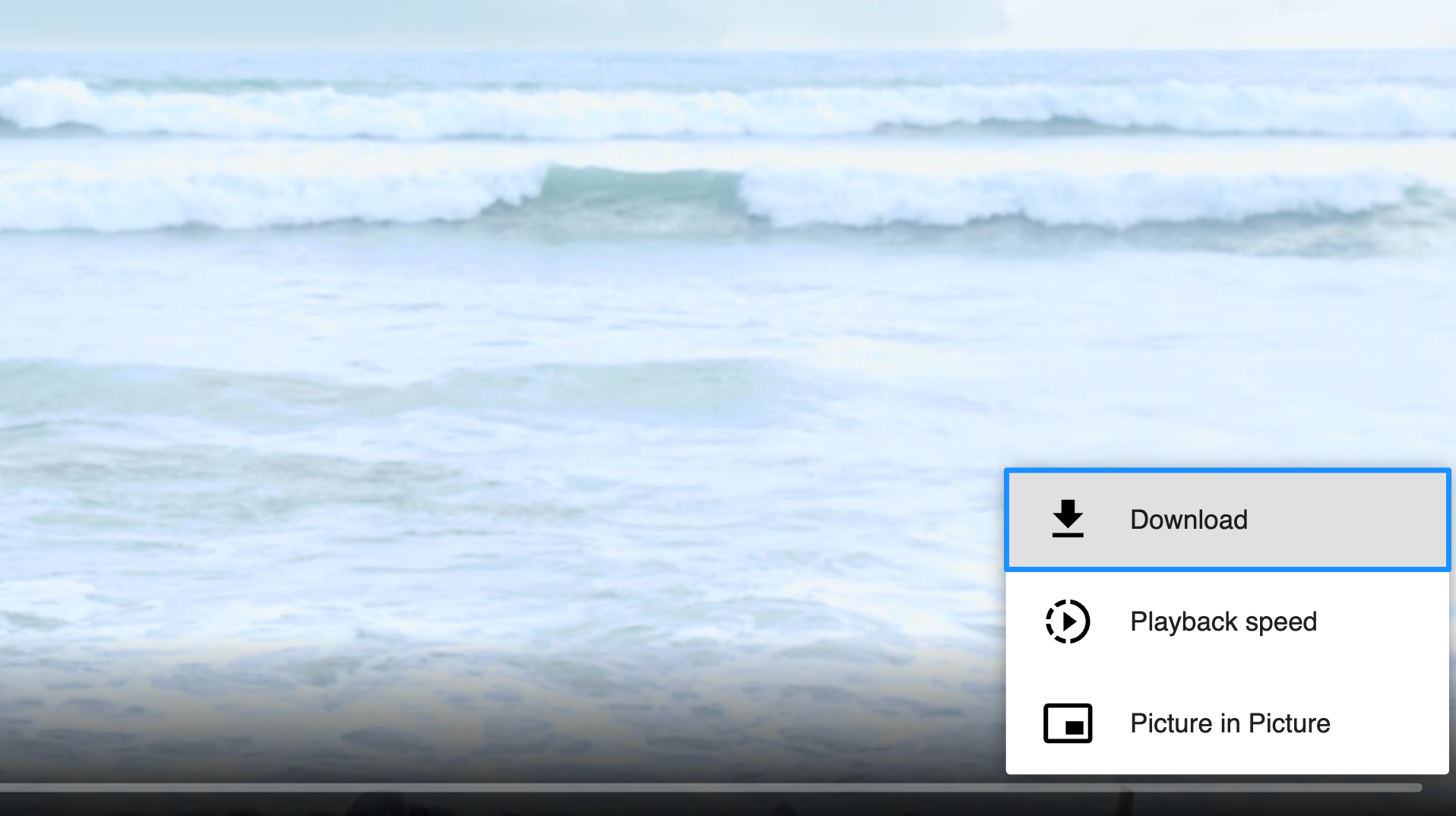
- Click the menu icon in the bottom right corner of the video and select Download to download it to your hard drive
Download video from a Landing Page or Website Page
Download videos from Landing Pages or Website Pages on your site to store on your computer or hard drive:- Open the Website tab from your Dashboard
- Select either Landing Pages or Website Pages
- Click the title of the Page containing the video you wish to download
- Select the Section containing the Video Block and click Edit
- Click Video Actions in the sidebar editor
- Select Download Video
- After selecting Download Video your web browser will open a tab containing your video
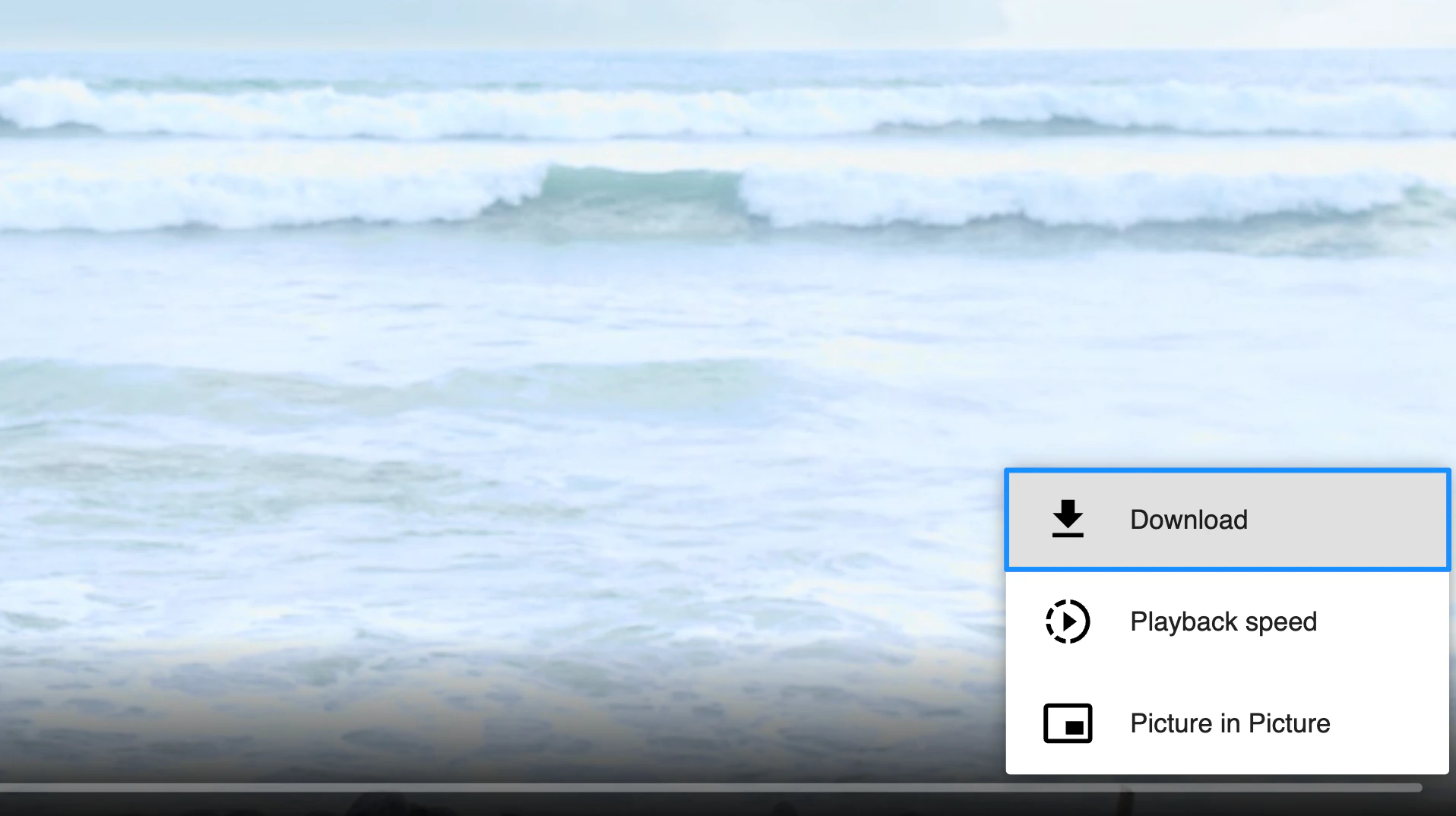
- Click the menu icon in the bottom right corner of the video and select Download to download to your hard drive: