

Add a navigation menu
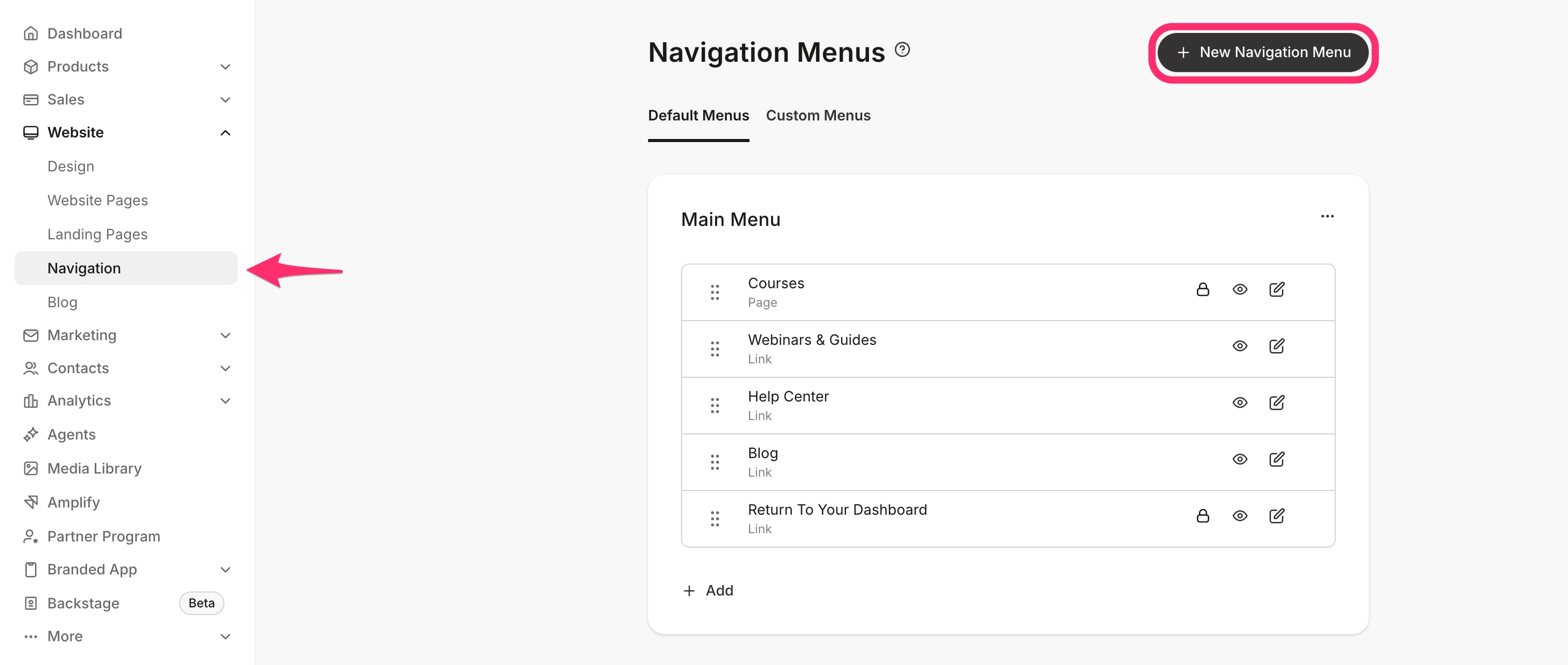
- From the Dashboard, click Website.
- Click the Navigation tab.
- Click + New Navigation Menu in the top-right corner.
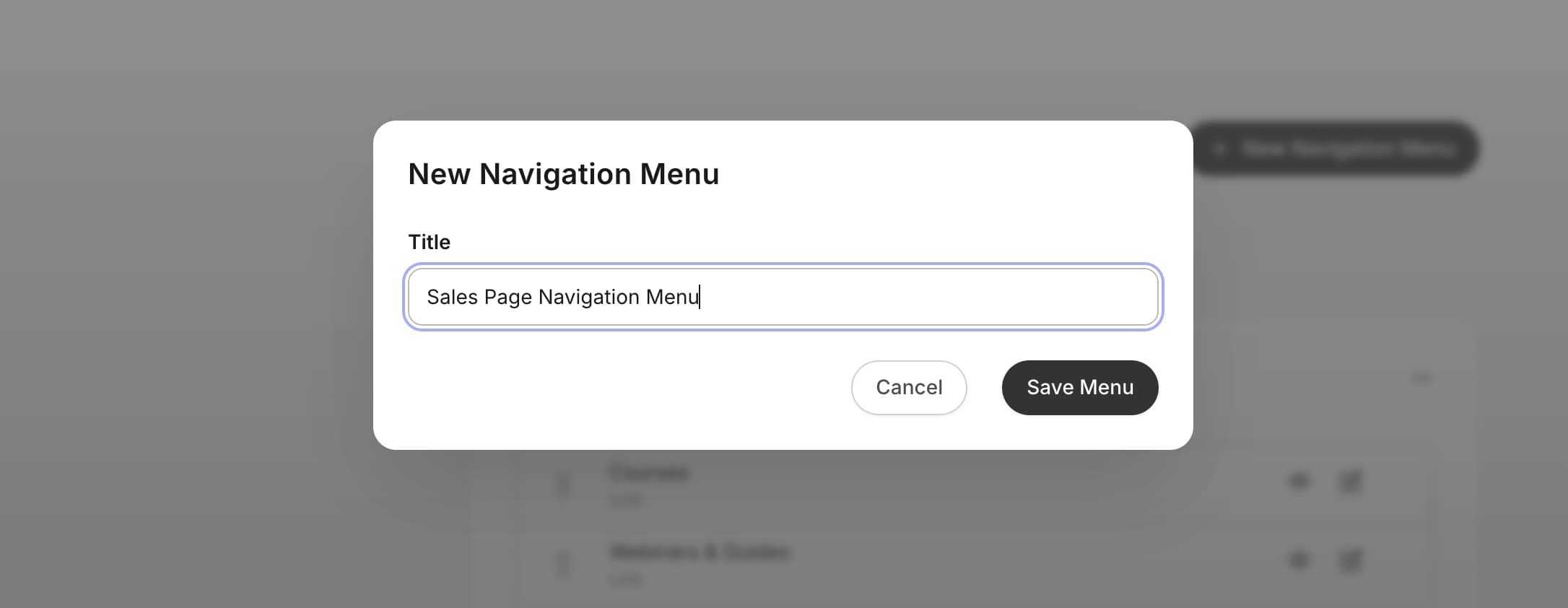
- Enter a Name for your navigation menu. This is only visible internally and will not be displayed to site visitors or customers.
- Click Save Menu to create.
Note: Navigation items inherit their font size and color from your page’s Style Guide settings. To change how navigation items look, update the Fonts and Font Colors settings in your Style Guide. Learn how to customize your Style Guide.
Add links to existing navigation menus
Before adding a link, copy the URL or note the name of the page, product lesson, or module you want to add.Add a link
- Select the menu in which you would like to add a link, then click Add.
- Select your desired link type:
- Add Product: Add a link to a Module or Lesson.
- Add Page: Add a link to any of your landing pages on Kajabi.
- Add Link: Add a link to a site outside of Kajabi.
Note: Navigation link names have a maximum length of 50 characters. If you add a custom URL link, the URL must begin with
http://, https://, or /.Edit navigation menu
Edit a navigation link
- Click the edit icon on the link you would like to edit.
- Update the Title, the Path/URL, or Visibility Settings as needed, or click Delete the Link to remove it.
- Click Save to apply your changes.
Rearrange links in a navigation menu
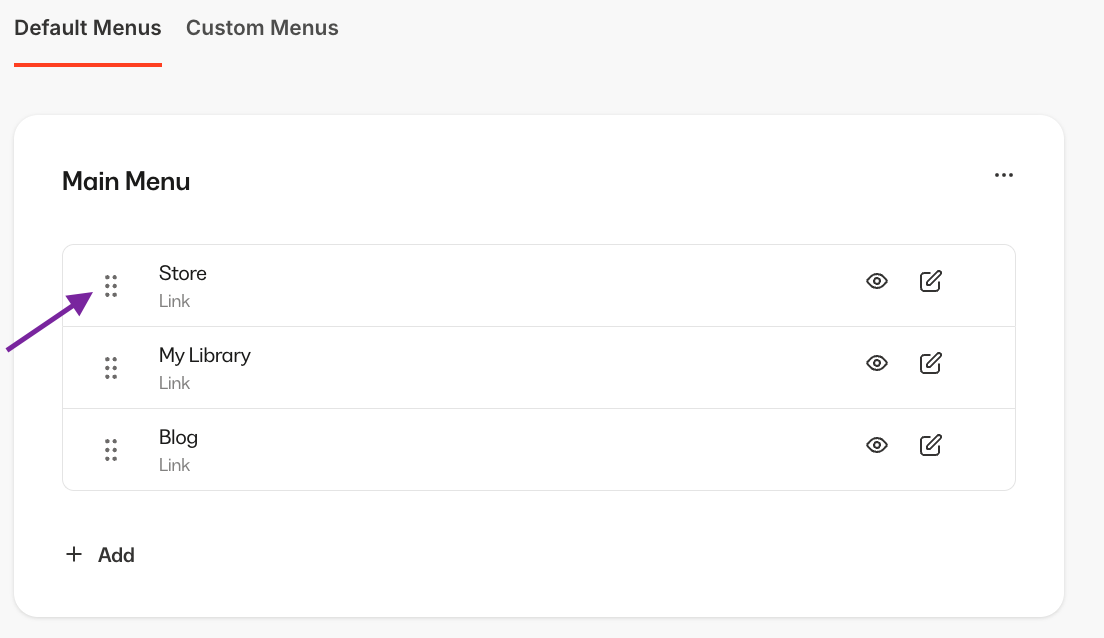
- Hover over the drag handle to the left of the link you want to move.
- Click and drag the link to your desired position.
Note: Dragging a link below another link in the Navigation tab does not create a submenu or dropdown. To nest a page as a submenu item under a main navigation link, you need to set up a dropdown menu in the Theme Editor. Learn how to add a dropdown menu to your header.